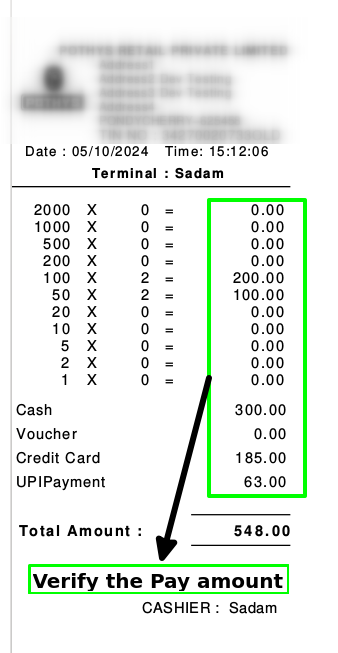
How to create a POS Denomination in Adempiere Retail
The value or face amount of a currency note or coin.After the sales, Cashier enters the payment amount which is received in sales in denomination.
User Access
Who Can Accss
- Cashier
What User Can Do
- Select Denominations
- Count and Enter Denomination Quantities
- Verify Cash Amounts
- Use Denominations for Cash Payments
- Generate Cash Reports
Pre-Requisite Activities
- Access to Cash Handling Module
- Availability of Currency Notes and Coins
- System Configured with Valid Denominations
Business Rules
- Valid Denominations Only
- Mandatory Denomination Entry (Where Required)
- No Negative or Invalid Quantities
- User Access Control
- Denominations Required for Certain Operations
- System Validation Enabled
User Interface
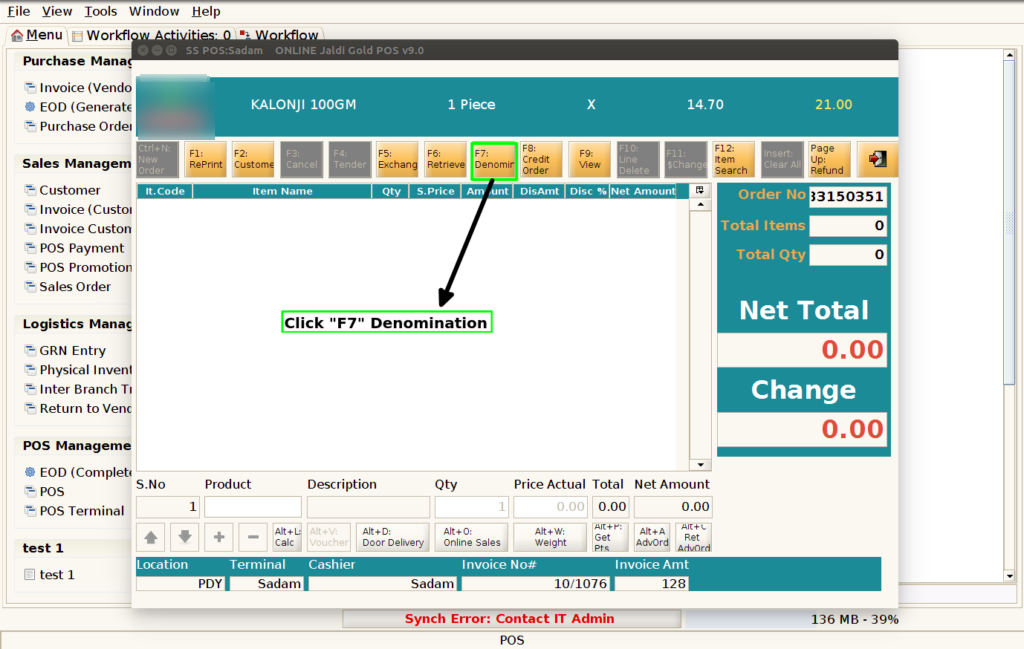
Step 1 : Click F7 Denomination button to enter the denomination and take the denomination print.
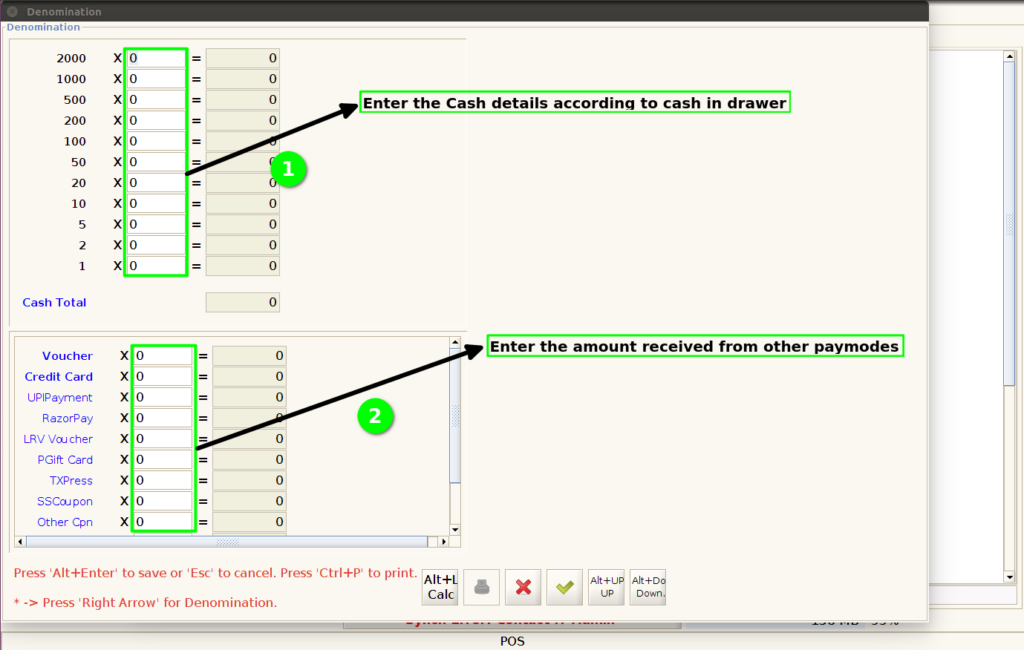
Step 2 : Enter the cash details according to the currency value and Enter the other paymode amounts fully according to the paymodes.
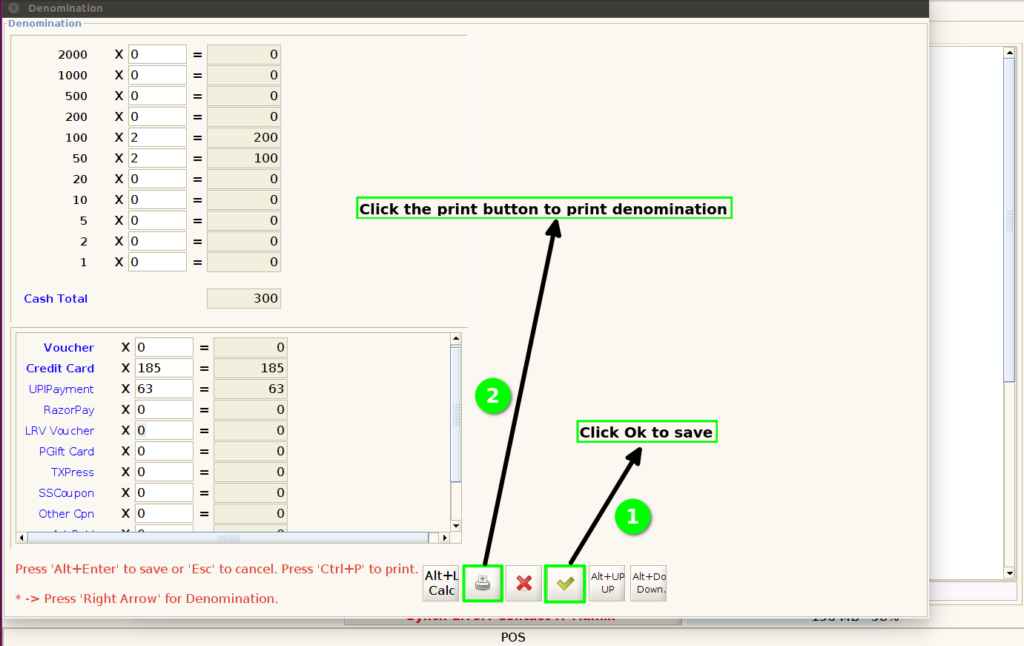
Step 3 : After enter the values then click the OK button and Click print button to take the denomination print.
Step 4 : Check the values in denomination print.