How to create a new user in ADempiere Retail
Create User refers to the process of adding a new individual into the system with login credentials and assigned access rights. This ensures that only authorized personnel can perform actions based on their role (e.g., Admin, Sales, Purchase, Inventory)..
User Access
Who Can Access
- Admin
- Cashier
- Manager
- Back office
What User Can Do
- Add a new user with username, password, and role
- Assign module-level access (e.g., Sales, Purchase, Reports)
- Set branch-wise access
- Enable or disable user account
Pre-Requisite Activities
- Create role and permission templates (Admin, Finance, Store)
- Finalize branch and department structures
- Define password security policies
- Get approval for access rights from authorized authority
- Ensure employee records are created (if linked)
BUSINESS RULES
- Username must be unique and cannot be reused
- Only authorized admins can create or deactivate users
- Users must change password on first login (if enforced)
- Access permissions should follow role-based control
- Locked or inactive users should not be allowed to log in
- All user activity should be auditable (login logs, changes)
USER INTERFACE
Step 1 : Select ‘USER’ in Menu -> Administration > General rules > security > USER or Search USER in Lookup.

USER TAB
Step 2 : To create new User.
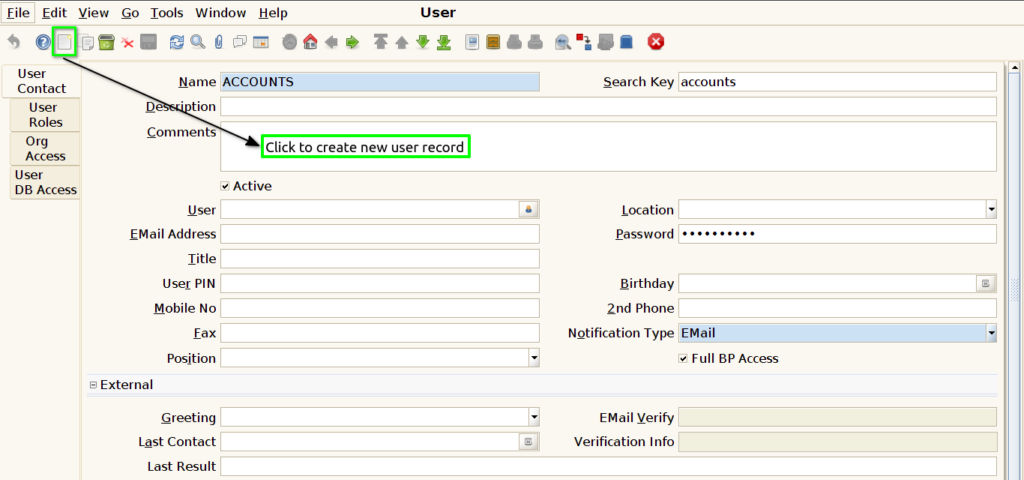
Step 3 : Enter USER name and password by following steps.
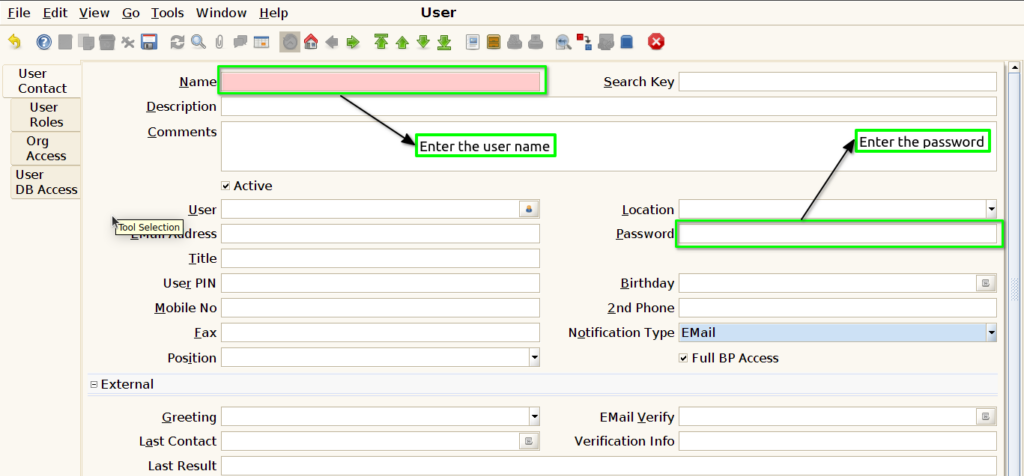
Step 4 : Enter more of user details and Save the user details.

USER ROLES TAB
Step 5 : Click to open user roles tab.
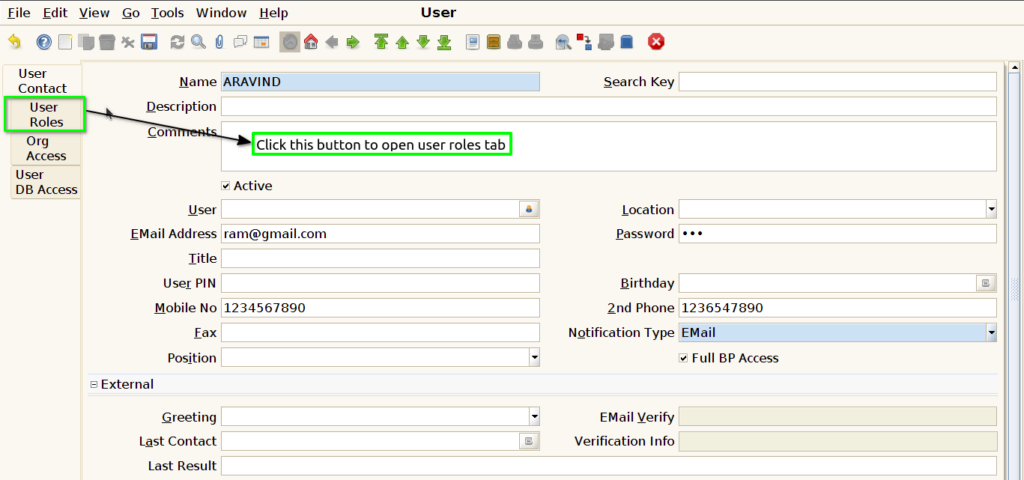
Step 6 : Click this new record button to open new user role screen.
Step 7 : Select or enter the user role and save the record to given the role access on this user.