How to view Bill No Count Report in Adempiere Report
It’s a report that counts how many sales bills your business created during a specific time.
User Access
Who Can Access
- Admin
- Back Office
- Purchase Manager
- Manager
What User Can Do
- Track Number of Sales Transactions
- Reconcile Sales Records
- Support Audits and Reporting
Pre-Requisite Activities
- Use a Billing or POS System
- Ensure Accurate Bill Numbering
- Reporting Period
- Record All Sales Transactions
Business Rules
- Each Bill Must Have a Unique Number
- Include Only Completed Sales
- Reporting Period
- Bill Numbers Must Be Recorded Correctly
User Interface
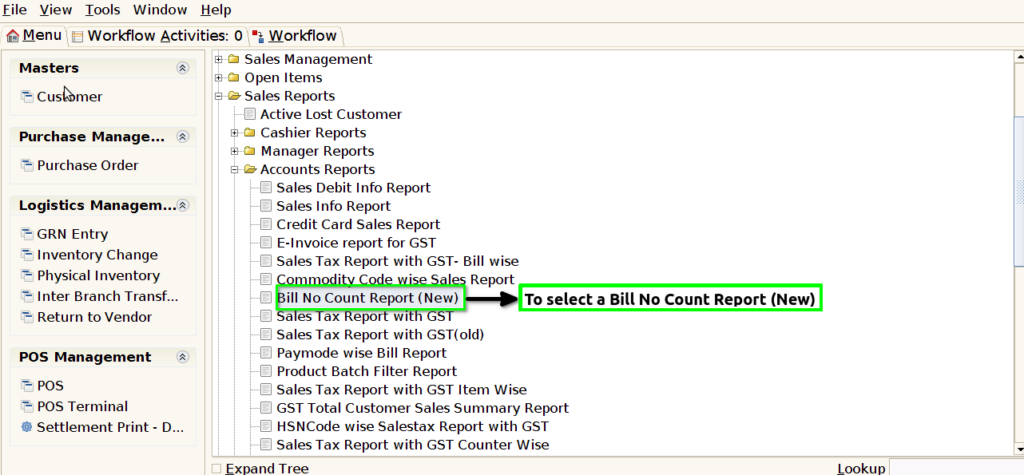
STEP 1: To select a Bill No Count Report(New).
STEP 2: To enter a Date Range in this field is mandatory.And to click the start check box to run the process.

STEP 3: Once to complete the process to show the report based on the given data.

STEP 4:Terminal- typically refers to a text-based interface for interacting with a system, often used for command-line operations. It could also refer to a physical device or system through which a user accesses a network, database, or other information systems.
Start No-The starting bill number in the range.
End No-The ending bill number in the range.
Total bill count-generally refers to the total number of individual bills, invoices, or charges within a specific context.
Online count– generally refers to the number of users, participants, or items that are active or available on an online platform at a given time.
Offline count-can have a few different meanings depending on the context. In the context of networking or digital services.
Cancel count-can refer to a few different things depending on the context.In business or customer service.