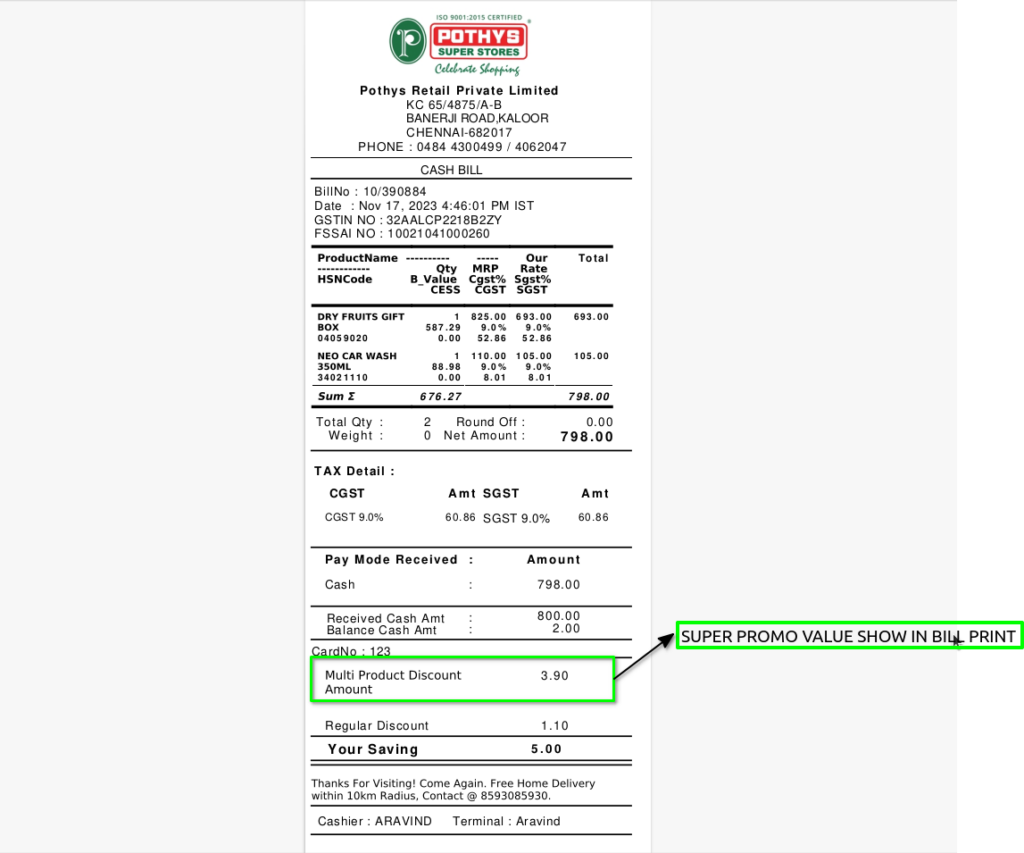
TO CREATE A APPLY BILL WISE BY SLAB PROMOTION BASED ON MULTI PRODUCT PROMO (SUPER PROMO)
Apply Bill-wise by Slab Promotion Based on Multi Product Promo (Super Promo) means giving discounts or offers on the whole bill based on different bill amount ranges (slabs), where each slab has special deals involving multiple products together as a “super” promotion.
USER ACCESS
WHO CAN ACCESS
- Cashier
- Purchase
- Manager
- Admin
WHAT USER CAN DO
- Define bill amount slabs
- Assign multi-product promotional offers
- Activate the super promo
- Apply the promotion automatically during billing
- Review the applied multi-product promotions
PRE-REQUISITE ACTIVITIES
- Define Promotion Slabs
- Create Multi-Product Promotions
- Set Validity Period and Locations
- Link Promotions to Slabs
- Check Inventory for Promo Products
BUSINESS RULES
- Promotion Applies Based on Total Bill Amount
- Multi-Product Promo Is Fixed per Slab
- Only One Slab Promotion per Bill
- Promotion Valid Only During Specified Period
USER INTERFACE
Step 1 : Select ‘POS Promotion’ in Menu -> Sales Management -> POS Promotion or Search POS Promotion in Lookup.
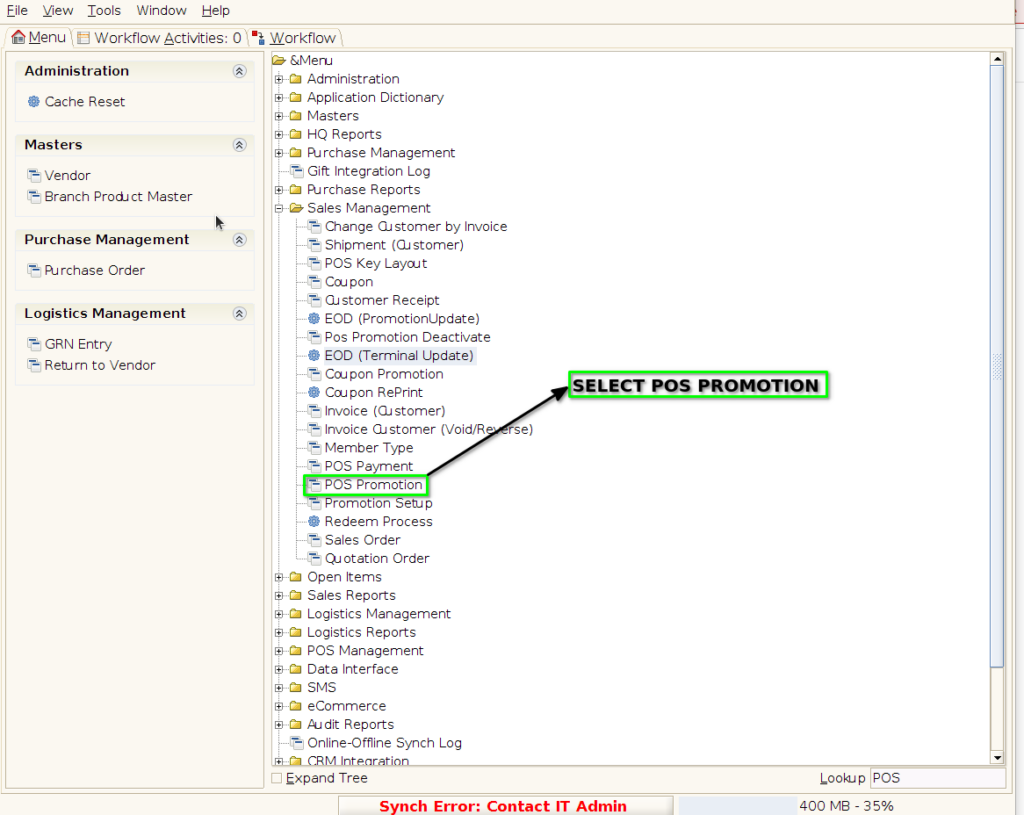
PROMOTION TAB
Step 2 : To create new promotion Document
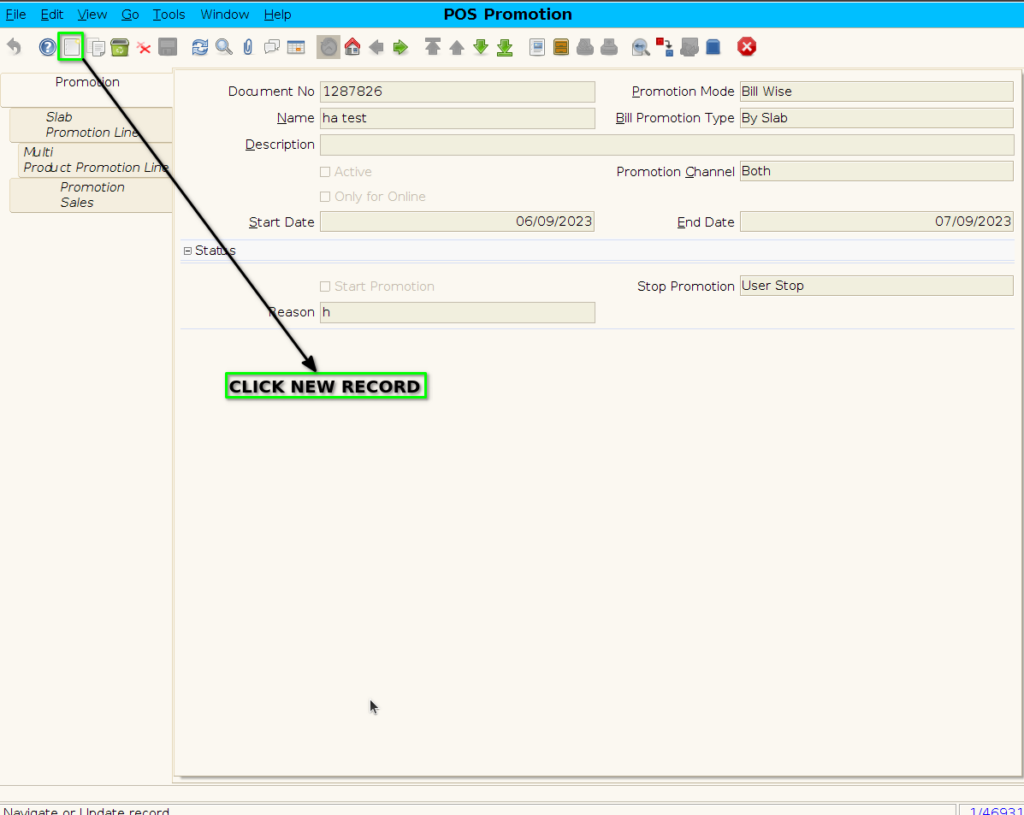
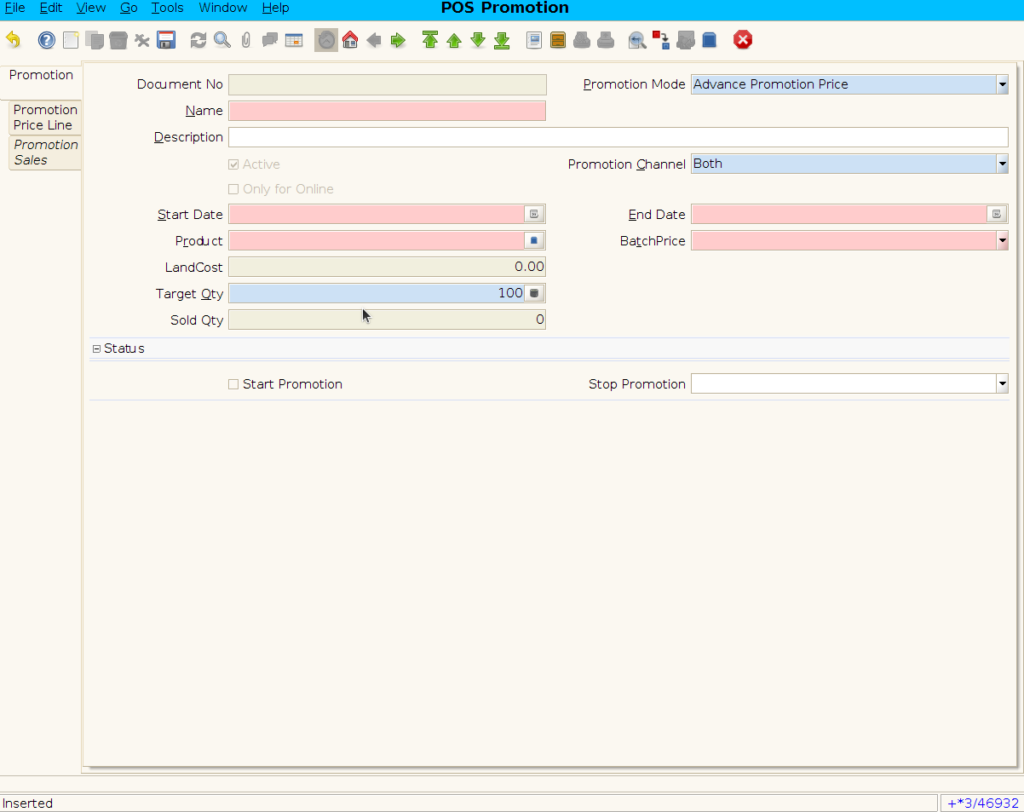
Step 3 : Enter Promotion details by following steps
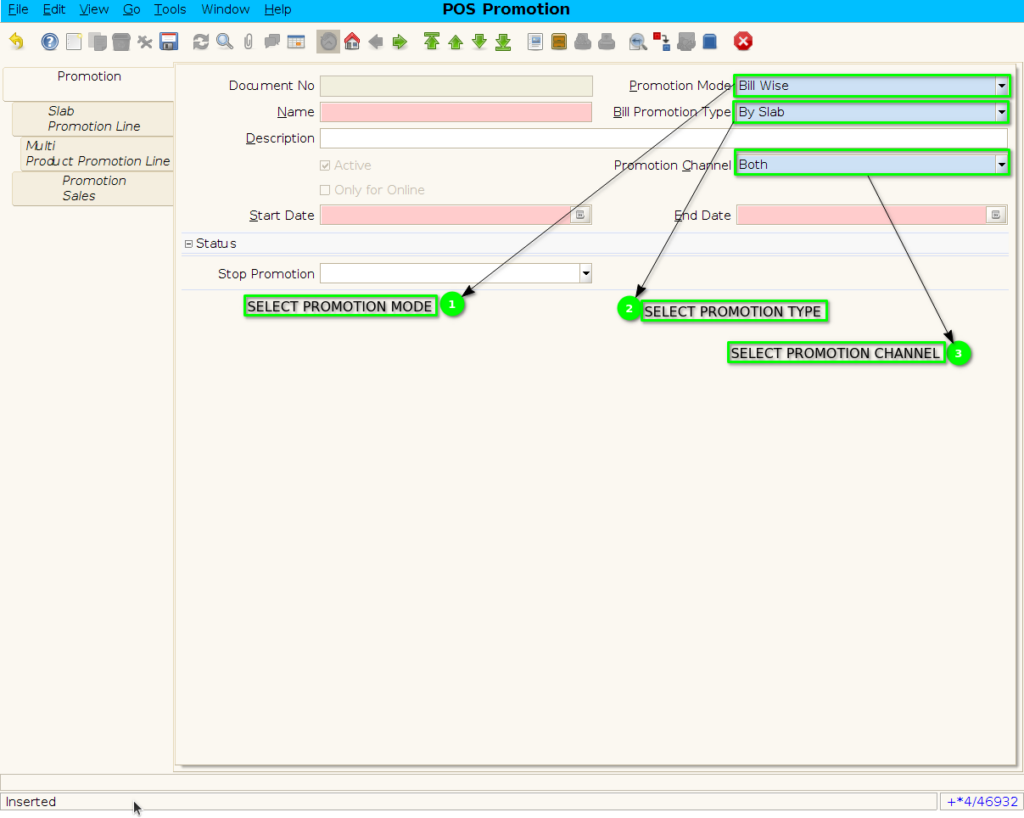
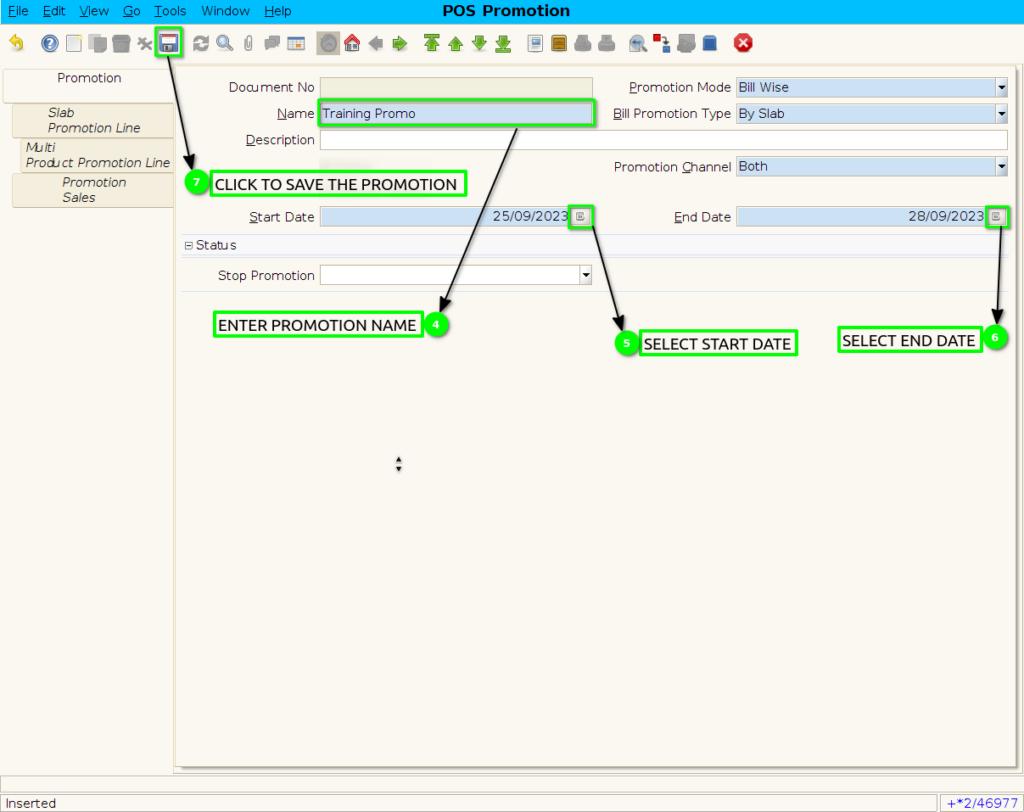
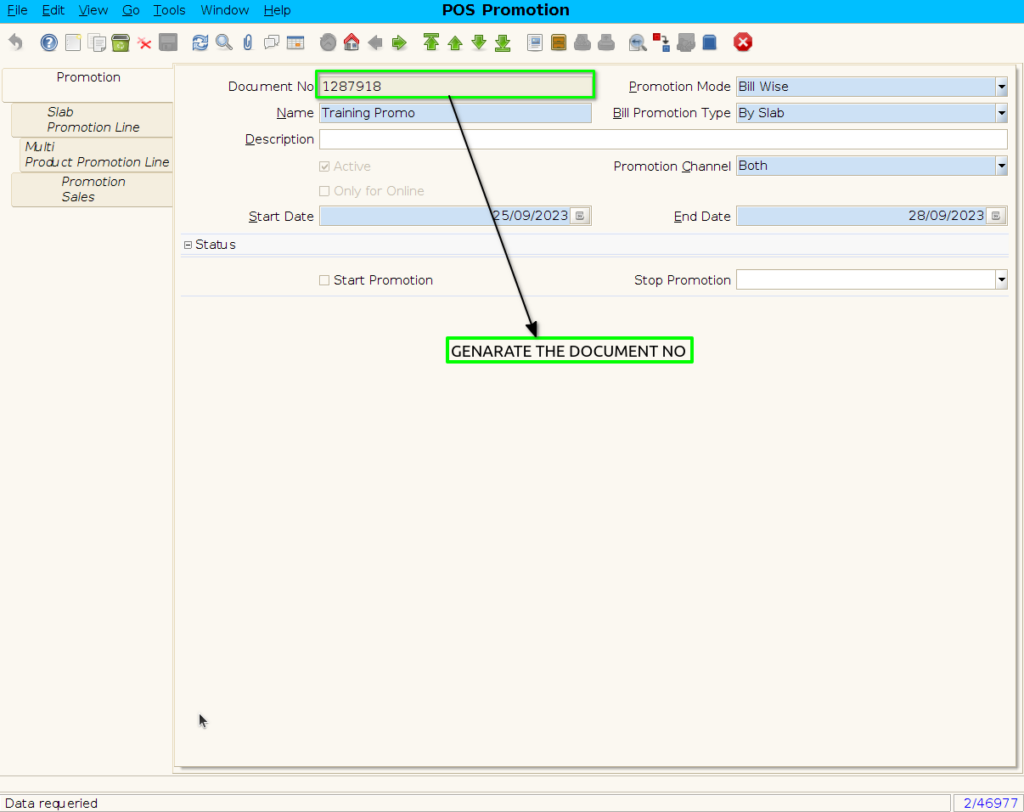
SLAB PROMOTION LINE TAB
Step 4 : Click to slab promotion line
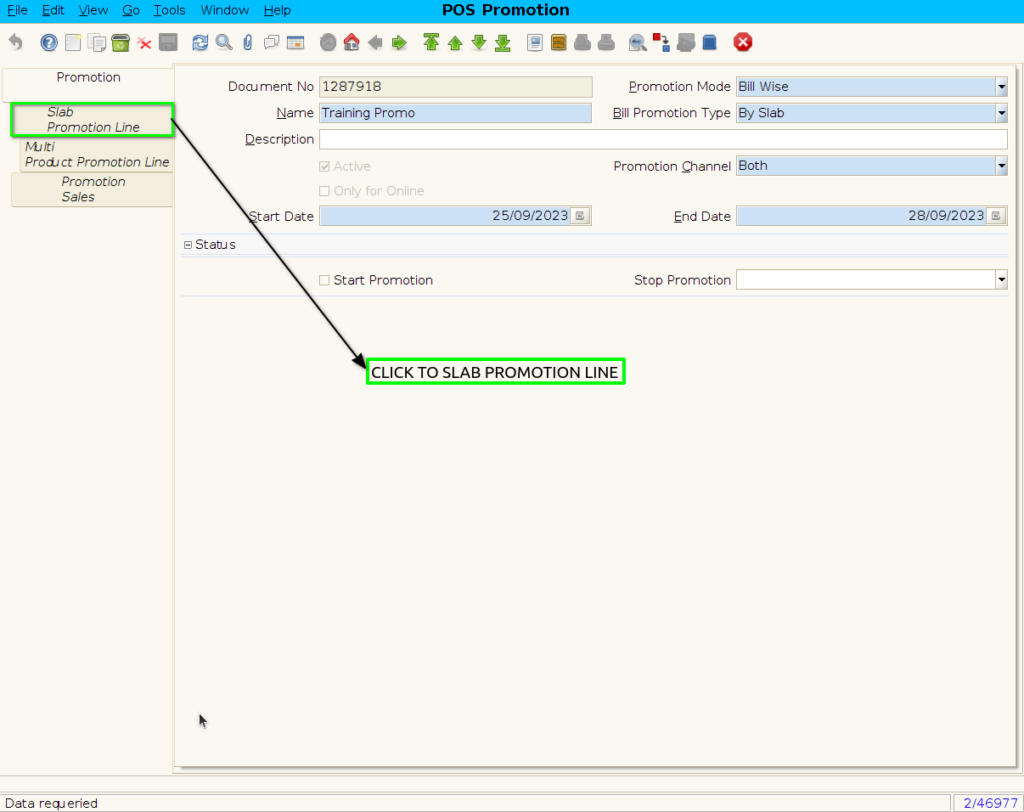
Step 5: To create new Slab Promotion line

Step 6 : To create Multi product Promotion By following steps
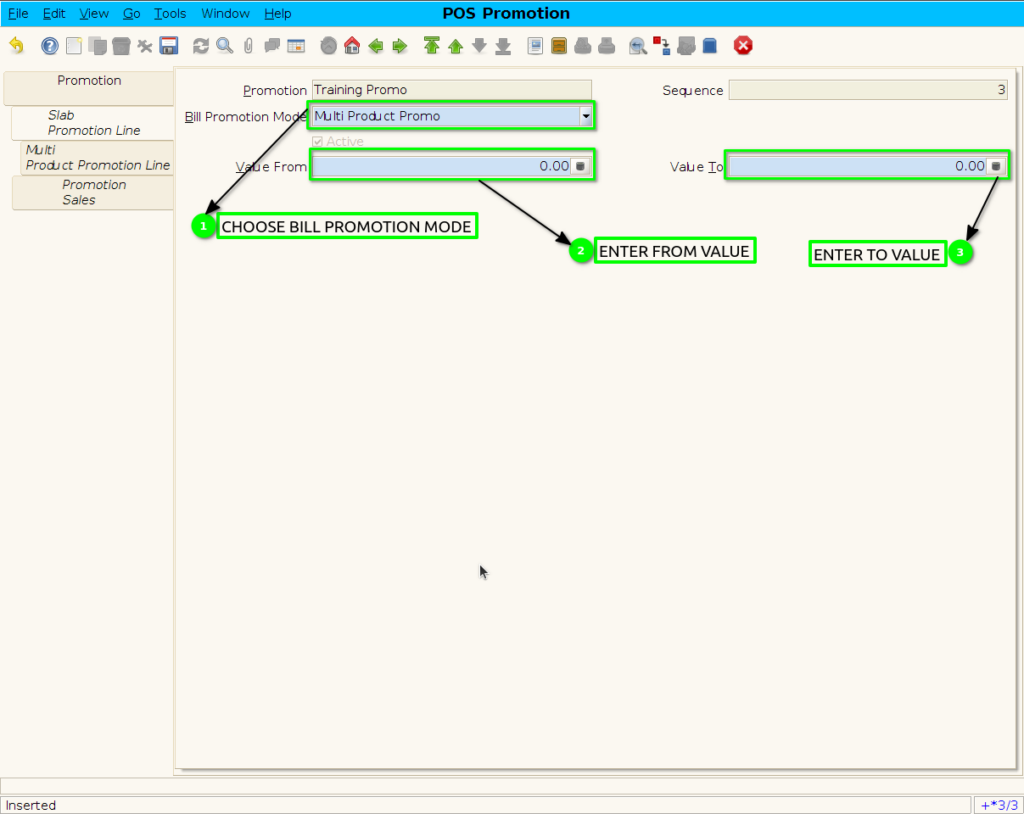
Step 7 : To save the Multi product promotion
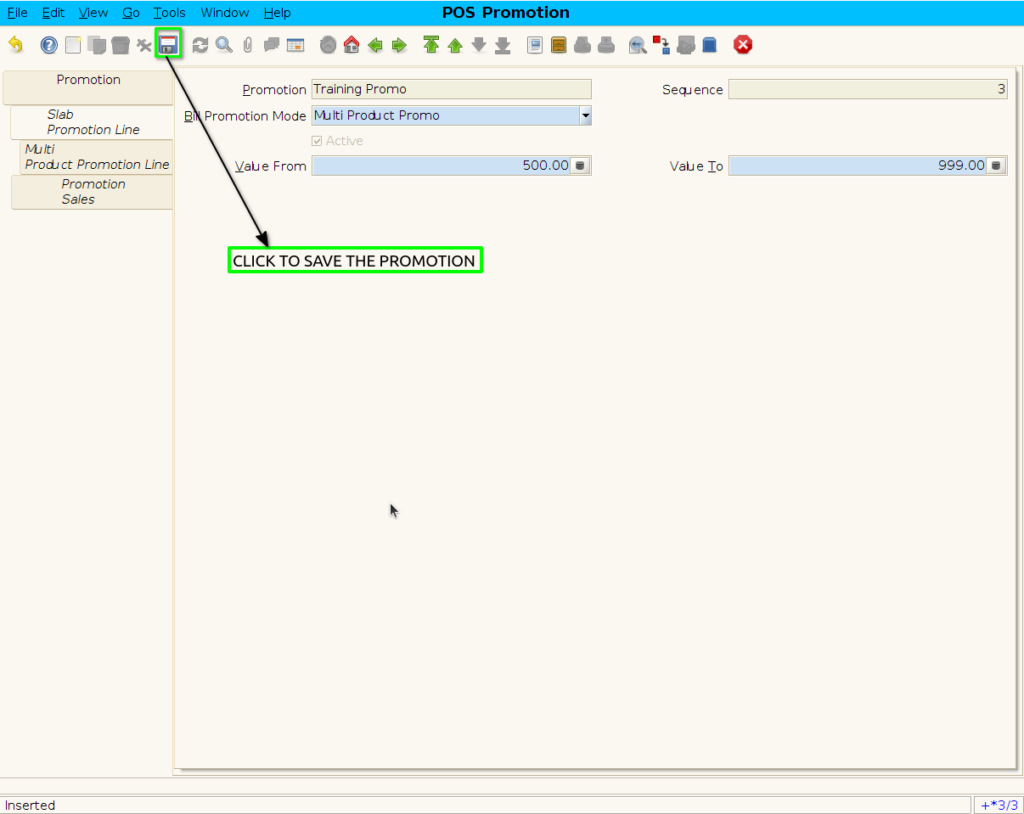
Step 8 : Add free product in multi product promotion line
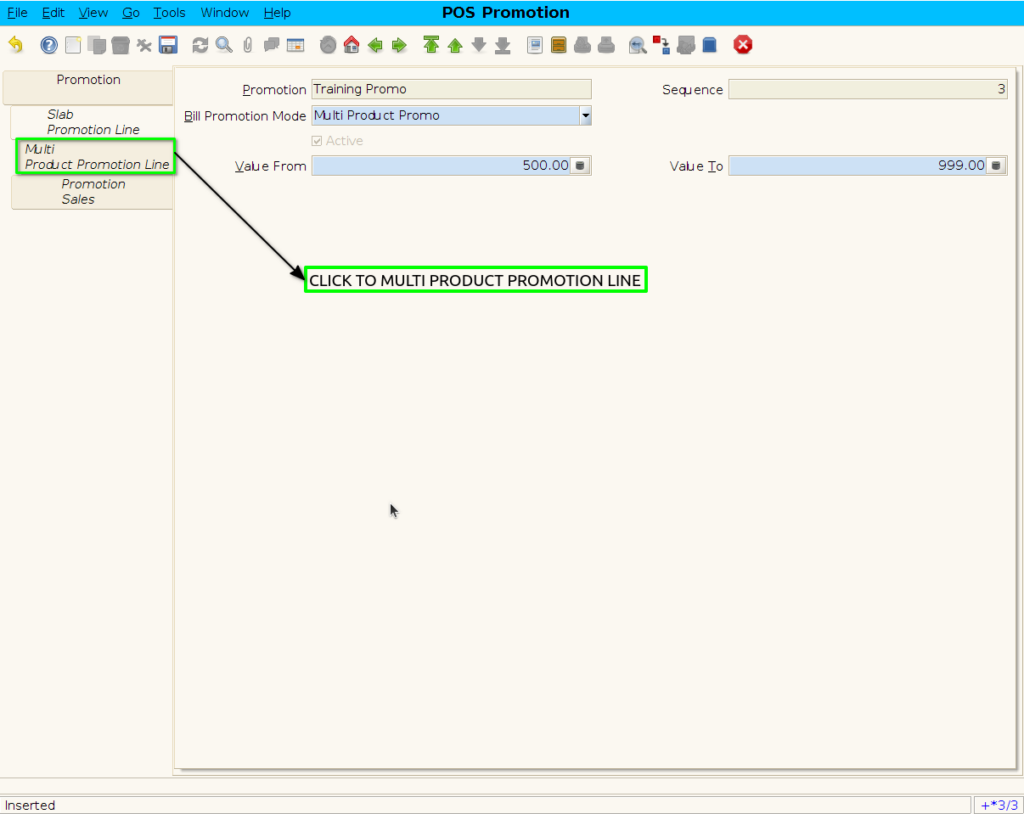
Step 9 : Create new line to add the free product By following steps
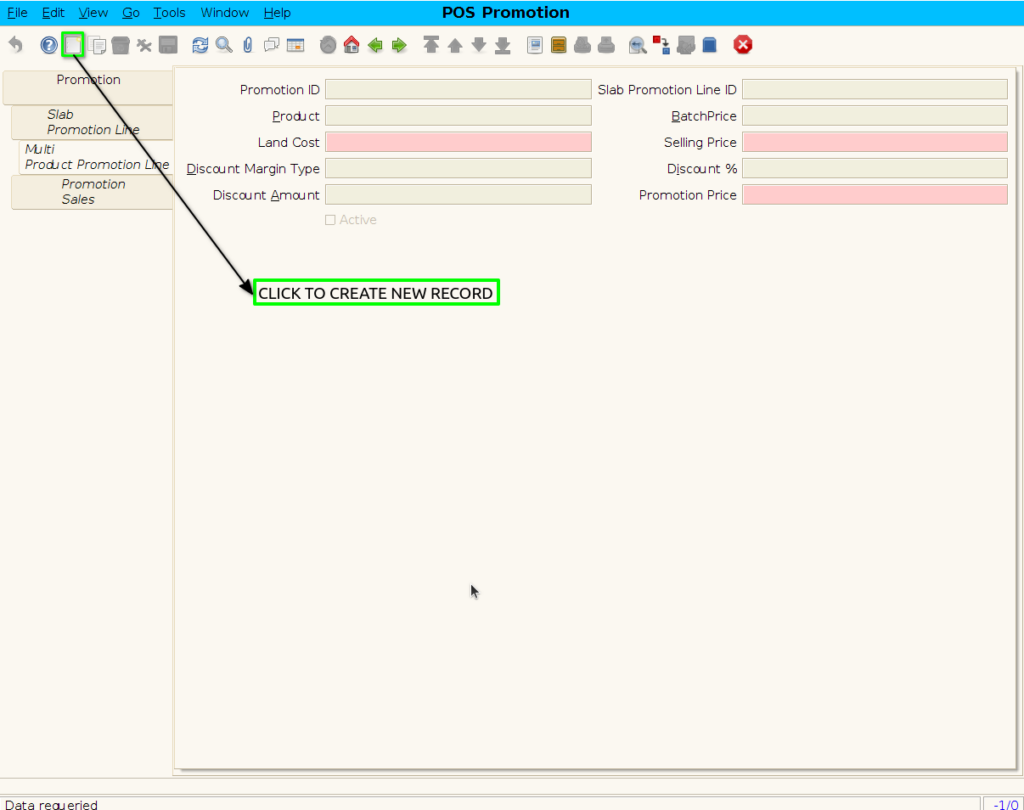
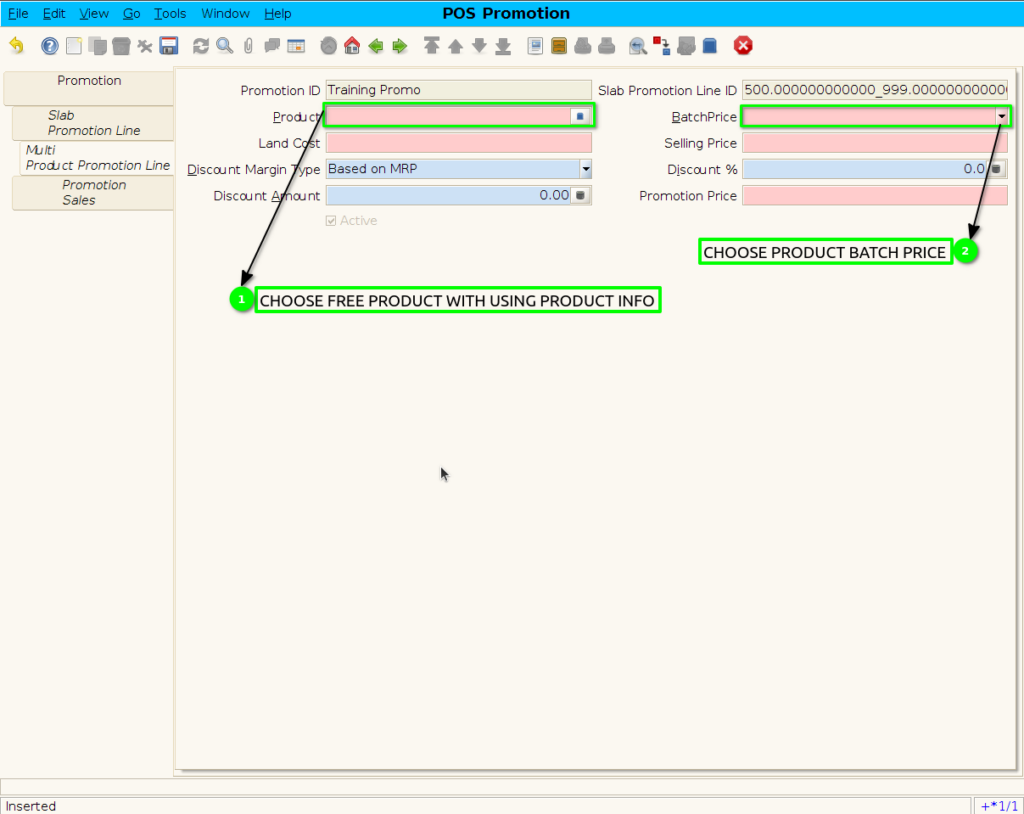
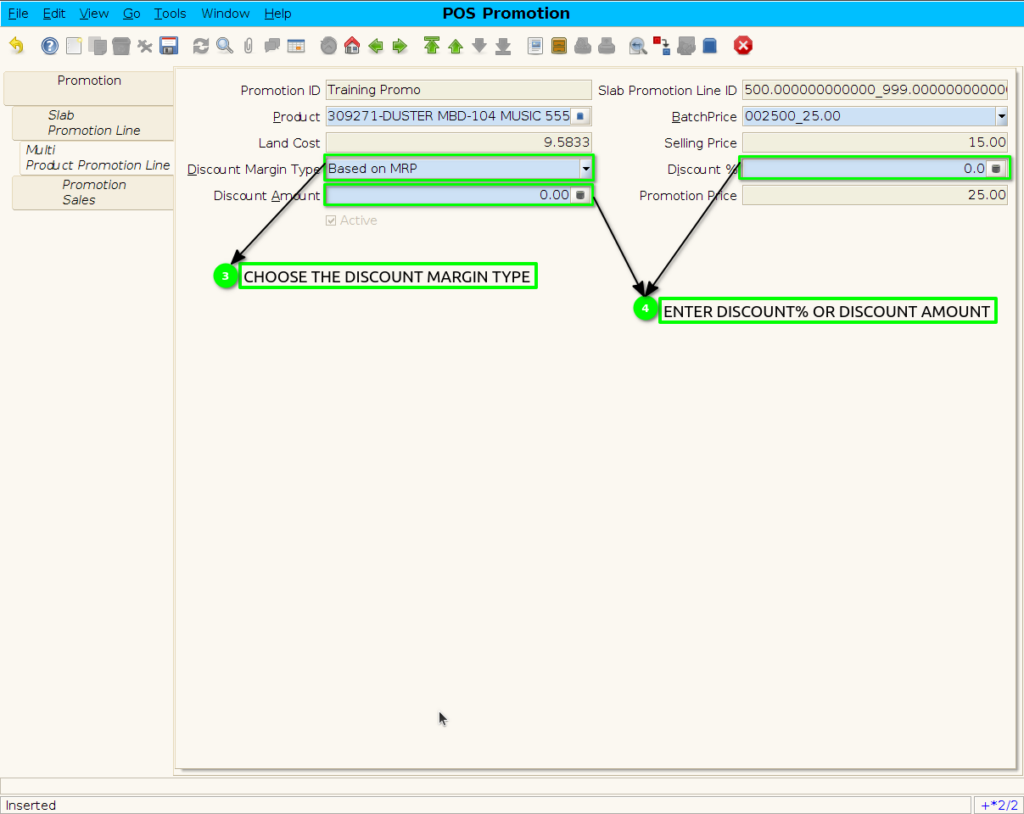
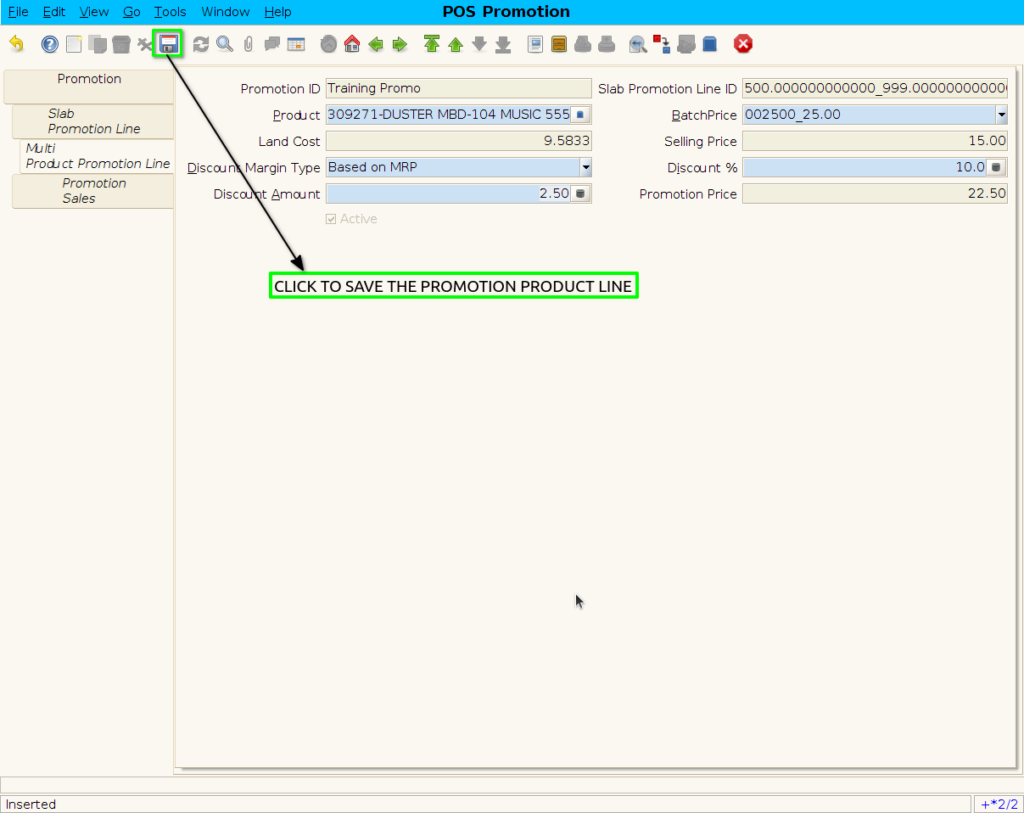
Step 10 : To save the promotion Product
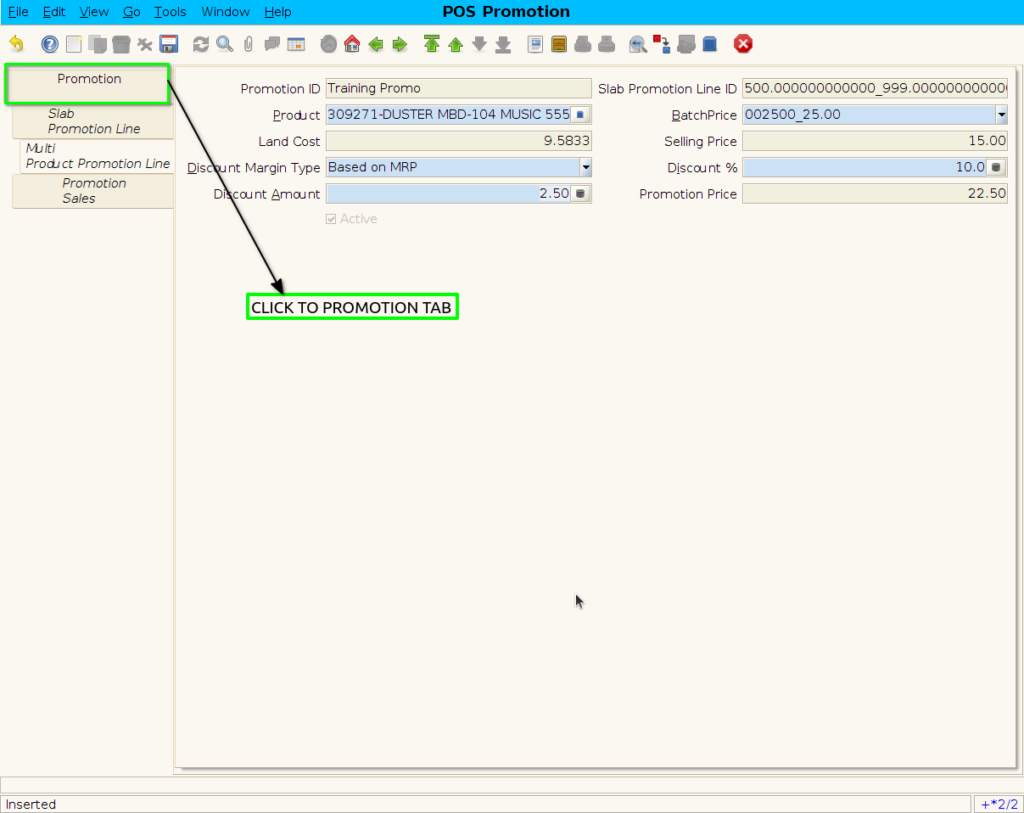
Step 11 : Click to promotion header
Step 12 : Click checkbox to start the promotion
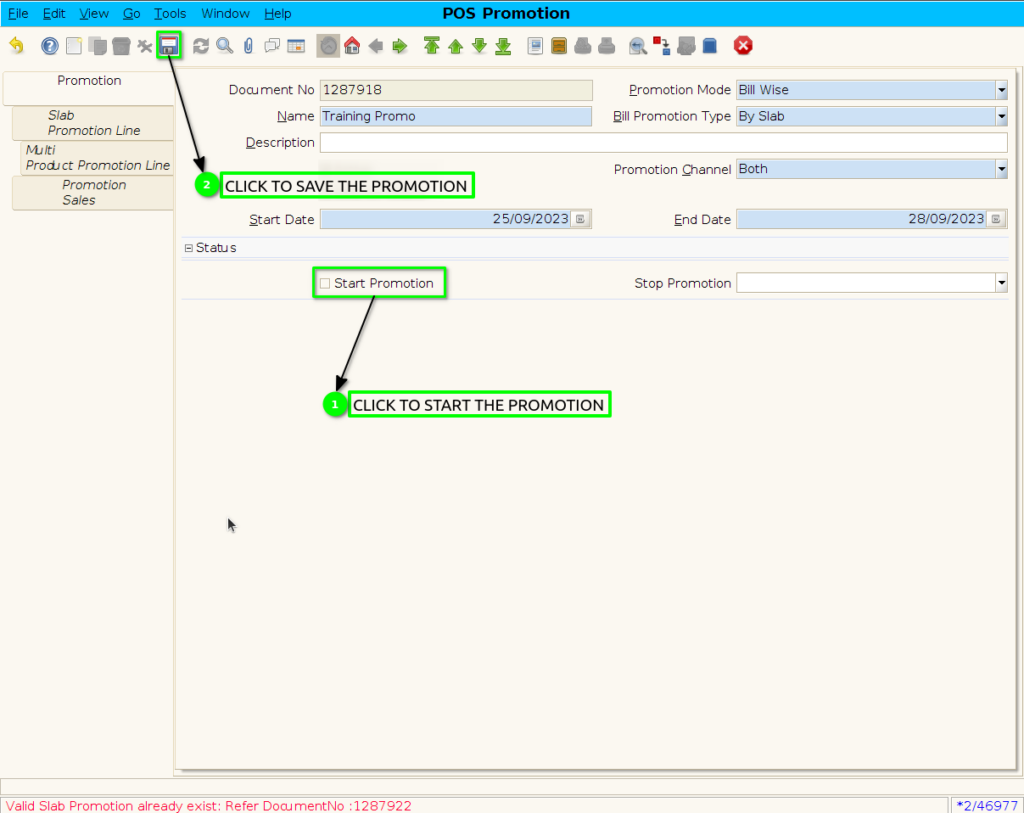
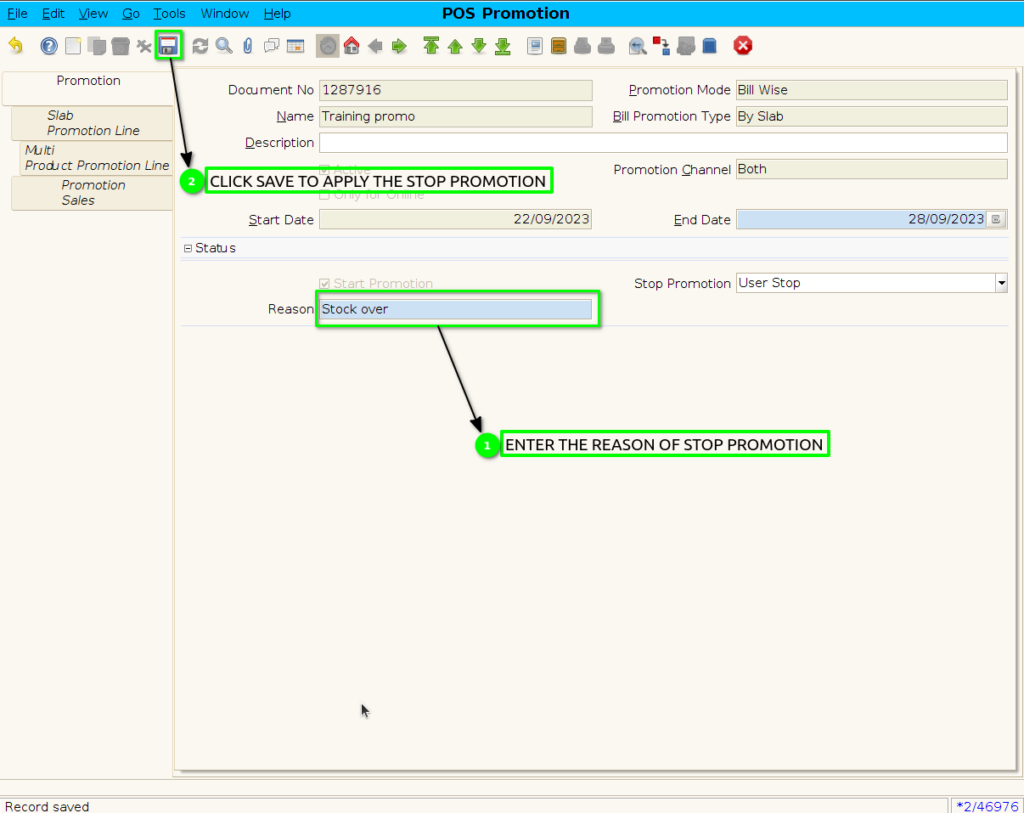
Step 13: When Stop the Promotion.

Step 14: Enter the reason of user stop promotion.
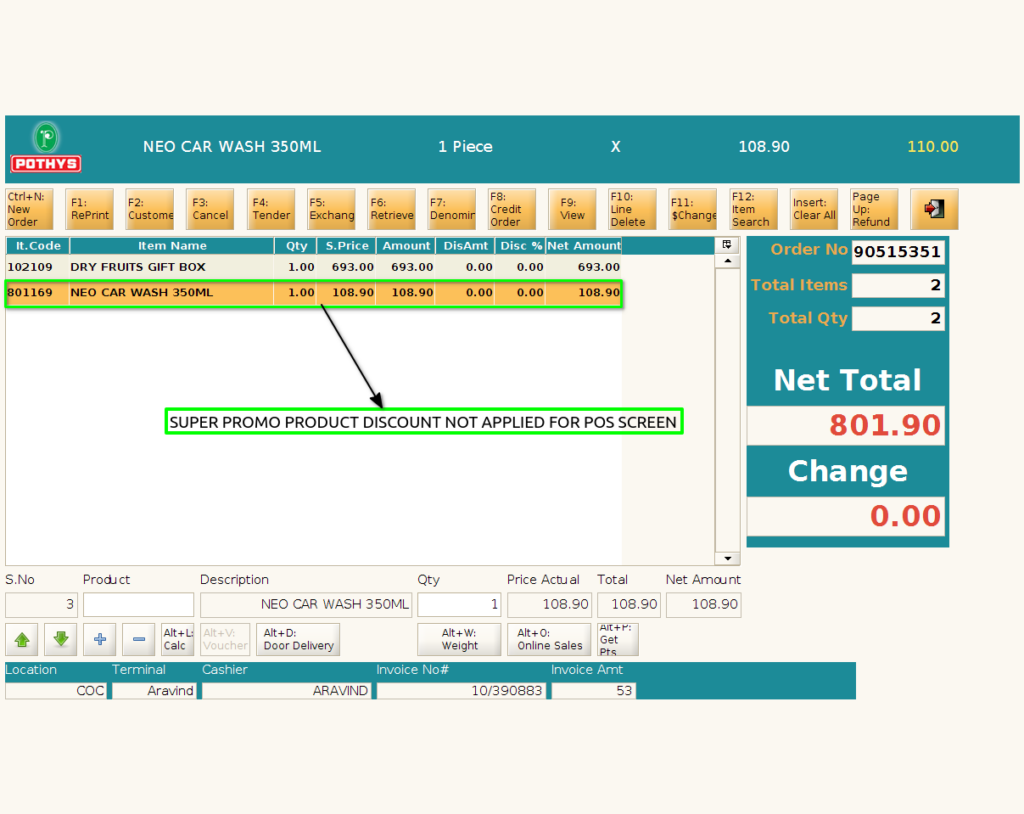
Step 15: Product Scan in POS value upto 500 rupees and next scan super promo product
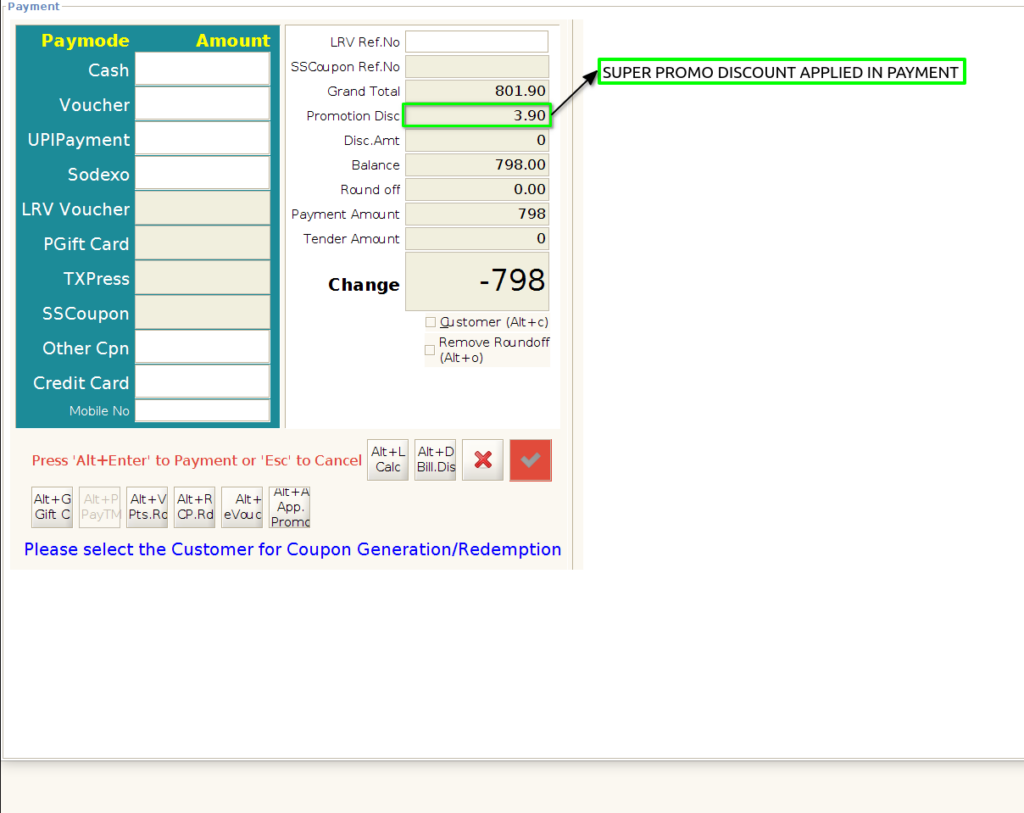
Step 16: Super promotion applied in payment screen
Step 17: Multi Product Discount value (Super Promo) Showing in POS Bill print