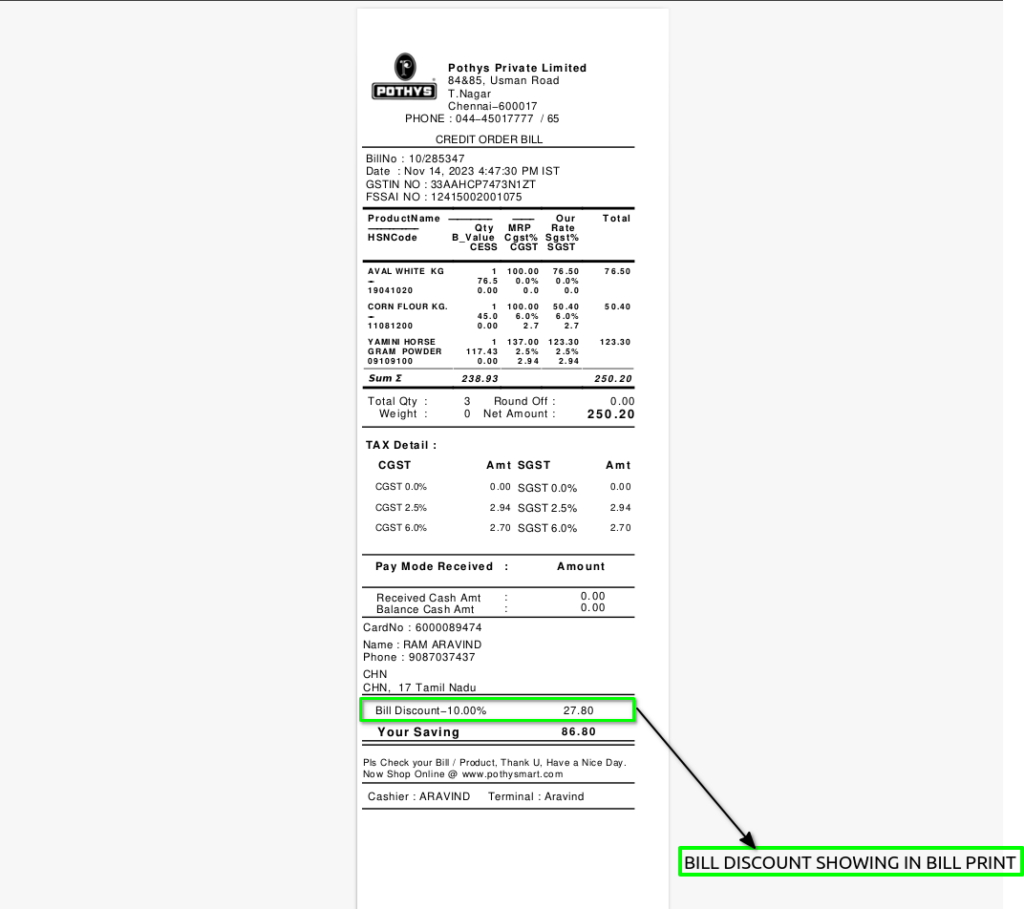
TO CREATE A DISCOUNT APPLIED IN CREDIT BILLS – F8
Discount Applied in Credit Bills – F8 means applying a discount to a customer’s bill when the sale is made on credit, using the F8 key or function in the billing system.
User Access
Who Can Access
- Cashier
- Manager
- Admin
What User Can Do
- Open a credit bill
- Press the F8 key
- Enter the discount value or percentage
- Verify the updated bill total
Pre-Requisite Activities
- User Authorisation
- Configure Discount Settings
- Enable the F8 Function
- Maintain Customer Credit Records
Business Rules
- Only Authorised Users Can Apply Discounts
- Discount Must Follow Company Policy
- F8 Key Is Used for Discount Entry
- Reason for Discount Must Be Recorded
- Cannot Apply Multiple Discounts on the Same Bill (unless allowed)
User Interface
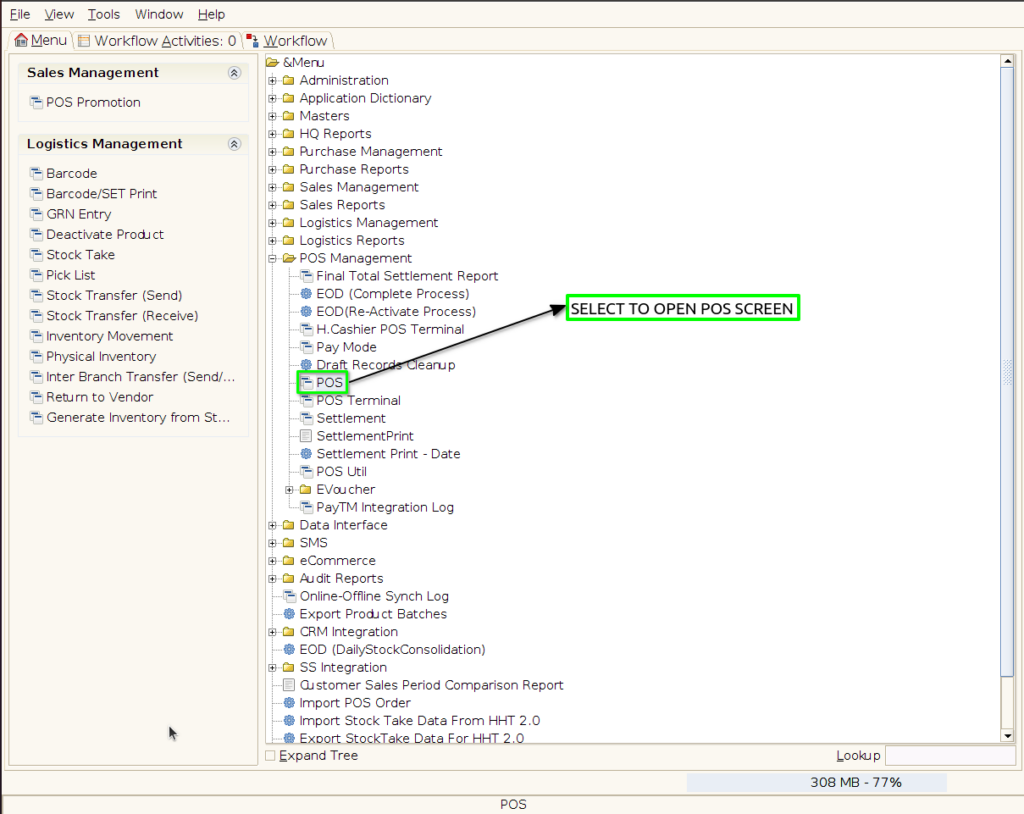
Step 1 : Select ‘POS’ in Menu -> POS Management -> POS or Search POS in Lookup.
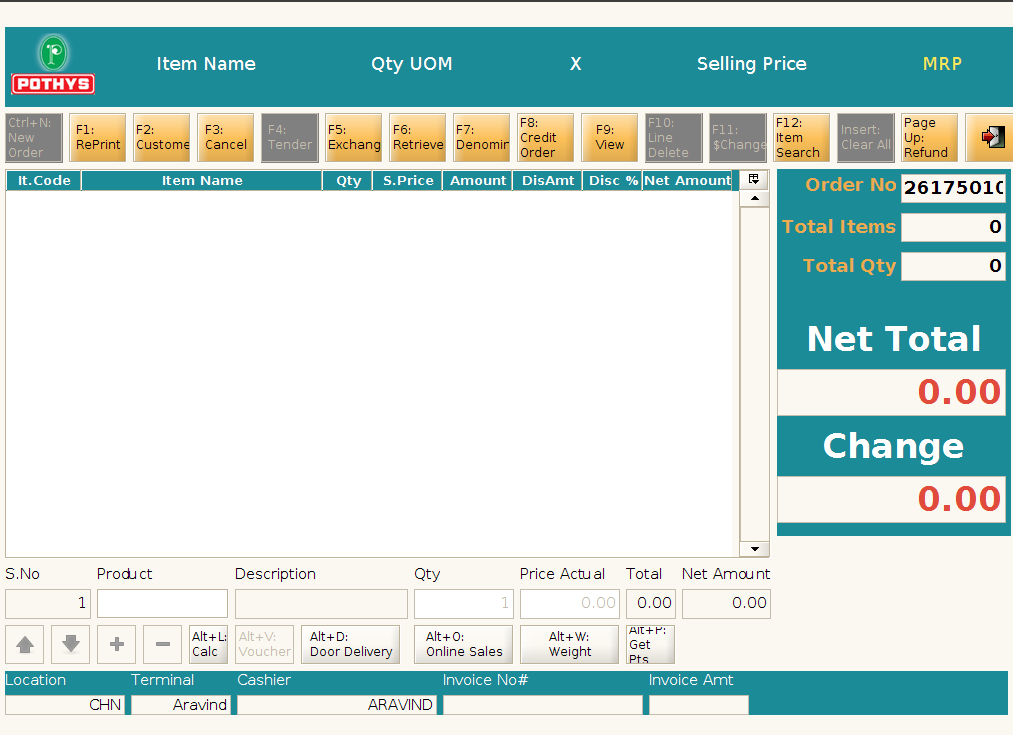
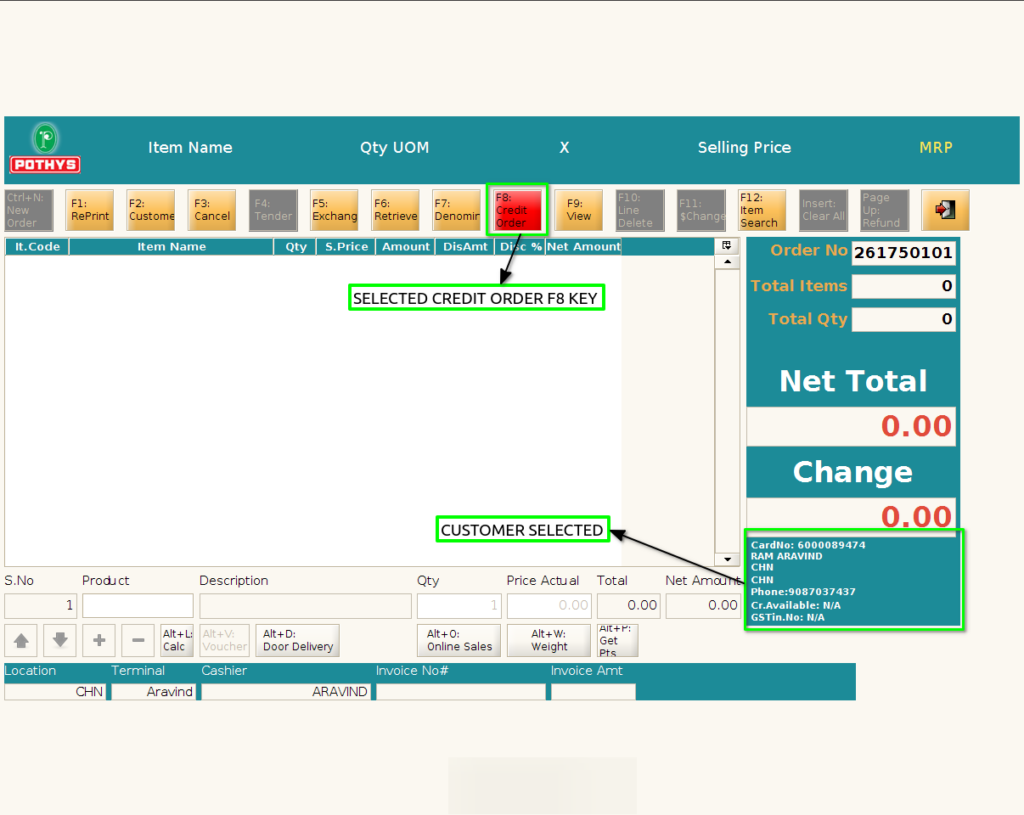
Step 2 : Select Credit Order(F8) option and select the customer (GST customer/Non GST customer)
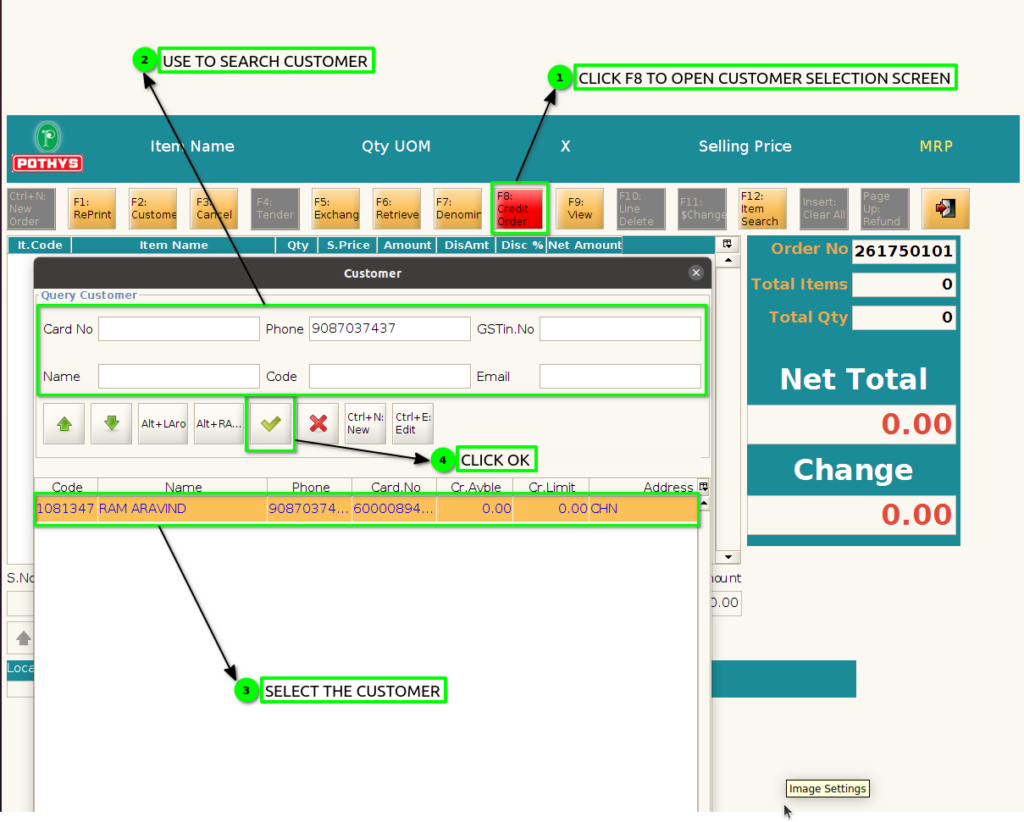
Step 3 : The credit order function key will be highlighted and selected customer details will show
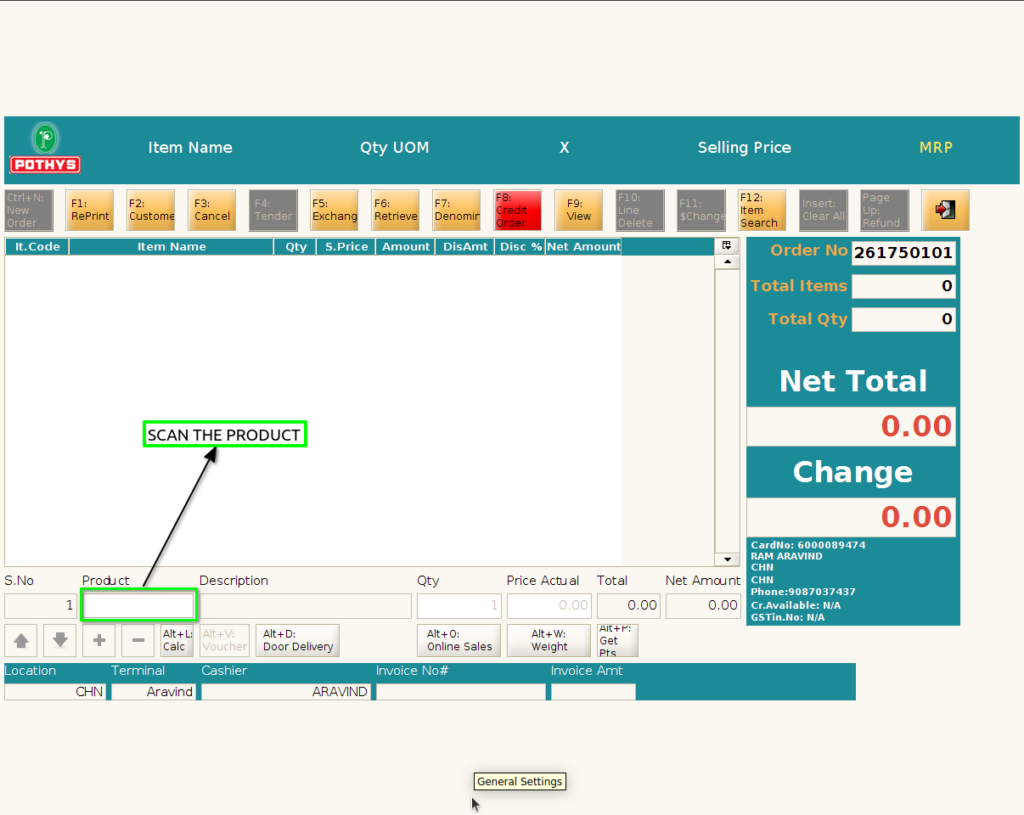
Step 4 : Scan the products and Apply Price change ‘F11’
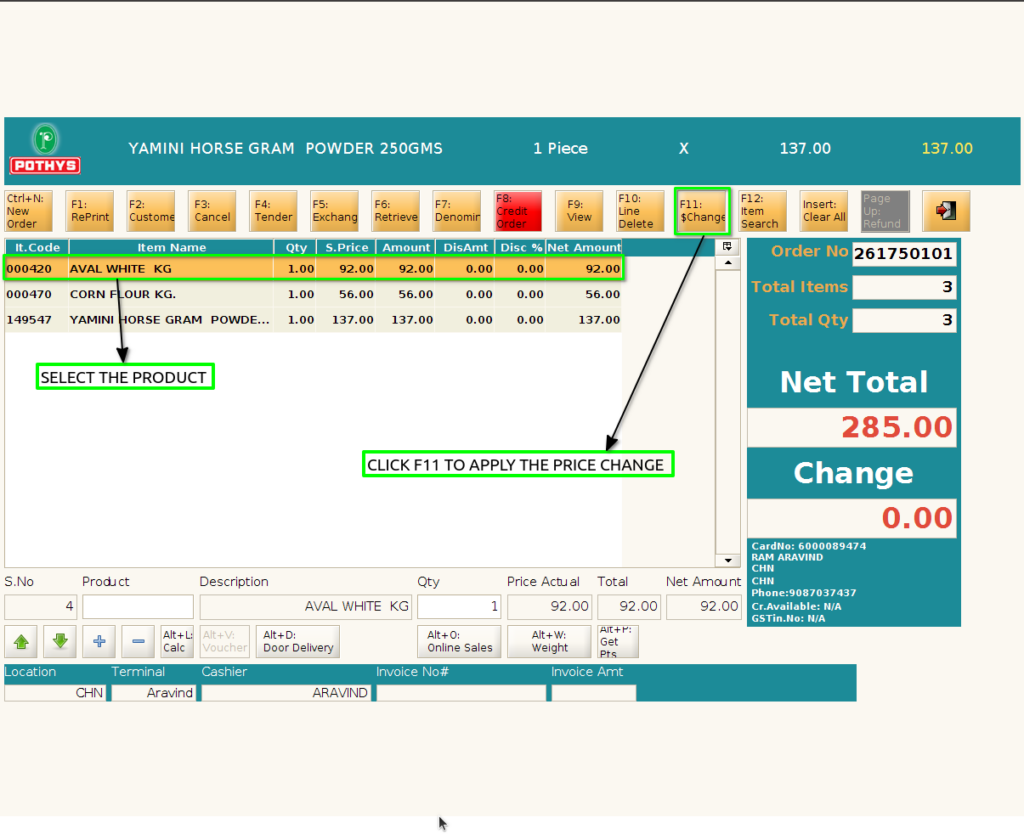
Step 5 : Select the product and Apply the price change discount
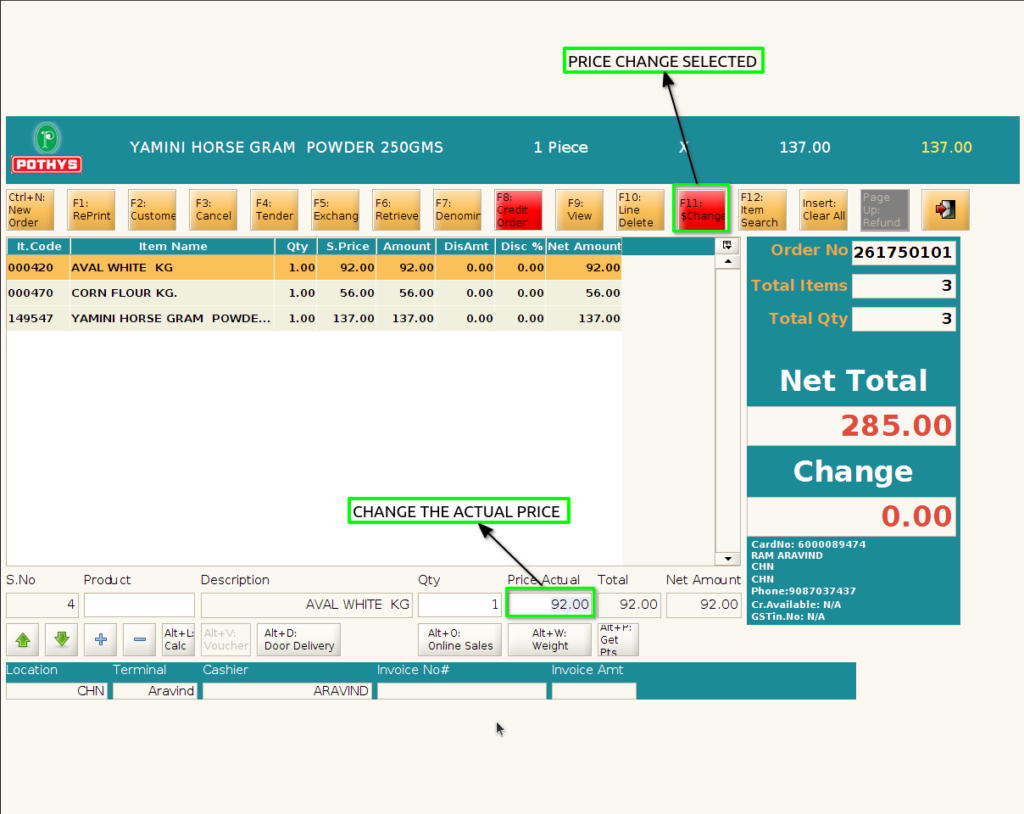
Step 6 : Enter the POS password and Click ‘OK’ enable the price change discount

Step 7 : Enter the price change in selected product
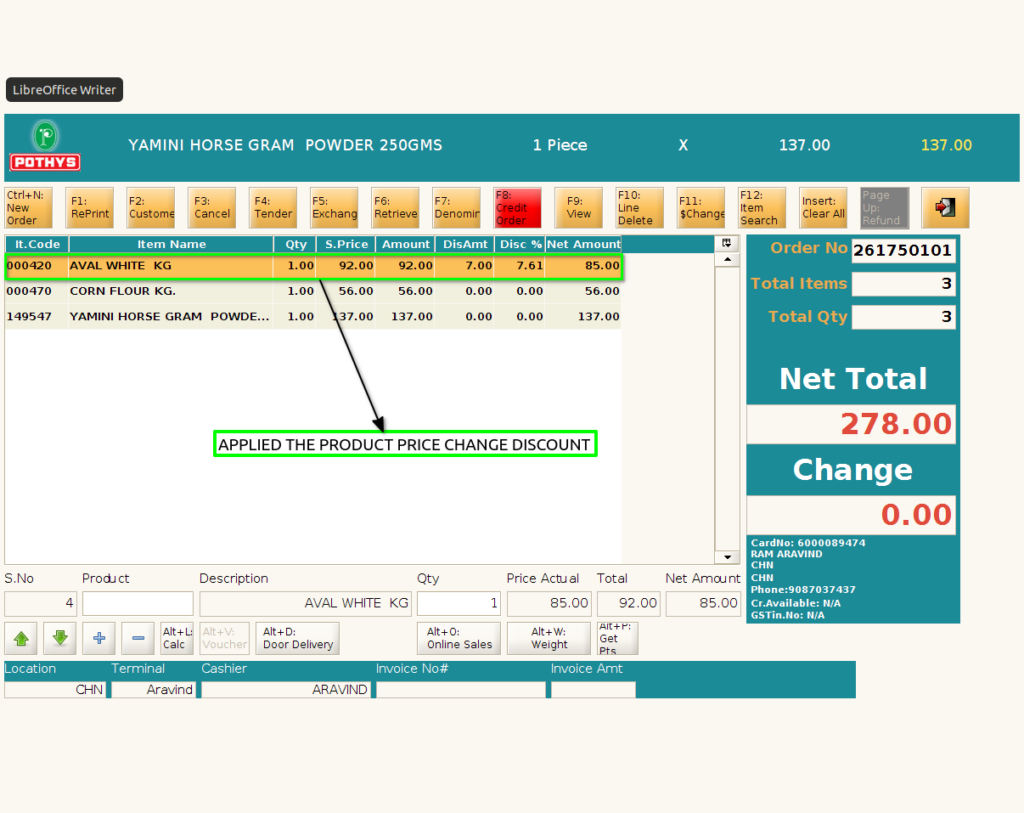
Step 8 : Click F4, if credit sale discount? option not selected in branch configuration. Invoice will generate automatically
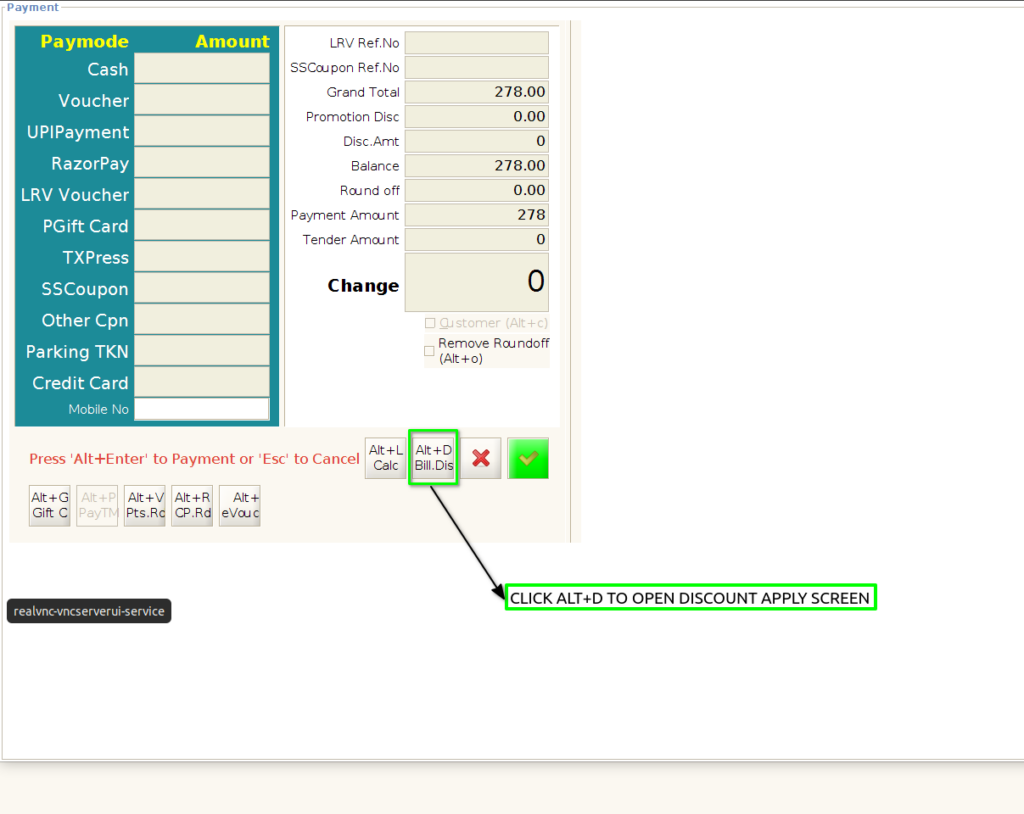
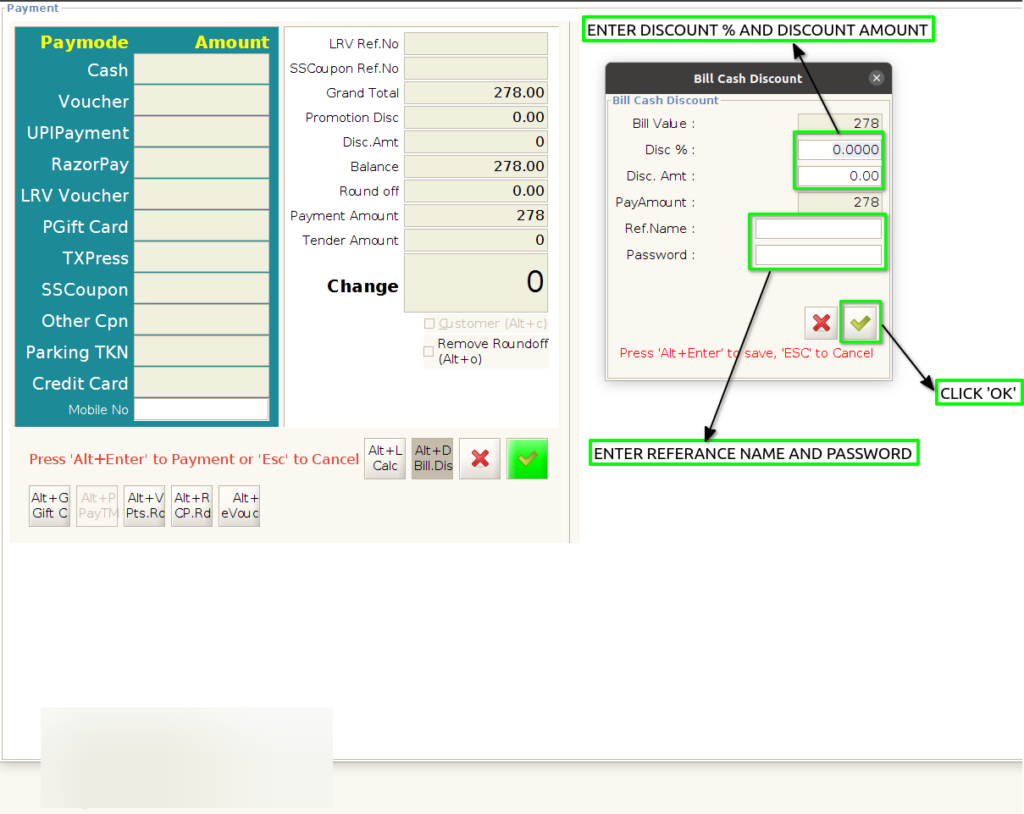
Step 9 : Click ‘ALT+ENTER’ or Click ‘OK’ ,Complete the credit order
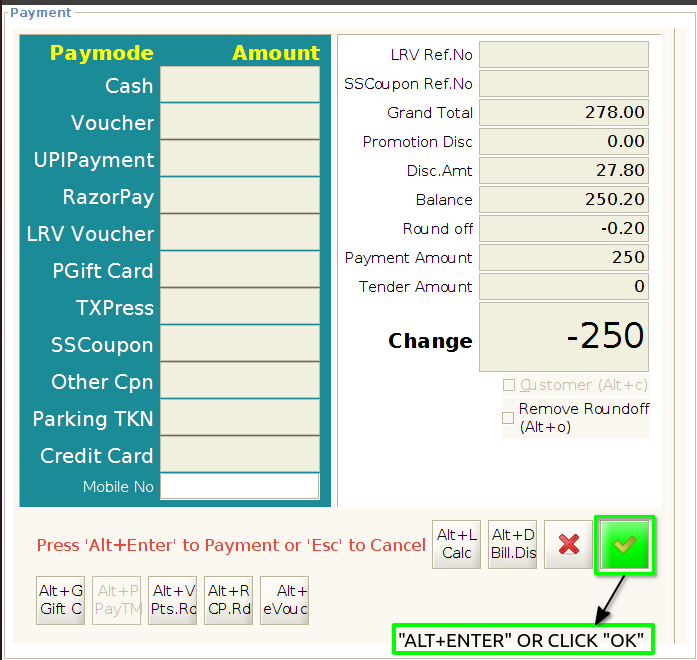
Step 10 : Print out the credit order bill print with showing applied bill discount