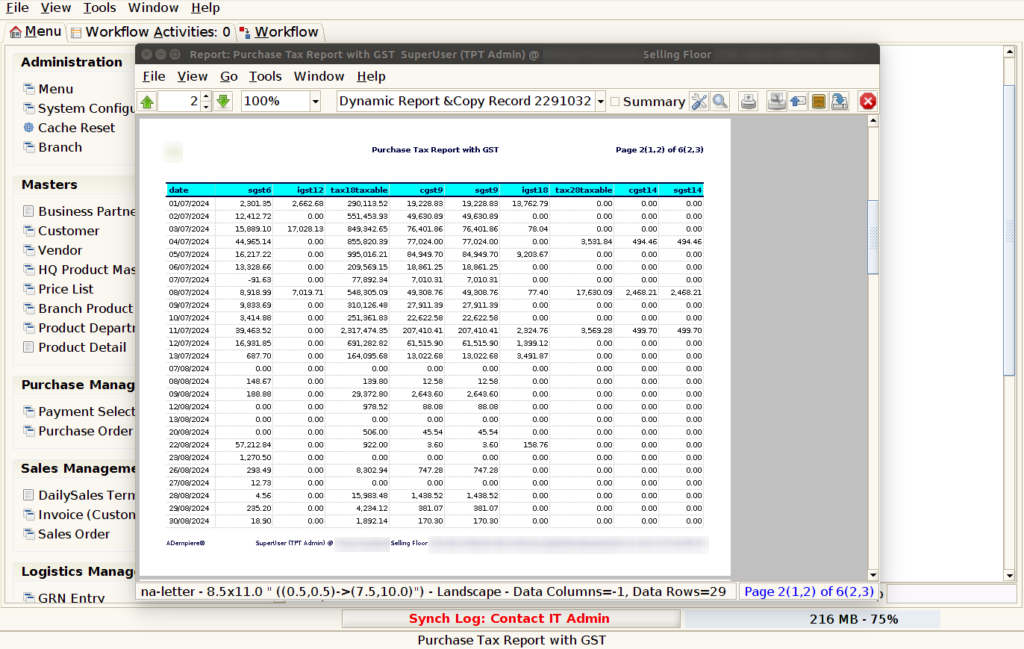
How to view Purchase Tax Report with GST in Adempiere Retail
A Purchase Tax Report with GST shows all the purchases your company made during a specific period, along with the GST (Goods and Services Tax) paid on those purchases.
User Access
Who Can Access
- Admin
- Back Office
- Purchase Manager
- Manager
What User Can Do
- Track GST Paid on Purchases
- Claim Input Tax Credit
- Analyse Purchase Patterns
Pre-Requisite Activities
- Accurate Recording of Purchase Invoices
- Regular Reconciliation
- Reporting Period
- Data Validation Controls
Business Rules
- Timely Data Entry
- Invoice Validation
- Reporting Period Compliance
User Interface
STEP 1: Click Purchase Reports Folder.
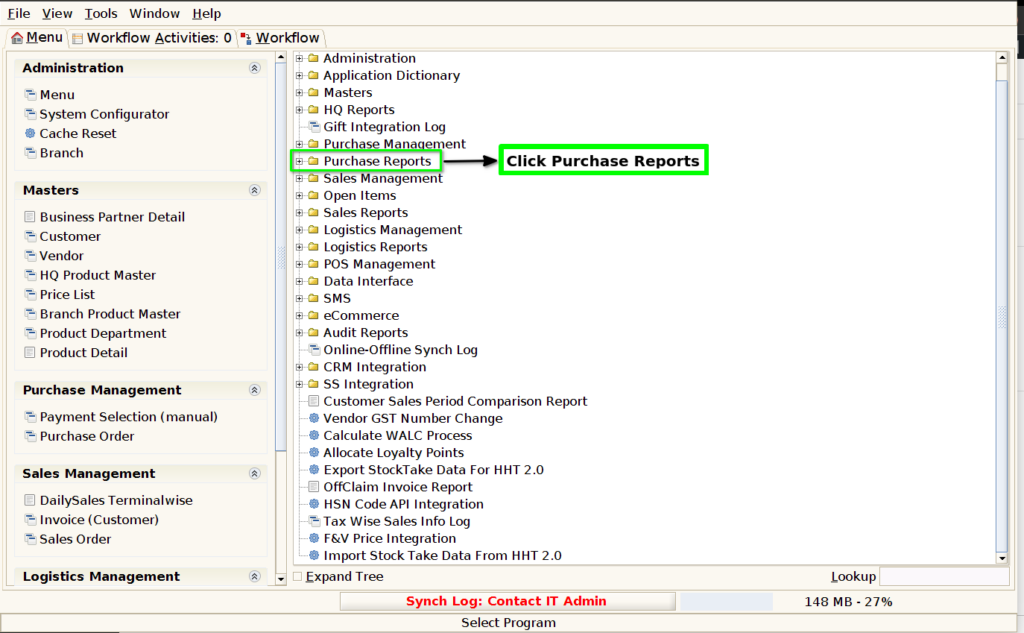
STEP 2: Click Purchase Tax Report With GST.

STEP 3: Choose Parameter From Date, To Date .

STEP 4: Show Columns Details.
1.Date : The date in the Purchase Tax Report with GST is crucial for several reasons related to compliance, accuracy, and proper tracking of GST-related transactions.
3.CGST (0,2.5,6,9,14)% : The CGST (Central Goods and Services Tax) amount in the Purchase Tax Report with GST is shown because it represents the tax portion that has been levied by the Central Government on the goods or services purchased by the business.
4.SGST (0,2.5,6,9,14)% : The SGST (State Goods and Services Tax) amount in the Purchase Tax Report with GST is shown because it represents the portion of the GST that is levied by the State Government on goods or services purchased by the business.