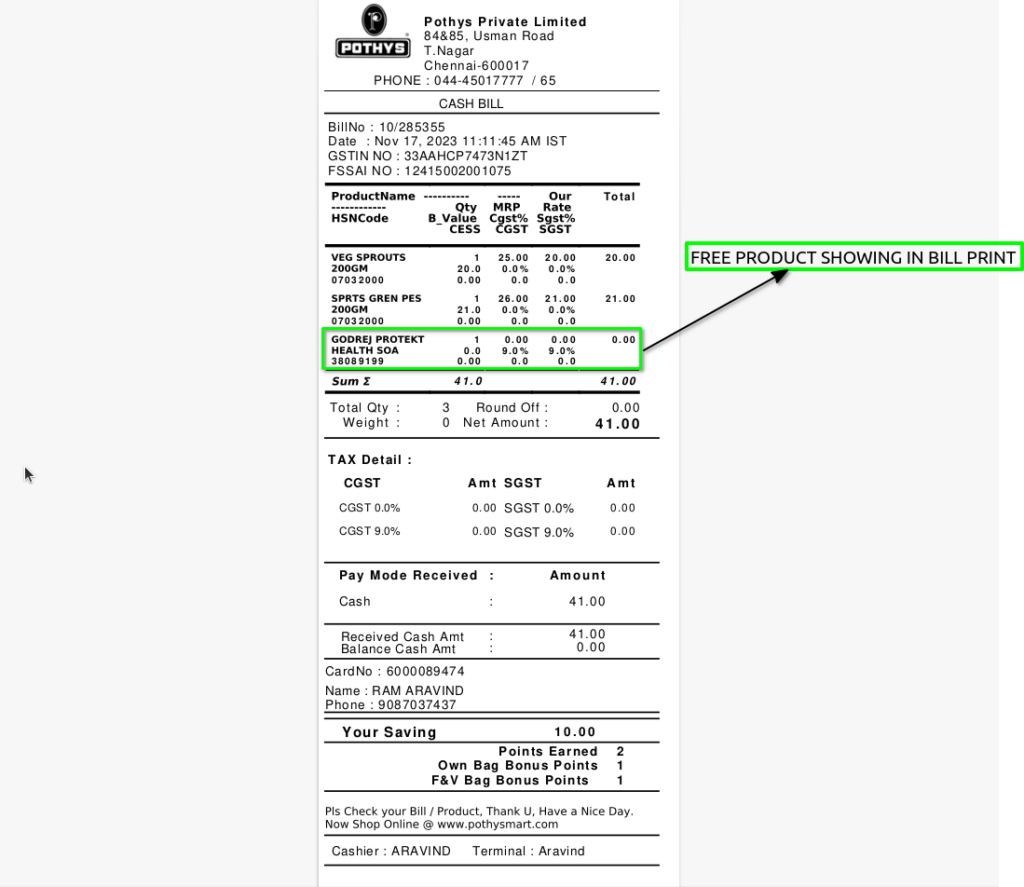
APPLY BILL WISE BY ATTRIBUTE PROMOTION BASED ON FREE ITEM
This promotion applies a free item to a bill based on attributes of the items purchased (such as brand, category, design, color, etc.). The entire bill is considered, but the eligibility is filtered by the defined product attributes.
USER ACCESS
WHO CAN ACCESS
- BackOffice
- Cashier
- Manager
- Admin
WHAT USER CAN DO
- Select attribute type: (e.g., Brand = “ABC”, Category = “Footwear”)
- Define a total bill value or quantity condition
- Configure the free item (product and quantity)
- Set rules like:
- Customer Type (Retail, Loyalty, etc.)
- Valid time and date range
- Applicable branches or channels
- Activate and deactivate the promotion when needed
PRE-REQUISITE ACTIVITIES
- Product Master must have correct attribute mapping (e.g., every item must have Brand, Category, Design, etc.)
- Free item must be active and stock available
- POS should be configured to auto-suggest free item
- Enable Attribute-Based Promotions in the system
BUSINESS RULES
- Promotion applies only if items in bill match defined attributes
- If multiple eligible products exist, total amount/qty is accumulated
- Free item is automatically added or suggested at billing
- Free item cannot be exchanged or returned for money
- Bill must meet both attribute + value/qty criteria
- System must validate promo duplication or conflict with other offers
- Free item must be of equal or lesser value than defined cap (optional)
USER INTERFACE
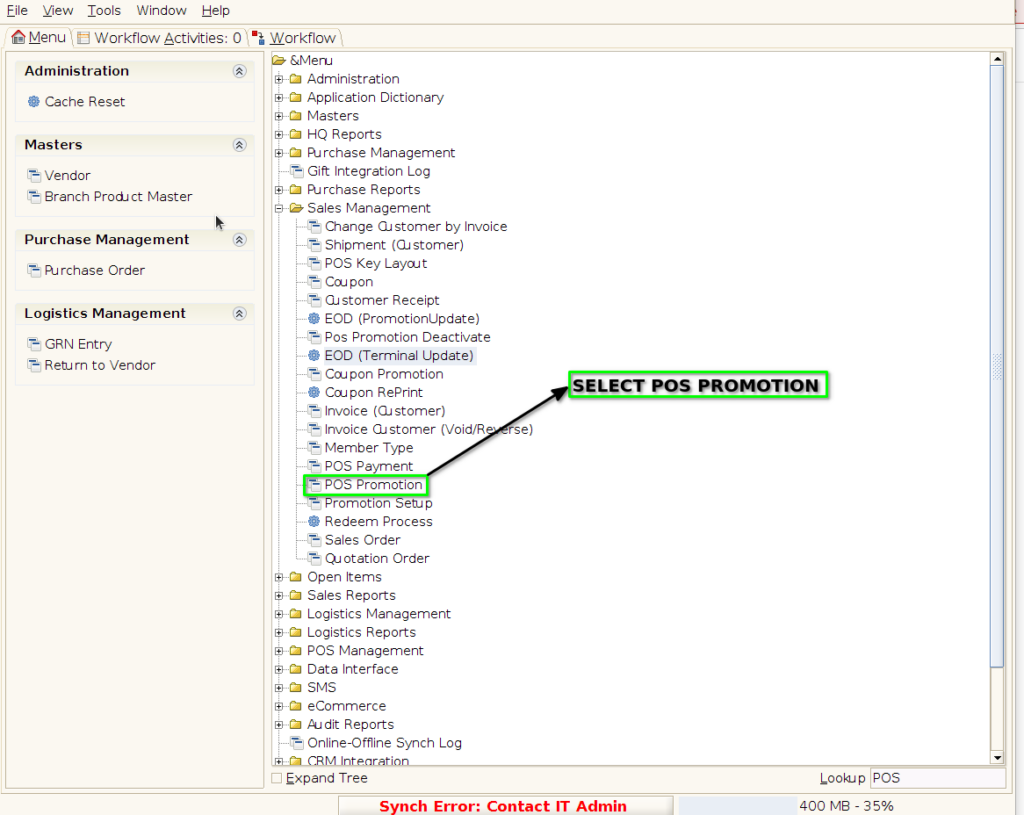
Step 1 : Select ‘POS Promotion’ in Menu -> Sales Management -> POS Promotion or Search POS Promotion in Lookup.
PROMOTION TAB
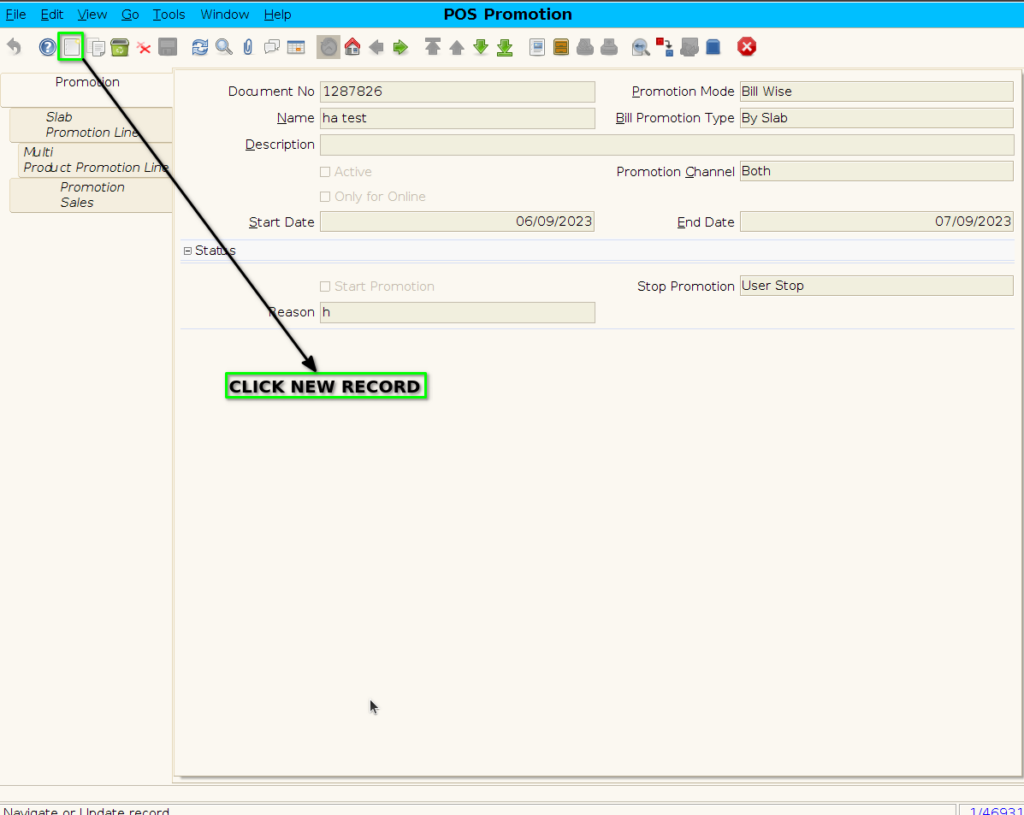
Step 2 : To create new promotion Document
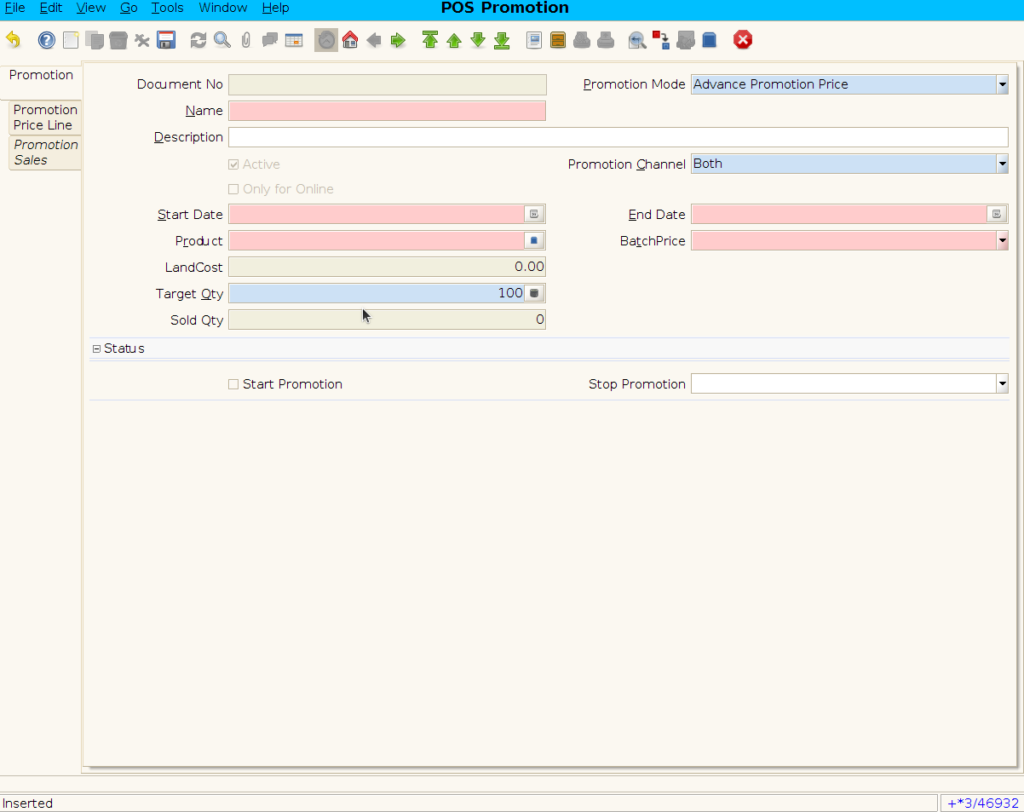
Step 3 : Enter Promotion details by following steps ;
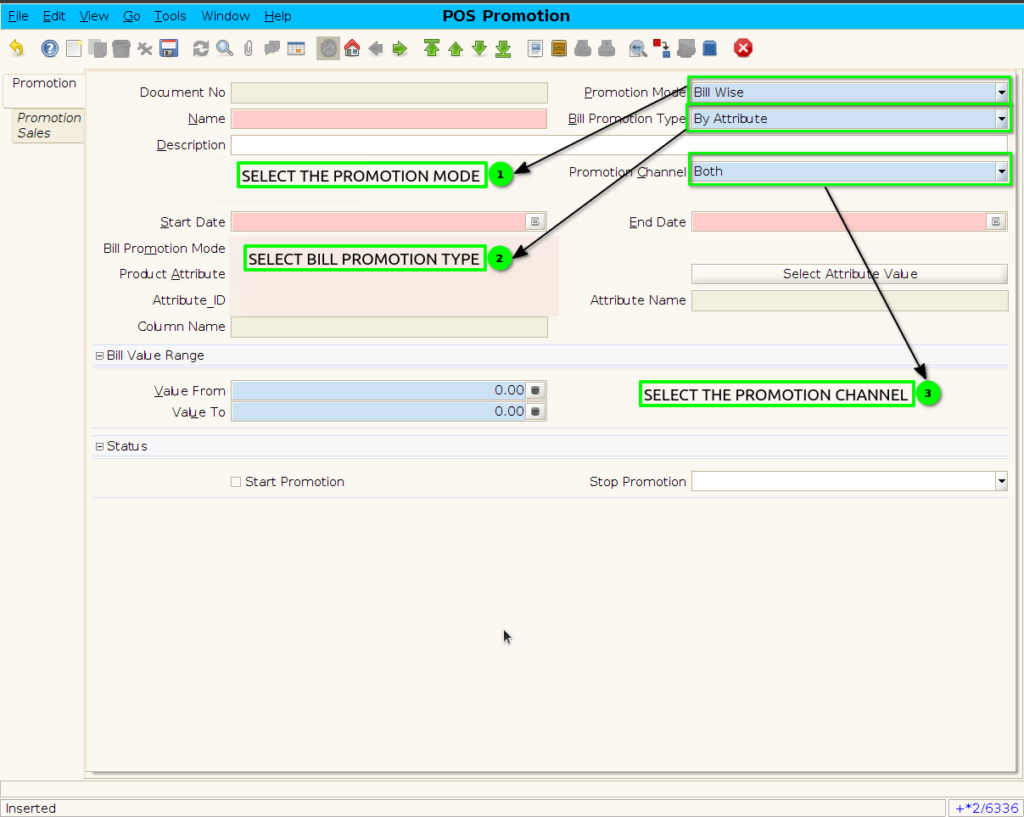
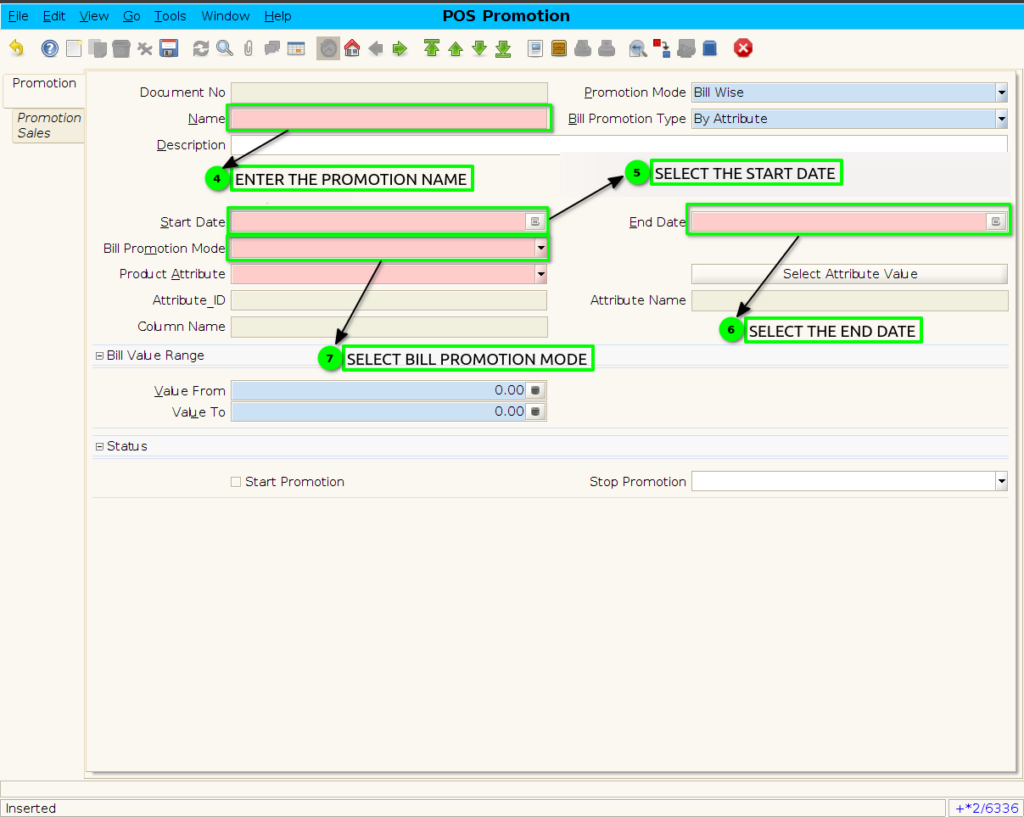
Step 4 : Promotion to set product attribute
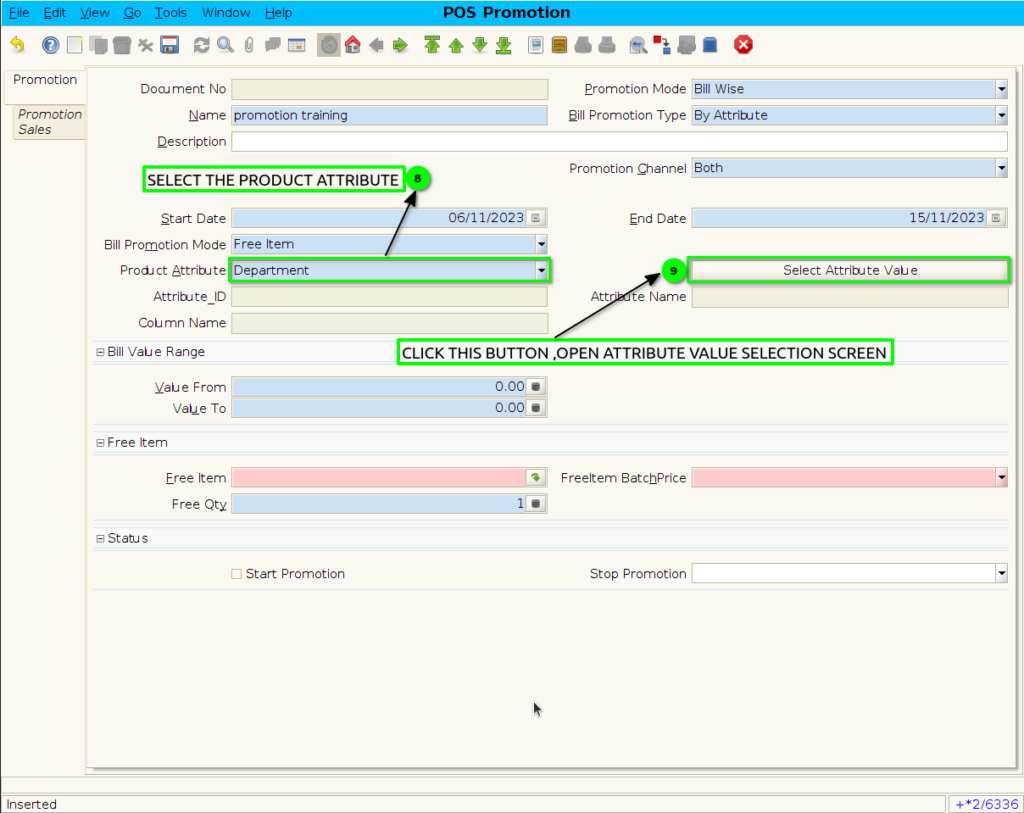
Select attribute value isn’t allowed ,Following below screen comments
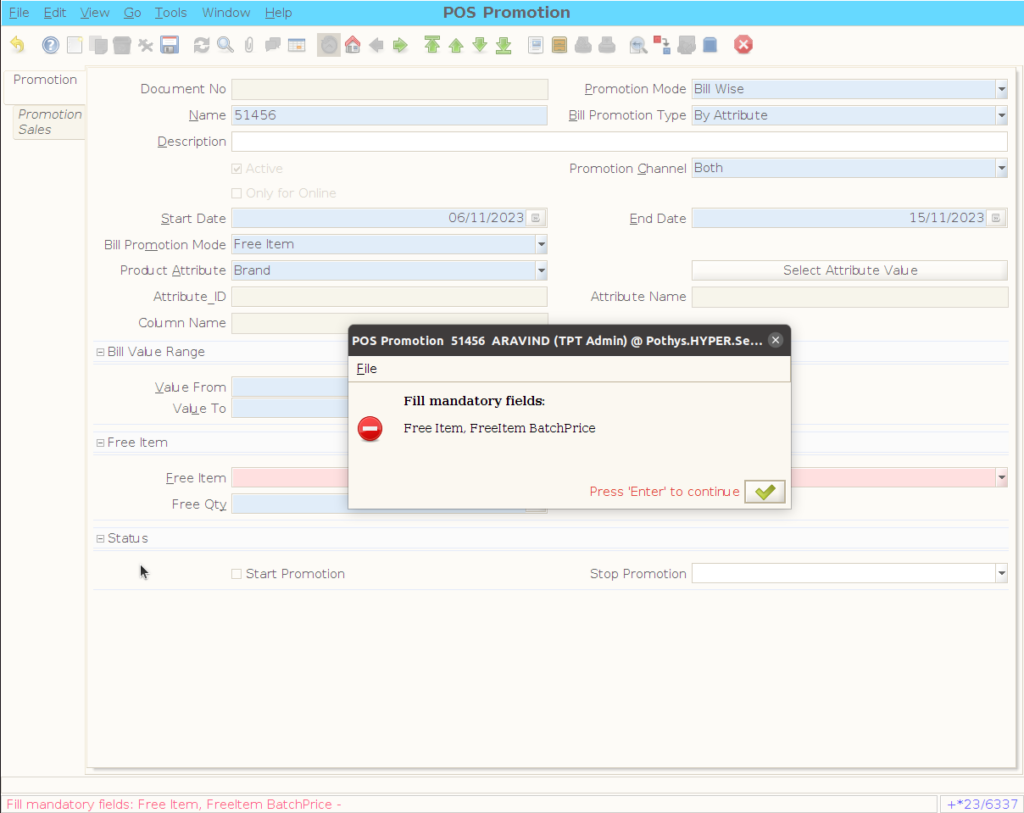
Step 5 : Set bill value range
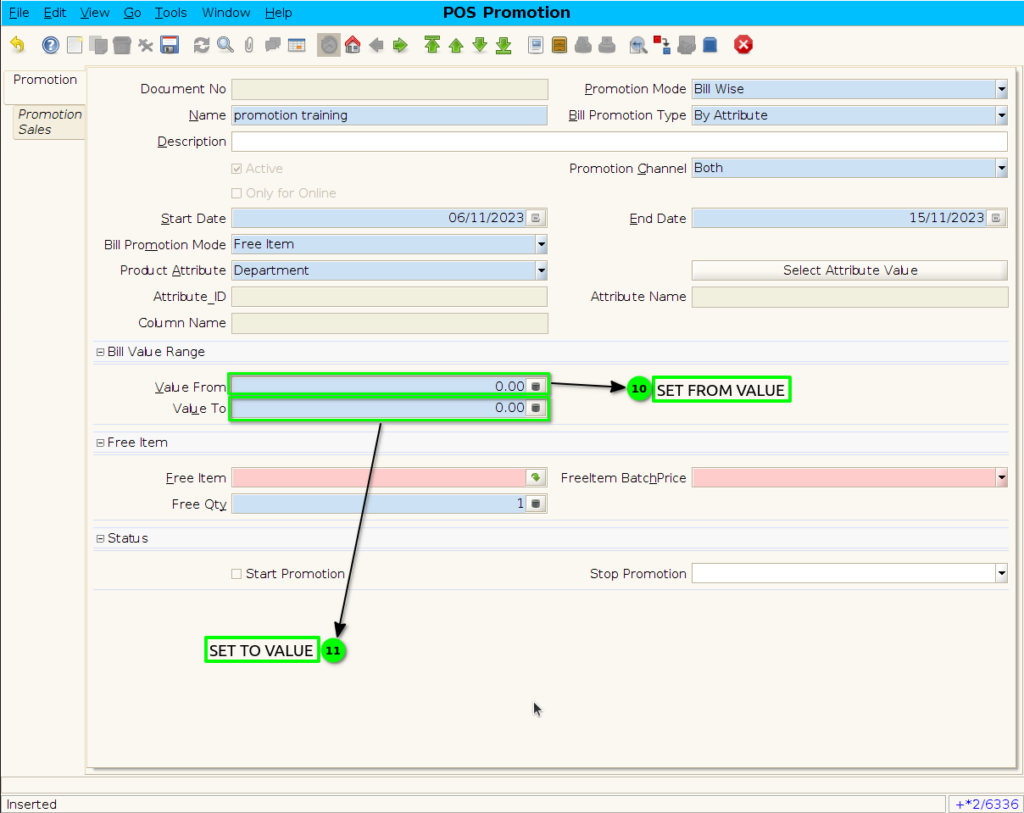
Step 6 : Select the free item and free quantity
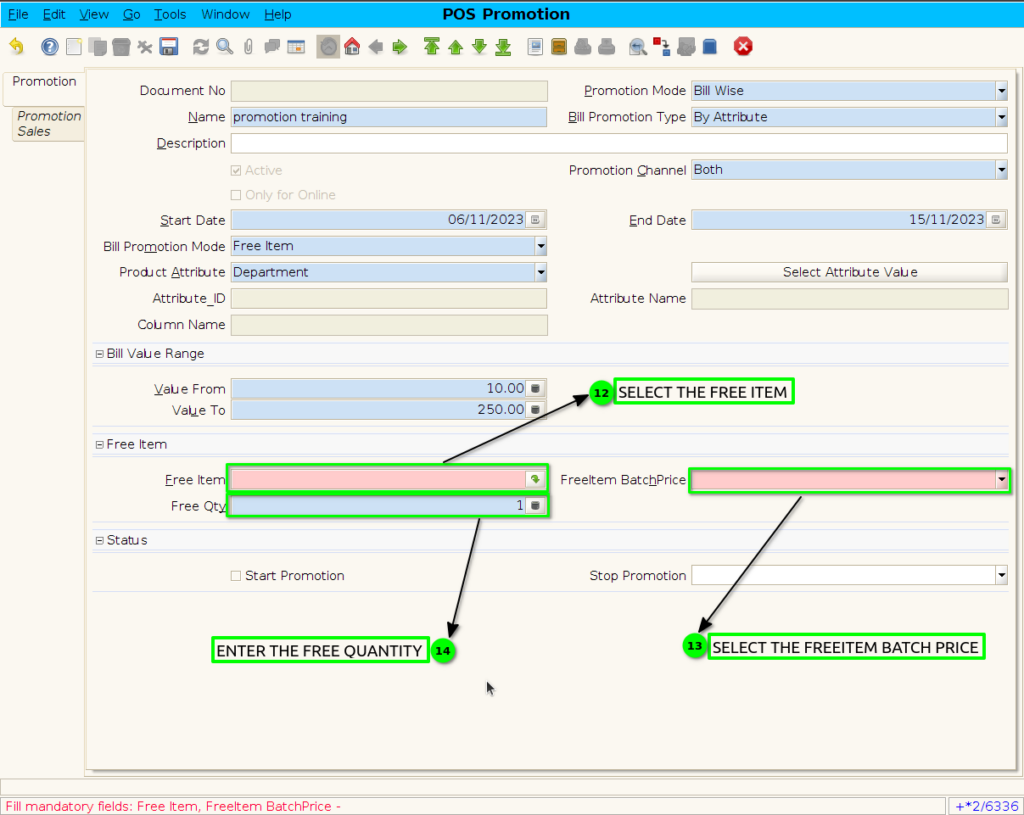
Step 7 : Select attribute value
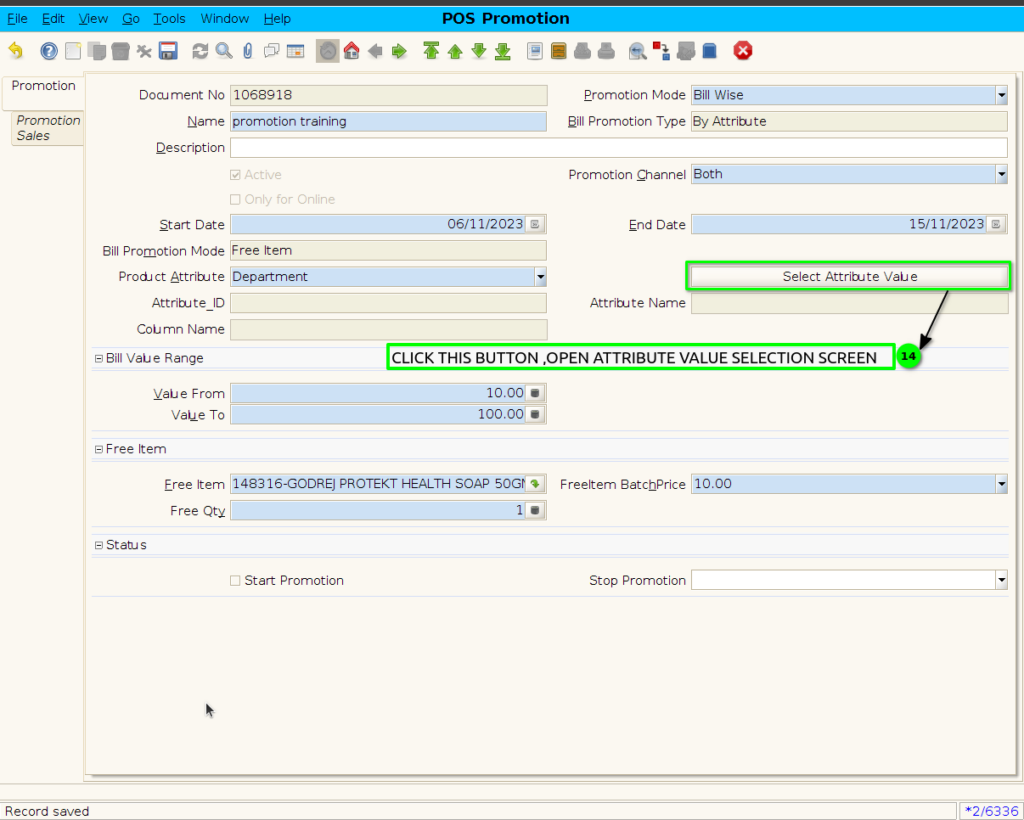
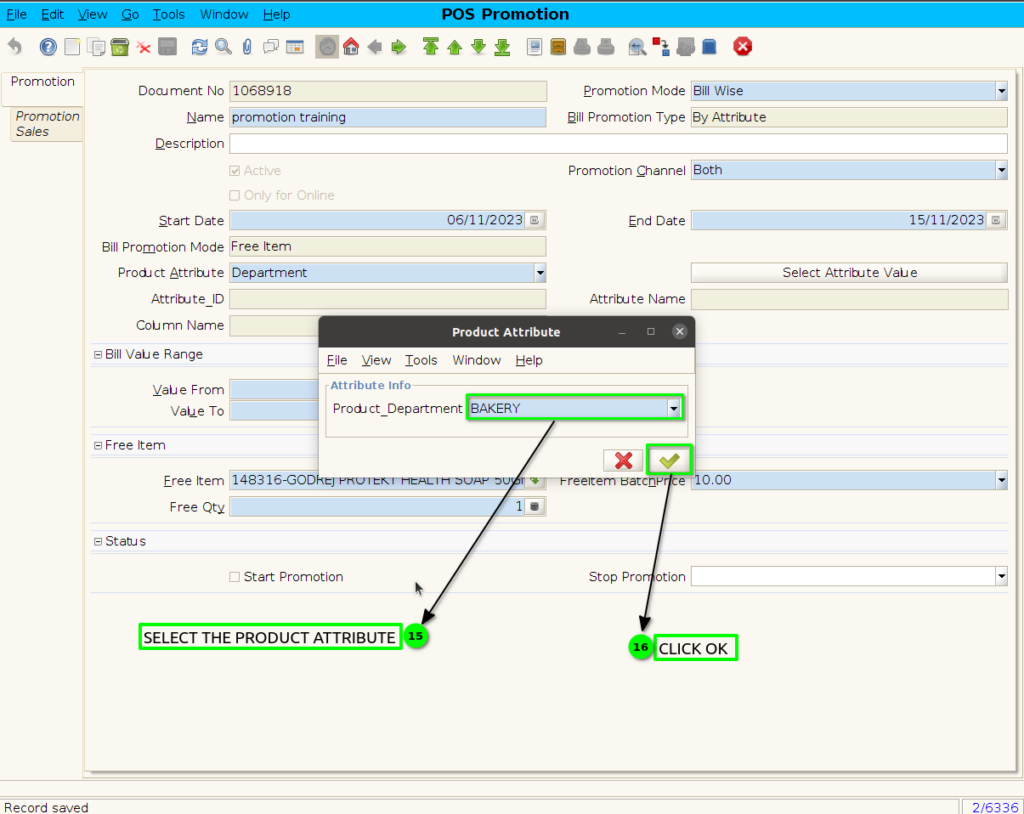
Step 8 : click the checkbox to Start the promotion and save the promotion.
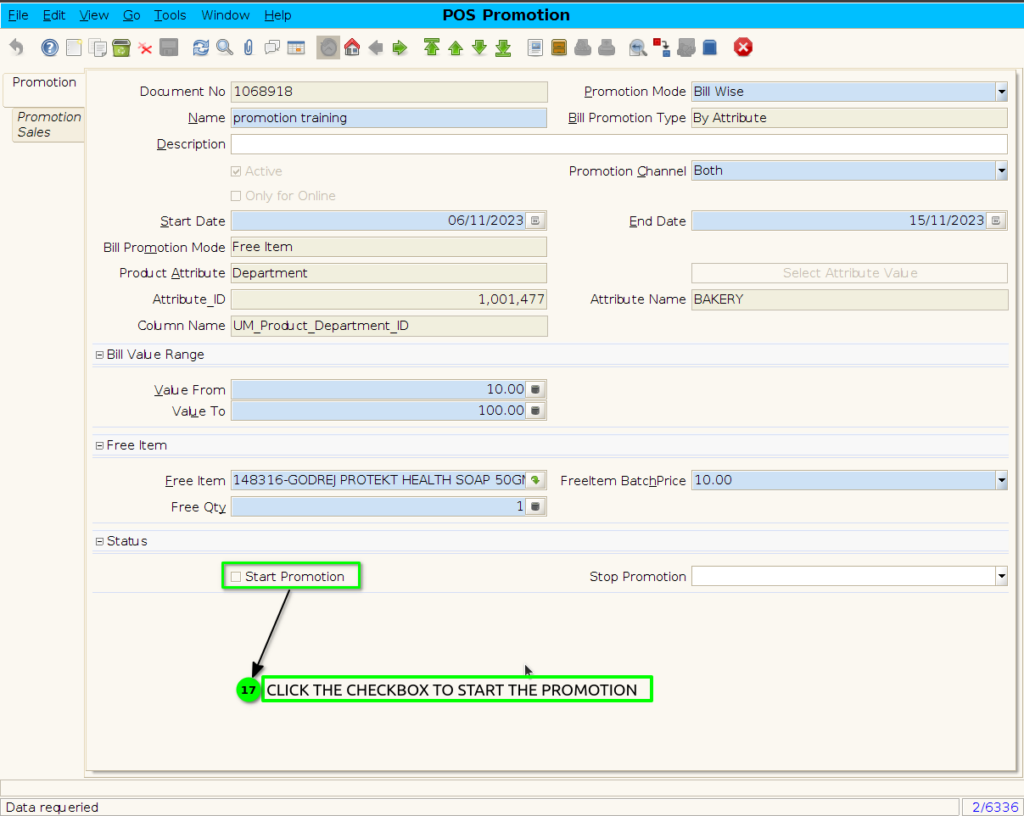
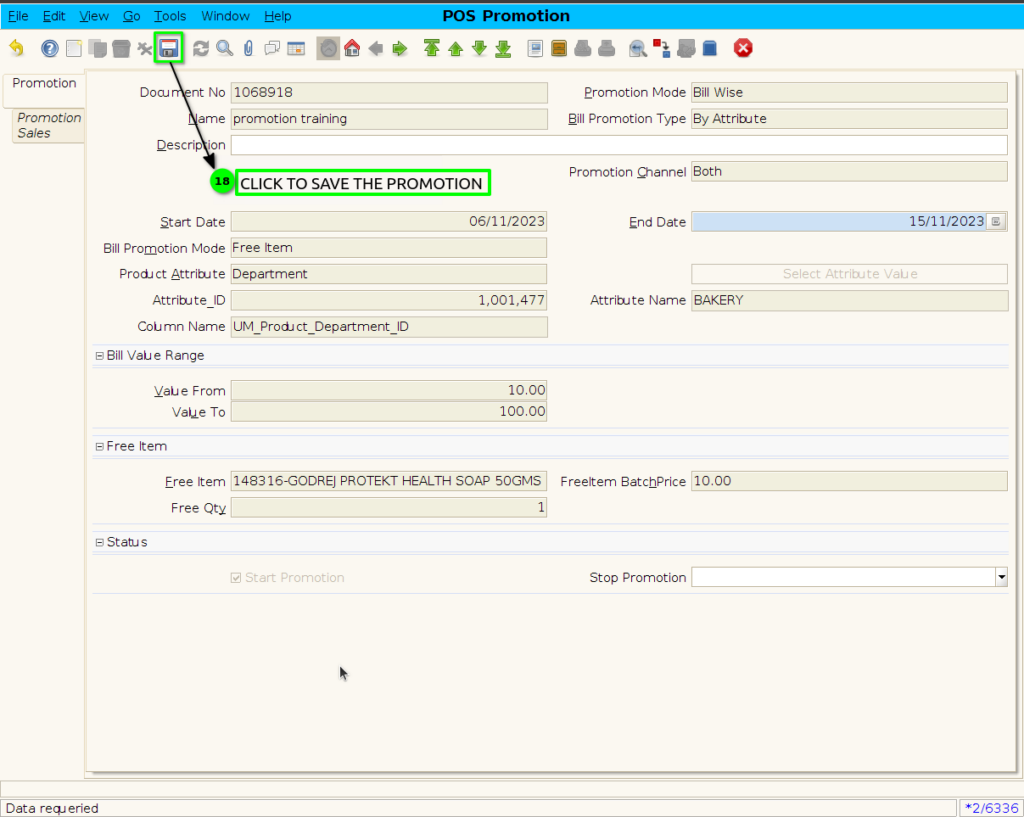
Step 9 : Bill Wise by attribute Promotion applied attribute product scan in POS ,freeitem Promotion not showing in POS screen
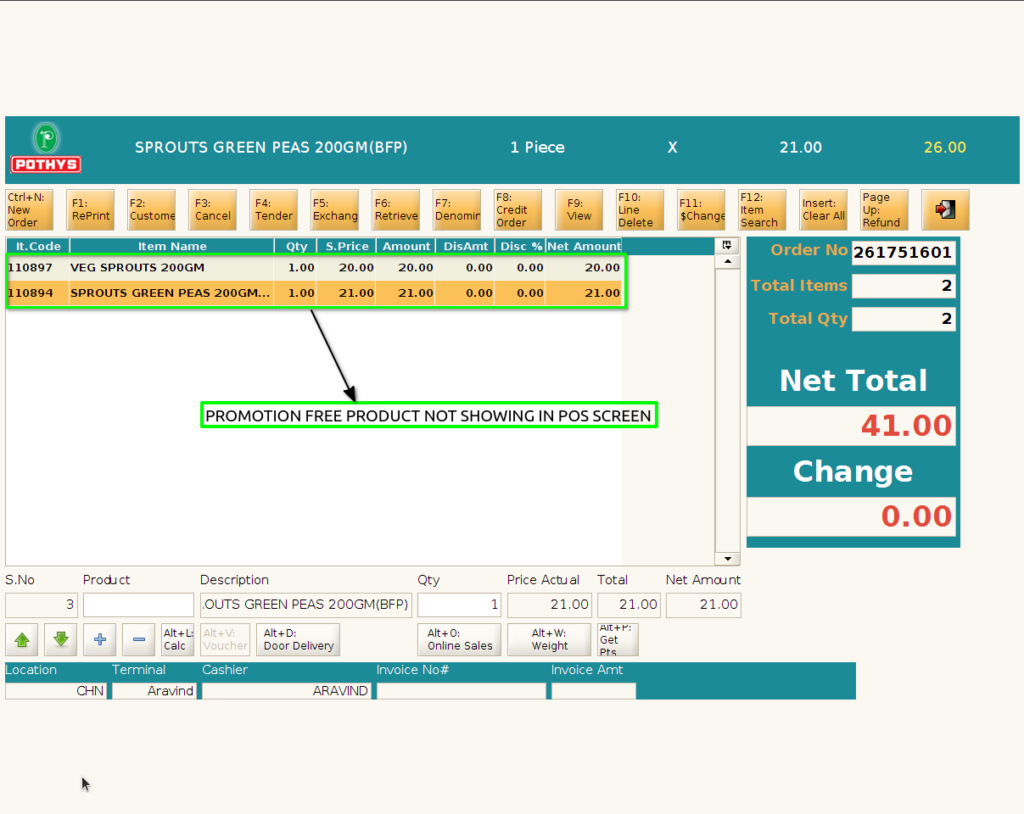
Step 10 : Promotion Free Product is applied in Bill Only ,this free product showing in POS Bill print