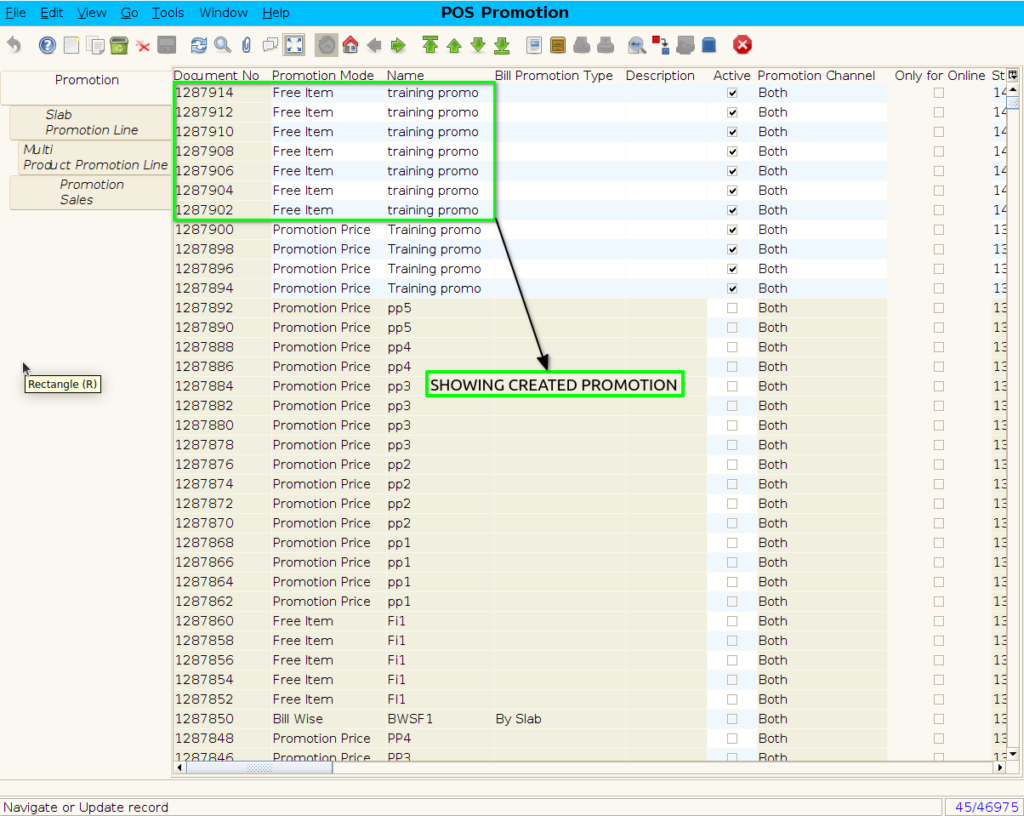
BULK PROMOTION FREE ITEM CREATE USING PROMOTION SETUP
Bulk Free Item Promotion allows businesses to offer free products when customers purchase a certain quantity or value. Using the Promotion Setup screen, such rules can be defined system-wide and applied automatically during billing.
USER ACCESS
WHO CAN ACCESS
- BackOffice
- Cashier
- Manager
- admin
WHAT USER CAN DO
- Create the promotion
- Select Promotion mode and Promotion Type
- Set date range of promotion
- Apply the promotion
- Start the promotions
- Stop the promotion (Manual or automatic)
PRE-REQUISITE ACTIVITIES
- The Product Master has both the main and free items active
- Stock is available in Warehouse/Store
- UOM and pricing are configured
- User has promotion setup access rights
- No overlapping promotions exist for the same item
BUSINESS RULES
- Promotion applies only if slab conditions are fulfilled
- System checks stock availability of the free item before applying
- Only one slab (highest matching) is applied per bill
- Free items should not be counted as sales quantity
- Returns will reverse the associated free items
- Cannot mix with other discount or free item promotions for same product
- Audit trail of who created/edited the promotion is logged
USER INTERFACE
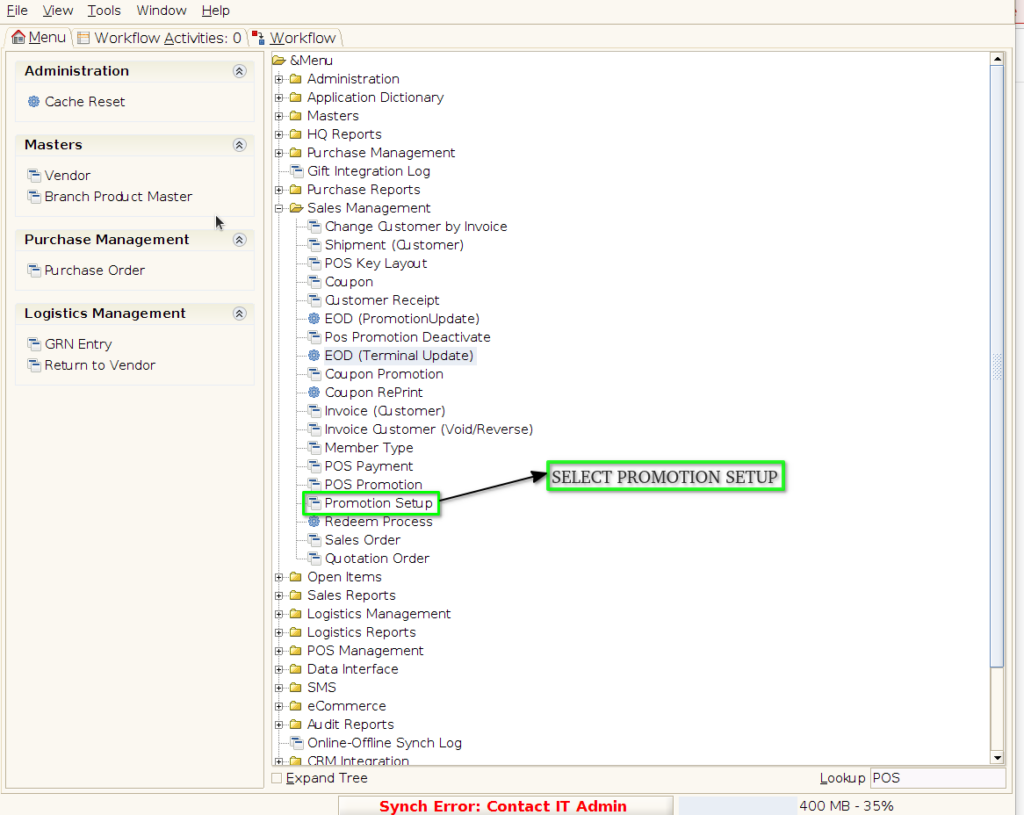
Step 1 : Select ‘Promotion setup’ in Menu -> Sales Management -> Promotion setup or Search Promotion setup in Lookup.
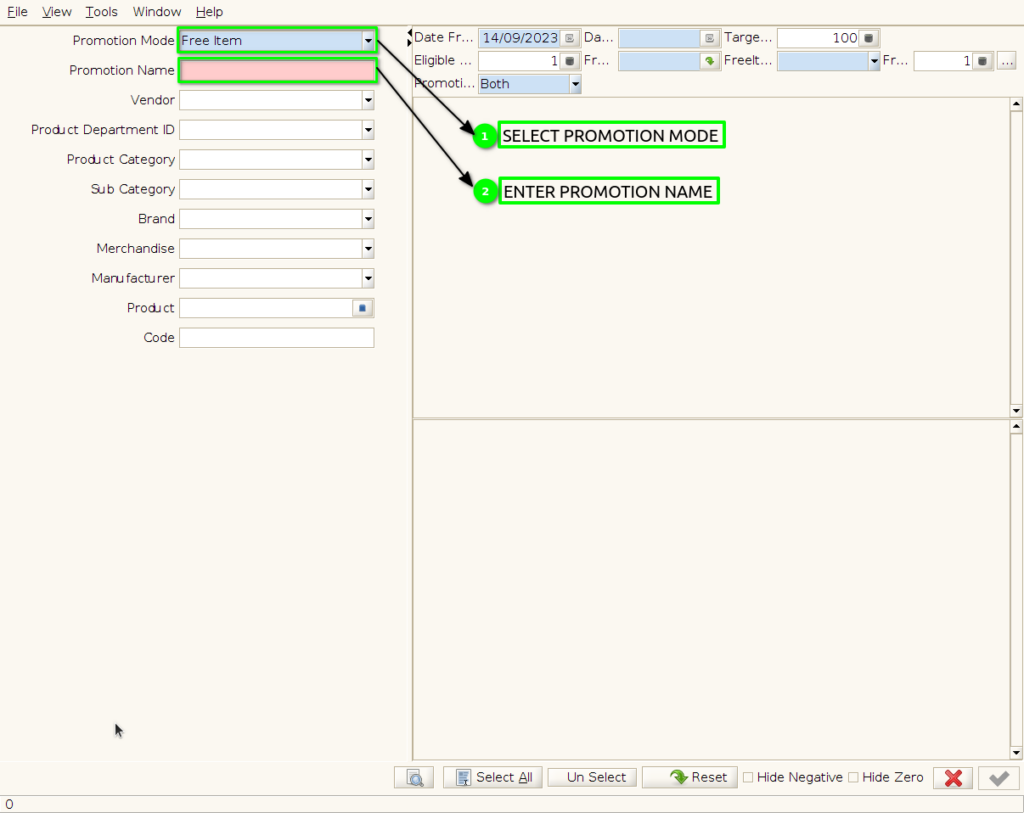
Step 2 : To create bulk freeitem promotion by following steps
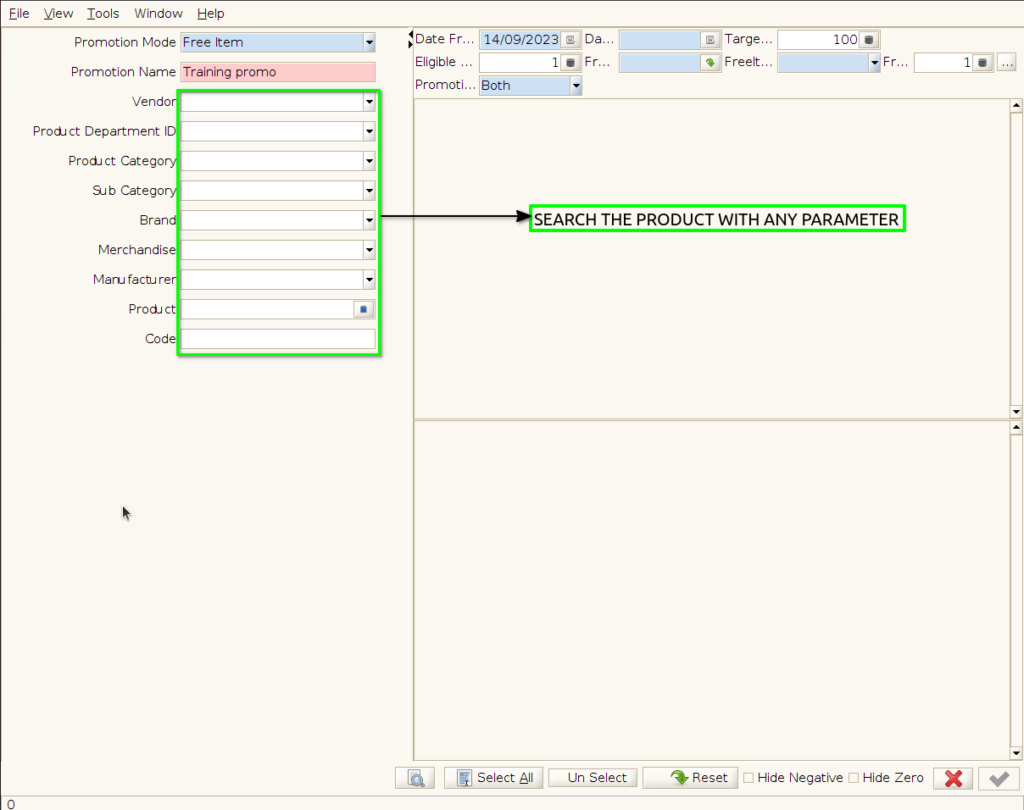
Step 3 : Search the product with using parameter
Step 4 : Select bulk of the product
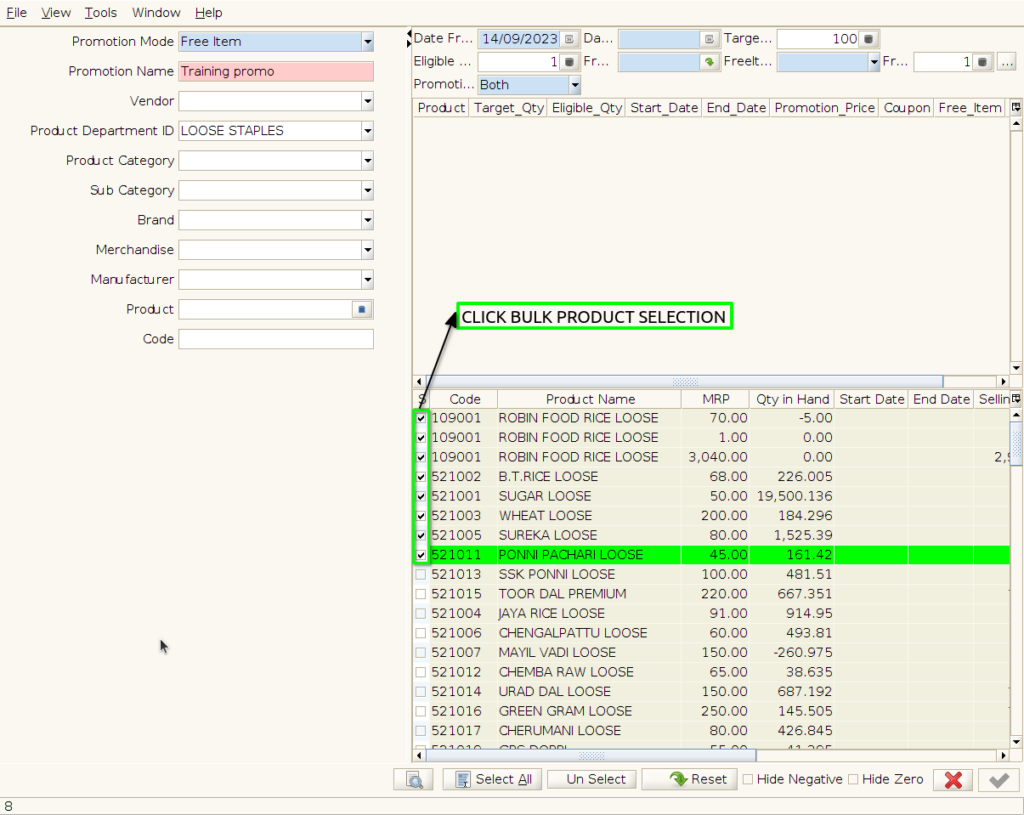
Step 5 : Enter Promotion details by following steps
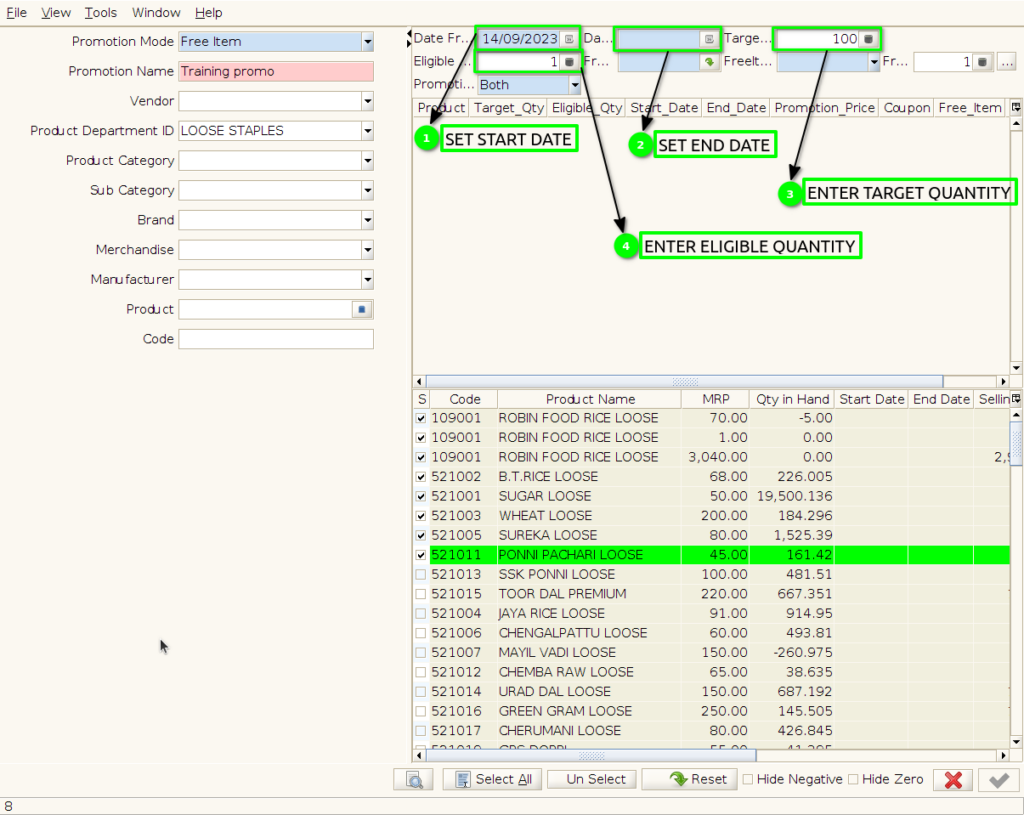
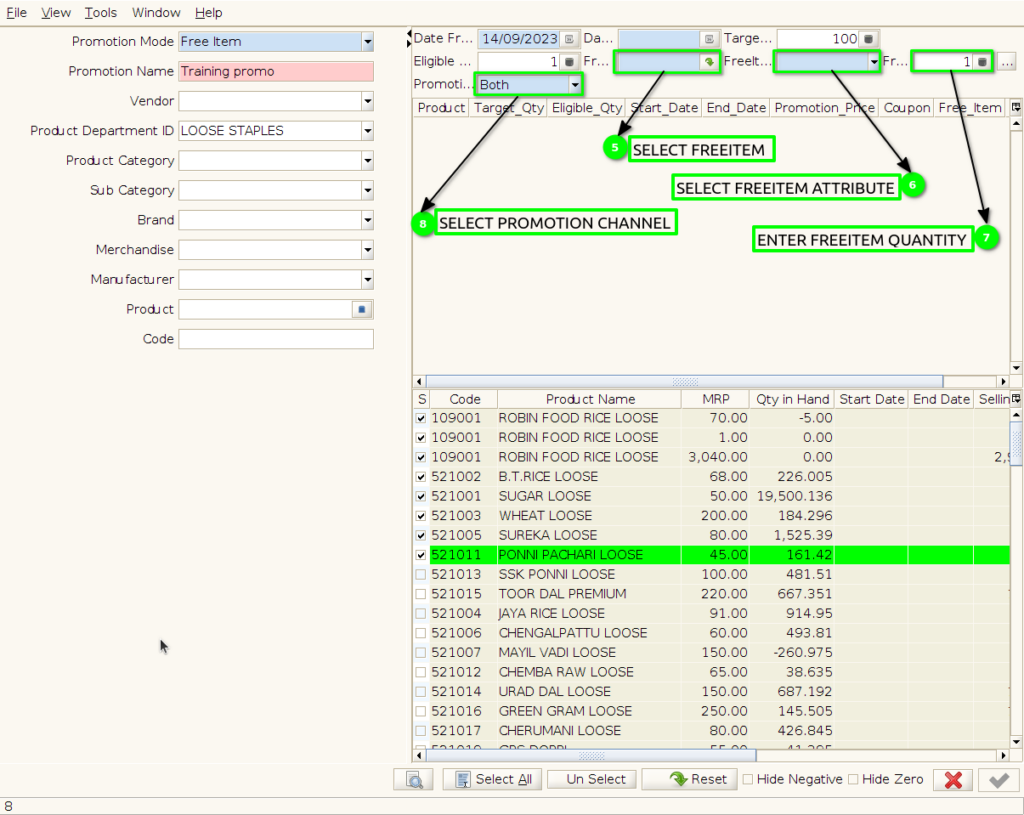
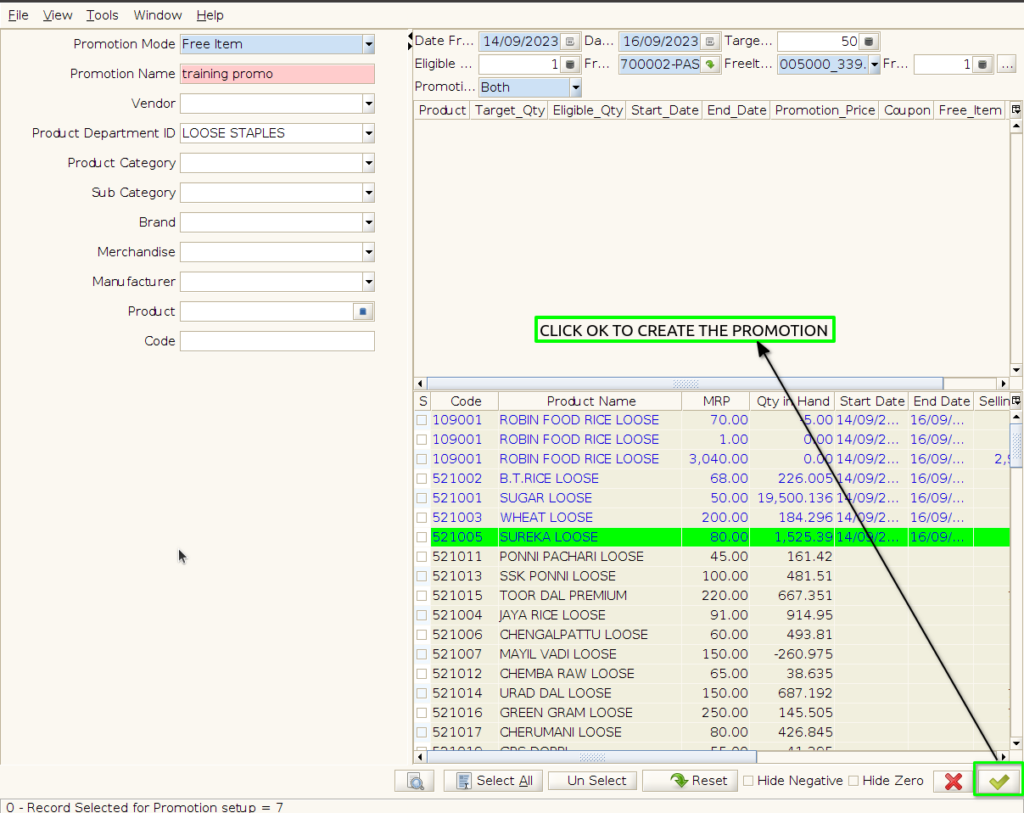
Step 6 : Apply the promotion and enable the OK button,selected product to change the color
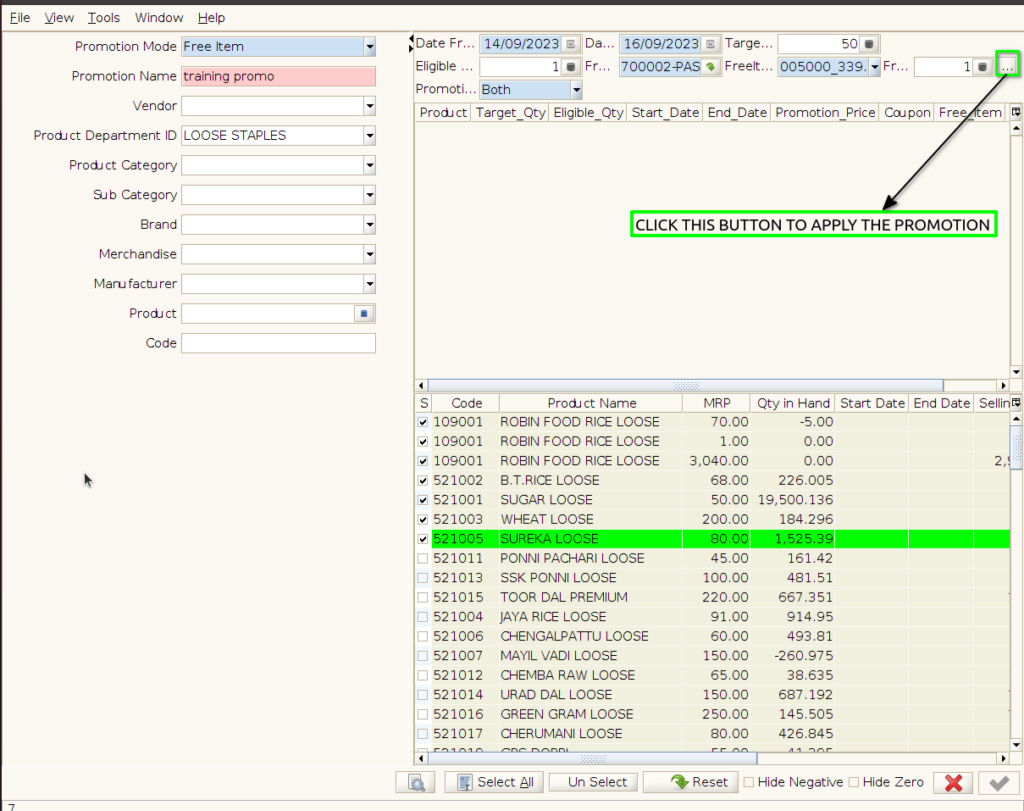
Step 7 : Click OK to create the promotion with different document no
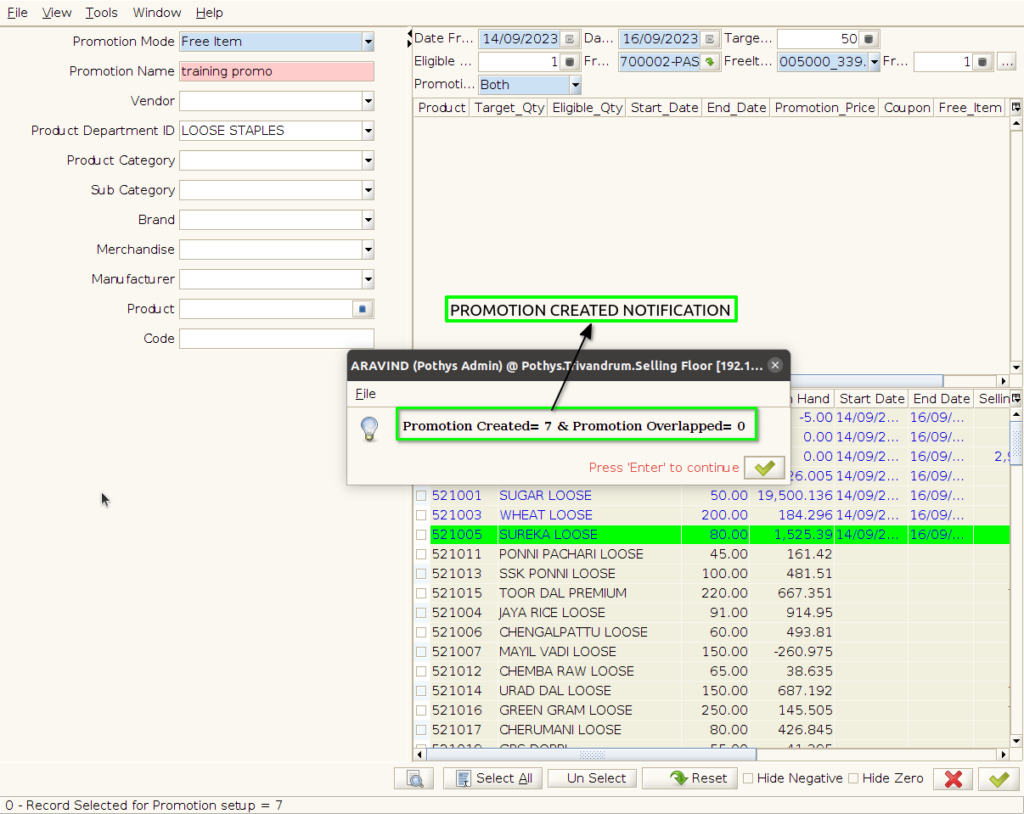
Step 8 : Promotion created Notification
Step 9 : To check Created Promotion in POS Promotion screen