How to delete a Purchase Order in Draft status in Adempiere Retail
Deleting a Draft Purchase Order means removing a PO that has not yet been submitted, approved, or processed. It helps clean up incorrect or unused entries before they affect procurement workflows.
User Access
Who Can Access
- Admin
- Purchase Manager
- Cashier
- Manager
- Back Office
What User Can Do
- View list of POs in Draft status
- Select and delete unwanted or incorrect draft POs
- Filter drafts by vendor, date, creator, or department
Pre-Requisite Activities
- PO must be in Draft status (not submitted or approved)
- User must have proper access rights to delete a PO
- Review PO details before deletion
- Check if the draft PO is linked to any dependent transactions
- Approval process must allow draft deletions
BUSINESS RULES
- Only POs in Draft status can be deleted
- Once deleted, the PO number becomes invalid and cannot be reused
- System should log deletion details (who, when, why) for audit
- Deleted POs cannot be recovered
- If PO is submitted, it must be voided or cancelled, not deleted
- Draft POs older than a defined period may be auto-flagged for deletion
USER INTERFACE
STEP1: To select the Delete Draft Po.

STEP2: To click the start check box.
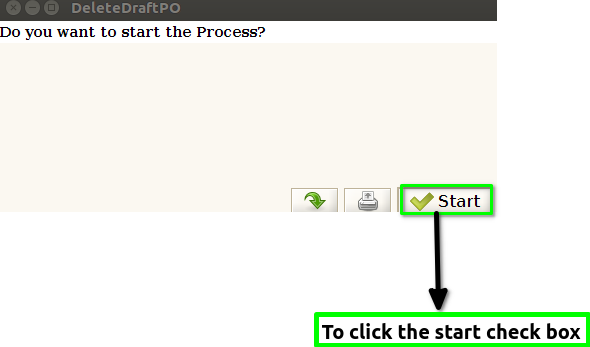
STEP3: Once to run the process to show this pop up window Total no of orders deleted count will show.And then to click the check box.
