How to execute Vendor Return SAP Synch rerun process in Adempiere Retail
This process is used to re-trigger the synchronisation of Vendor Return data (such as returned goods or rejected items) between the local system and the central server or third-party system when the original sync failed or was incomplete.
User Access
Who Can Access
- Admin
- Cashier
- Manager
- Back Office
What User Can Do
- View failed or pending Vendor Return records
- Select specific records to re-sync
- Monitor the sync status (Success/Failed/Processing)
Pre-Requisite Activities
- Ensure Vendor Return data is entered and saved in the system
- Verify network connectivity and integration service availability
- Check for error logs in the initial sync attempt
Business Rules
- Only records with sync failed or pending status can be re-synced
- Re-run should maintain original document number and time
- System must log re-sync attempt for audit trail
- If sync fails again, show detailed error for resolution
- Sync should not duplicate return entry in the target system
User Interface
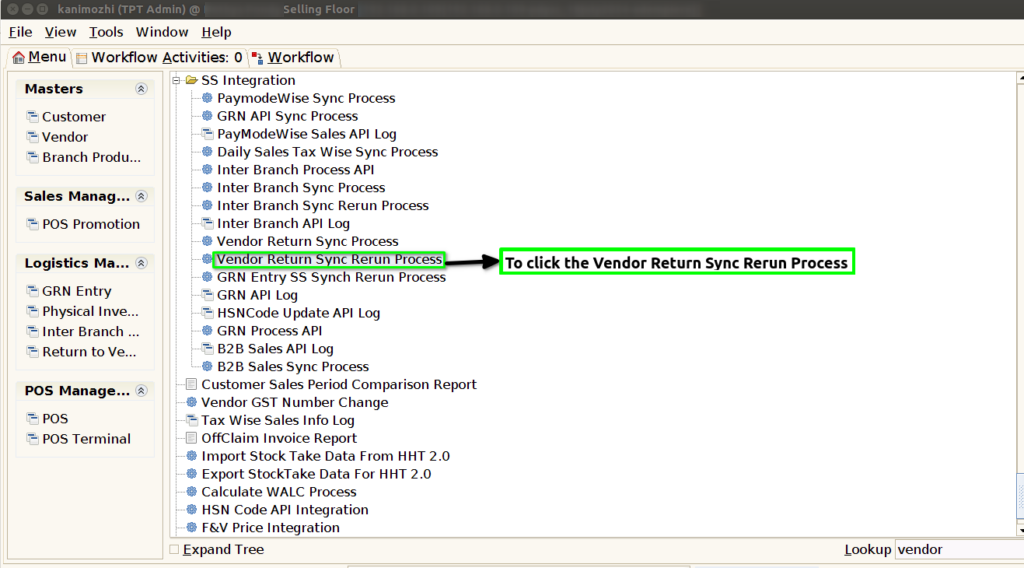
Step 1 : To select a Vendor Return Sync Rerun Process.
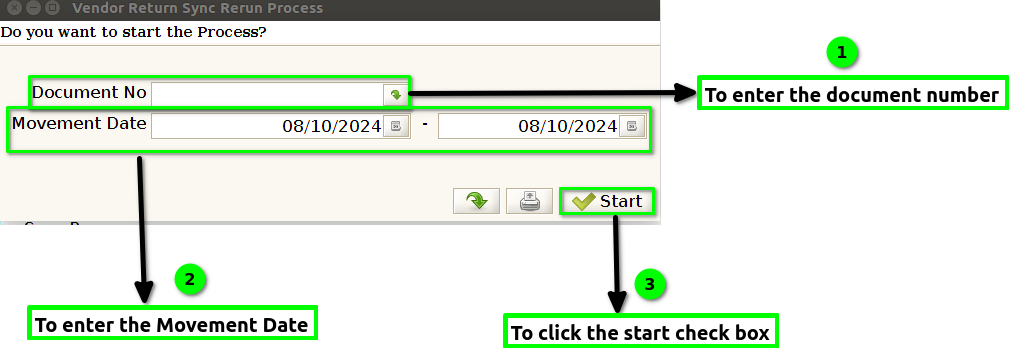
Step 2 :To enter a Document No or Movement Date and to click the start check box.To run the process.
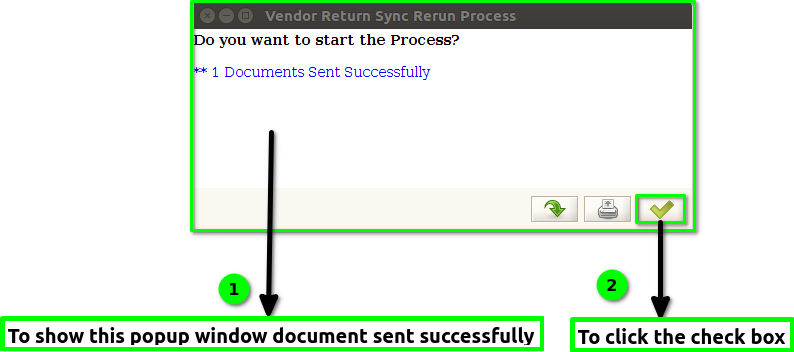
Step 3: Once to run the process to show the popup window & count will show the document sent successfully and finally to click the check box.