How to cleanup Sales Orders not paid during EOD in Adempiere Retail
The process of removing or deleting unfinished or temporary records that were saved as drafts but are no longer needed.
User Access
Who Can Access
- IT Admin
- Cashier
- Head Cashier
- Back Office
What User Can Do
- View Draft Records
- Select Drafts to Delete
- Delete Drafts
- Keep Important Drafts
- Automate Cleanup (if available)
Pre-Requisite Activities
- User Logged In
- Draft Records Present
- Backup or Data Retention Policy
- User Authorisation
Business Rules
- User Authorisation Required
- Drafts Only
- Confirmation Prompt
- Selective Deletion Allowed
- Auto-Cleanup Option (if enabled)
- No Impact on Finalised Data
User Interface
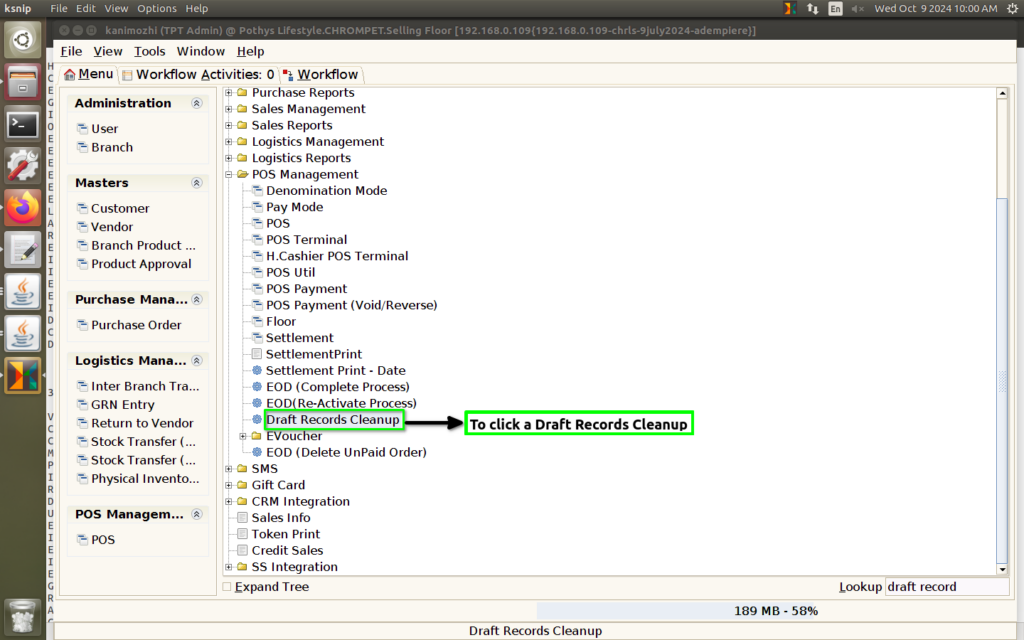
Step 1 : To select a Draft Records Cleanup.
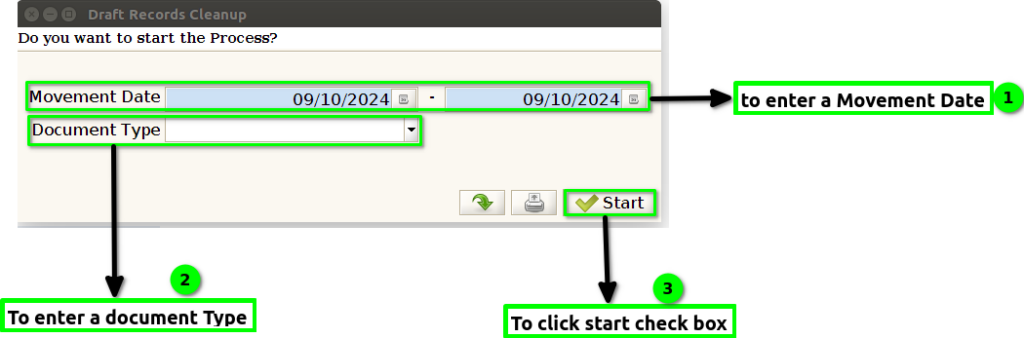
Step 2: To enter a Movement Date or to enter a Document Type and then to click the start check box.To run the process.
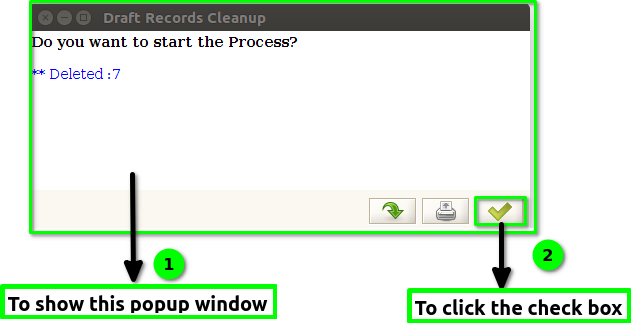
Step 3: Once to run the process to show this popup window deleted Records count will show.Finally to click the check box.