How to view Batch deactive or reactive list Report in Adempiere Retail
A Batch Re-active / De-active List Report is a report that shows a list of items, accounts, or tasks that are either reactivated (turned back on, or restored after being inactive) or deactivated (turned off or suspended) in a system or process.
User Access
Who Can Access
- Admin
- Back Office
- Purchase Manager
- Manager
What User Can Do
- View the Report
- Reactivate or Deactivate Items
- Update or Modify Report Data
- Generate or Export Report
Pre-Requisite Activities
- Data Collection and Setup
- User Permissions
- Process and Workflow Definition
- Reporting Template
Business Rules
- Reactivation
- Deactivation
- Data Integrity and Accuracy
- Business Impact
- Timing and Batch Processing
- Reporting and Analytics
User Interface
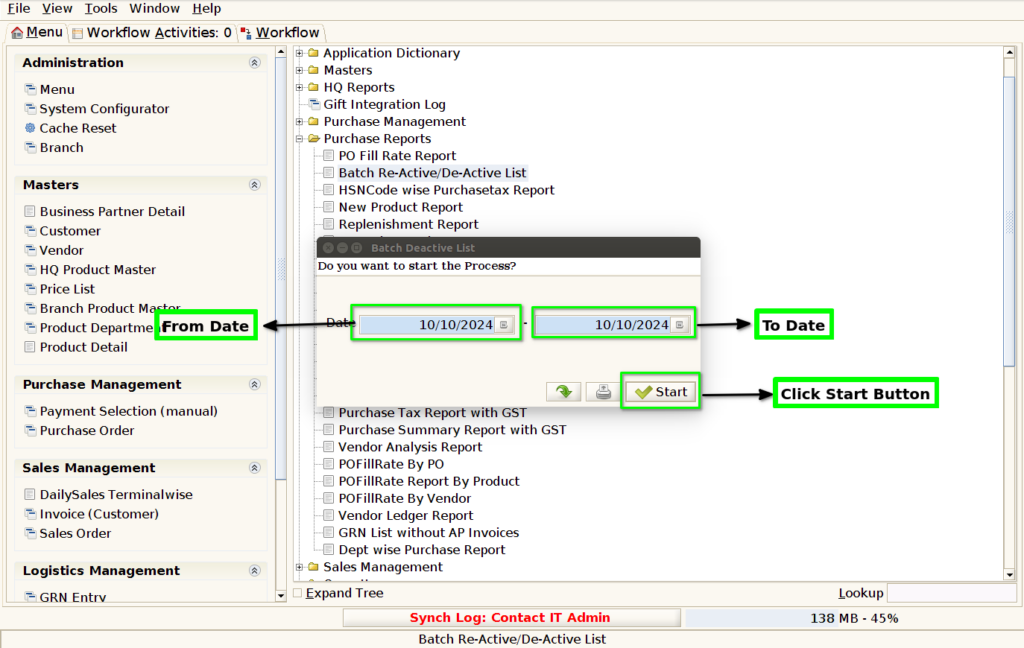
STEP 1: Click Purchase Reports Folder.

STEP 2: Click Batch Re-Active / De-Active List Report.

STEP 3: Parameters From date ,to Date Click the Start Button.
STEP 4: Show Columns Details.
1.Search Key –> Product code
2.Product Name.
3.Batch MRP.
4.Date

STEP 5: Click Page Down Button Show Columns Details.
5.Re-Active / De-Active User Name(Changed By).
6.Re-Active / De-Active Status.
