How to run the Replenish Process in Adempiere Retail
The Replenish Process refers to automatically or manually restocking inventory for products whose stock levels fall below a predefined threshold. It ensures the right products are available at the right time to avoid stock outs or overstocking.
User Access
Who Can Access
- Admin
- Purchase Manager
- Cashier
- Back Office
What User Can Do
- Set minimum stock levels (reorder point) for products
- Define replenishment rules (e.g., reorder quantity, max stock)
- Trigger automatic or manual Purchase Orders (PO)
- Generate Replenishment Reports
Pre-Requisite Activities
- Product master setup must be complete
- Minimum and reorder quantities should be defined per item
- Suppliers must be mapped to each product
- Warehouse/branch stock levels must be updated regularly
BUSINESS RULES
- Replenishment only triggers when stock falls below minimum level
- Purchase Orders must be auto or manually approved before execution
- Items flagged as “Do Not Replenish” are excluded
- Replenishment quantity = Max Level – Current Stock (or fixed qty)
- Replenish can be based on sales history, lead time, or fixed interval
- Duplicate POS for the same item/vendor must be avoided.
USER INTERFACE
STEP 1: To select the Replenish Process.

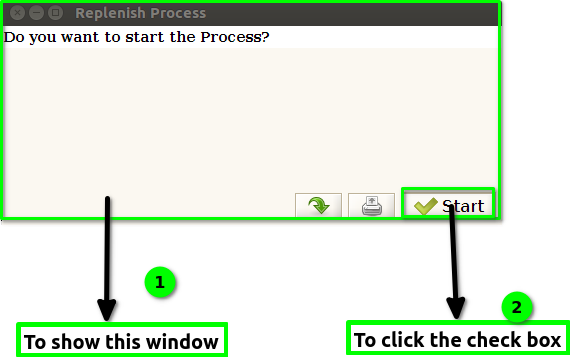
STEP 2: To open this Window.And to click the check box.
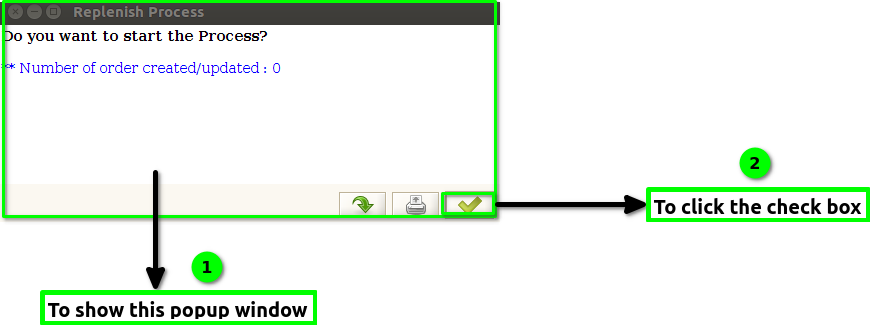
STEP 3: Finally to open this popup window Number of orders created/updated count will show & finally to click the check box.