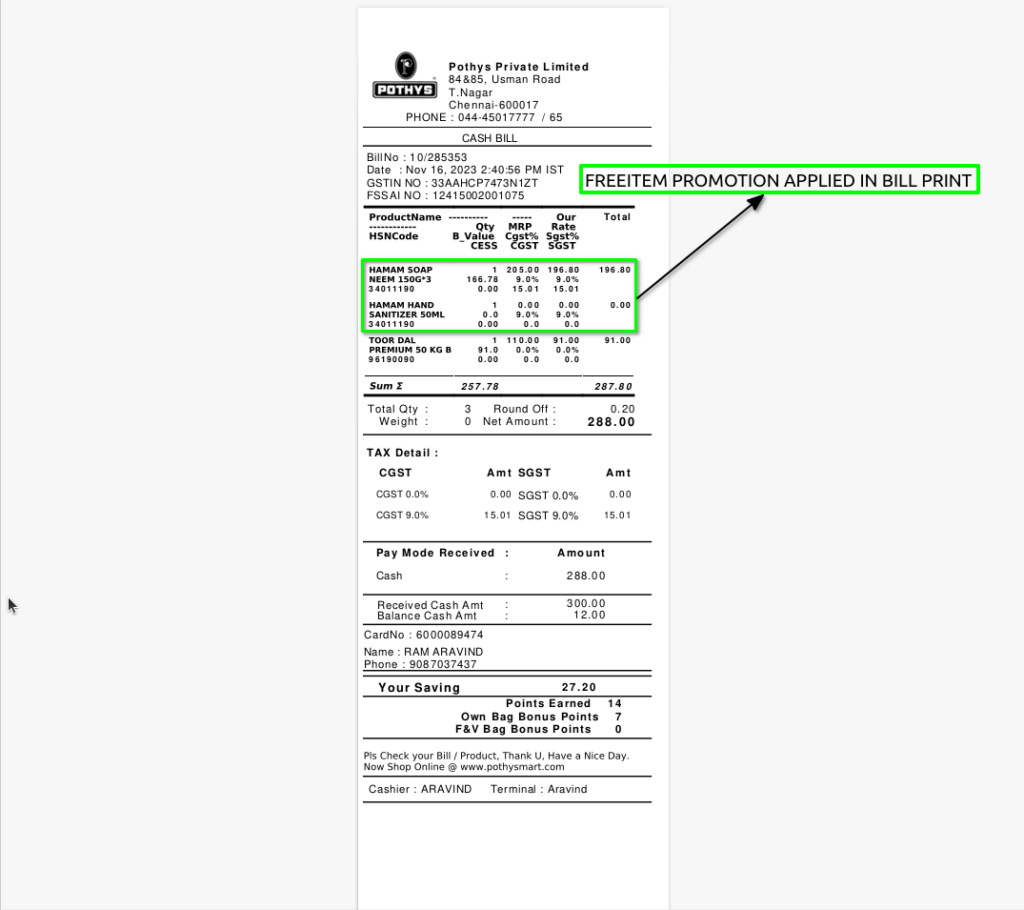
APPLY FOR FREE ITEM PROMOTION
A Free Item Promotion allows customers to receive one or more products at zero cost when they meet specific purchase criteria—like buying certain items, reaching a bill value, or applying a coupon. It is commonly used to boost sales, increase basket size, or promote new/slow-moving products.
USER ACCESS
WHO CAN ACCESS
- Back Office
- Cashier
- Manager
- Admin
WHAT USER CAN DO
- Create the promotion
- Select Promotion mode and Promotion Type
- Set date range of promotion
- Apply the promotion
- Start the promotions
- Stop the promotion (Manual or automatic)
PRE-REQUISITE ACTIVITIES
- Ensure free items are available in inventory
- SKU setup must include correct UOM and pricing
- Link item codes properly in promotion setup
- POS/Billing module must support auto free item addition
- Define applicable sales channel (offline/online)
- Assign promotion codes or names for tracking
BUSINESS RULES
- Free item is granted only if buy conditions are met
- Cannot substitute free item with other SKUs
- Free item must be billed with ₹0 or defined discount
- Promotions should not exceed maximum allowed benefit
- Free item is tracked for inventory and reporting
- Not applicable on returned or voided transactions
- Free item is visible in customer invoice/receipt
- Overlapping promotions must have priority logic defined
USER INTERFACE
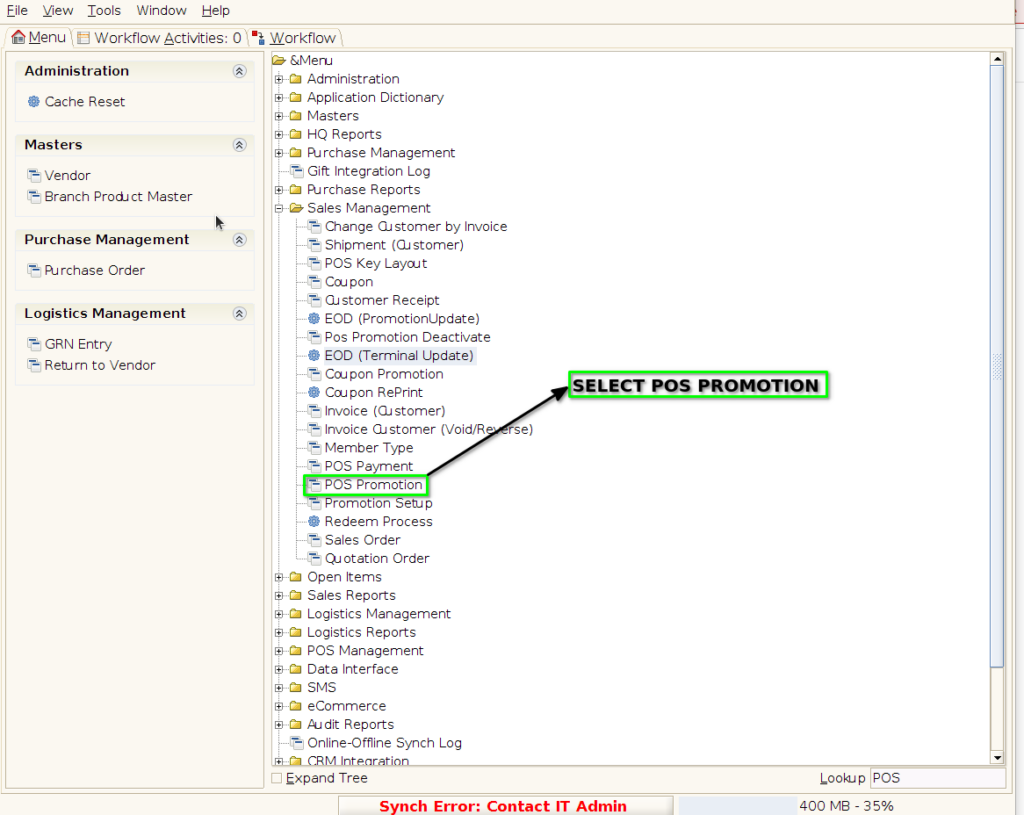
Step 1 : Select ‘POS Promotion’ in Menu -> Sales Management -> POS Promotion or Search POS Promotion in Lookup.
PROMOTION TAB
Step 2 : To create new promotion Document
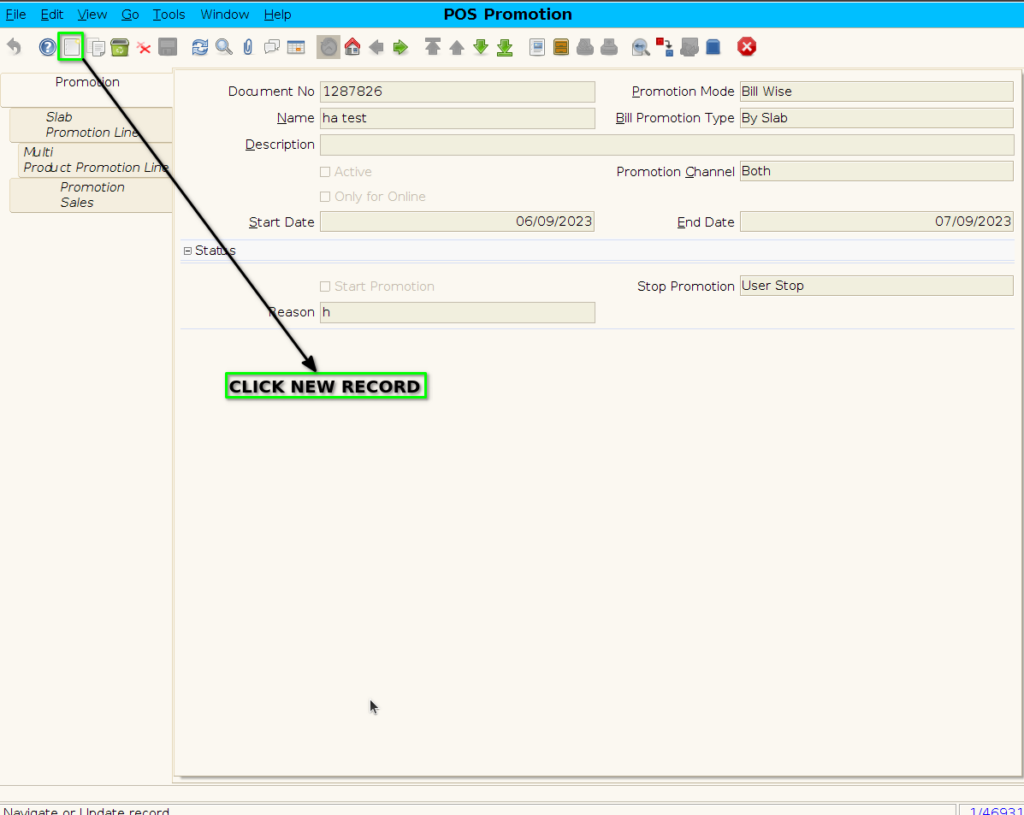
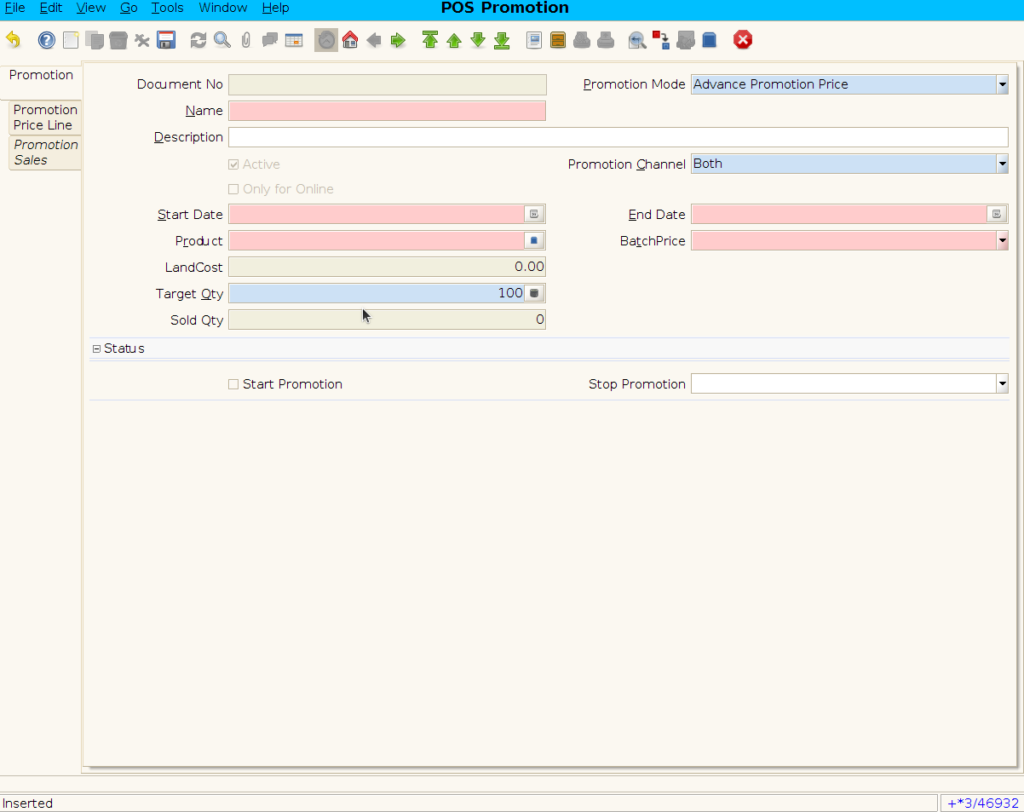
Step 3 : Enter Promotion details by following steps ;
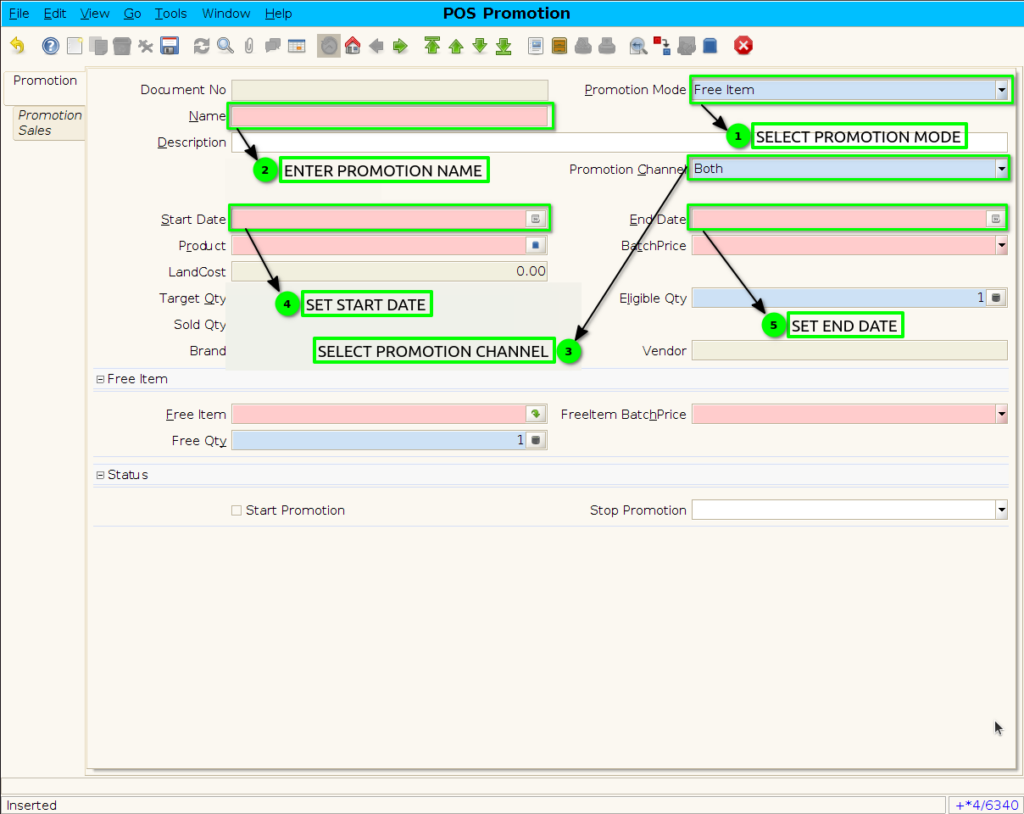
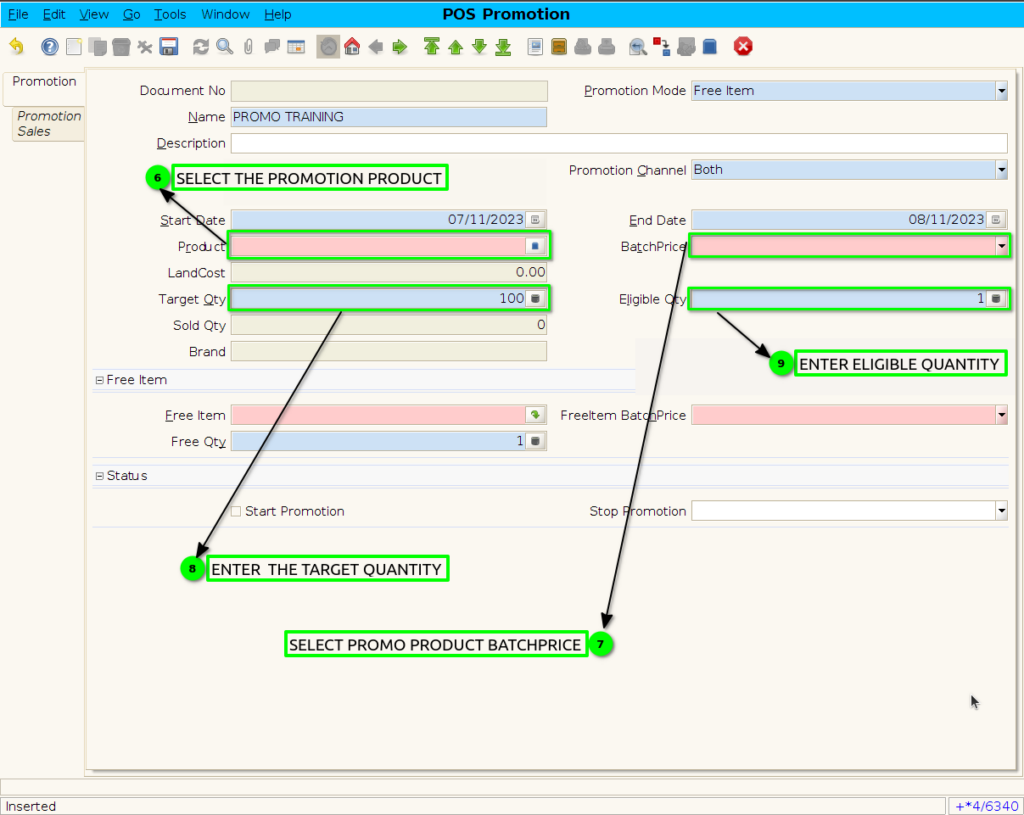
Step 4 : Selected the promotion product and Eligible quantity set
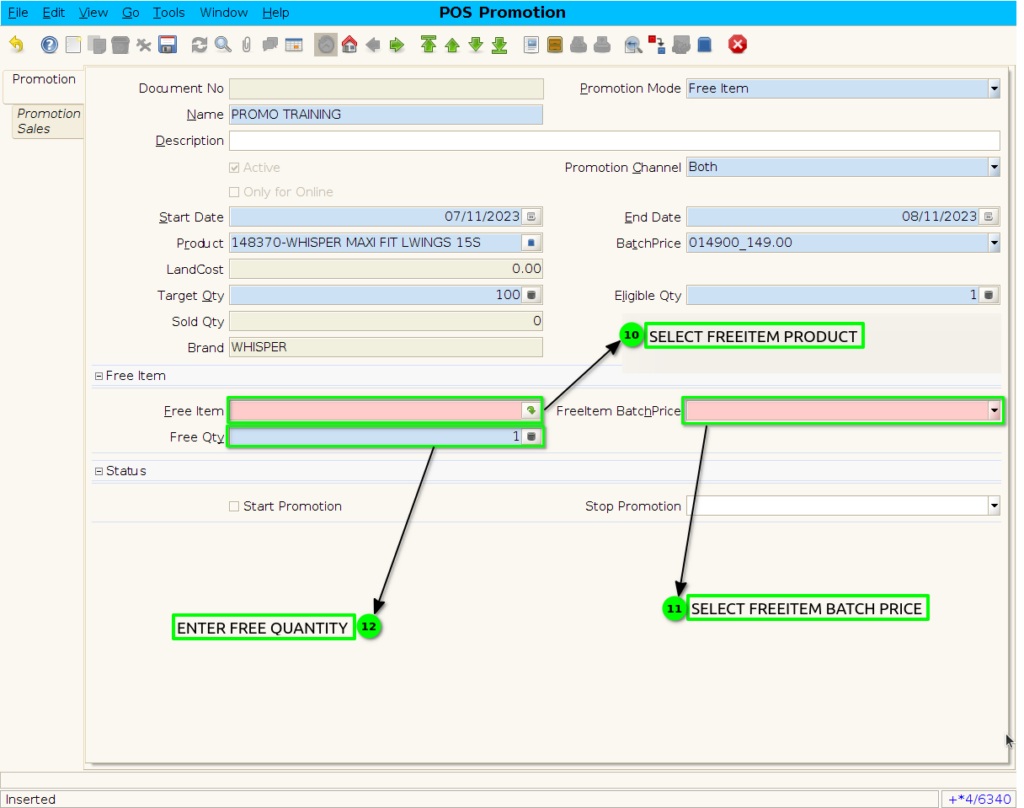
Step 5 : Choose the free item and free quantity
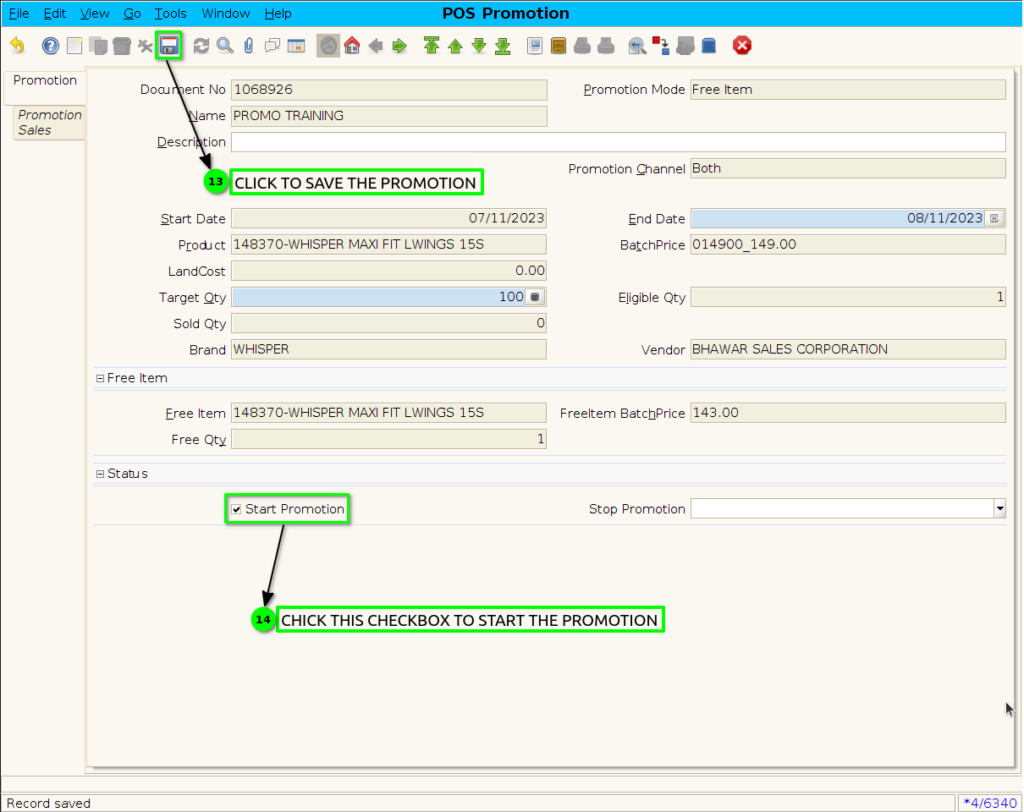
Step 6 : click the checkbox to Start the promotion and save the promotion.
Step 7 : Scanned Freeitem Promotion product in POS
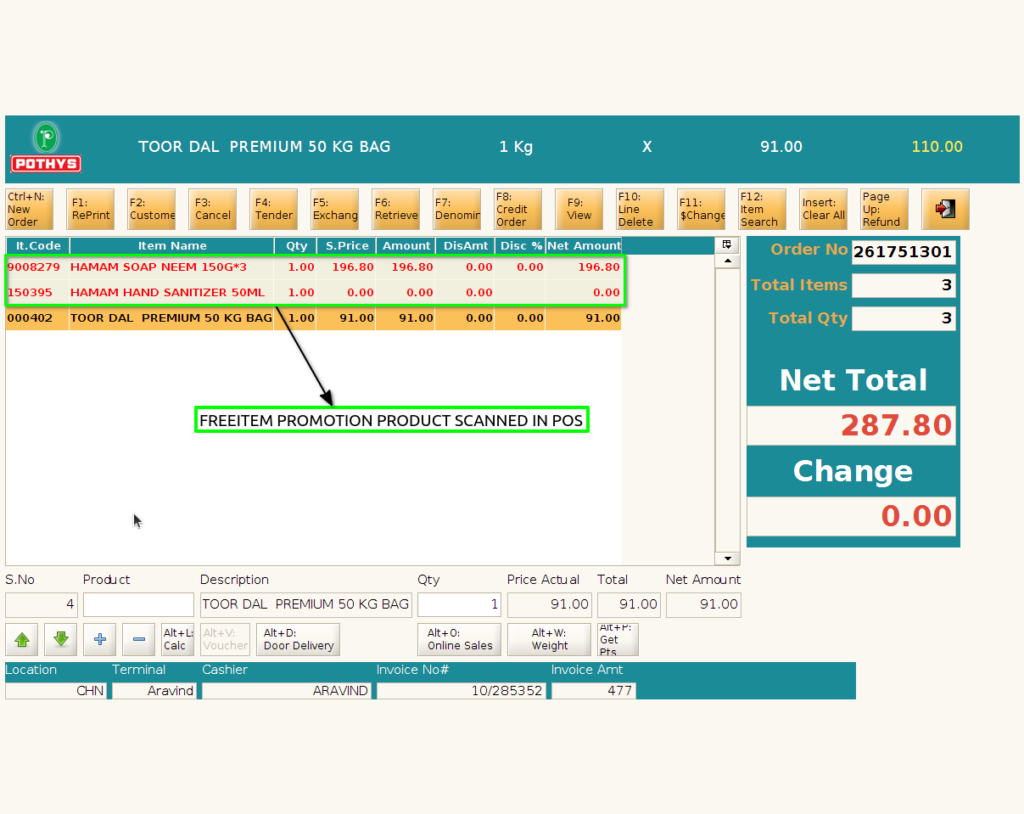
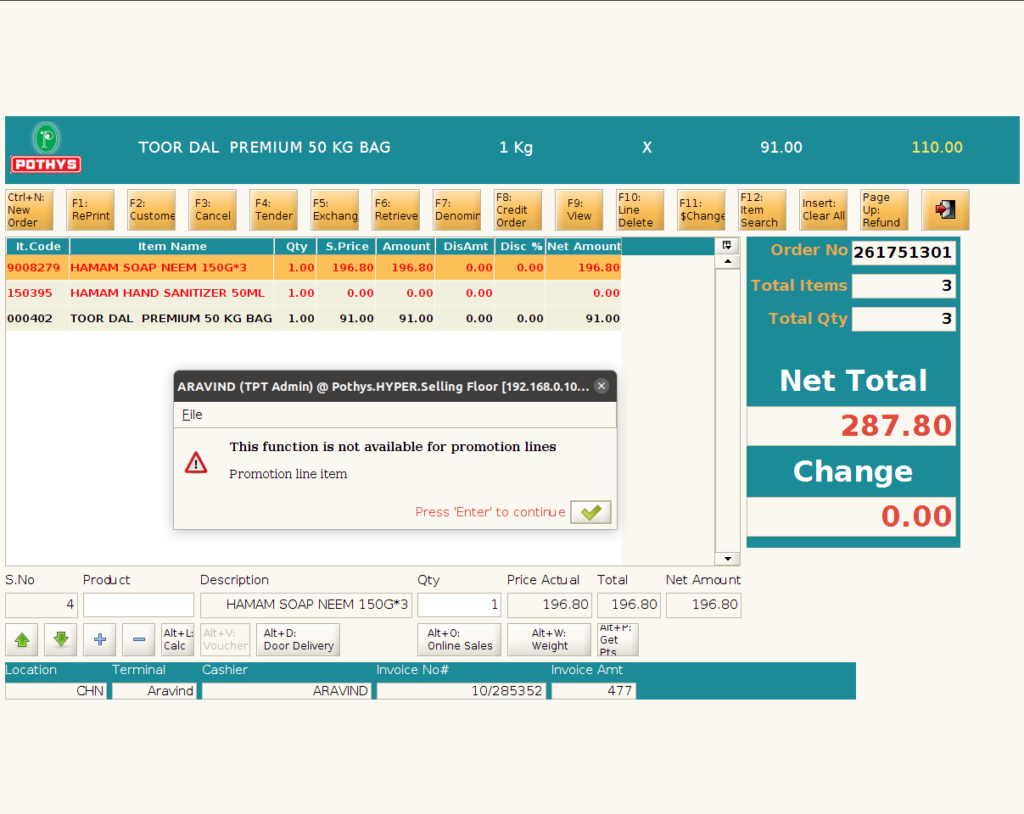
Step 8 : Freeitem Promotion Applied product Isn’t applicable for Quantity change and F11 Price Change Discount,only Free product Line delete F10 key isn,t working
Step 9 : Promotion applied product show in POS Bill Print