How to use POS Promotion Deactivate in Adempiere Retail
Deactivating a POS promotion means turning it off so it can no longer be applied at the point of sale.The promotion is still saved in the system, but it is not available for use in transactions.
Who Can Access
- Back Office
- Cashier
- Purchase Manager
- Admin
What User Can Do
- View the promotion details (if they have permission).
- Process sales without applying the deactivated promotion.
- Inform customers that the promotion is not currently available.
- Report or request reactivation from managers or admins.
- Apply other active promotions if available.
Pre-Requisite Activities
- Promotion details (discount %, eligible products) are fully defined.
- Promotion dates (start and end) are set.
- Promotion is reviewed and approved by marketing/management.
- POS terminals are updated or synced with the promotion data.
BUSINESS RULES
- A promotion must be deactivated when it is no longer valid or needs to be temporarily disabled.
- Deactivated promotions must not be available or select able at any POS terminal during sales.
- Only authorised users (e.g., Marketing Manager, System Admin) can deactivate a promotion.
- Attempts to apply a deactivated promotion must trigger a notification informing it is inactive.
User Interface
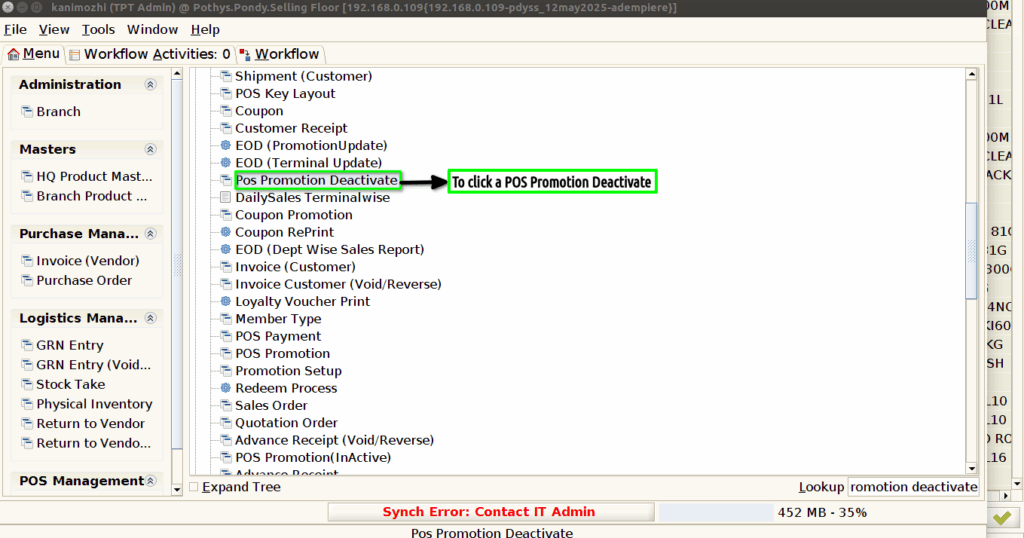
Step 1 : To Select a Branch in Menu.Then to click a POS Promotion Deactivate.
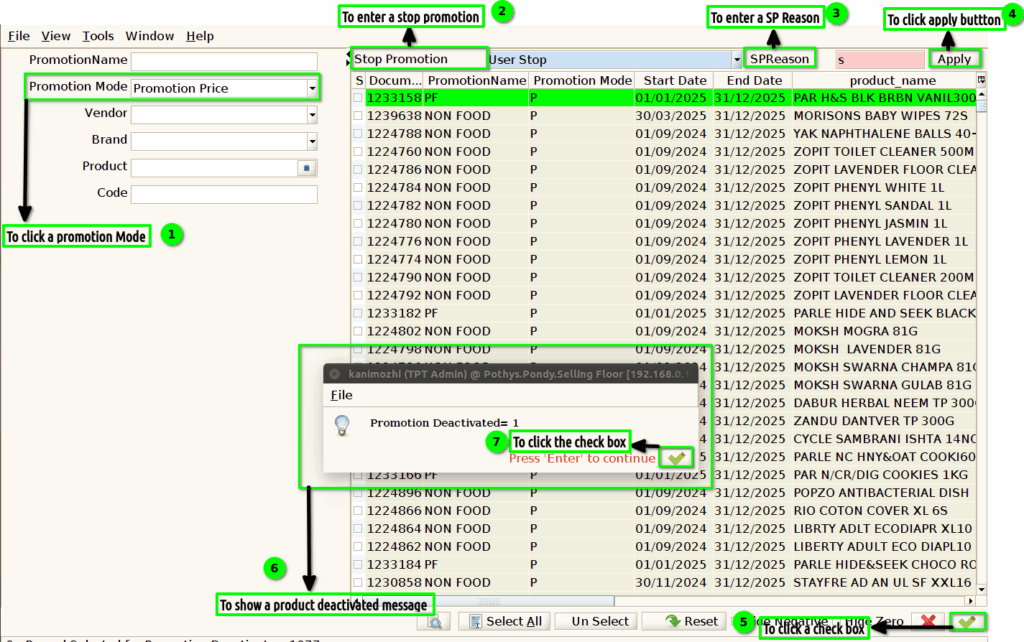
Step 2 :To a click a promotion Mode and to enter a Stop promotion,SP Reason and to select a product then to click a apply button.To click a check box and to show the popup message for promotion Deactivate finally to click the check box.