How to create Invoice Vendor (Void/Reverse) document in Adempiere Retail
Cancelling or undoing a previously created vendor invoice. This is done when there’s a mistake, duplication, or need to correct the transaction without affecting the financial records incorrectly.
User Access
Who Can Access
- Back Office
- Purchase Manager
- Manager
- Admin
What User Can Do
- Void an invoice before payment is processed
- Reverse an already posted invoice with appropriate reference
- View history of reversed/voided invoices
Pre-Requisite Activities
- Original invoice must exist in the system
- User must have access to finance or invoice module
- Review audit logs or approval trail
- Ensure related payments or GRNs are not affected
Business Rules
- Voiding is allowed only before invoice is paid
- Reversal must have reference to original invoice
- Tax and accounting entries must be auto-adjusted
- Cannot void/reverse invoices tied to closed financial periods
- Actions must be logged for audit and compliance
User Interface
Step 1 : To Select a Branch in Menu.Then to click a Invoice vendor(Void/Reverse).

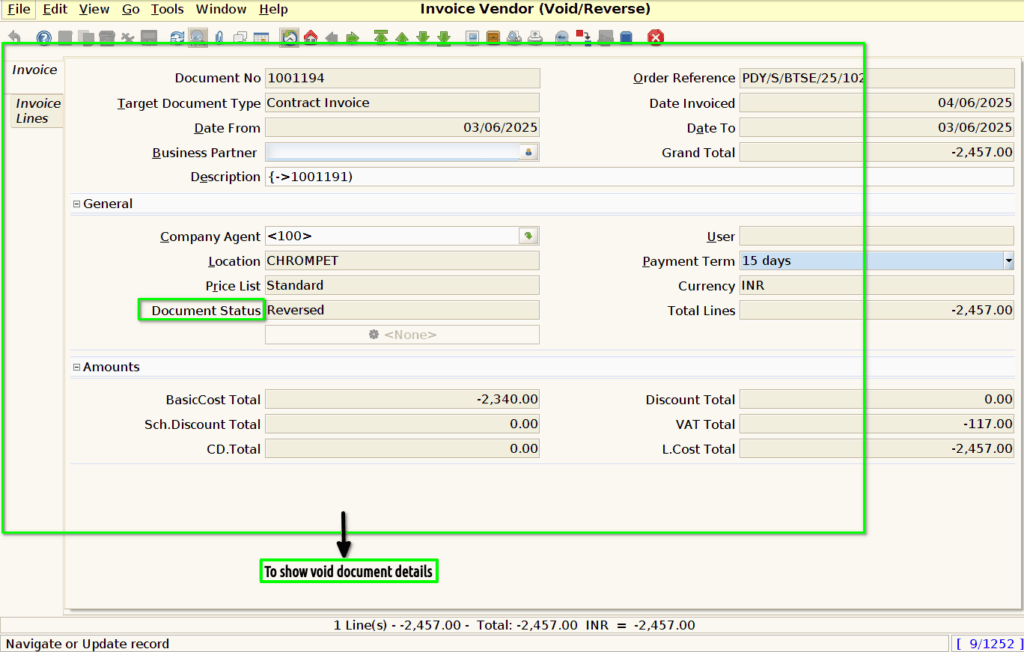
Step 2 :Once to click a Invoice vendor screen and to void the document.Then to click a Invoice vendor(void/reverse) screen to show the document status and to show the particular document details.The void screen couldn’t create,update,edit options are disable.