How to view Inventory Valuation Report in Adempiere Retail
An Inventory Valuation Report is a report that shows the total value of all stock/items available in the warehouse or store, based on the quantity in hand × cost of each item.It tells the business how much money is tied up in inventory.
User Access
Who Can Access
- Admin
- Back Office
- Purchase Manager
- Manager
What User Can Do
- View the total value of inventory
- Check item-wise stock quantity and value
- Compare stock value across locations
- Verify cost accuracy
- Analyze aging of inventory (if supported)
Pre-Requisite Activities
- All stock transactions must be updated
- Purchase prices should be updated correctly
- Opening stock must be posted
- Stock-taking / physical stock counts must be completed (if applicable)
- All void/reverse transactions must be resolved
- Warehouses/locations must be mapped correctly
Business Rules
- Only posted stock transactions are considered
- Void or reversed transactions are not included
- Stock value = Quantity × Cost
- Negative stock is not allowed
- Date-wise valuation follows transaction sequence
- Cost must come from defined cost method
User Interface
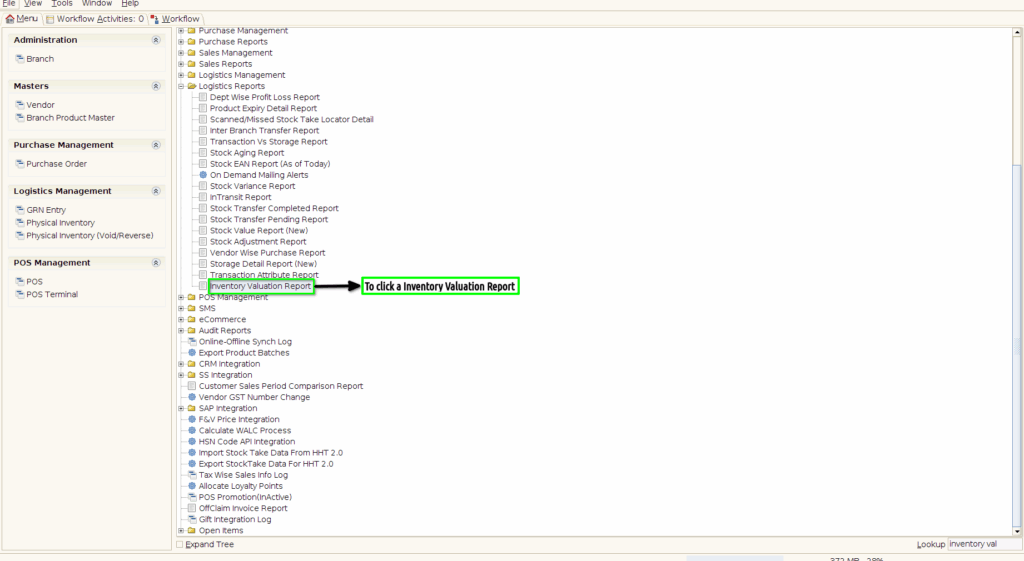
STEP 1: To click a Inventory Valuation Report in Menu.
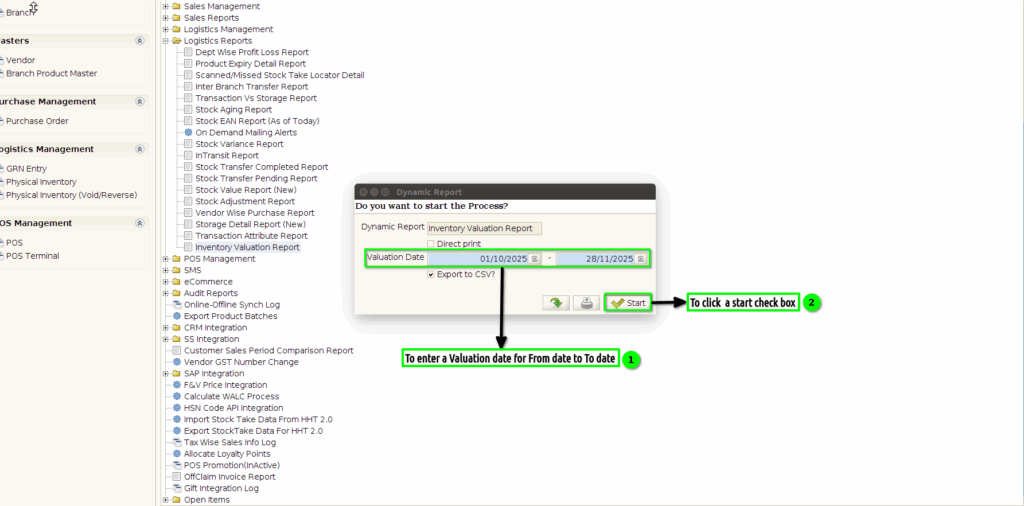
STEP 2: To enter the valuation Date for From date to To date.Once to enter the date range finally to click the start check box.
STEP 3: To show the report based on the given parameter.