How to Add Products and Apply Quantity Rules During Stock Take in Odoo
Accurate stock taking in Odoo is essential for maintaining reliable inventory records and ensuring that system data reflects actual warehouse quantities.Odoo provides flexible options for handling different product quantities ,tracking types lot/serial-tracked items and non-tracked products—during the stock take process.
Adding Lot/Serial Number Products in Stock Take Lines
Adding Products Post-Save
Products can be added to a stock take document only after the document has been saved for the first time.This ensures that a valid document reference exists before new stock lines are introduced.
Adding Products Using Barcode for Lot/Serial Number Items
Products tracked by lot or serial numbers can be added by scanning their barcodes.
This method ensures precise identification of each individual product or batch, minimizing errors and simplifying data entry during large-scale stocktaking.
Adding No-Tracking Products in Stock Take Lines
Adding Products Using Product Code
For products without tracking requirements, items can be added directly by entering the product code.This provides a faster way to record non-serialized stock items during the counting process.
Quantity Limits and Validations for Serial Number Products
Quantity Limit per Serial Number
Each serial-numbered product can have a maximum quantity of one.This rule ensures data accuracy since each serial number uniquely represents a single unit of stock.
Quantity Validation for Serial Number Products
If a user attempts to assign a quantity greater than one to a serial-numbered product,the system automatically triggers a validation error, preventing incorrect entries.
Maximum Quantity Limits for Stock Take
Quantity Validation Above Limits
When entering a counted quantity of 1000 or more, the system displays a validation warning and blocks the entry.This safeguard prevents accidental over counting or typographical errors that could distort stock accuracy.
Quantity Limits on Subsequent Lines
The maximum allowable quantity of 999 applies not only to the initial line entry but also to any subsequent stock take lines for the same product.

Display of MRP in Stock Take Documents
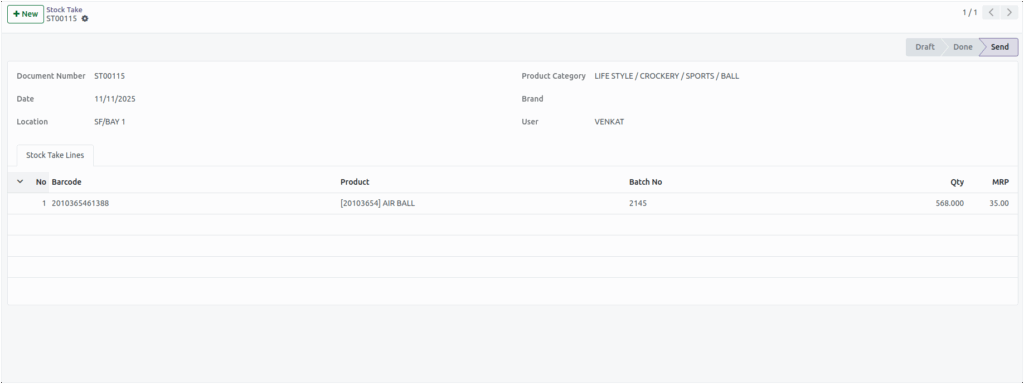
During stock take operations, the Maximum Retail Price (MRP) of each product is displayed within the document.This feature assists in quick price verification and helps ensure that valuation data remains consistent across the system.
Save & Close Option in Stock Take Lines
To simplify the stock take workflow, the ‘Save & Close’ button is not displayed in individual stock take lines.This design choice streamlines the process and minimizes interruptions while entering multiple products consecutively.
Loaded Product Information During Stock Take Entry
After a stock take document is created, the system automatically loads key product details into each stock line.This ensures consistency and speeds up data entry by eliminating the need for manual lookup.
Example of loaded product information:
Field | Value |
Product Name | [20103654] AIR BALL |
Lot Number | 003500 |
Product Barcode | 2010365460967 |
MRP | ₹35.00 |
Counted Quantity | 568.000 |