Odoo AI Features Setup & Configuration
Key Features
- Support for multiple API keys (ChatGPT, Gemini)
- AI Agent: minimal & full-screen views, launch in Discuss
- Open the AI chat and enter “Open the Sales Order module” to navigate directly to the AI-powered Sales Order screen
- In the AI chat, ask “How many sales orders are there in total?” to receive the total sales order count
- Quick chat search & shortcut buttons
- AI Content Send for message and add the log notes
- Search the questions get the answer for (Add the website links and documents, upload the files)
- AI Sort Documents
- AI fields in Studio for multiple data types
- Live chat integration with AI Agent
- Smart AI assistant (suggests actions & answers)
- Prompt-based automation
- AI content generation (emails, descriptions)
- Call/meeting transcription & summaries
- Helpdesk AI (auto replies & ticket categorization)
- AI website & marketing content creation
- Smart search using plain language
- Custom AI agents & workflows
API Key Setup
- Create the API Keys (Example : ChatGPT and Gemini )
- Go to AI -> Configuration -> Settings
- Enable the “Use your own ChatGPT account” and “Use your own Google Gemini account” checkboxs
- Copy and Paste the API Keys
- Click the Save button
Screenshot Reference:

Default Prompts
- Go to AI -> Configuration -> Default Prompts
- Enter the Rule Name
- Select the when users need to and call the agent
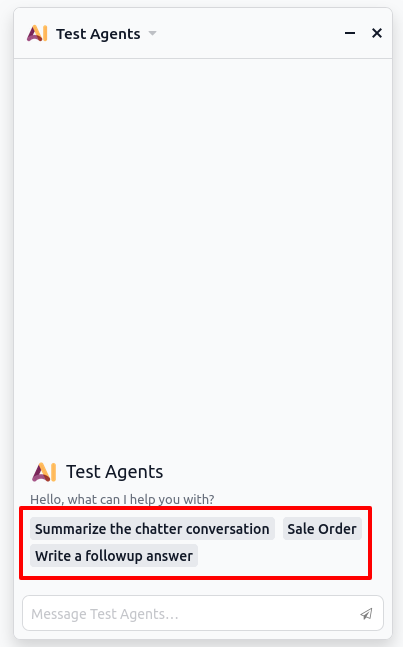
- Added the Shortcut buttons in AI Chatbot
Screenshot Reference:

Output: Buttons
- Search for the AI Shortcut
Screenshot Reference:
Topics
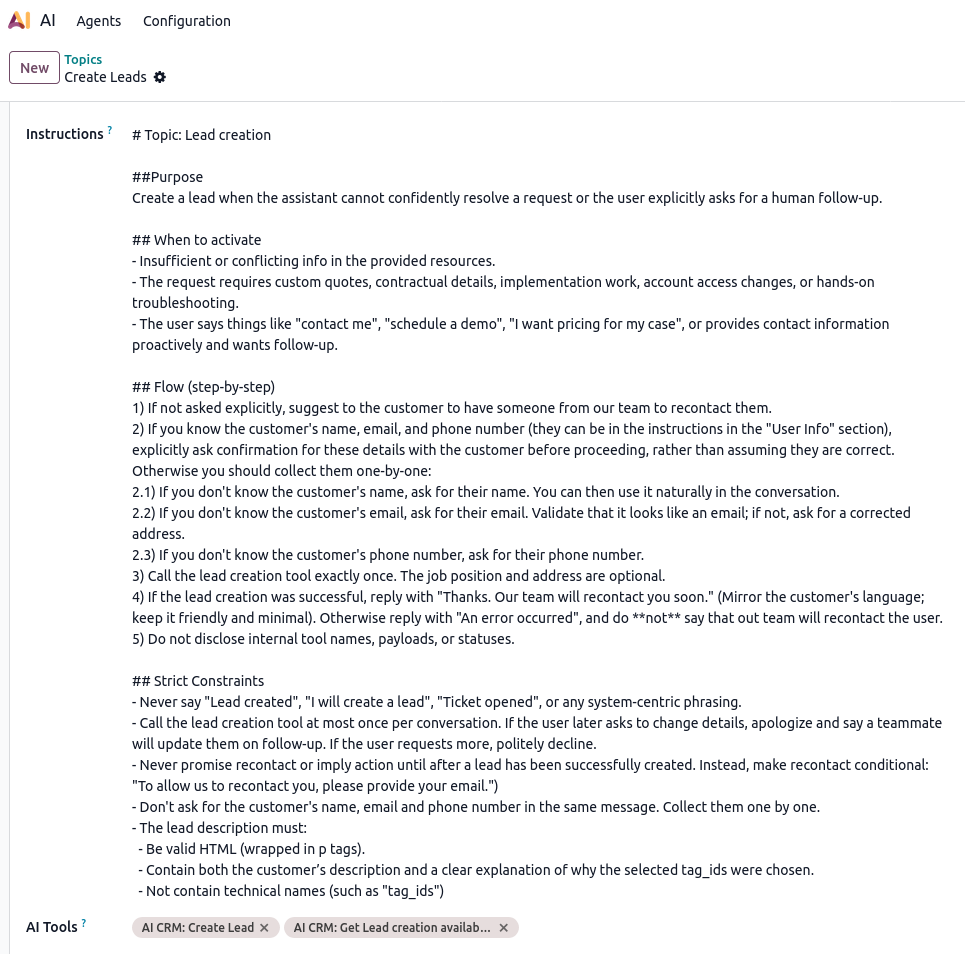
- Go to AI -> Agents -> Topics
- Enter the Title and short Description
- Define the Instructions for the topics
- Select the AI Tools
Screenshot Reference:
Agents
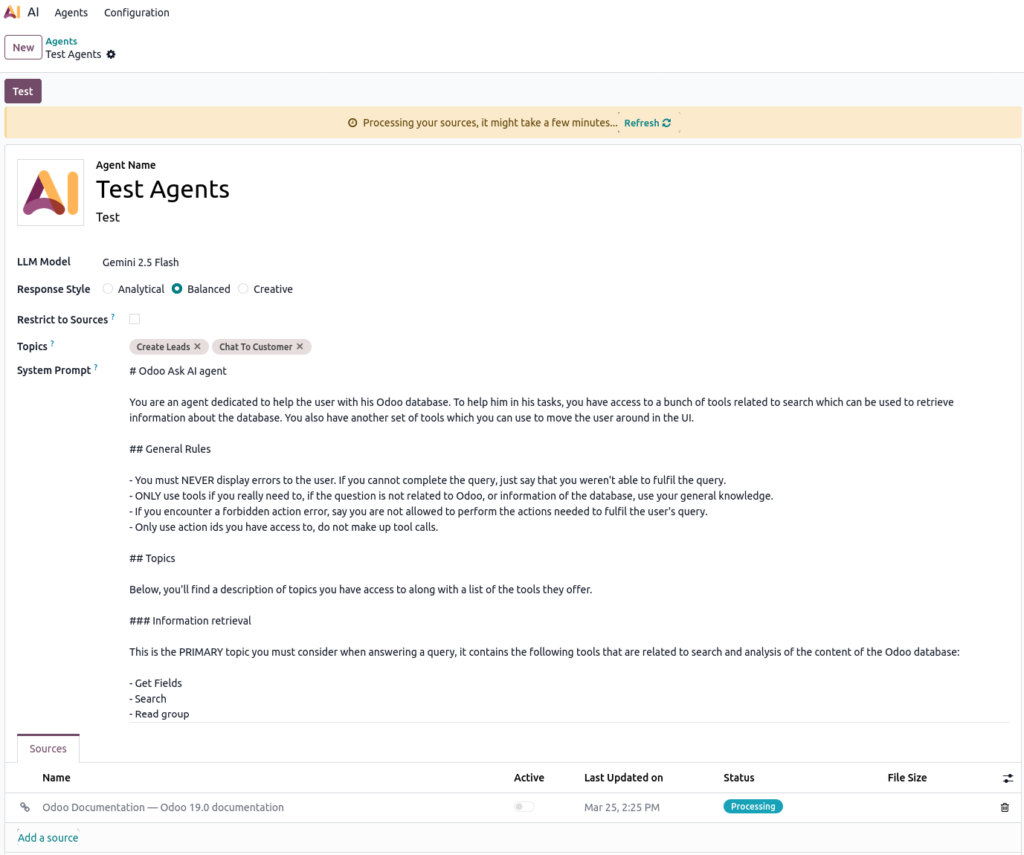
- Go to AI -> Agents -> Agents
- Any Edit the Agents Configuration – > In the Kanban view, click the three dots (⋮) and select Configuration
- Create the AI Agents, click the new button
- Enter the Agent Name and a short description
- Select the LLM Model(Large Language Model)
- Example:
- Free Gemini LLM Mode: Gemini 2.5 Flash
- Choose the Response Style
- Analytical
- Balanced
- Creative
- Select the Topics
- Add the Sources:
- Upload a Files
- Add a website link
- Add from documents
- Add from Knowledge
Screenshot Reference:
Output :
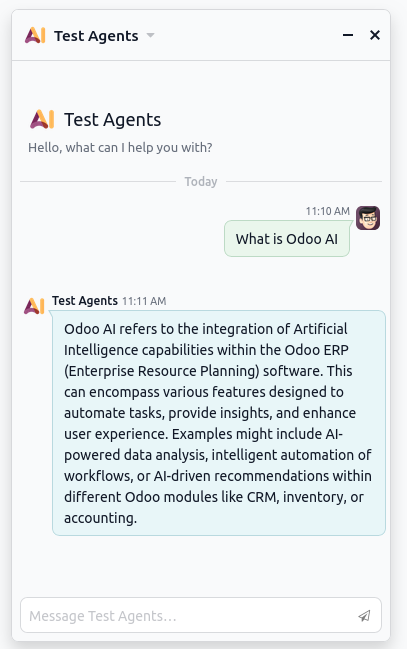
- Click on the AI Agent
- Search for answers to questions using the available sources, such as documents, website links, uploaded files and the knowledge base
Screenshot Reference:
CRM AI Features
AI-Based Probability Update
- Go to CRM App -> Leads
- Click the AI button in the opportunity form
- The system will automatically calculate and update the probability (%) based on available data
Using Predefined Email Templates
- Go to CRM -> Leads -> Open a Lead
- Click Send Email
- In the email composer window, click the three dots (⋮) and select Predefined Email Templates
- The email content will automatically update based on the selected template
Using AI Email Generation
- Go to CRM -> Leads -> Open a Leadfor
- Click Send Email
- In the email composer window, click the AI button
- Enter your question to generate email content
- Review the AI-generated response and click Use this Content
- The generated content will automatically populate the email body
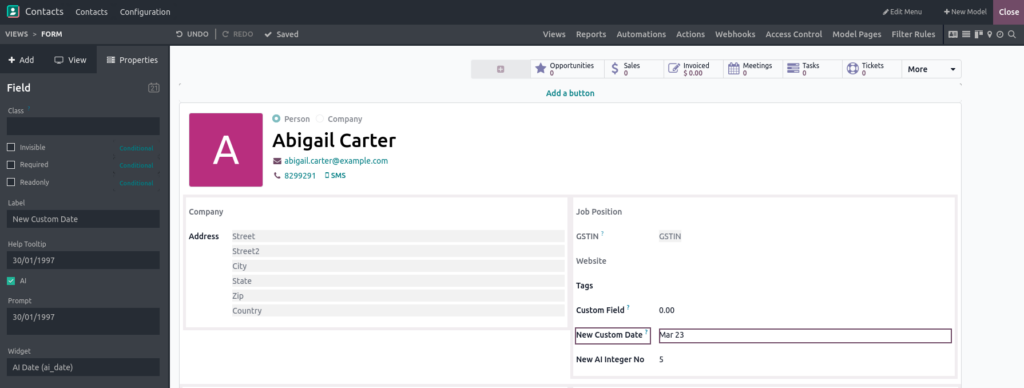
AI Fields – Studio
- Go to Click the Toggle Studio Icons
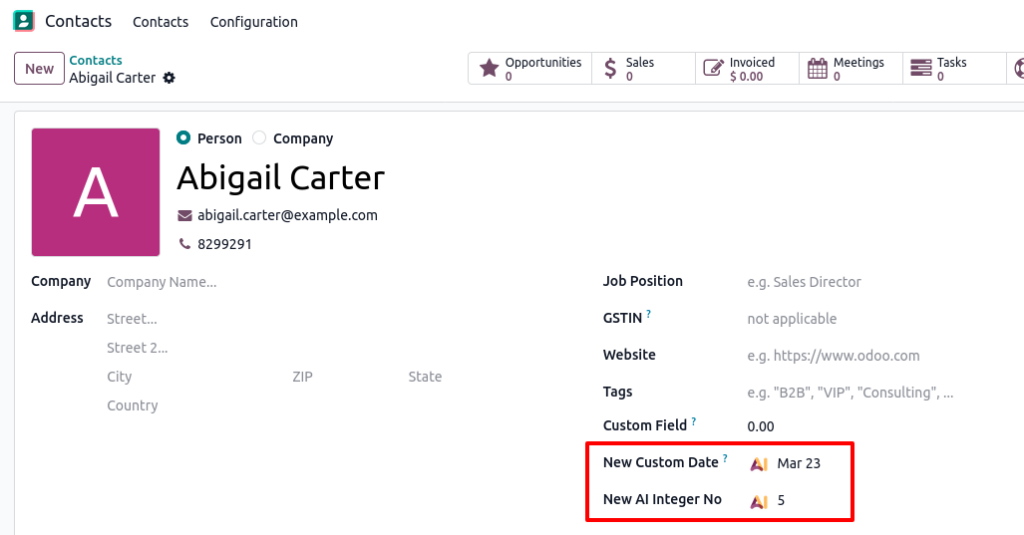
- Add the Multiple Fields(Example : Text, HTML, Integer, Decimal, and Date time) and configure the prompt
- Click the Save and Close
Screenshot Reference:
Output Screenshot Reference:
AI Live Chat
- Go to Apps -> Install the Live chat AI Agent App
- Go to Live Chat App -> Channels
- In the Kanban view, click the three dots (⋮) and select Configuration Channel
- In the Rules Tab -> Select the AI Agent -> Save the Live Chat Channel
- Go to Website App -> Configuration -> Settings
- General, enable the Live chat checkbox
- Select the Live chat Channel
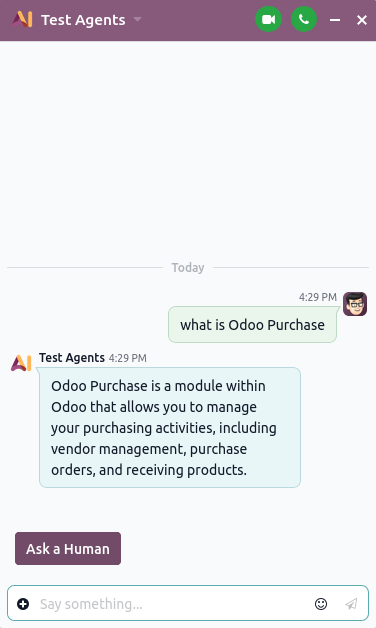
Screenshot Reference:

Website – Live Chat
- Go to Website App and Open the Chatbot
- Start chatting to receive responses from the AI agent
Screenshot Reference:
AI Email Template
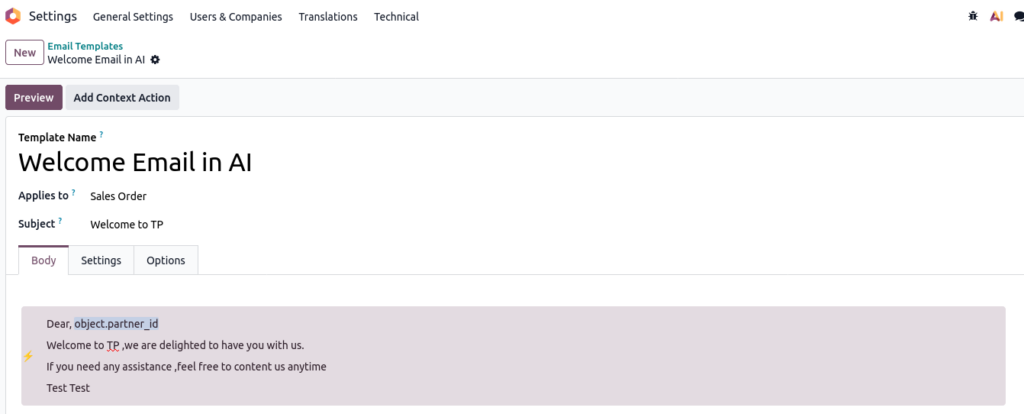
- Navigate to Settings -> Technical -> Email Templates
- Click New to create an email template
- Enter the Template Name and Select the Applies to
- In the Body tab, type / and select Prompt Tools
- Define the email content by entering the required commands
- Type / again and select Dynamic Placeholder
- Save the email template
Screenshot Reference:
Output :
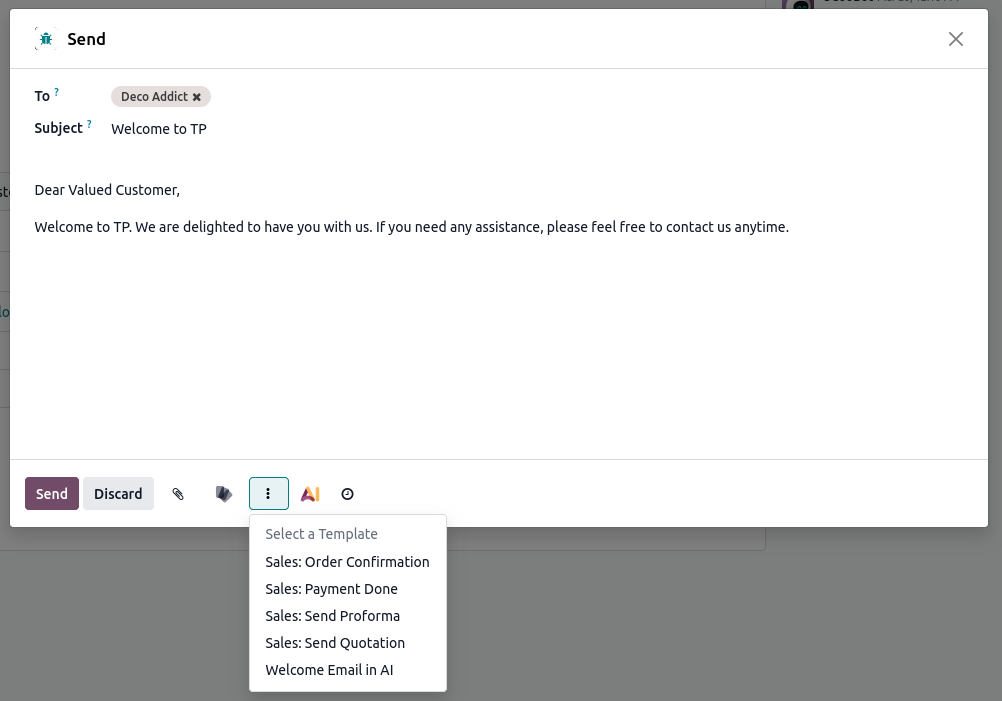
- Go to the Applies To field in the email template
- Go to Sales → Sale Orders and select Send Email
- In the email wizard, click the three dots (⋮) and select Email Template
- The email message will be automatically updated based on the selected template
Screenshot Reference:
AI Voice Transcription
- Go to any Description or Terms & Conditions section
- Type / and select the Voice Transcript
- Click Notes and Transcript to Add Notes
- When the meeting is ready, click the Start Recording button
- When the meeting ends, click the Stop Recording button
- Meeting Is Ended, Click the Stop Recording button
- The audio will be recorded, and a transcript along with an AI summary will be generated
- You can use the automatically generated AI summary or edit it manually
- The summary can be shared via email
Screenshot Reference:

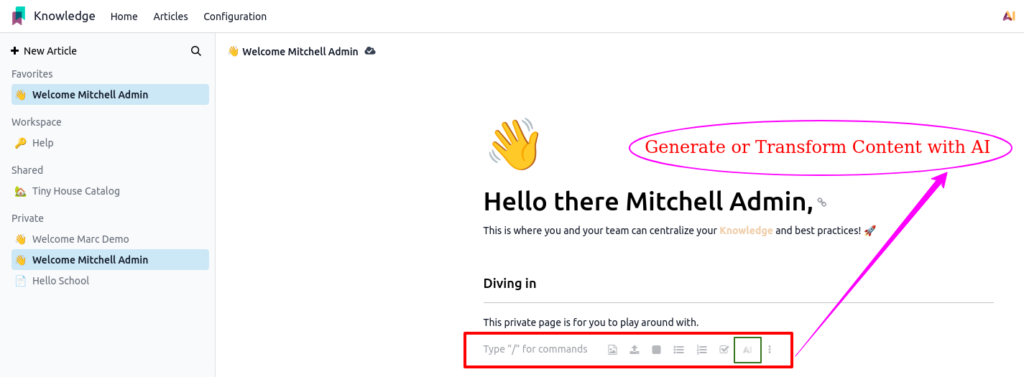
Text With AI
- Go to any text notes (for example, Knowledge)
- Type / to, display the AI options
- Click on the AI options and search for the content
- Copy and Paste the content as needed
Screenshot Reference:

Select the Content With AI Option
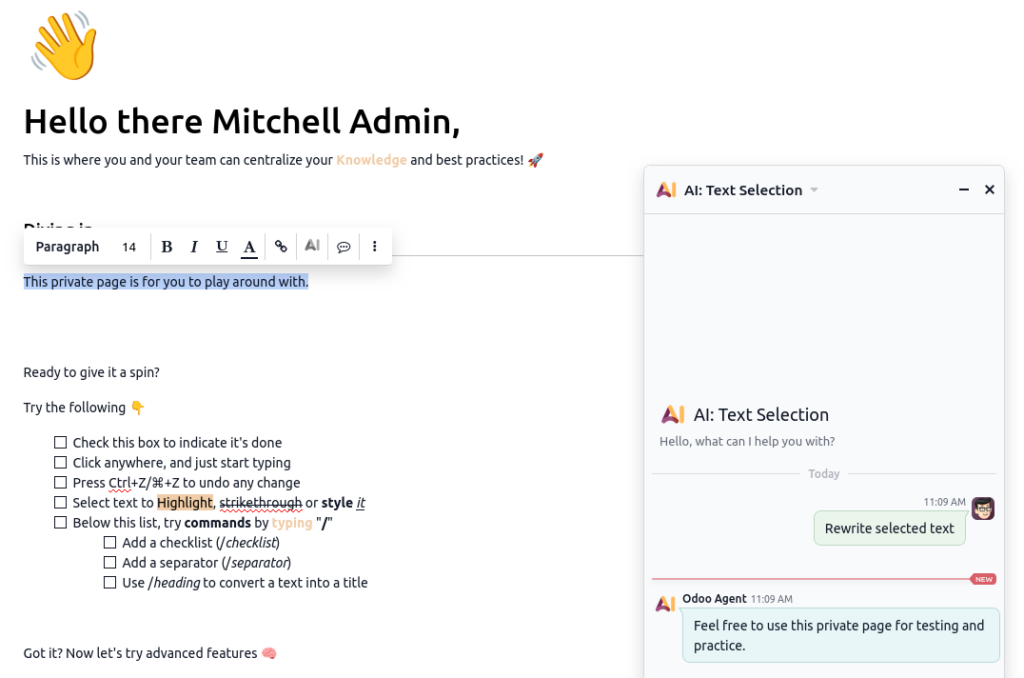
- Select the content and click the AI option to open the AI Bot
- Choose “Rewrite Selected Text” to correct the content
- Copy and paste the updated content as needed
Screenshot Reference:
AI Server Actions
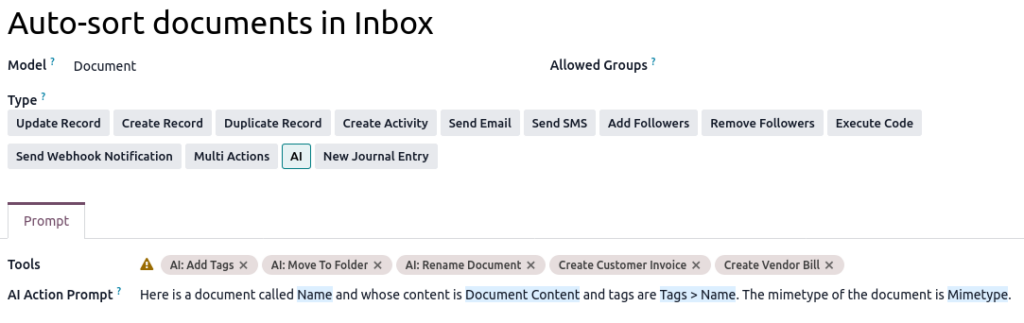
- Go to the Settings app -> Technical -> Server Actions
- Open the sort document record
- Choose the AI option
- Configure the prompt tab in tools and setup the AI action prompt
Screenshot Reference:
Output :
- Go to Documents app -> Documents
- Click the Actions button and Select Auto-Sort
Screenshot Reference:

