How to Create a New User in Odoo
In Odoo, a User is an individual who can log into the system such as an employee, manager, or anyone needing system access. Each user has specific access rights and permissions based on their role, helping maintain secure and organized operations.
Accessing the Users Screen in Odoo
Start with navigating to the Settings → Users & Companies → Users. The system will display a list of all existing users along with details like User Name, Login ID, Associated Company and Status.

Creation Of New User in Odoo
To create a new user in Odoo, click the +New button on the Users screen. On the user form, go to the Access Rights tab, where the USER TYPE section shows the default type as Internal User. This type is used for employees or team members who need internal access to the system.

When creating a new user, certain fields are mandatory to ensure proper account setup. The Name and Email Address fields are required. If these fields are left empty,it will display an error preventing you from saving the user: “Invalid fields: Name and Login”.
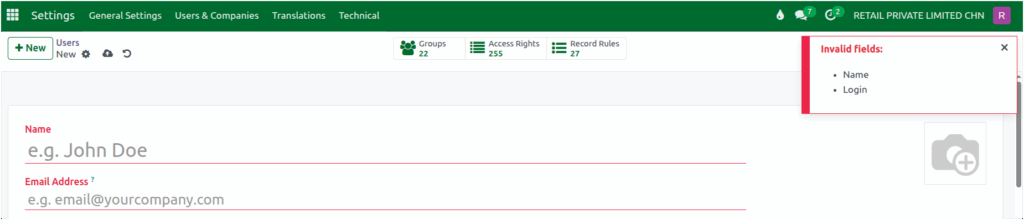
To avoid this, always enter a valid Name (Example: Sri Hari) to identify the user within the system and a unique Email Address for login and notifications. Odoo does not allow two users to have the same email address, ensuring each account is Unique.

In Odoo, a user can be granted access to multiple companies by selecting the relevant companies in the Allowed Companies field. By default, the company under which the user was created is selected as their Default Company.

When the user logs in, Odoo automatically selects the default company, ensuring that all records and operations are accessed under that company unless the user switches manually.
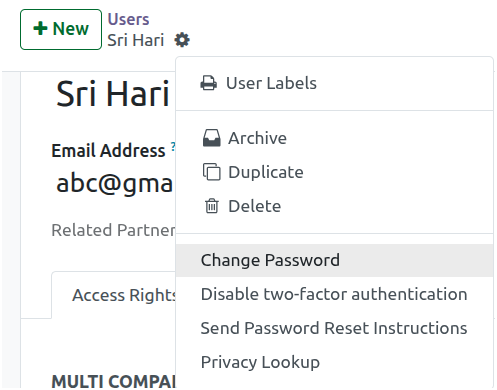
After saving, you can set a password for the Login by clicking Actions → Change Password. A pop-up will appear to enter the new password.
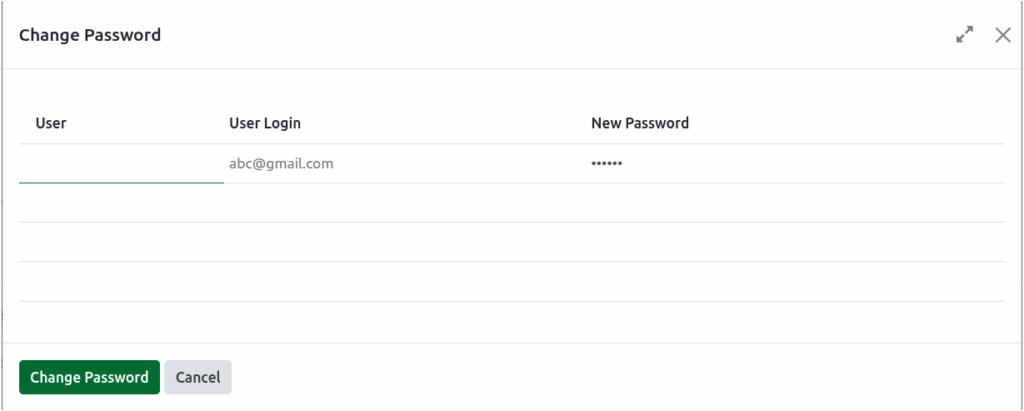
Enter the new password(Example: 123456789), and clicking Change Password to save. If needed, you can click Cancel at any time to discard changes.Once the password is set, the user can log in to Odoo using their Email ID and the newly created password.
The user’s status is updated based on their login activity: immediately after creation, it shows “Never Connected”, changes to “Confirmed” after the first successful login, and the status remains “Confirmed” on all subsequent logins.

