How to Configure Loyalty points in Odoo?
Loyalty points are rewards or credits given to customers as part of a loyalty program offered by businesses. These points are earned by customers based on their behavior, typically through the purchase of products or services.
To Configure the Loyalty Points, go to Sales → Select Products → Discount & Loyalty.
Create a Loyalty Points
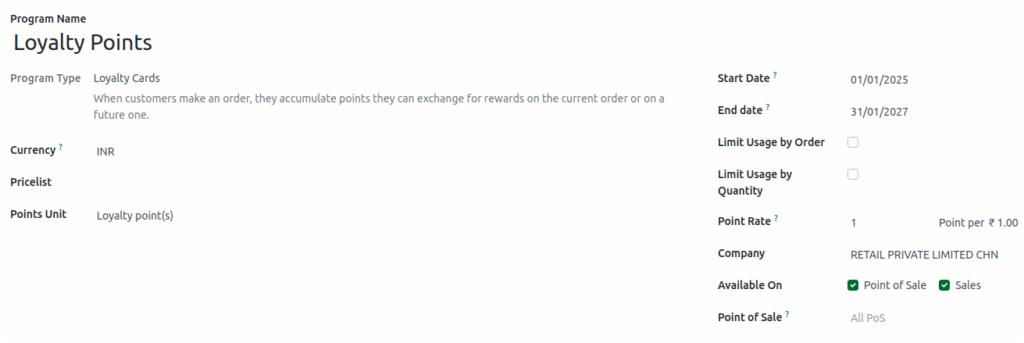
Click the + New button to create a Loyalty Points entry. Specify the name in the Program field (e.g., “Loyalty Points”). Set the Start Date (e.g., 01/07/2025). Set the End Date, which determines how long the loyalty points can be used (e.g., 01/07/2027).
Note: Name, Start Date, end Date are mandatory fields.

Once the loyalty points and the start and end dates are configured, select Loyalty Card as the
Program Type. After selecting the Loyalty Card, the Points Unit field will be filled automatically, and the
Show Points Unit option will be enabled automatically.
Set the other configurations in the Loyalty Cards
The company details and POS details can be modified, but these fields are not mandatory. In Other Configurations, options are available to enable and adjust the company details.
Under Available On, both checkboxes are enabled by default; the Sales or Point of Sale options can be disabled if required. Loyalty points can also be configured to be usable only on specific POS terminals.
Setting Up Conditional Rules & Promotion Rewards
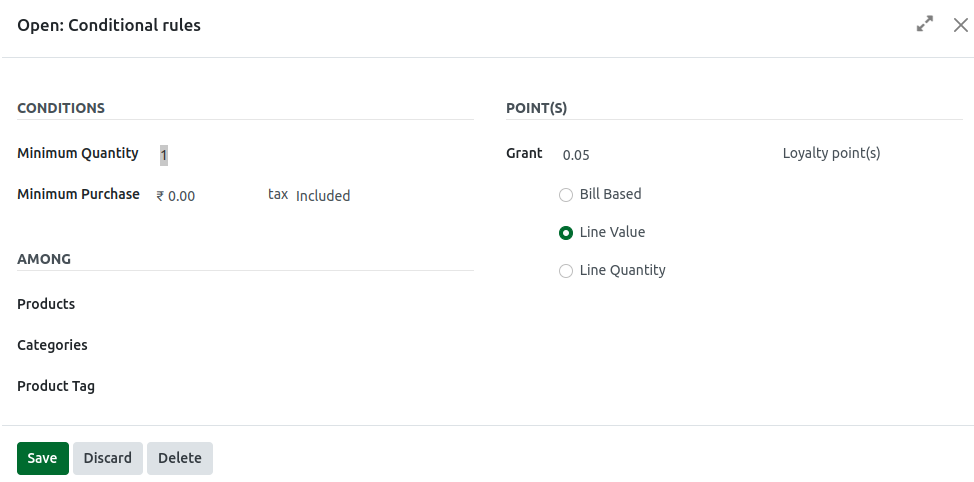
In the Rules & Rewards Section, In the Conditional Rules, Select the rule.
- Enter 1 in the Minimum Quantity field (in POS, the rule is applied when at least one product is purchased)
- Enter 0 in the Minimum Purchase field.
- Enter 0.05 in the Grant Point field.
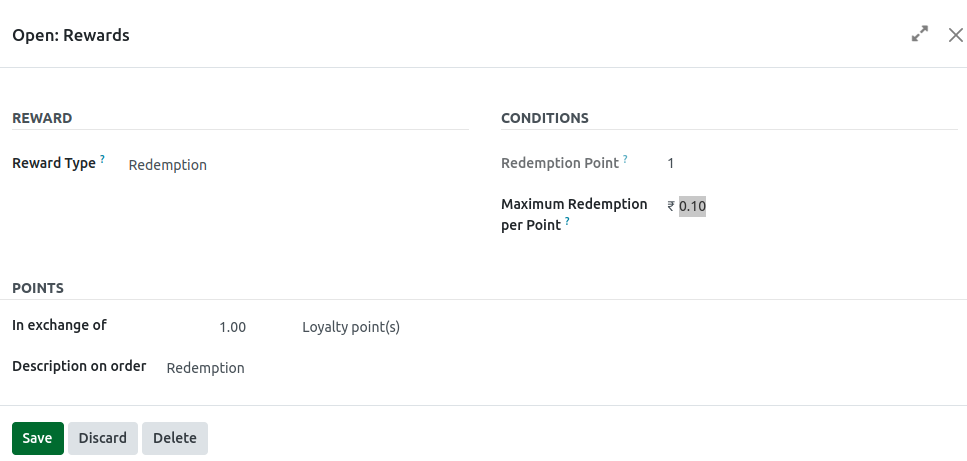
In the Rewards section, Select the rule.
- Set the Redemption typefor reward field, and set the [00010] REDEMPTION Product for the discount product.
- Enter the value as 1 in exchange of field.
- Enter the value as 0.10 in Maximum Redemption per Point field.
Save The Promotion
After configuring all the promotion details, click the Save button to store the promotion settings. The promotion will now be available in the Point of Sale (POS) for use.
