How to Calculate Stock Adjustment Values in Odoo
Managing inventory efficiently is one of the most important aspects of any business, and Odoo makes this process easier through its Stock Adjustment feature. Odoo Stock adjustments help businesses correct differences between the system’s recorded stock levels and the actual physical count. This ensures that your inventory records remain accurate, allowing for smooth operations and informed decision-making.
Creating a Stock Adjustment
To begin, you need to create a new Stock Adjustment document in Odoo. Click on +New to start, and by default, the document type will appear as Stock Adjustment. Choose the Source Location where the products are stored, and then select the relevant Product Category from the dropdown list.
Once you click Save, Odoo will automatically generate a unique Stock Adjustment Document Number. This document will be used to record and track all your stock adjustment details.
After creating the document, you can start adding products that need adjustment. Choose the specific product and, if applicable, select the correct Lot or Serial Number. Once you make the selection, Odoo will automatically update important details such as the Lot Barcode, the current On-Hand Quantity, and the Goods Receipt Note (GRN) Date.
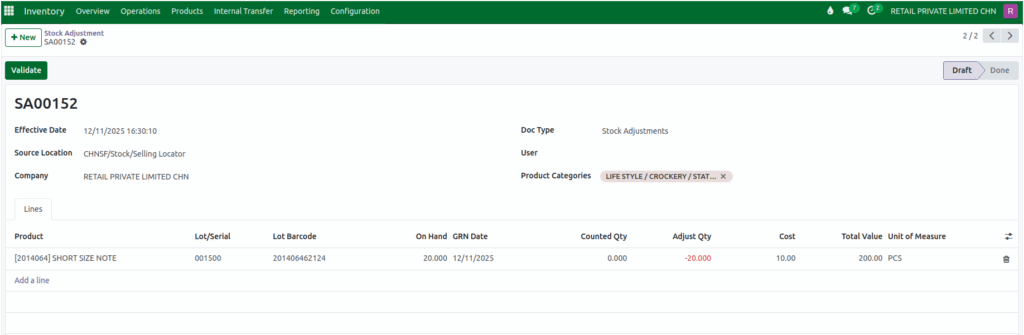
Next, you’ll need to enter the actual physical stock count. The system will initially show the Counted Quantity as zero, and you can then input the physically available quantity in the Counted Qty field. It’s important to note that this quantity must always be a positive number. If a negative number is entered, Odoo will display a validation reminding you to “Enter positive counted quantity!”.
For products tracked by serial numbers, if you try to enter a counted quantity greater than one, the system will display a validation stating that the “The serial number has already been assigned: Product: ‘Product Code + Product Name’, Serial Number: ‘Lot/Serial Number’”.

Odoo automatically calculates the difference between your counted quantity and the system’s on-hand quantity. This value is known as the Adjusted Quantity, and it is determined using the formula:
Adjusted Quantity = Counted Quantity - On-Hand QuantityIf the adjusted quantity is zero, the system will show an alert indicating that “
The product quantity is zero, so adjustments need to be done”, no changes have been made and prompting you to verify the stock levels again.

To make it easier to understand, Odoo uses color indicators for the adjusted quantity. A negative adjustment (when the counted quantity is less than the system quantity) appears in red, while a positive adjustment (when more stock is found than recorded) appears in green. Once the adjustment is validated, the adjusted quantity will automatically change to green to indicate successful confirmation.
Calculating Cost and Total Value
Along with quantity adjustments, Odoo also helps you calculate the financial value of your stock changes. The system displays the average cost of each selected lot in the Cost field. Using this cost, it automatically computes the Total Value of the adjustment with the formula:
Total Value = Cost × Adjusted QuantityThis total is then displayed in the Total Value field, giving you a clear view of the financial impact of your stock adjustment.
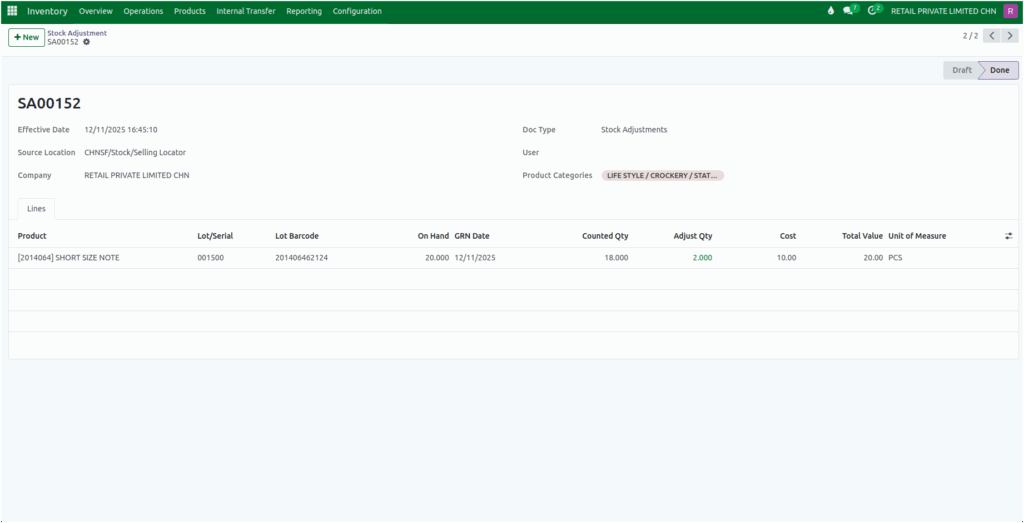
After entering all necessary details, review them carefully to ensure accuracy. Once confirmed, click the Validate button. When you validate the document, Odoo updates the lot’s On-Hand Quantity, Total Value, and Average Cost based on your adjustments. This ensures your inventory data is up to date and correctly reflects the actual stock situation.
