How to Verify Vendor Bills Against GR Bills in Odoo
In Odoo, verifying vendor bills against Goods Receipt (GR) Bills is an important step to ensure that the vendor’s invoice matches the actual goods received. This process helps prevent over billing, quantity mismatches, or duplicate entries and maintains accuracy in your purchase and accounting records.
Create a GR Bill in Odoo
To begin, open the Purchase module and click the + New button on the RFQ (Request for Quotation) screen. Select the vendor, add the required products, and confirm the Purchase Order. After that, complete the Goods Receipt (GR) for the items received.
Once the GR is finalized, click the Create GR Bill button, and the received products will automatically populate the Invoice Lines tab of the GR Bill.
Enter Vendor Bill Amounts in a GR Bill
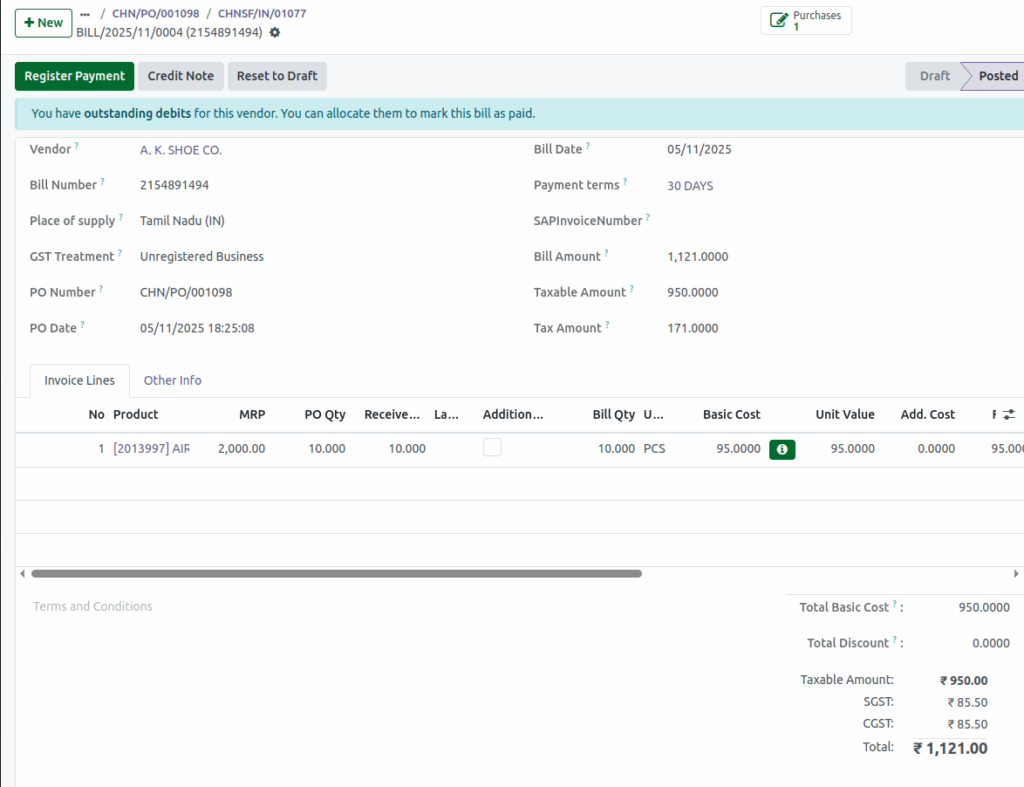
The system automatically calculates the GR Bill amount for received quantities, based on the Bill control setting .This setting is selected as Received quantities.
- Enter the Total Amount as per the vendor’s bill.
- Enter the Taxable Amount from the vendor’s bill.
- Enter the Tax Amount mentioned in the vendor’s bill.
Click Confirm once all details are filled in.
System Validation
If the entered Vendor Bill Amounts do not match the system-generated GR Bill amounts, Odoo displays a warning message:
“Invalid Operation — The entered values do not match the bill amounts. Please verify and try again.”
Only when the vendor bill values exactly match the GR Bill values will Odoo allow you to confirm the GR Bill.

Once confirmed, the vendor bill and GR bill are validated successfully, ensuring accurate accounting, correct product costing, and reliable purchase tracking.
