How to Create a GR Return in Odoo Purchase
A GR Return in Odoo Purchase is the process of returning goods that have already been received through a Goods Receipt (GR) and billed using a GR Bill. This process is used to reverse items due to damage, excess quantity, or any other return reason. A GR Return can only be initiated after the GR Bill is fully completed.
Before Initiating the GR Return Process
Before creating a GR Return, confirm and approve the Purchase Order (PO). Click Receive Products to create the GR. Fill in the required fields and click Validate to finalize the GR. Click Create GR Bill, complete the necessary fields, and click Validate to finish the GR Bill.
Starting the GR Return Process
To access the Goods Receipt details, from the GR Bill screen, click on Purchases to open all purchase-related documents. Then, click on Receipts in the Purchase Order (PO) to view all GR entries related to that PO.
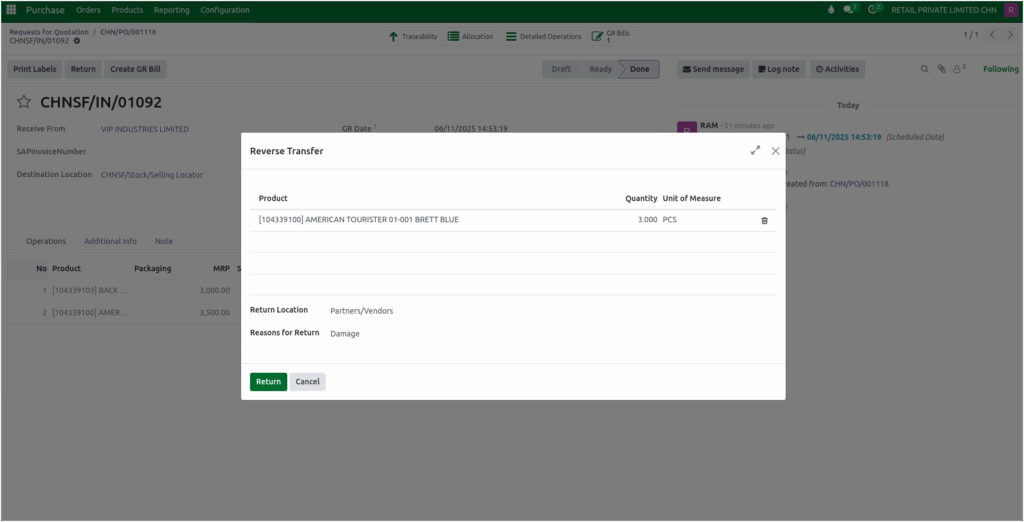
On the GR screen, click the Return button. A Reverse Transfer pop-up will appear showing the product and quantity details from the original GR.
In the Reverse Transfer pop-up, If multiple products are listed, remove the ones you don’t want to return. Enter the quantity to be returned. Choose the return location where the items will be sent. Select a Reason for Return from the dropdown (this is mandatory). If no reason is selected, the system will display a validation “Invalid fields: Reasons for Return”. Click Return to continue with the process.
GR Return Screen
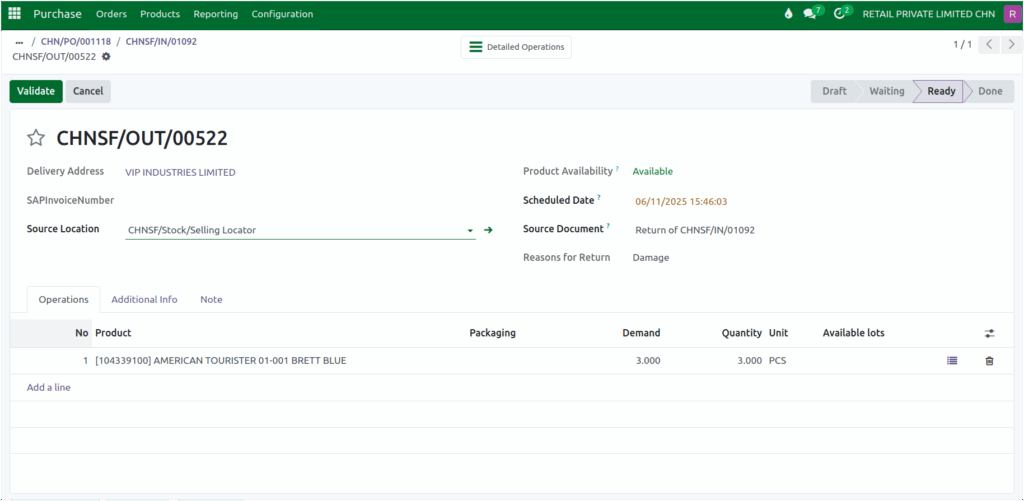
After clicking Return, the system will redirect you to the GR Return screen. A return document number (e.g., CHNSF/OUT/00522) is automatically generated. The delivery address is auto-filled. Select the appropriate Operation Type based on the return method. Choose the Source Location of the product.
Product availability updates automatically based on the selected source location and entered return quantity. You can modify the Scheduled Date if needed. The Source Document field shows the corresponding GR Document number.
The Reason for Return field displays the selected reason from the Reverse Transfer pop-up. This field is system-generated, read-only, and cannot be modified by the user. Demand and Quantity fields reflect the values entered earlier. The Lot number is automatically filled in from the original GR for accurate traceability.
Finalizing the GR Return
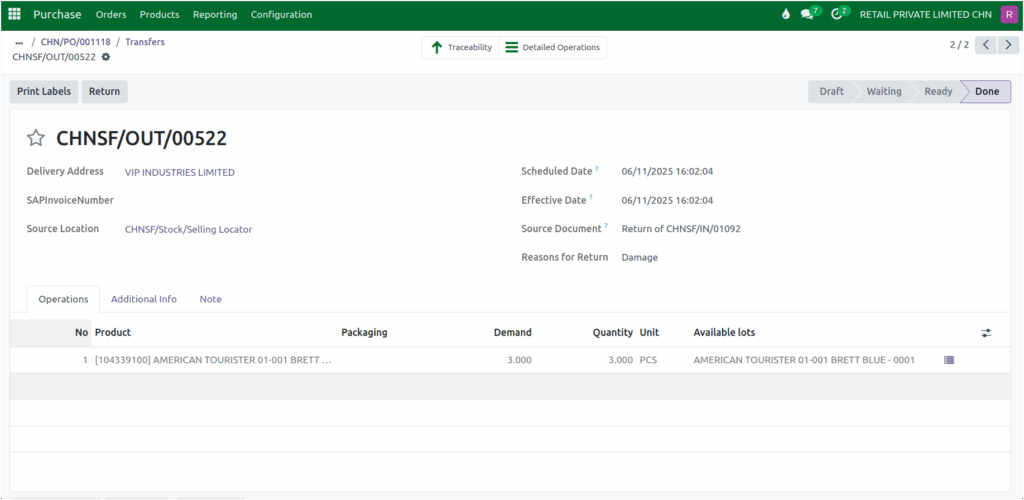
Click Validate to complete the return process. Once validated, the Available Lot field will display the returned lot number. After completion, the returned quantity will be reduced from the onhand quantity. The product is now successfully returned and recorded in the system.