How to Create a Delivery Order from a Sales Order in Odoo
A Delivery Order in Odoo is used to send products from your warehouse to the customer once a sales order is confirmed. It includes all the essential details like product name, quantity, delivery address, and the warehouse location. When the delivery order is confirmed, it serves as confirmation that the goods have been dispatched or delivered to the customer.
Start by Creating a Sales Order
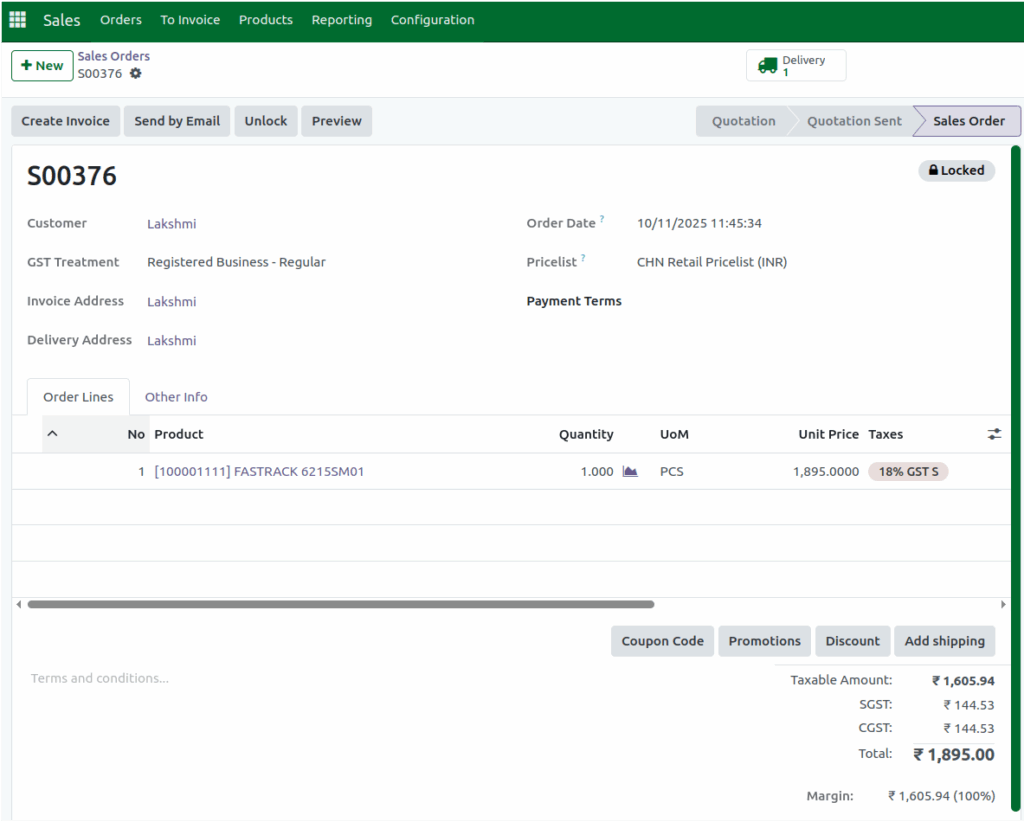
To begin the process, click the New button to create a sales order. Choose the customer, click Save, and Odoo will automatically generate a document number.
Next, add the product, select the correct lot, and enter the required quantity. Once everything looks correct, click Confirm to finalize the sales order and make it ready for delivery.
View the Delivery Order
The delivery smart button becomes active only after the sales order is confirmed. If the order is still a draft, the delivery button won’t be visible. Once the delivery option appears, click Delivery to open the delivery order connected to the sales order. When the delivery is created, Odoo automatically assigns it a document number for easy tracking.
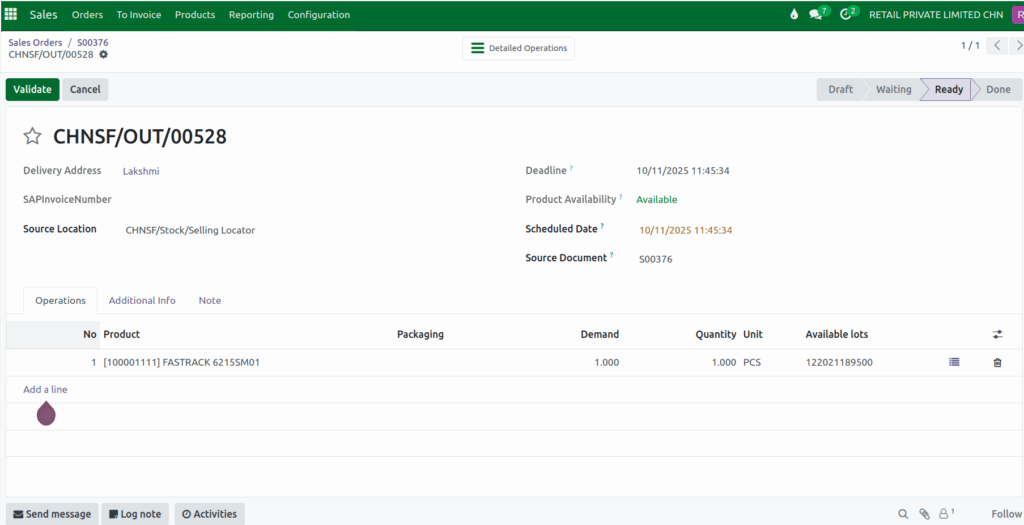
The delivery address is automatically copied from the sales order to the delivery order, saving you time and ensuring accuracy. You then need to select the Source Location, which is the warehouse or storage place where the products are stored. This helps Odoo track the product movement correctly and ensures that the right stock is picked for dispatch.
Delivery Schedule
Each delivery order in Odoo has a Deadline Date and a Scheduled Date. The Deadline Date is the last day the delivery must be done, and the Scheduled Date is the planned day for sending the products. These dates help you organize deliveries better and make sure customers get their orders on time.
Tracking Product Availability and Linked Documents
The Product Available field automatically updates based on the available stock in the selected source location and the entered quantity. The Source Document field shows the corresponding sales order number linked to the delivery. This connection makes it easy to trace and manage the flow of goods from sales to delivery.
Finalize and Validate the Delivery Order
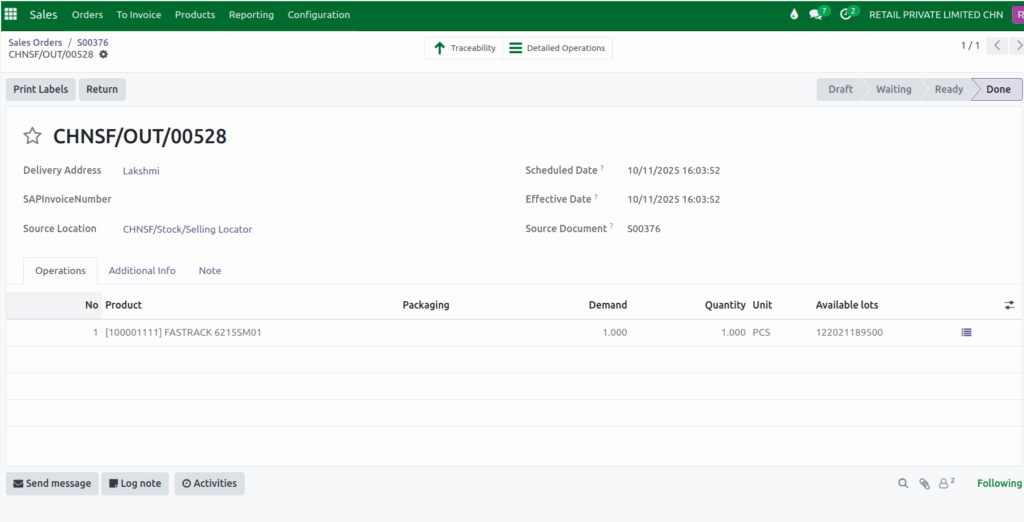
Once the delivery order is created, Odoo automatically fills in key fields such as Product, Quantity, and Available Lots based on the original sales order. After reviewing the details, click Validate to complete the delivery process.
Once validated, Odoo marks the products as delivered and updates both the sales and inventory records automatically, keeping everything accurate and up to date.