How to Configure GKM for Products in Odoo Inventory
The GKM% (Gate Keeping Margin) in Odoo is a control mechanism used in purchasing and inventory management to ensure that every product maintains a minimum profit margin. It helps businesses prevent buying products at prices that could lead to losses and ensures consistent profitability across all purchases. By defining a GKM% for each product, companies can make sure their purchasing prices always align with their desired profit margins.
Enabling GKM Configuration in Odoo
Before setting up GKM% for products, you first need to ensure that the GKM feature is enabled in your Odoo system. To do this, navigate to Settings → General Settings → Constrain Validation, and activate the GKMargin Validation option.

Enabling this setting allows you to define and manage GKM% values in the Product Master, ensuring that margin validations work properly whenever products are purchased or their costs are updated.
Configuring the GKM%
To configure GKM%, start by opening the Product Master from the Odoo dashboard. Go to Inventory, then select Products. This will display a list of all existing products in your system. From here, choose the product you want to update. You can easily search for it by name or product code.
Once the product record opens, navigate to the Price Info tab where all pricing-related configurations are managed. Within the Price Info tab, you’ll find the GKM% field.

Enter the desired percentage based on the minimum profit margin you want to maintain for that specific product. This percentage will serve as the benchmark for validating future purchase costs, ensuring they stay within profitable limits.
For products belonging to the Super Store category, the GKM% value must always be greater than zero. If you try to set it to zero, Odoo will display an alert saying: “Product GKM must be greater than zero for Super Store categories.” This rule ensures that every Super Store product maintains at least a basic profit margin and prevents accidental configuration errors that could lead to unprofitable purchases.
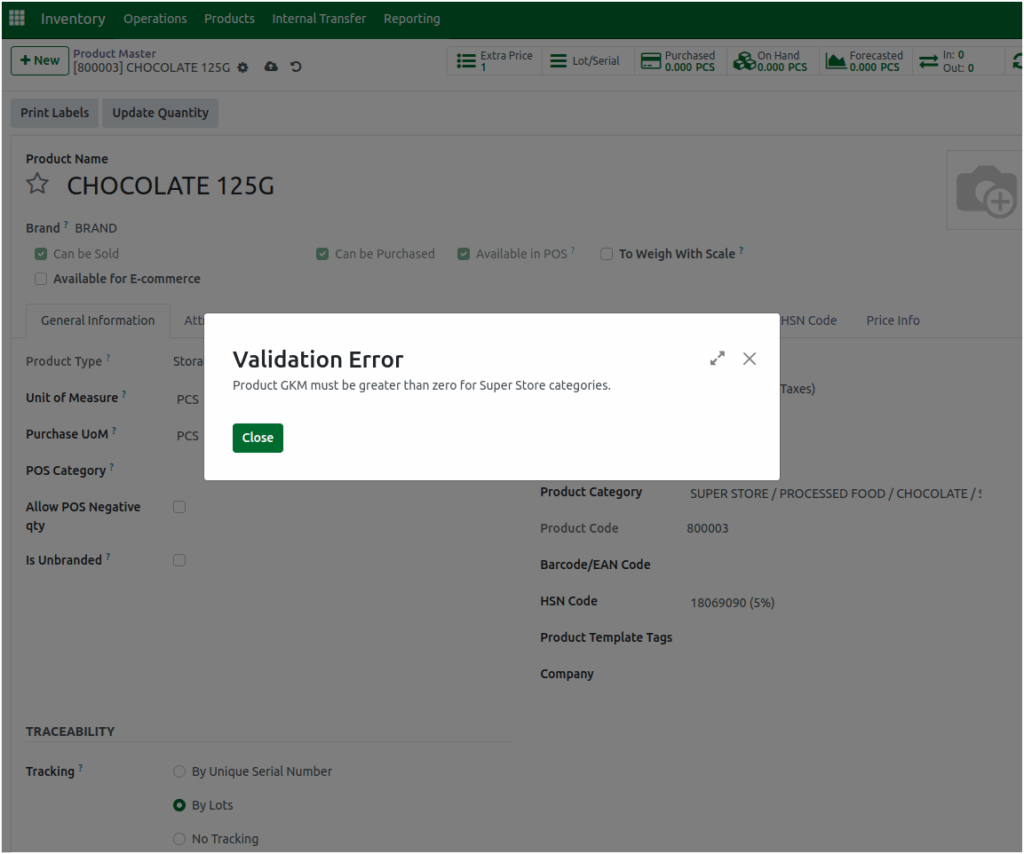
Products categorized as No Tracking do not require a GKM% configuration. Even if a value is entered, the system will not trigger any validation alerts if the margin does not meet the GKM% criteria. This exception simplifies configuration for products that are not monitored for individual cost or margin tracking.
The Lifestyle category, especially for branded items, also requires a defined GKM%. Before setting the GKM%, make sure that the correct product category is assigned to the item. Applying an appropriate GKM% for branded lifestyle products helps maintain consistent profitability standards across premium product lines.
Once the GKM% is configured, Odoo continuously compares the product’s purchase margin—found in the Purchase tab—with the defined GKM%. If the margin falls below the set GKM%, the system automatically triggers a warning message stating: “Product margin is less than GKM% for PRODUCT NAME.”
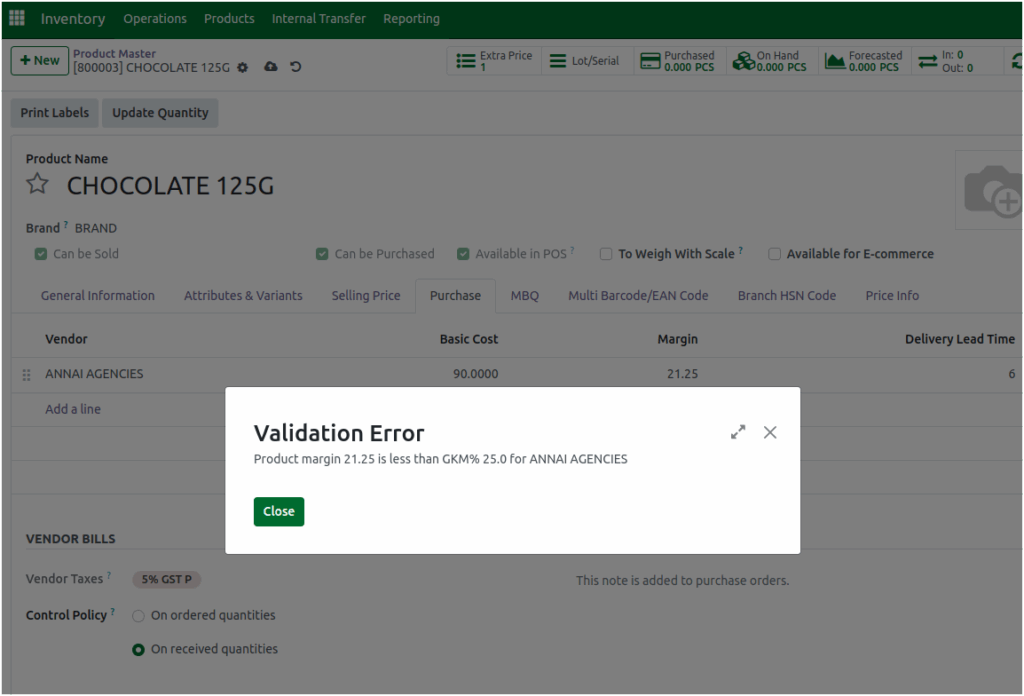
This alert serves as a safeguard, reminding users to review purchase costs before confirming a transaction. It ensures that every product meets the company’s profitability expectations based on the configured GKM%.
