How to apply Pricelist for a Product in Odoo?
Applying pricelists in Odoo helps businesses manage product pricing in a flexible and organized way. Pricelists allow setting custom pricing rules, discounts and rounding methods for products.
Applying a Pricelist to a Product in Odoo
From the main menu, navigate to Inventory → Products → Product Master. All existing products will be displayed in a list view. Select the product for which you want to add or update a pricelist.
On the selected product screen, click the Extra Pricelist smart button to manage pricing details for the selected product. Clicking on this button will show all the existing pricelists that are already set for this product.
If you want to add a new one click the +New button to select a new pricelist . The system will automatically generate a new line where you can select an existing pricelist to apply to the product. You can assign more than one pricelist to a single product.

Once pricelist is selected, click the Pricelist Rule button to define the pricing rules according to your business needs.This action will open the Pricelist Form.

In the Price Computation section, set the method to Formula to create a custom pricing rule. In the Based On field drop down, you will have options such as MRP (Maximum Retail Price), Product Cost and Lot with Landed Cost.
When selecting MRP, the Discount should be set as a positive value. If a negative discount is entered, the system will throw the Validation Error : “The discount amount must be positive for MRP products.”
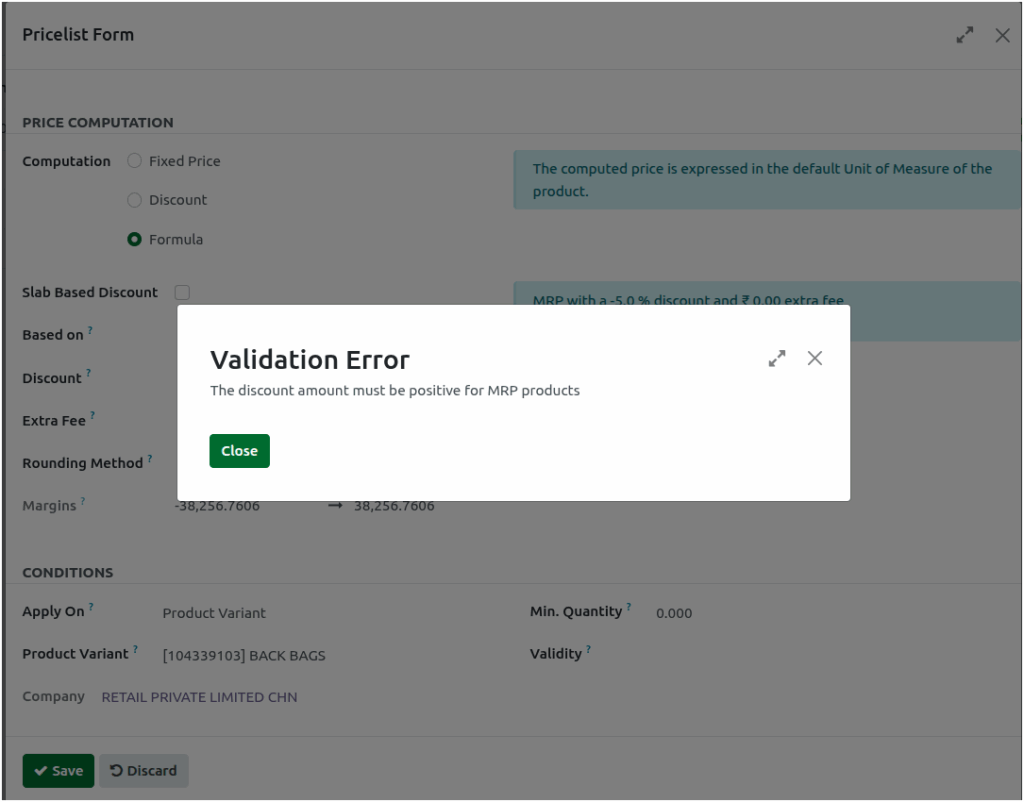
On the other hand, when selecting Product Cost or Lot with Landed Cost, the Discount should be set as a negative value. If a positive discount is entered for these options, the system will throw the Validation Error : “The discount amount must be negative for Cost products.”

Always assign the discount appropriately based on the selected pricing method to ensure accurate and consistent price calculations.
Then, you can set a rounding value (for example, 1) to automatically round off the sales price for products in Rounding Method field.
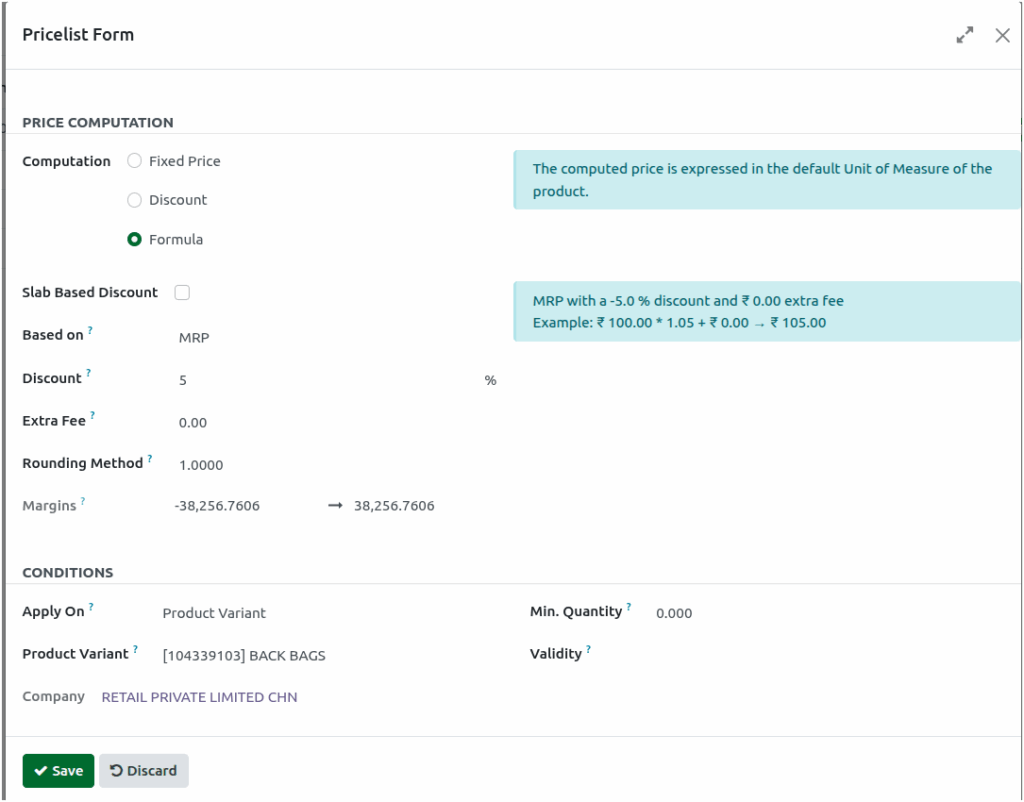
Based on this configuration, the sales price is rounded in the lot after completing a Goods Receipt (GR). For No Tracking products, the Price Info section will automatically update the sales price according to the defined rounding rule, ensuring consistent and accurate pricing.
Auto – Update Of Sales Price in Product
After save option is clicked according to these settings, once the Goods Receipt (GR) or GR Bill is completed, the selling price will be automatically calculated and displayed in the Product.
It will reflect the appropriate discount and cost structure based on the chosen pricing model, ensuring accurate and up-to-date pricing for your products.
