How to Create a Buy 1 Get 1 Promotion in Odoo POS
A Buy 1 Get 1 promotion in Odoo POS is one of the easiest and most effective ways to attract customers, clear stock faster and boost sales. Everyone loves getting something extra for free, it makes shopping more exciting and encourages people to buy more.
Enable Promotions in POS Settings
Before setting up a promotion, you must first enable the Promotions, Coupons, Gift Cards, and Loyalty Programs feature in your POS settings. To do this, navigate to Point of Sale → Configuration → Settings , check the option for Promotions, Coupons, Gift Cards, and Loyalty Programs, and click Save.
After enabling it, a new menu appears under Products → Discount & Loyalty, where you can create and manage all promotional programs.

Create a Buy 1 Get 1 Promotion in POS
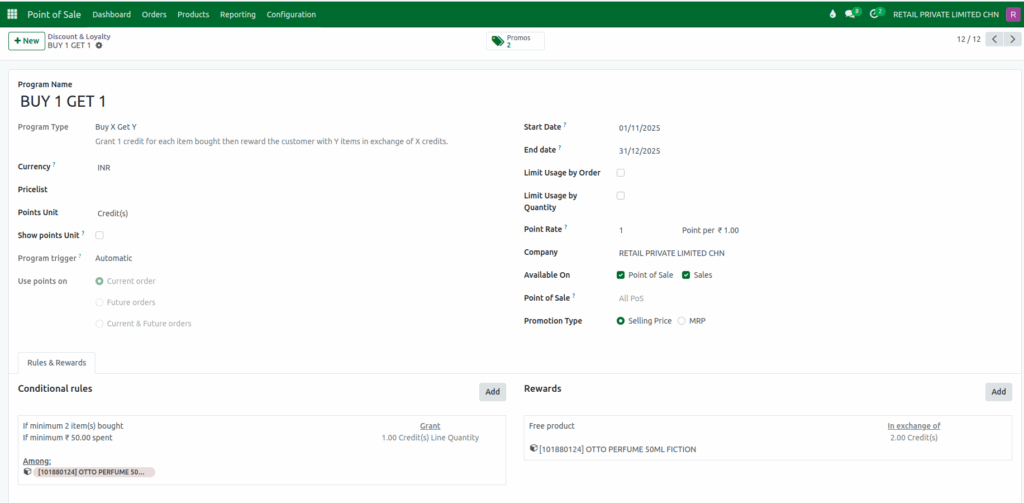
To create a new promotion, click the + New button and fill in the required fields: Program Name, Start Date, and End Date. Give your promotion a clear name, such as “Buy 1 Get 1”, and set the Program Type to Buy X Get Y. Choose the start and end dates for when the promotion will be active.
By default it applies the current company and its Currency and the Points Unit shows as Credit(s). This program is triggered by automatic and Use points on Current order by default.
You can also limit how the promotion is used—either by the maximum number of orders (Limit Usage by Order) or by the maximum number of items in a single order (Limit Usage by Quantity). The Point Rate is set as 1 Point per 1.00rs.
Select the POS terminals where the promotion will apply, choose the Promotion Type based on MRP or Selling Price, and enable where the promotion will be active (POS, Sales, or both). Once all details are entered, click Save.
Set Conditional Rules for Buy 1 Get 1 Promotion
Next, go to the Conditional Rules tab to define when the promotion will apply. By default, the minimum quantity is set to 2. You can also set a minimum purchase amount, either including or excluding tax.
The promotion applies to each product line, and points are granted based on line quantity and Grant 1.00 Credit(s). Finally, select the products the promotion should apply to and click Save to finalize the rules.

Configure Rewards for Buy 1 Get 1 Promotion
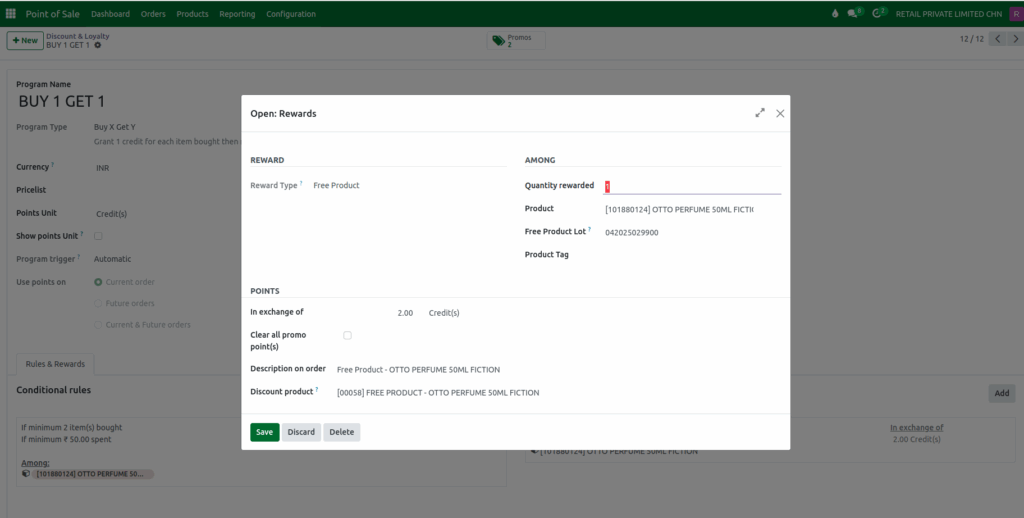
After setting the conditional rules, go to the Rewards tab to define what customers will receive. The Reward Type is set to Free Product by default.
Enter the quantity of free products as 1 then select the product and a particular lot in the AMONG Section.
In the POINTS section, set the exchange points as 2 Credit(s), and add a description to appear on the order. Make sure to specify the free product’s name as it will appear in the POS. Click Save to finish setting up the promotion.