Configuring Payment Rules for Business Partners in iDempiere Retail
Introduction
The Payment Rule field in the iDempiere Business Partner window defines the default payment method assigned to a customer or vendor. It determines how invoices are settled — whether by cash, cheque, bank transfer, credit card, or on-account credit. iDempiere reads this field automatically during order and payment processing to pre-fill transaction forms.
In a retail environment, the Payment Rule drives the cashier workflow and provides a default payment method during transaction entry. Each customer account can carry a distinct rule — for example, walk-in customers may default to cash while corporate accounts use bank transfer. This removes manual selection errors during busy retail hours.
When a sales order or AR invoice is created, iDempiere copies the Payment Rule from the Business Partner record into the transaction header. Changing the rule on the Business Partner immediately affects all subsequent transactions without any additional setup.
Prerequisites
Ensure the following configurations are completed before assigning a Payment Rule in the Business Partner window:
- iDempiere tenant and organization setup is complete.
- Chart of Accounts is configured and activated.
- Currency is defined and conversion rates are maintained.
- Payment Terms records are created (used alongside Payment Rule for invoice scheduling).
- Bank Account records are configured if Bank Transfer or Direct Deposit rules will be used.
- Payment processor integration is set up if Credit Card rule will be used.
- User roles with Business Partner access are assigned to relevant staff.
Business Rules
- Payment Rule defaults into transactions. When a sales order or invoice is created, iDempiere automatically copies the Payment Rule from the Business Partner record into the transaction.
- One Payment Rule per Business Partner. Each Business Partner record carries a single active Payment Rule that applies to all transactions linked to that partner.
- Changing the rule is prospective only. Updating the Payment Rule on a Business Partner does not alter existing open invoices; it affects only new transactions created after the change.
- Cash and Cheque rules require immediate payment. Business Partners with Cash or Cheque rules are expected to settle at the time of transaction, triggering immediate payment allocation workflows.
- Credit and Bank Transfer rules allow deferred payment. On-Account Credit and Direct Deposit rules enable net-term billing, allowing invoices to remain open until the payment due date.
- Credit Card rules trigger payment gateway integration. When Credit Card is selected, iDempiere can invoke configured payment processor settings to capture card details during checkout.
- Active Business Partner records are available for transactions. Inactive Business Partners cannot be selected on new orders or invoices regardless of their Payment Rule setting.
Navigation
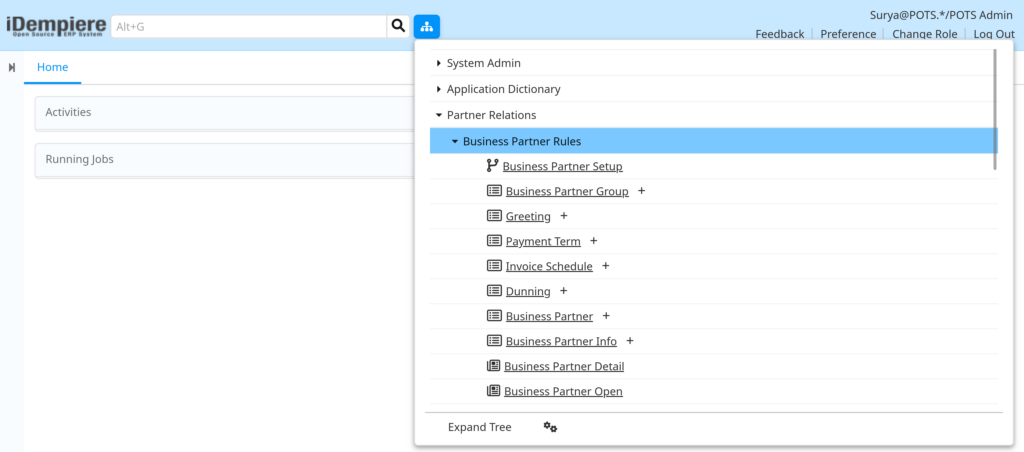
Menu → Partner Relations → Business Partner Rules → Business PartnerThe window displays all existing Business Partner records.
Use the search bar at the top to locate a specific customer or vendor by name, search key, or tax ID.
Step-by-Step Configuration
Step 1: Open the Business Partner Window
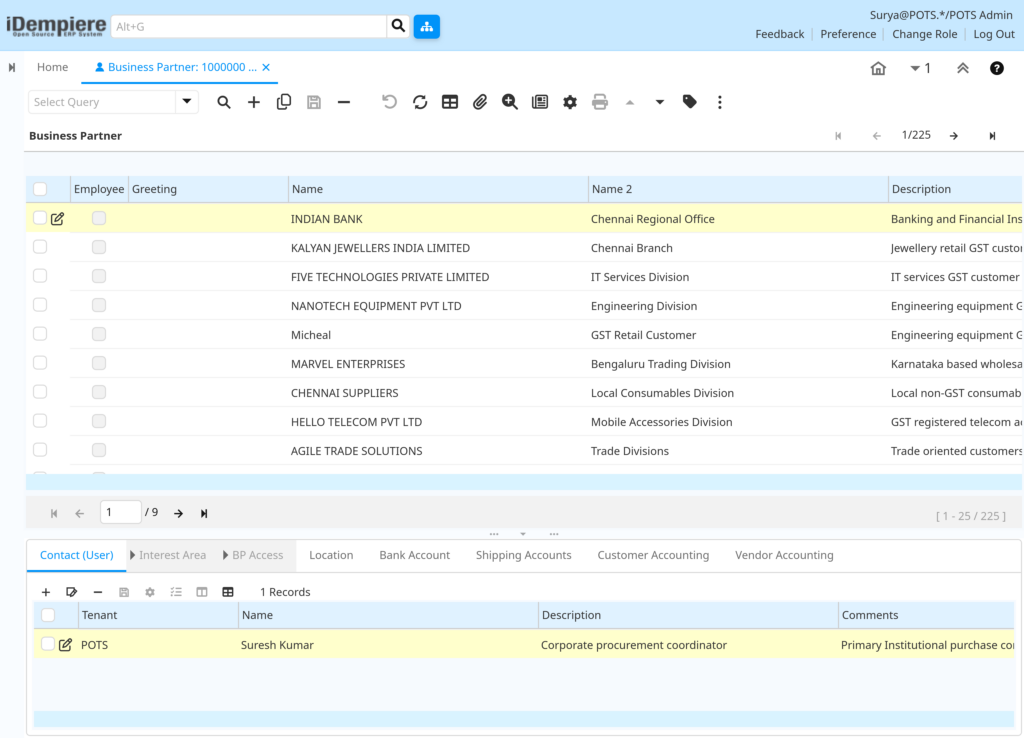
The window lists all existing Business Partner records — customers, vendors, and employees.
Each row shows the Search Key, Name, Tax ID, and active status. Use the Filter button or the search bar to locate the record you need to update.
Step 2: Open or Create a Business Partner Record
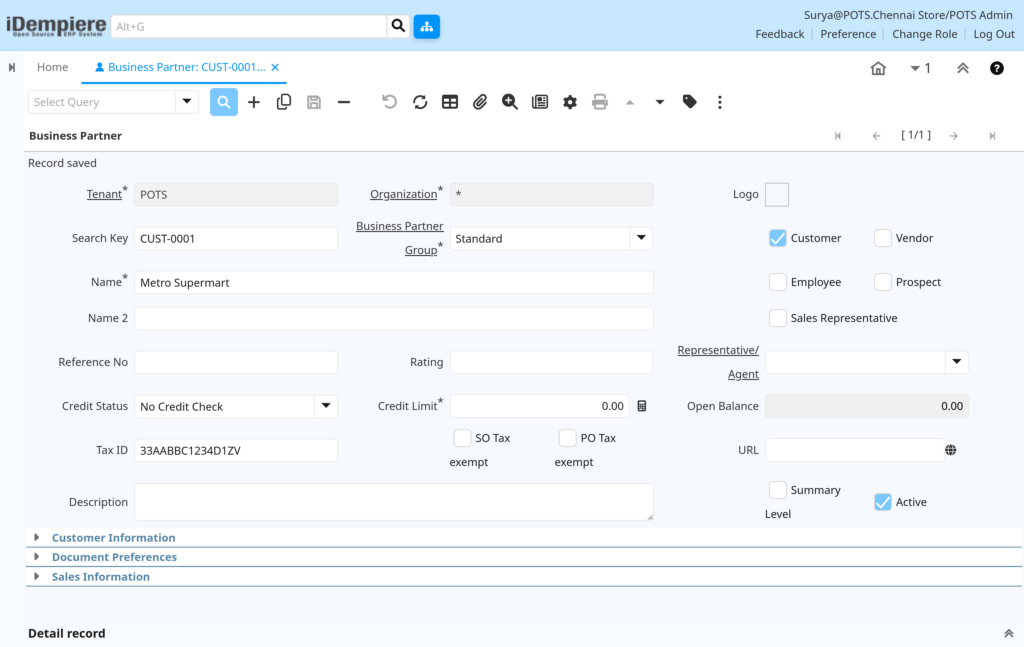
To edit an existing partner, click the row to open the detail form. To create a new Business Partner, click the New Record icon (+) in the toolbar. A blank form opens with mandatory fields highlighted. Complete the header fields before configuring the Payment Rule. The table below lists the key fields in the Business Partner header tab.
Step 3: Navigate to the Payment Rule Field
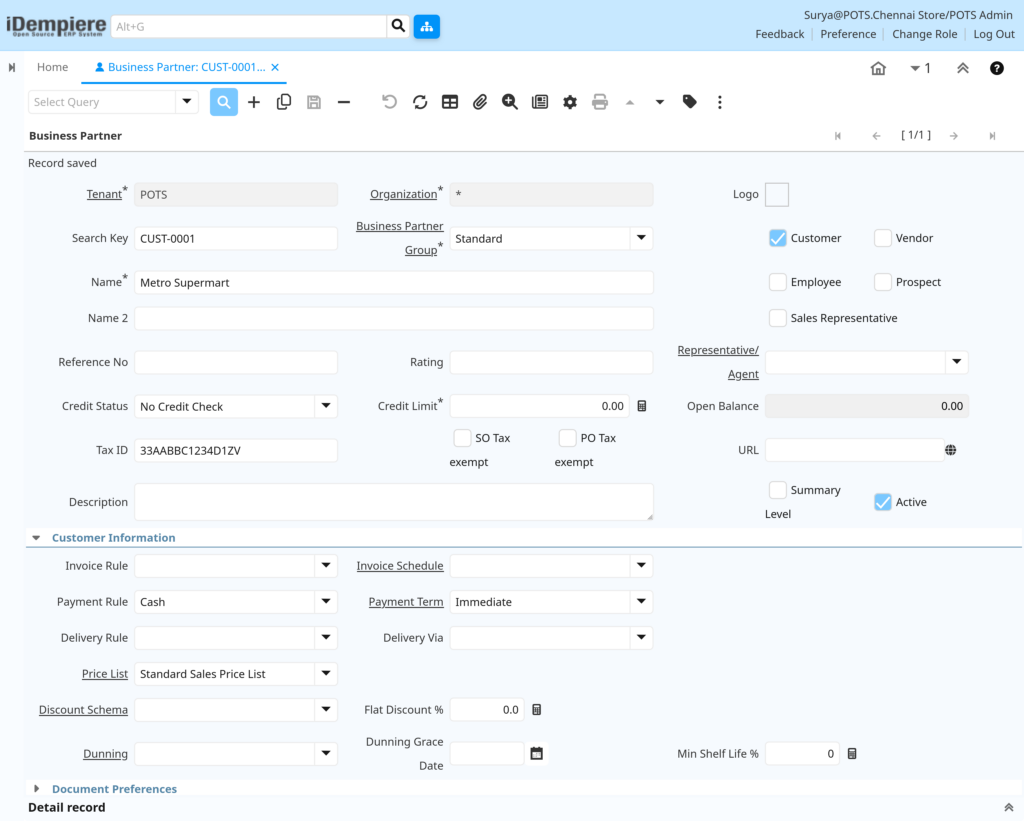
The Payment Rule field is located on the Customer tab within the Business Partner form. Click the Customer tab after filling in the header fields.
The Customer tab contains billing, and payment configuration fields that control how iDempiere handles sales transactions for this partner.
Step 4: Set the Payment Rule
Locate the Payment Rule drop-down on the Customer tab. Click the field to open the list of available payment options. Select the appropriate rule based on how this Business Partner settles invoices.
Payment Rule Options
| Payment Rule Value | iDempiere Code | Use Case in Retail |
| Cash | B | Walk-in customers paying at the counter with cash. |
| Cheque | S | Business accounts submitting physical cheques. |
| Credit Card | K | Customers paying by debit or credit card at POS. |
| Direct Deposit | T | Vendors and corporate accounts paying by bank transfer. |
| On Credit | P | Corporate or loyalty customers with approved credit limits. |
| Mixed POS Payment | M | System determines payment handling based on configuration |
Field Reference — Payment Configuration Fields
| Field | Sample Value | Description |
| Payment Rule | On Credit | Default payment method applied to all transactions for this partner. |
| Payment Term | Net 30 | Defines the payment due date relative to invoice date. |
| Credit Limit | 50000.00 | Maximum outstanding balance allowed for on-credit customers. |
| Credit Used | (auto) | System-calculated field showing total open invoice balance. |
| Credit Status | Credit OK | Automatic status based on Credit Used vs Credit Limit. |
| Dunning | Standard | Dunning rule applied to overdue invoices for this partner. |
Step 5: Configure the Vendor Payment Rule
If the Business Partner is also a vendor, click the Vendor tab. A separate Payment Rule field is available here. This controls how purchase invoices and vendor payments are processed — independently of the customer payment setting.
Sample Vendor Payment Rule Configuration
| Name | Customer Payment Rule | Vendor Payment Rule | Organization | Active |
| Metro Supermart | On Credit | — | * | Yes |
| Fresh Farms Supplier | — | Direct Deposit | * | Yes |
| Walk-In Customer | Cash | — | HQ Store | Yes |
| Corporate Account | On Credit | — | * | Yes |
| City Stationery Co. | Credit Card | Cheque | * | Yes |
Step 6: Save the Business Partner Record
Click the Save icon (disk icon in the toolbar) or Alt + S to save the record. iDempiere validates all mandatory fields before saving.
Once saved, the Payment Rule is immediately active. The next sales order or purchase order created for this Business Partner will automatically carry the configured payment method.
Step 7: Activate or Deactivate a Business Partner
The Active checkbox on the Business Partner header controls availability across all of iDempiere. Unchecking Active immediately removes the partner from all transaction lookups — no orders, invoices, or payments can reference an inactive Business Partner.
Use deactivation instead of deletion to preserve transaction history. Deleted records break the audit trail of historical invoices and payments.
- Active = Yes: Business Partner is available for orders, invoices, payments, and reports.
- Active = No: Business Partner is hidden from transaction windows but all historical data is retained.
Configuration Summary
| Configuration Item | Purpose |
| Business Partner Header | Defines the partner identity — name, tax ID, organization. |
| Customer Flag | Enables the Customer tab where Payment Rule is set. |
| Payment Rule (Customer) | Sets the default payment method for all sales transactions. |
| Payment Term | Defines invoice due date and discount terms. |
| Credit Limit | Controls maximum outstanding balance for on-credit accounts. |
| Vendor Flag | Enables the Vendor tab for purchase-side payment configuration. |
| Payment Rule (Vendor) | Sets the default payment method for all purchase transactions. |
| Active Flag | Controls whether the Business Partner is available for use. |
Business Flow Overview
| Business Partner — Payment Rule Configured |
↓
| Sales Order Created → Payment Rule Auto-Populated |
↓
| AR Invoice Generated → Payment Rule Carried Forward |
↓
| Payment Allocation → Method Matches Rule |
↓
| Accounting Entry Posted → AR / Cash / Bank Updated |
Common Issues and Resolutions
| Issue | Cause | Resolution |
| Payment Rule not visible on Customer tab | Customer checkbox is unchecked on header tab. | Enable the Customer flag on the Business Partner header, then save. |
| Wrong payment method defaults on sales order | Payment Rule on Business Partner is set incorrectly. | Update the Payment Rule on the Customer tab and save. Re-create the order. |
| On Credit rule allows unlimited purchases | Credit Limit field is set to 0 (unlimited). | Enter an appropriate Credit Limit value on the Customer tab. |
| Business Partner not appearing in order lookup | Active checkbox is unchecked. | Reactivate the Business Partner if it is still in use. |
| Payment Term not respecting Payment Rule | Payment Term and Payment Rule are independent fields. | Ensure both Payment Rule and Payment Term are set correctly on the partner. |
| Vendor invoices using wrong payment method | Vendor Payment Rule was not set on the Vendor tab. | Navigate to the Vendor tab and set the correct Payment Rule. |
Next Steps
After configuring the Payment Rule in the iDempiere Business Partner window, proceed with:
- Configure Payment Terms to define invoice due dates and early payment discounts.
- Set up Bank Accounts and link them to the Business Partner for Direct Deposit transactions.
- Configure Payment Processors for Credit Card integration at point-of-sale.
- Define Dunning rules to automate overdue payment reminders for On Credit customers.
- Review the Customer Account report to validate that Payment Rules are applied correctly across all active Business Partners.