How to Configure Document Type in iDempiere
Configure Document Types in iDempiere to control transaction processing, numbering, approvals, and accounting workflows. Learn how to set up the Requisition document type.
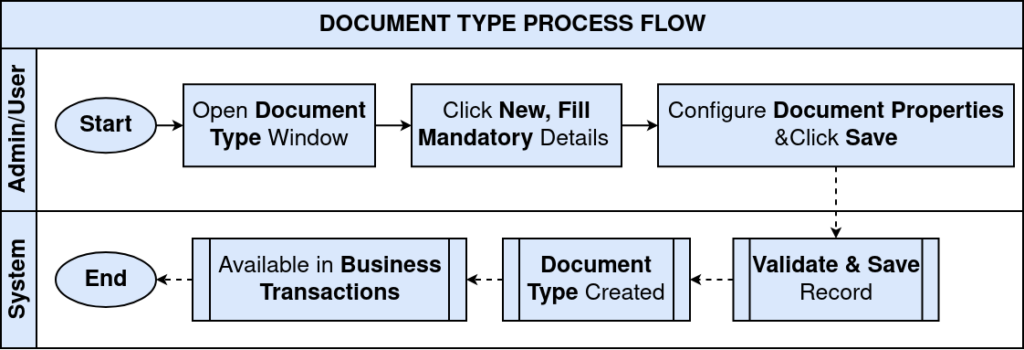
Process Flow
Introduction
The Document Type window is used to define and manage the various types of business documents that control transaction behavior across the organization. Each document type determines how transactions are processed, numbered, posted, and linked to related business flows.
In Retail businesses, Document Types provide the framework that governs every financial and operational transaction — from purchase orders and goods receipts to sales orders, shipments, and invoices. By correctly configuring document types, organizations ensure that each transaction follows the appropriate approval, numbering, and accounting workflow.
The record shown in this guide is the Requisition document type, which is used to capture internal purchase requests before they are converted into formal purchase orders.
Prerequisites
Before starting, ensure the following are in place:
- Initial Tenant Setup has been completed successfully
- Document sequence numbering has been configured for the relevant document base types
- Print formats required for document printing have been defined
- Logged in with a role that has sufficient access rights to the Document Type window
Business Rules
Every document type must have a unique Name that clearly identifies the transaction it governs.
Each document type must be assigned a Document Base Type, which controls its accounting and processing behaviour in iDempiere.
Every document type must be linked to an active Document Sequence to enable automatic number generation.
Navigation
To access the Document Type window, navigate using the following menu path:
Menu → Performance Analysis and Accounting → Accounting Rules → Document Type
The window displays all existing document type records defined for the current tenant and organization. Use the search filter to locate specific records quickly.
Step-by-Step Configuration
Step 1: Open Document Type Window
Navigate to the Document Type window as described in the Navigation section above. The list of existing document types is displayed in the left panel.

Step 2: Create a New Record
Click the New Record button in the toolbar:
| New Record (+) |
A blank form is displayed, ready for data entry. All mandatory fields are indicated with a red border when left empty.
Step 3: Configure the Requisition Document Type
Enter the following values to define the Requisition document type used for internal purchase requests:
| Field | Value |
| Name | Requisition |
| Print Text | Requisition |
| Description | Requisition |
| Document Base Type | Purchase Requisition |
| Document Sequence | Standard Order |
| General Ledger Category | Requisition |
| Active | Yes |
| Sales Transaction | No |
| Document is Number Controlled | No |
| Create Counter Document | No |
| Default | No |
| Has Charges | No |
| Has Pro Forma | No |
| In Transit | No |
| Pick / QA Confirmation | No |
| Ship / Receipt Confirmation | No |
| Document Copies | 1 |
Field Descriptions
- Tenant – Identifies the client organization this document type belongs to. Always set to your retail tenant.
- Organization – Defines the organizational scope. Set to your primary organization or use * for all organizations.
- Name – The display name of the document type as it appears in transaction windows and reports.
- Print Text – The text printed on the document when it is generated for physical or electronic output.
- Description – A brief explanation of the document purpose for internal reference.
- Document Base Type – The core category that determines the accounting and processing behavior of the document.
- Document Sequence – Links the document type to a numbering sequence that auto-generates document numbers.
- General Ledger Category – Associates the document with a GL posting category for financial reporting.
- Active – Controls whether the document type is available for selection in transaction windows.
- Document Copies – Specifies the default number of printed copies generated when the document is printed.
Step 4: Save the Record
Once all required fields have been entered, save the record:
| Save (Alt + S) |
| Note: The Requisition document type is created and immediately available for use in purchase requisition transactions. |
Business Flow Overview
The Requisition document type fits into the retail procurement and replenishment workflow as follows:
The Requisition document acts as the initiating record in the procurement cycle. Store or warehouse managers raise requisitions when stock levels fall below reorder points. These requisitions are reviewed centrally and converted into formal purchase orders once approved.
Correct configuration of the document type ensures that each requisition is properly numbered, tracked, and auditable throughout the procurement process.
Common Issues
| Issue | Resolution |
| Mandatory field validation error when saving | Verify that the Name, Document Base Type, and General Ledger Category fields are all populated before saving. |
| Document type not visible in transaction window | Ensure the Active flag is set to Yes and that the Organization scope matches the transaction context. |
| Document number not auto-generating | Check that a valid and active Document Sequence is linked to this document type. |
Next Steps
After completing the Document Type configuration, continue with the following related setup tasks:
- Print Format Assignment — Assign and test print formats for each document type to ensure correct output.
- Period Control Configuration — Define which periods are open for each document base type to control transaction posting.
- Role and Access Configuration — Ensure that user roles have the appropriate access to create and complete each document type.