How to Configure Product Categories in iDempiere
The Product Category window in iDempiere organises retail merchandise into a structured hierarchy. Each department—such as Mobiles, Home Appliances, or Furniture—acts as a top-level group, with individual product categories nested beneath it.
In retail operations, this hierarchy drives consistent product creation, inventory tracking, and sales reporting. Every SKU in iDempiere belongs to a category, which in turn belongs to a department, ensuring merchandise is logically classified from day one.
Accurate Product Category configuration directly impacts how products appear in transactions, how inventory is analysed by department, and how accounting is split across merchandise groups. Setting it up correctly before creating any product master is essential.
Process Flow

Business Rules
- Departments are created as top-level categories with no Parent Product Category assigned.
- Product Categories must reference their parent department in the Parent Product Category field.
- Active records are available for use during product master creation and transactions.
- Deactivating a category removes it from product selection without deleting historical data.
- Organisation = * makes a department or category available across all branches.
- Material Policy (FiFo) must be set at the department level to ensure correct stock valuation.
- Self Service must be enabled for categories to be visible in web or POS channels.
- Duplicate Search Keys are not permitted; each record must have a unique code.
- The parent-child hierarchy must be correctly configured before any Product Master is created.
- Categories should not be deleted once products have been assigned; deactivate instead.
Prerequisites
Ensure the following configurations are completed before configuring Product Category in iDempiere:
- Initial Tenant Setup completed
- Organisation configured
- Accounting Schema available
- User has Product Master maintenance access
- Chart of Accounts is finalised
Step-by-Step Configuration
Step 1: Open the Product Category Window
- Verify you are in the correct Organisation before proceeding.
- Confirm the Accounting Schema is active.
Step 2: Create Product Department Records
Departments are the top-level nodes in the merchandise hierarchy. Create one record for each major retail department before creating any sub-categories.
How to Create a Department
- Click the New Record (+) icon to open a blank form.
- Fill in the fields as described in the Field Reference table below.
- Leave Parent Product Category blank — departments have no parent.
- Set Material Policy to FiFo and enable Self Service.
- Press Save (disk icon) or F10.
Field Reference — Department
| Field | Sample Value | Mandatory | Description |
| Search Key | MOB | Yes | Unique short code for the department |
| Name | MOBILES | Yes | Full department name displayed in transactions |
| Description | Mobile phones and accessories | No | Business purpose of the department |
| Parent Product Category | (blank) | No | Leave empty — this record IS the top-level parent |
| Active | Enabled (✔) | Yes | Must be enabled for the department to be selectable |
| Material Policy | FiFo | Yes | Determines stock valuation method for the department |
| Self Service | Enabled (✔) | Yes | Enables visibility in POS and web channels |
Department Configuration Sample
| Search Key | Name | Description | Organisation | Active |
| MOB | MOBILES | Mobile phones and accessories | * | Yes |
| HA | HOME APPLIANCES | Household electronic appliances | * | Yes |
| FW | FOOTWEAR | Footwear products | * | Yes |
| TOY | TOYS | Toys and children’s products | * | Yes |
| FUR | FURNITURE | Furniture products | * | Yes |
Note: Using Organisation = * makes departments available across all branches and outlets in iDempiere.

Step 3: Create Product Category Records
After all departments are saved, create product categories and link each to its parent department using the Parent Product Category field.
How to Create a Category
- Click the New Record (+) icon.
- Enter a unique Search Key and Name.
- In Parent Product Category, select the relevant department (e.g., MOBILES).
- Enable Active and save the record.
Field Reference — Category
| Field | Sample Value | Mandatory | Description |
| Search Key | SMART | Yes | Unique code for the category |
| Name | SMARTPHONES | Yes | Category name shown in product and transaction screens |
| Description | Touchscreen smartphones | No | Brief description of the category scope |
| Parent Product Category | MOBILES | Yes | The department this category belongs to |
| Active | Enabled (✔) | Yes | Enables the category for product master assignment |
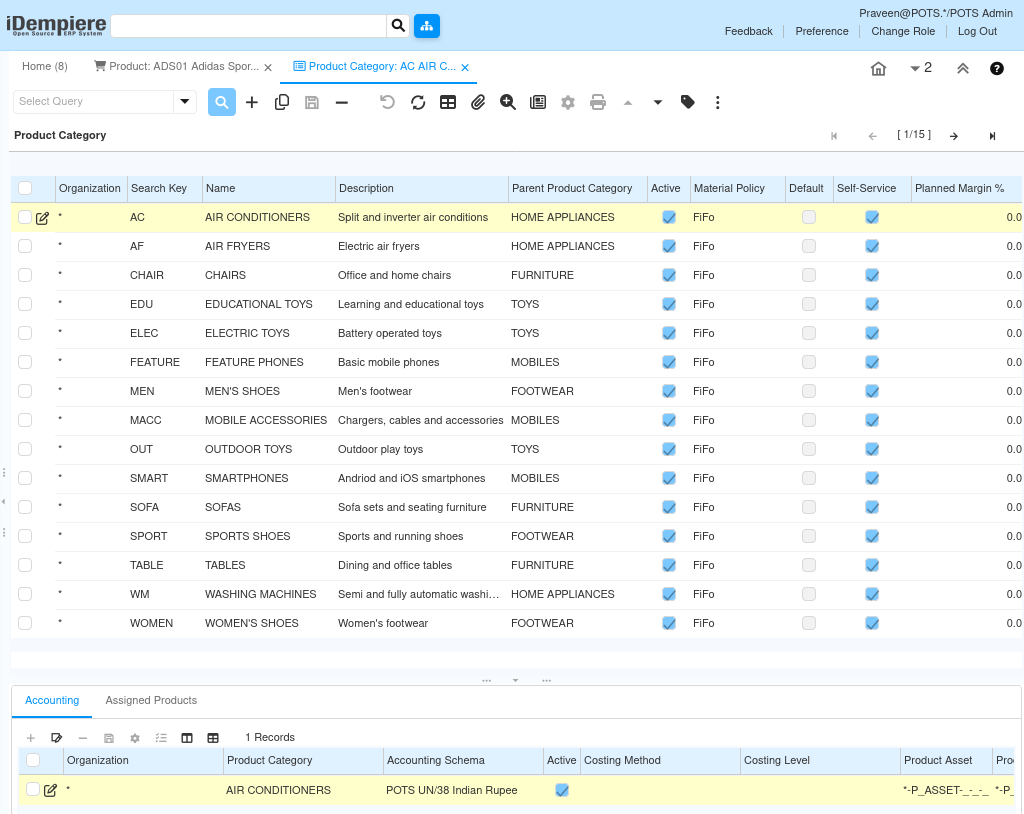
Step 4: Save the Record
After completing all fields, save each record.
- Click the Save icon (disk) or press F10.
- The department or category becomes available immediately for use in Product Master creation.
- Repeat for each department and each category.
Important: Always save departments before creating categories. iDempiere requires the parent record to exist before it can be selected in the Parent Product Category field.
Step 5: Activate or Deactivate a Record
The Active checkbox controls whether a department or category is available for use in iDempiere transactions.
- Active = Enabled: The record appears in product creation and transaction screens.
- Active = Disabled: The record is hidden from all selection fields but preserved in the system.
- Never delete a category that has products assigned to it — deactivate it instead to maintain historical integrity.
Configuration Summary
| Department | Categories | Total SKU Groups |
| MOBILES | Smartphones, Feature Phones, Mobile Accessories | 3 |
| HOME APPLIANCES | Air Conditioners, Air Fryers, Washing Machines | 3 |
| FOOTWEAR | Men’s Shoes, Women’s Shoes, Sports Shoes | 3 |
| TOYS | Educational Toys, Electronic Toys, Outdoor Toys | 3 |
| FURNITURE | Chairs, Tables, Sofas | 3 |
Common Issues and Resolutions
| Issue | Cause | Resolution |
| Category not visible during Product creation | Active checkbox is disabled | Open the category record and enable the Active checkbox |
| Category assigned to wrong department | Incorrect Parent Product Category selected | Edit the category and select the correct parent department |
| Duplicate categories created | Naming standards not followed | Enforce unique Search Key codes and standardise naming conventions |
| Reporting hierarchy is incorrect | Parent-child relationship incorrectly set | Verify each category’s Parent Product Category field points to the correct department |
| Material Policy not reflecting in stock reports | FiFo not set at department level | Edit the department record and set Material Policy to FiFo |
| Category not visible in POS or web channel | Self Service is disabled | Enable the Self Service checkbox on the department record |
| Products cannot be assigned to a category | Category is inactive or not saved | Confirm the category record is active and fully saved |
| Hierarchy appears flat in reports | All records created as top-level without a parent | Recreate categories with the correct Parent Product Category reference |
| Cannot delete a category | Products are already linked to the category | Deactivate the category instead of deleting it |
| Organisation = single branch causes visibility issues | Organisation set to specific branch instead of * | Set Organisation = * for shared departments and categories |
Next Steps
After completing Product Department and Product Category configuration in iDempiere, proceed with:
- Configure Attribute Masters — define attributes such as colour, size, and storage capacity.
- Configure Attribute Sets — group attributes relevant to each product category.
- Create Product Masters — assign each product to the correct category.
- Create Product Variants — generate individual SKUs using attribute combinations.
- Configure Pricing — set up price lists linked to each product category.