How to Configure Product in iDempiere for Retail
Introduction
The Product window is the central master data window in iDempiere for defining all products and services used across retail operations. Every purchase order line, sales order, goods receipt, shipment, invoice, and inventory transaction references a product record created in this window.
In retail businesses, the Product window manages the complete product catalogue — from nutritional supplements and packaged foods to general merchandise. It controls product identification, pricing, inventory tracking, vendor sourcing, bill of materials (BOM) for kits and bundles, replenishment rules, accounting GL assignments, UOM conversions, and transaction history. Accurate product setup is foundational to every operational and financial workflow in iDempiere.
Process Flow

Prerequisites
Configuring products in iDempiere, ensure the following master data and system setup is complete:
- Initial Tenant (Client) Setup completed — Tenant name, currency, and base language configured
- Accounting Schema and Chart of Accounts set up and activated
- Product Category created (e.g., Biscuits / FMCG / Retail goods)
- Tax Category configured with applicable GST, VAT, or exempt rates
- Unit of Measure (UOM) records available — e.g., Each, Box, Pack
- Warehouse and Locator records configured for physical storage locations
- Business Partner (Vendor) records available for purchasing tab configuration
- Price List and Price List Version created to link product pricing
- Attribute Set configured if batch/lot or serial number tracking is needed
- Freight Category available if shipping weight-based pricing is used
- Logged in with a Role that has Product window read/write access rights
Business Rules
- Product Must Be in a Price List to Appear at POS A product only appears at the POS checkout or on a sales order when it is added to an active Price List Version. The Product window creates the product record — pricing is assigned separately in the Price List window.
- Multiple Price Lists: The system must maintain distinct pricing records across three separate active Price List profiles (Retail-POS, E-Commerce, and Wholesale B2B), automatically switching the active list based on the chosen Customer or Sales Channel.
- Tax Category Determines GST/VAT on Every Transaction The Tax Category field links the product to its applicable tax rate. The system uses this to auto-calculate GST or VAT on every sales and purchase transaction line. If this field is empty, no tax is calculated for that product.
- Replenishment suggestions are generated by running the Replenishment process (manually or via a scheduled job) when stock drops below the Minimum Level. These suggestions are then used to create Purchase Orders.
- Product Category Assigns Default Accounts Automatically Every product must have a Product Category. This drives the automatic inheritance of default GL accounts (inventory, COGS, revenue) and tax groupings — so you don’t need to manually configure accounting on every product.
- Item Type – Inventory-managed retail products should be configured using the Item Product Type. Service Product Type should be used only for non-stock operational or service-based transactions.Product Type should be selected correctly during Product creation because it impacts inventory and accounting behavior.
- Classification – Product Classification values should follow standardized naming conventions to maintain consistent product grouping and reporting. Classification should be used only for business reference or reporting purposes and not as a replacement for Product Category structure.
Navigation
Open the Product window in iDempiere using the following menu path:
Menu → Material Management and Pricing → Material Management Rules → Product
Alternatively, use the global Search Bar (Alt+G or the magnifying glass icon) and type Product to locate the window directly.
Step-by-Step Configuration
Step 1: Open the Product Window
The Product window opens in list view, displaying all existing product records. To create a new product, click the New Record button in the toolbar.
New Record ( + ) button in the toolbar or Alt+NStep 2: Configure the Product Tab
The Product tab is the primary tab. All mandatory fields must be completed here before saving.

Complete Field Reference — Product Tab
| Field | Example | Description / Retail Usage |
| Tenant | POTS | Auto-populated from your logged-in tenant. Do not change. |
| Organization | * | Set to * (All) for shared products across branches, or select a specific org. |
| Search Key | BRI-GDBC-200 | Unique short code for the product — used in all transaction lookups (e.g., BRI-GDBC). |
| Version No | – | Optional version tracking for product revisions (e.g., formula changes for supplements). |
| Name | Britannia Good Day Butter Cookies — 200g | Full product name displayed in all transactions, reports, and customer documents. |
| Description | Crunchy butter cookies, 200 g pack — shelf-stable snack | Short business description of the product — appears on printed documents. |
| Comment / Help | – | Internal notes and help text for users — not printed on documents. |
| Document Note | – | Additional notes printed on purchase/sales documents for this product. |
| UPC/EAN | 8901063050013 | 13-digit barcode (EAN) or 12-digit barcode (UPC) for retail POS scanning. |
| SKU | ADS01 | Internal Stock Keeping Unit code used in warehouse management. |
| Active | Y | Checked = product is available in all transactions. Uncheck to deactivate. |
| Summary Level | N | Checked = defines a grouping or category record, not an actual product; cannot be used in sales, purchase, or inventory transactions. |
| Product Category | Biscuits & Cookies | Links to the product category for reporting and accounting defaults. |
| Classification | – | Used for secondary classification of products (e.g., A, B, C category). |
| Tax Category | GST 18% | Determines the applicable tax rate (GST/VAT) on this product. |
| Revenue Recognition | – | For subscription or deferred revenue products — links recognition schedule. |
| UOM | Each | Base Unit of Measure for this product — e.g., Each, Box, Kg. |
| Sales Representative | – | Assigns a default sales rep for this product if applicable. |
| Product Type | Item | Item = physical stocked product. Service = non-stocked service. Expense = expense type. Resource = labour/machine. |
| Mail Template | – | Template for automated email notifications related to this product. |
| Weight | 0.220 | Product weight (used for freight cost calculation and shipping). |
| Volume | 0.0008 | Product volume (used in warehouse storage planning and shipping). |
| Own Box | Y | Check if the product ships in its own dedicated box/packaging. |
| Customs Tariff Number | – | HS code or customs tariff reference for import/export products. |
| Freight Category | – | Groups product by freight class for carrier rate selection. |
| Drop Shipment | – | Check if this product is shipped directly from vendor to customer. |
| Stocked | Y | Must be checked for products tracked in inventory (on-hand qty managed). |
| Manufactured | – | Check if this product is manufactured internally (Manufacturing module). |
| Phantom | – | For BOM products: phantom BOMs are exploded in orders but not stocked. |
| Kanban Controlled | – | For Kanban-based replenishment workflows (Manufacturing). |
| Part Type | – | Used in manufacturing: Part, Planning, Phantom, Reference, Variant. |
| Locator | – | Default storage locator for this product when receiving into warehouse. |
| Shelf Width / Height / Depth | – | Physical shelf dimensions for planogram/space planning in retail. |
| Units Per Pallet | – | Number of units in a standard pallet — used for logistics planning. |
| Bill of Materials | – | Check if this product is a BOM/kit product assembled from components. |
| Verified | – | System flag — set after BOM structure is verified. Do not manually change. |
| Verify BOM Structure | – | Click button to validate BOM component structure. |
| Auto Produce | – | Automatically trigger production when sales order is created. |
| Calculate BOM price if Zero | – | Dynamically calculates BOM product price from component prices if price is 0. |
| Print detail records on Invoice | – | Check to print BOM component lines on customer invoices. |
| Print detail on Pick List | – | Check to print BOM component lines on warehouse pick lists. |
| Purchased | Y | Check if this product is procured from external vendors. |
| Sold | Y | Check if this product is sold to customers. |
| Discontinued | – | Check if the product is being phased out — blocks new orders. |
| Discontinued At | – | Date from which the product is discontinued. |
| Expense Type | – | For Expense product type — links to expense category. |
| Resource | – | For Resource product type — links to a specific resource record. |
| Exclude Auto Delivery | – | Prevents automatic delivery generation for this product. |
| Image URL | – | URL to the product image (used in web store or self-service portals). |
| Description URL | – | URL to the product’s detailed description page or data sheet. |
| Guarantee Days | – | Shelf life guarantee period in days (from production/receipt date). |
| Min Guarantee Days | – | Minimum remaining shelf life days required when receiving from vendor. |
| Attribute Set | – | Links the product to an Attribute Set for batch/lot or serial tracking. |
| Attribute Set Instance | – | Specific instance of attribute values (batch no., expiry, serial). |
| Featured in Web Store | – | Check to feature this product on the iDempiere web store home page. |
| Self-Service | – | Allow customers to order via the self-service portal. |
| Group1 / Group2 | – | Additional free-text grouping fields for custom retail classification. |
Step 4: Save the Product Record
Save — Alt+S or click the Save (floppy disk) icon in the toolbarProduct record saved successfully. The product is now available across iDempiere — in purchase orders, sales orders, price lists, inventory, and financial postings.
Tab: BOM
The BOM (Bill of Materials) tab is used when a product is defined as a bundle, kit, or case composed of multiple units of another product. In retail, this is commonly used for packaging configurations such as cartons, multi-packs, or promotional bundles.
In this example, a case product is created for Britannia Good Day Butter Cookies — Case of 12 x 200g, which is composed of 12 individual cookie packs. The BOM tab defines the structure of this case, while the individual items are maintained in the Components section.
When to Use
- Use for retail packaging such as cases, cartons, and multi-pack products
(e.g., 1 Case = 12 × Britannia Good Day Butter Cookies 200g packs). - Use when a product is logically grouped for sales, storage, or distribution, but physically consists of multiple units of another product
- Ensure “Bill of Materials” is enabled in the main Product tab before configuring the BOM.
Navigate to:
Product → BOM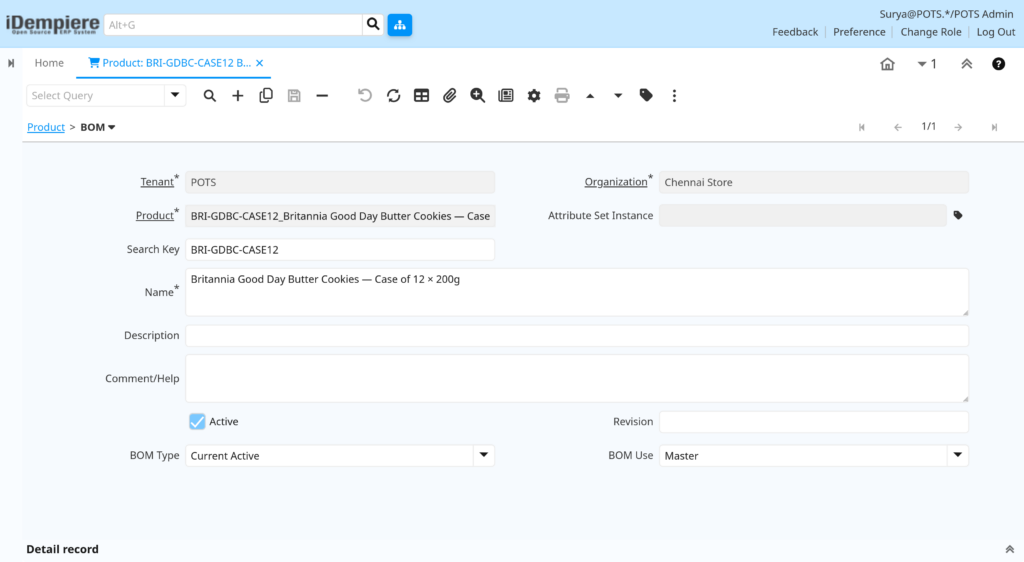
Field Reference — BOM Tab
| Field | Example | Description |
| Tenant / Organization | POTS / * | Auto-populated. Set Organization to * for shared BOMs. |
| Product | BRI-GDBC-CASE12_Britannia Good Day Butter Cookies — Case of 12 × 200g | Parent product this BOM belongs to — auto-populated. |
| Attribute Set Instance | – | Optional — links BOM to a specific product attribute variant. |
| Search Key | BRI-GDBC-CASE12 | Unique code for this BOM version (e.g., BRI-GDBC-CASE12). |
| Name | Britannia Good Day Butter Cookies — Case of 12 × 200g | Descriptive BOM name shown in production and kit assembly workflows. |
| Description | – | Business description of the BOM purpose. |
| Comment / Help | – | Internal notes about the BOM configuration. |
| Active | Y | Check to enable this BOM for use in production/kit assembly. |
| Revision | – | Version or revision label for the BOM (e.g., Rev A, V2). |
| BOM Type | Current Active | Current (active BOM), Alternative, Make-to-Order, Repair. |
| BOM Use | Master | Manufacturing, Engineering, Master, Quality, or Planning. |
| Copy BOM Lines From | – | Click to copy component lines from another existing BOM. |
Tab: Components (BOM Component Lines)
The Components tab is a child tab of the BOM tab and is used to define the individual component products that make up the final Bill of Materials (BOM). Each record in this tab represents one component and its required quantity.
In this example, for the product Britannia Good Day Butter Cookies — Case of 12 × 200g, the Components tab will include the base product Britannia Good Day Butter Cookies — 200g pack as a component with a quantity of 12. This means that one case product is composed of 12 individual cookie packs.
Key Points
- Each row represents a component product used in the BOM.
- The Quantity field defines how many units of the component are required.
- The component product should already be created in the Product window.
- Ensure consistency between UOM (Each) of the component and the defined BOM quantity.
Example
- BOM Product: Case of 12 × 200g Cookies
- Component:
- Product: Britannia Good Day Butter Cookies — 200g
- Quantity: 12
Navigate to:
Product → BOM → Components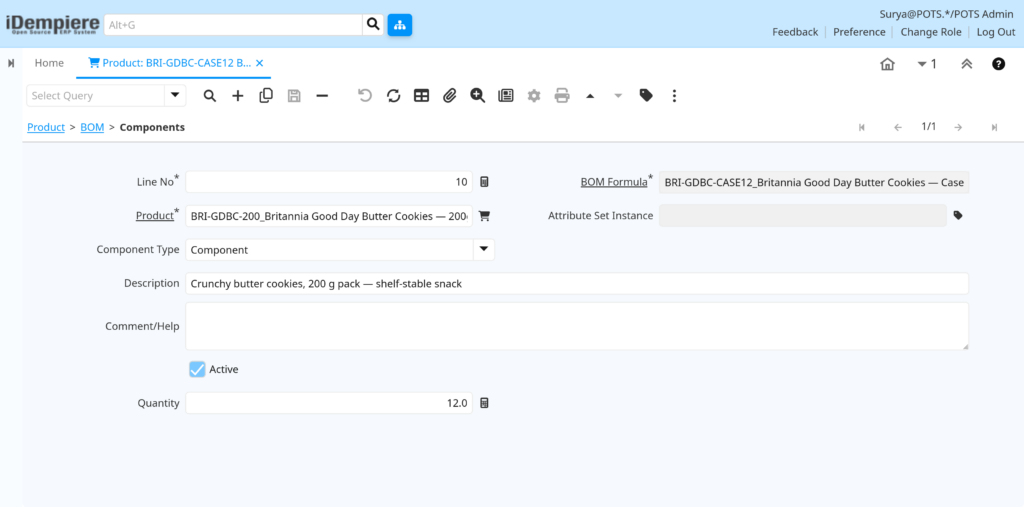
Field Reference — Components Tab
| Field | Example | Description |
| Line No | 10 | Sequence number for ordering components (e.g., 10, 20, 30). |
| BOM & Formula | BRI-GDBC-CASE12_Britannia Good Day Butter Cookies — Case of 12 × 200g | Parent BOM record this component belongs to. |
| Product | BRI-GDBC-200_Britannia Good Day Butter Cookies — 200g | Component product — select from the product master. |
| Attribute Set Instance | – | Specific batch/lot of the component if attribute tracking is active. |
| Component Type | Component | Component (standard), Variant, Option, Phantom, Co Product, Scrap. |
| Description | – | Description of the component’s role in the assembly. |
| Comment / Help | – | Internal notes for the component line. |
| Active | Y | Check to include this component in BOM calculations. |
| Quantity | 12 | Quantity of the component required per 1 unit of the parent product. |
Tab: Replenish
The Replenish tab is used to define stock replenishment rules for a product at each warehouse. It helps ensure that inventory levels are maintained within defined limits by generating replenishment suggestions when stock falls below a specified threshold.
For example, for the product Britannia Good Day Butter Cookies — 200g pack, you can configure minimum and maximum stock levels for each store or warehouse. When the available quantity drops below the defined Minimum Level, the system can generate a replenishment document to restore stock up to the Maximum Level.
Navigate to:
Product → Replenish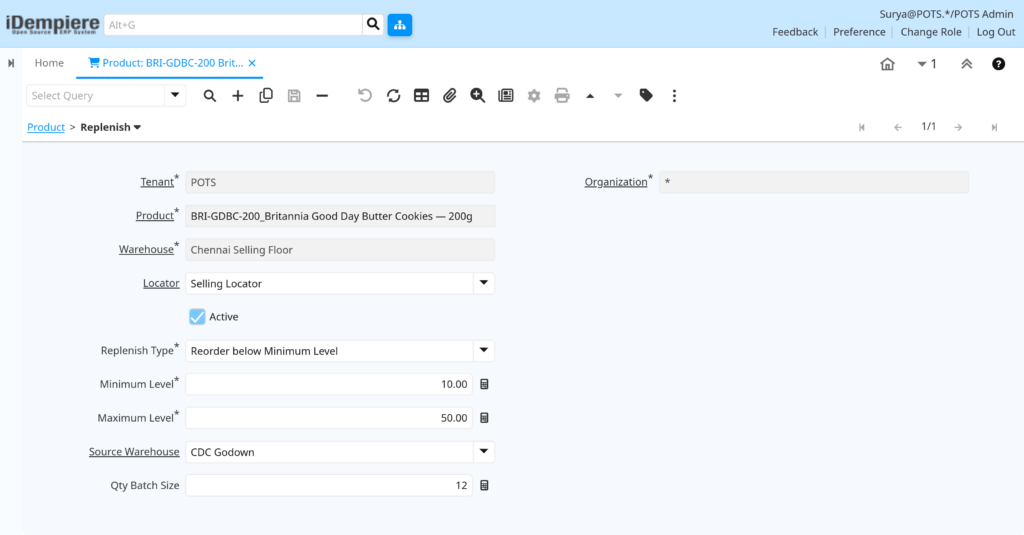
Field Reference — Replenish Tab
| Field | Example | Description |
| Tenant / Organization | POTS / * | Auto-populated from context. |
| Product | BRI-GDBC-200_Britannia Good Day Butter Cookies — 200g | Product for which the replenishment rule applies — auto-populated. |
| Warehouse | Chennai Selling Floor | The warehouse location this replenishment rule applies to. |
| Locator | Selling Locator | Optional — specific bin/locator within the warehouse for replenishment. |
| Active | Y | Enable this replenishment rule. |
| Replenish Type | Reorder below Minimum Level | Do Not Replenish / Reorder below Minimum Qty / Maintain Maximum Qty. Also supports Custom class. |
| Minimum Level | 10 | On-hand quantity threshold that triggers replenishment. |
| Maximum Level | 50 | Target quantity to replenish to when triggered. |
| Source Warehouse | CDC Godown | For warehouse-to-warehouse transfers: source warehouse for stock movement. |
| Qty Batch Size | 12 | Order quantity will be rounded to a multiple of this value (e.g., 12 = order in case packs). |
Tab: Purchasing
The Purchasing tab defines vendor-specific pricing, lead times, and ordering rules for this product. Each row represents a relationship between this product and one vendor (Business Partner), such as Britannia Distributor. Multiple vendors can be added—mark one as Current Vendor for default PO (Purchase Order) creation.
Navigate to:
Product → Purchasing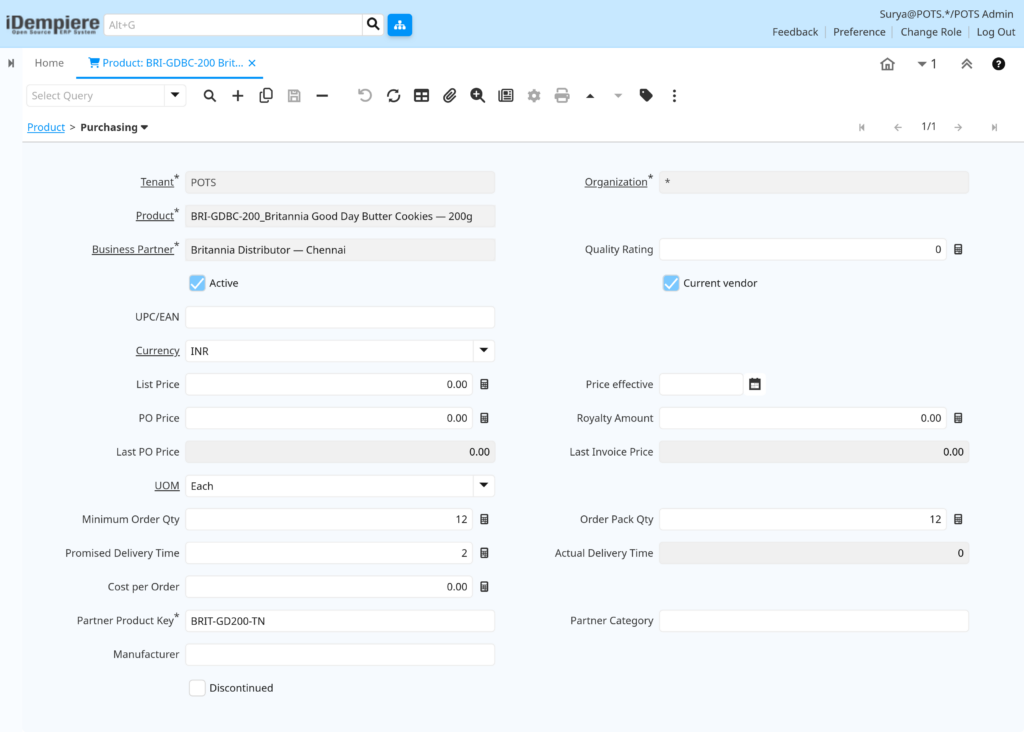
Field Reference — Purchasing Tab
| Field | Example | Description |
| Tenant / Organization | POTS / * | Auto-populated from context. |
| Product | BRI-GDBC-200_Britannia Good Day Butter Cookies — 200g | Auto-populated — the product this purchasing record belongs to. |
| Business Partner | Britannia Distributor — Chennai | The vendor/supplier Business Partner record. |
| Quality Rating | 95 | Vendor quality score for this product (informational, 0–100). |
| Active | Y | Enable this vendor-product purchasing record. |
| Current Vendor | Y | Check to designate this vendor as the default for PO generation. |
| UPC/EAN | – | Vendor’s own barcode for this product (may differ from retail barcode). |
| Currency | INR | Currency used for pricing with this vendor. |
| List Price | 66.00 | Vendor’s catalogue price for this product. |
| Price Effective | 01/01/2026 | Date from which the PO price is valid. |
| PO Price | 45.00 | Negotiated purchase order price (used on POs by default). |
| Royalty Amount | 0 | Royalty or licensing fee component of the purchase price. |
| Last PO Price | 0 | Auto-populated from the most recent completed purchase order. |
| Last Invoice Price | 0 | Auto-populated from the most recent vendor invoice received. |
| UOM | CASE | Unit of measure for purchasing (may differ from sales UOM — a UOM conversion is required). |
| Minimum Order Qty | 12 | Minimum quantity the vendor accepts per order. |
| Order Pack Qty | 12 | Vendor’s standard pack/case quantity (orders rounded to this multiple). |
| Promised Delivery Time | 7 | Lead time in days from PO to expected goods receipt. |
| Actual Delivery Time | 0 | Auto-updated from historical delivery performance data. |
| Cost per Order | 500 | Fixed cost per purchase order (e.g., delivery/handling charges). |
| Partner Product Key | Britannia Distributor — Chennai | Vendor’s own product code/SKU for cross-referencing on POs. |
| Partner Category | BRI-GDBC-200 | Vendor’s own category classification for this product. |
| Manufacturer | – | Manufacturer name if the vendor is a distributor, not the manufacturer. |
| Discontinued | – | Check if this vendor has discontinued supply of this product. |
| Discontinued At | – | Date from which the vendor discontinued this product. |
Tab: Business Partner
The Business Partner tab stores product-specific information tied to each business partner (vendor or customer). Unlike the Purchasing tab (which strictly handles purchase order pricing), this tab manages additional reference, tracking, and compliance data per business partner relationship.
Navigate to:
Product → Business Partner
Field Reference — Business Partner Tab
| Field | Example | Description |
| Tenant / Organization | POTS / * | Auto-populated. |
| Product | BRI-GDBC-200_Britannia Good Day Butter Cookies — 200g | Auto-populated — the product this record belongs to. |
| Business Partner | Britannia Distributor — Chennai | The business partner (vendor or customer) for this product reference. |
| Description | – | Description of the relationship or special notes for this partner-product record. |
| Active | Y | Enable this business partner product record. |
| Partner Product Key | BRI-GDBC-200 | The business partner’s own product code or SKU reference. |
| Partner Category | Biscuits & Cookies | Business partner’s internal product category for this item. |
| Manufacturer | – | The product manufacturer — relevant when the BP is a distributor. |
| Quality Rating | 95 | Quality score assigned to this partner for this product. |
| Min Shelf Life % | 0% | Minimum acceptable remaining shelf life as a percentage of total guarantee days. |
| Min Shelf Life Days | 0 | Minimum number of remaining shelf life days required when receiving this product. |
| Is Manufacturer | N | Check if this business partner is the actual manufacturer of the product. |
Tab: Price
The Price tab provides a read-only view of all price list versions in which the product is included. It displays key pricing details such as List Price, Standard Price, and Limit Price for each price list version.
Navigate to:
Product → Price
Field Reference — Price Tab
| Field | Example | Description |
| Tenant / Organization | POTS / * | Auto-populated from context. |
| Product | BRI-GDBC-200_Britannia Good Day Butter Cookies — 200g | Auto-populated — the product these price records belong to. |
| Price List Version | Wholesale Sales Price List – 2026 | The price list version this price record belongs to. |
| Active | Y | Indicates if this price record is currently active. |
| List Price | 60 | The published retail/catalogue price (shown on quotes and invoices). |
| Standard Price | 46 | The standard purchase/ selling price used for inventory valuation. |
| Limit Price | 42 | The minimum selling price — iDempiere will warn if selling below this price. |
Tab: Accounting
The Accounting tab is one of the most critical tabs for financial accuracy in retail. It assigns General Ledger (GL) account codes for all automated financial entries involving this product—including point-of-sale (POS) revenue, cost of goods sold (COGS), real-time inventory adjustments, and stock valuation. These specific account mappings override your general Product Category defaults for this high-value item.
Navigate to:
Product → Accounting
Field Reference — Accounting Tab
| Field | GL Account Description |
| Tenant / Organization | Auto-populated. |
| Product | Auto-populated. |
| Accounting Schema | The Chart of Accounts / Accounting Schema these GL codes apply to. |
| Active | Enable this accounting configuration. |
| Product Asset | Inventory asset account — records the value of this product in stock (e.g., 1310 Merchandise Inventory). |
| Product Expense | Expense account for internal consumption of this product. |
| Cost Adjustment | Account for inventory cost adjustments (landed costs, variance corrections). |
| Inventory Clearing | Accrual clearing account for goods received but not invoiced. |
| Product COGS | Cost of Goods Sold account — debit when product is shipped to a customer (e.g., 5100 COGS). |
| Product Revenue | Sales revenue account — credit when product is invoiced to a customer (e.g., 4100 Sales Revenue). |
| Purchase Price Variance | Variance between standard cost and actual purchase price at goods receipt. |
| Invoice Price Variance | Variance between goods receipt value and vendor invoice value. |
| Trade Discount Received | Account for trade discounts received from vendors on purchase invoices. |
| Trade Discount Granted | Account for trade discounts given to customers on sales invoices. |
| Rate Variance | Currency exchange rate variance for foreign currency purchases. |
| Average Cost Variance | Variance account for average costing method. |
| Landed Cost Clearing | Clearing account for landed cost allocations (freight, duties, insurance). |
Tab: Transactions
The Transactions tab provides a complete history of all inventory movements for the selected product across warehouses. It records every transaction that affects the product’s stock levels.
For example, for Britannia Good Day Butter Cookies — 200g pack, this tab will display records of goods receipts, sales shipments, inventory transfers, and stock adjustments.
This tab is read-only and is used for tracking and audit purposes.
Navigate to:
Product → Transactions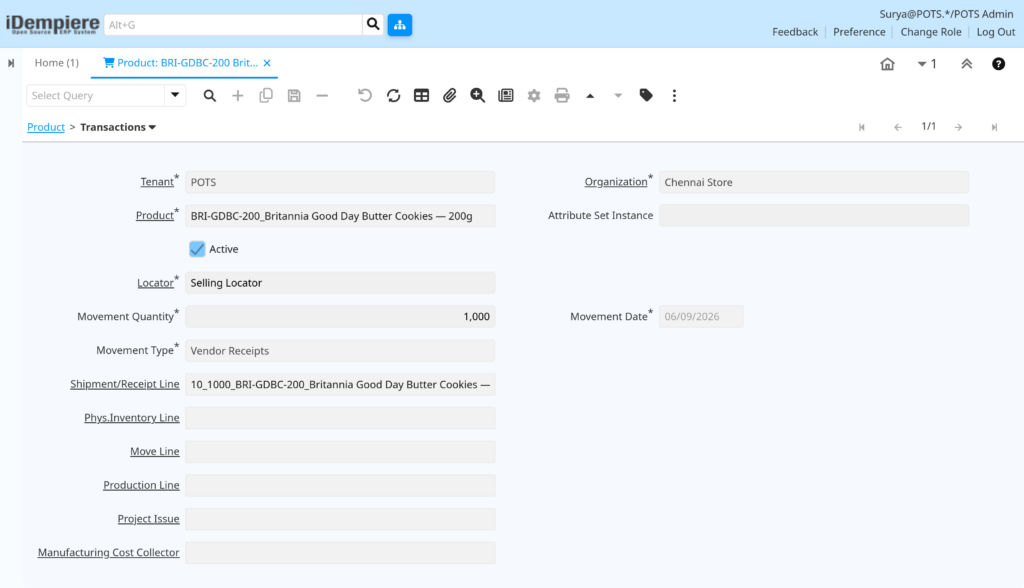
Field Reference — Transactions Tab
| Field | Description |
| Tenant / Organization | Auto-populated from context. |
| Product | Auto-populated — the product these transactions belong to. |
| Attribute Set Instance | The specific batch/lot or serial number instance for this transaction. |
| Active | Record active flag. |
| Locator | The warehouse bin/locator where this movement occurred. |
| Movement Quantity | Quantity moved — positive for receipts, negative for issues/shipments. |
| Movement Date | Date and time of the inventory movement. |
| Movement Type | Type: Vendor Receipt, Customer Shipment, Inventory Move, Physical Inventory, Production Issue, etc. |
| Shipment/Receipt Line | Links to the originating sales shipment or purchase receipt document line. |
| Physical Inventory Line | Links to a physical inventory count document if applicable. |
| Move Line | Links to a warehouse movement/transfer document if applicable. |
| Production Line | Links to a manufacturing production document if applicable. |
| Project Issue | Links to a project issue document if applicable. |
| Manufacturing Cost Collector | Links to manufacturing cost collection if applicable. |
Tab: Located At
The Located At tab shows the live, real-time stock breakdown of this product across every specific storage spot inside your business. It tells you exactly how many units of product are sitting on display racks, packed in the back stockroom, reserved for pending customer pickups, or currently in transit from your supplier.
Navigate to:
Product → Located At
Field Reference — Located At Tab
| Field | Description |
| Tenant / Organization | Auto-populated. |
| Product | Auto-populated. |
| Date Material Policy | Date used for FIFO/LIFO inventory valuation policy. |
| Locator | The specific warehouse bin/locator holding this stock. |
| Attribute Set Instance | Batch/lot or serial number instance for this stock quantity. |
| Active | Record active flag. |
| On Hand Quantity | Current confirmed stock quantity at this locator. |
| Date Last Inventory Count | Date of the most recent physical inventory count for this product/locator. |
| Ordered Quantity | Quantity on open (not yet received) purchase orders. |
| Reserved Quantity | Quantity allocated to open sales orders not yet shipped. |
Tip: The On Hand Quantity shown here is the definitive stock position. Available stock = On Hand Quantity minus Reserved Quantity. Use this tab to quickly verify stock availability before creating a sales order.Tab: UOM Conversion
The UOM Conversion tab defines the exact math rules your system uses to convert the product’s stock numbers between your purchasing units and your storefront sales units. This is essential because you buy these shoes from vendor in bulk commercial boxes but sell them to everyday shoppers as individual pairs at your checkout counter.
Navigate to:
Product → UOM Conversion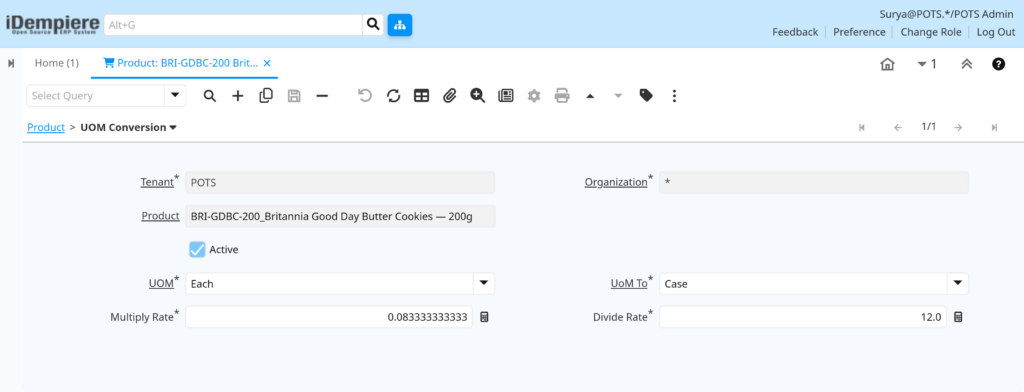
Field Reference — UOM Conversion Tab
| Field | Example | Description |
| Tenant / Organization | POTS / * | Auto-populated. |
| Product | BRI-GDBC-200_Britannia Good Day Butter Cookies — 200g | Auto-populated — the product this conversion applies to. |
| Active | Y | Enable this UOM conversion. |
| UOM (From) | EACH | The source unit of measure for the conversion. |
| UoM To | CASE | The target unit of measure for the conversion. |
| Multiply Rate | 0.083333333333 | Multiply by this rate converts Each → Case. |
| Divide Rate | 12.0 | Divide by this rate to convert converts Case → Each. |
Tab: Costs
The Costs tab displays the current, accumulated, and future cost data for each product under each Accounting Schema and Cost Element. In iDempiere, product costing drives inventory valuation and the COGS accounting entry when a product is shipped. This tab is read-only — costs are managed through cost run processes and goods receipt postings.
Navigate to:
Product → Costs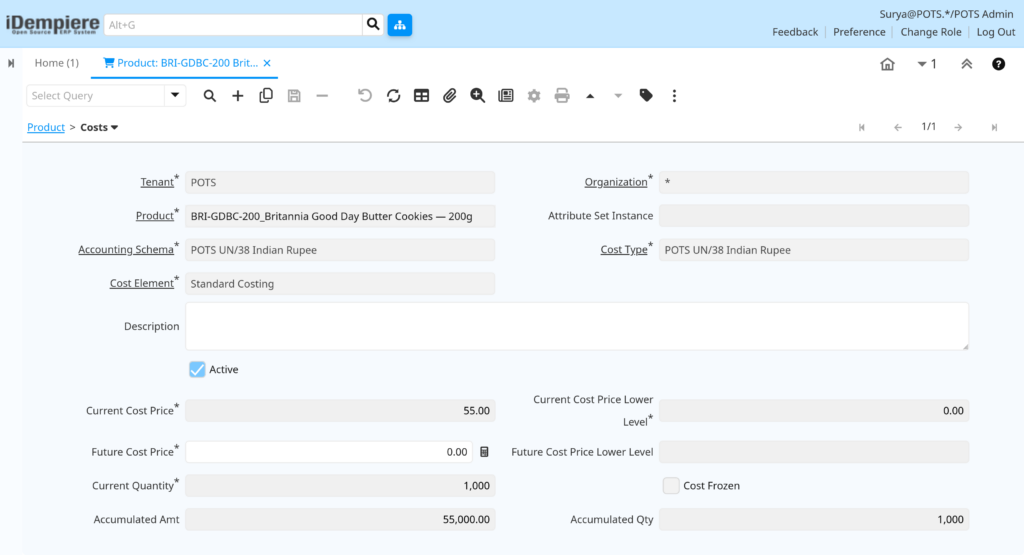
Field Reference — Costs Tab
| Field | Description |
| Tenant / Organization | Auto-populated. |
| Product | Auto-populated. |
| Attribute Set Instance | Batch/lot instance for which this cost applies. |
| Accounting Schema | The chart of accounts these cost values belong to. |
| Cost Type | Matches how your finance team values inventory |
| Cost Element | Standard Cost, Average Cost, or Last Invoice Price cost type. |
| Description | Cost element description. |
| Active | Record active flag. |
| Costing Method | Standard Costing, Average PO Price, Last PO Price, FIFO, LIFO, User-Defined. |
| Current Cost Price | Active cost price used for current inventory valuation and COGS postings. |
| Current Cost Price Lower Level | Cost from sub-assemblies/components rolled into the current cost. |
| Future Cost Price | Planned/budgeted cost price for the next period. |
| Future Cost Price Lower Level | Future lower-level component costs. |
| Percent | Cost percentage allocation for overhead or burden elements. |
| Current Quantity | Quantity used to calculate the current average cost. |
| Cost Frozen | Check to prevent further cost updates to this record. |
| Accumulated Amt | Total accumulated cost amount for this product. |
| Accumulated Qty | Total accumulated quantity used for cost calculation. |
| Processed | System flag indicating cost has been processed. |
Tab: Reserved Quantity Log
The Reserved Quantity Log tab acts as a real-time audit trail that tracks every single time a product quantity is reserved for a customer transaction.
In retail, a shoe is placed on “Hold” or “Reserved” status the moment an online order is placed or a customer lays away an item, and it is instantly released from this log when the customer physically walks out of the store with their shoe box.
Navigate to:
Product → Reserved Quantity Log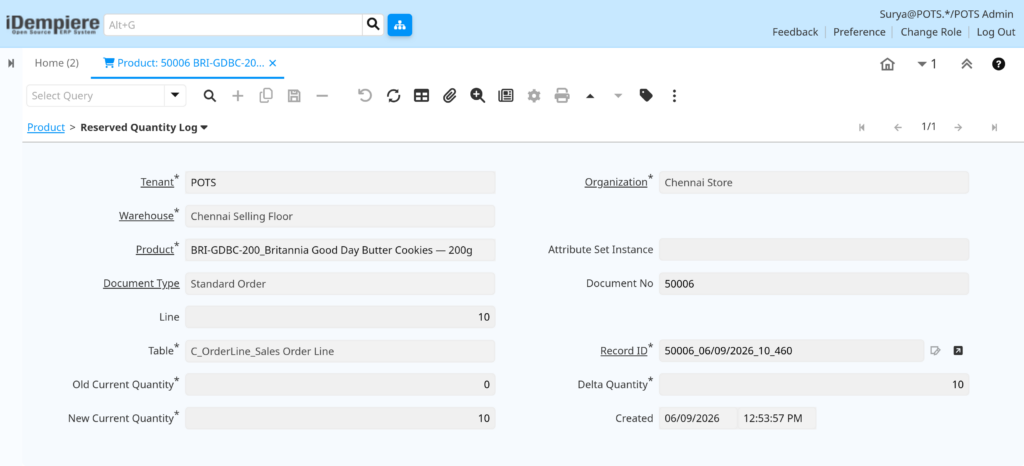
Field Reference — Reserved Quantity Log Tab
| Field | Description |
| Tenant / Organization | Auto-populated. |
| Warehouse | Warehouse where the reservation quantity change occurred. |
| Product | Auto-populated — the product for which this reservation log entry belongs. |
| Attribute Set Instance | Batch/lot instance involved in the reservation. |
| Document Type | The document type that triggered the reservation change (e.g., Sales Order). |
| Document No | The document number that triggered the reservation change. |
| Line | The document line number associated with the reservation change. |
| Table | The database table name of the source document. |
| Record ID | The internal ID of the source document record. |
| Old Current Quantity | Reserved quantity before this change event. |
| Delta Quantity | Change in reserved quantity (positive = new reservation, negative = reservation released). |
| New Current Quantity | Reserved quantity after this change event. |
| Created | Timestamp when this log entry was created. |
Note: Reserved Quantity Log is available in iDempiere and is especially useful for diagnosing inventory allocation issues where products appear as reserved but shipments have already been processed.Tab: Ordered Quantity Log
The Ordered Quantity Log tab records every change to the product’s ordered quantity — the quantity on open (not yet received) purchase orders. It mirrors the Reserved Quantity Log structure but tracks the purchase-side quantity commitment.
Navigate to:
Product → Ordered Quantity Log
Field Reference — Ordered Quantity Log Tab
| Field | Description |
| Tenant / Organization | Auto-populated. |
| Warehouse | Warehouse associated with the ordered quantity change. |
| Product | Auto-populated — the product for which this ordered quantity log applies. |
| Attribute Set Instance | Batch/lot instance if applicable. |
| Document Type | Document type that triggered the ordered quantity change (e.g., Purchase Order). |
| Document No | Purchase order or other document number that created or changed the ordered quantity. |
| Line | Line number on the source document. |
| Table | Database table name of the source document. |
| Record ID | Internal ID of the source document record. |
| Old Current Quantity | Ordered quantity before this change event. |
| Delta Quantity | Change in ordered quantity (positive = new PO line, negative = PO cancelled or receipt processed). |
| New Current Quantity | Ordered quantity after this change event. |
| Created | Timestamp when this log entry was created. |
Note: Both the Reserved Quantity Log and Ordered Quantity Log provide the audit trail for the Available to Promise (ATP) quantity calculation in iDempiere.Common Issues and Resolutions
| Issue | Cause | Resolution |
| Product not in Sales Order dropdown | Sold = unchecked or Active = unchecked | Enable Sold and Active on main Product tab, then Save |
| Product not in Purchase Order dropdown | Purchased = unchecked | Enable Purchased on main Product tab |
| Inventory not tracked — zero on-hand after receipt | Stocked = unchecked or no Locator assigned | Enable Stocked and assign a default Locator on the main tab |
| Tax not calculated on order line | Tax Category not assigned or Tax Category has no active Tax record | Assign Tax Category on main tab; verify Tax window has an active rate |
| Price not found in Sales/Purchase Order | Product not added to Price List Version | Open Price List window, add product to the relevant Price List Version |
| Replenishment not triggering purchase orders | Replenish Type = Do Not Replenish or Min Level not set | Set Replenish Type = Reorder below Minimum Qty and set Min Level |
| BOM product price shows 0.00 | Product not in Price List or Calculate BOM price if Zero is unchecked | Add to Price List or enable Calculate BOM price if Zero on main tab |
| Accounting not posting to correct accounts | Accounting tab GL accounts not assigned or wrong schema selected | Open Accounting tab, select correct Accounting Schema, assign all accounts |
| UOM quantity mismatch between PO and inventory | UOM Conversion not configured | Add UOM Conversion row for the purchasing UOM to base UOM |
| Product not found after creation | Browser/server cache not refreshed | Run Cache Reset (Menu → System Admin → General Rules → Cache Reset) and log in again |
| Mandatory field error on Save | Required fields left blank | Ensure Name, Search Key, UOM, Product Category, Tax Category are all filled |
| Substitute product not suggested in Sales Order | Substitute not configured or not Active | Open Substitute tab, add the substitute product, set Active = Yes |
Next Steps
After completing the Product window configuration in iDempiere, continue with the following setup tasks to build a complete retail operating environment:
- Price List — Add each product to the appropriate Price List Version with List, Standard, and Limit prices
- Warehouse and Locator — Assign or verify default locators for each product and warehouse combination
- Vendor Business Partner — Complete vendor records and verify Purchasing tab data aligns with vendor agreements
- Price List Update — Publish the Price List Version to make pricing active across all sales and purchase transactions
- Purchase Order Test — Create a test Purchase Order to validate product, UOM, pricing, and accounting integration
- Sales Order Test — Create a test Sales Order to validate product availability, tax calculation, and order confirmation