How to Configure Unit of Measure in iDempiere for Retail
The Unit of Measure (UOM) window defines the measurement units used for products, inventory, purchasing, sales, and transactions. Unit of measure determines how products are quantified throughout the system.
Process Flow
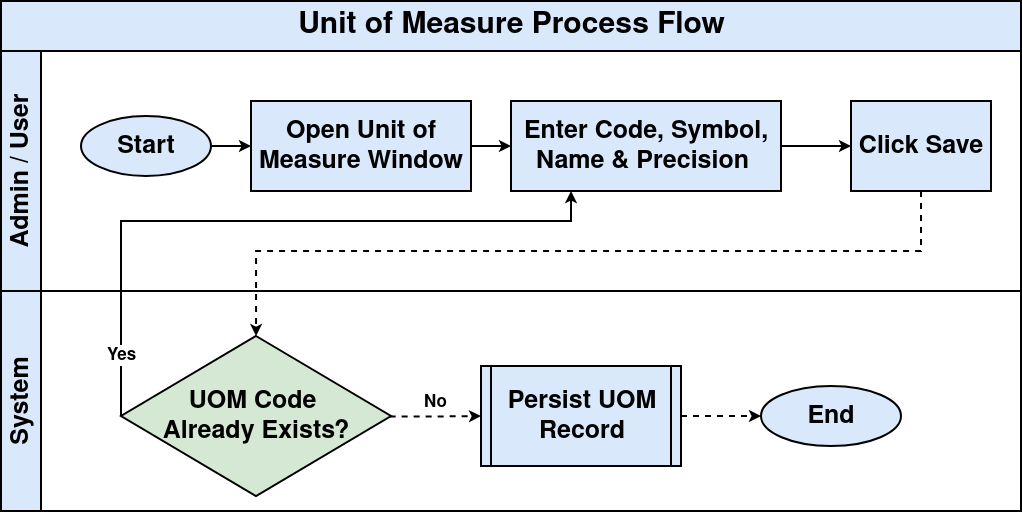
Business Rules
- Never Inactivate System UOMs System-provided UOMs (Day, Week, Month, Year) must never be deactivated — they are referenced by other modules. Inactivating them breaks scheduling, service, and other dependent configurations.
- Set Precision Based on UOM Type Whole-unit UOMs (EA, PCS, CASE) must use Standard Precision = 0. Weight, volume, and length UOMs (KG, LT, MTR) must use Standard Precision = 2 or 3. Wrong precision causes quantity and costing errors.
- No Duplicate UOM Codes Every UOM must have a unique UOM Code. Always check existing system records before creating a new one. Duplicates cause conflicts in product assignment and reporting.
- Conversions Are Configured Separately UOM conversion factors (e.g., 1 CASE = 24 PCS) are never set inside the UOM record. They must be configured in the dedicated UOM Conversion window.
Prerequisites
Before starting, ensure the following:
- Initial Tenant Setup completed successfully
- Product master data is available or planned
Step-by-Step Configuration
Step 1: Open Unit of Measure Window
Navigate to the menu path above. The window displays all existing UOM records, including system-provided defaults.
Step 2: Create New Record
Click New Record (+) to open a blank form. Enter the required values.
Field Reference
- UOM Code — Unique identifier for the unit (e.g., EA, KG, MTR)
- Symbol — Short representation displayed in transactions (e.g., Ea, kg, m)
- Name — Full display name of the unit
- Description — Business purpose of the unit
- Active — Makes the UOM available for use in transactions
- Default — Marks as the system-wide default measurement unit
- Standard Precision — Controls decimal places for quantity fields
- Costing Precision — Controls decimal places for cost calculations
Step 3: Configure Standard Retail UOMs
Set up the following UOMs for retail operations:
EA — Each
| Field | Value |
| UOM Code | EA |
| Symbol | Ea |
| Name | Each |
| Description | Individual item unit |
| Standard Precision | 0 |
| Costing Precision | 2 |
| Active | Yes |
Used for: shirts, shoes, bags, electronics — any product counted as individual units.
PCS — Piece
Used for: accessories and individually counted products.
CASE — Case
Used for: supplier packaging and warehouse stock handling. Example: 1 CASE = 24 PCS.
KG — Kilogram
Used for: fruits, vegetables, rice, and other weight-based products.
LT — Liter
Used for: milk, juice, oil, and other liquid products.
MTR — Meter
Used for: fabric and cloth material.

Step 4: Save Record
Click Save after entering all values. The UOM is immediately available for product and transaction configuration.
System UOM Guidance
iDempiere includes pre-configured UOMs such as EA (Each), HR (Hour), Day, Week, Month, and Year. These are used by other modules including scheduling and service management.
| Important Reuse system-provided records where possible rather than creating duplicates. Do not inactivate system UOMs — they may be referenced by other modules. Only create new UOMs when no existing record meets the business requirement. |
UOM Conversion
Conversion rules between units (e.g., 1 CASE = 24 PCS) are configured separately in the UOM Conversion window, not within the UOM record itself.
Common Issues
| Issue | Resolution |
| UOM not available on product form | Ensure the UOM record is marked Active |
| Duplicate UOM codes | Check existing system records before creating new ones |
| Incorrect quantity decimal places | Review Standard Precision and Costing Precision values |
| System UOM missing from transactions | Do not inactivate system-provided UOMs |
| Changes not reflected after save | Run Cache Reset and log in again |
Next Steps
After completing Unit of Measure configuration, continue with:
- UOM Conversion — define conversion factors between related units
- Product Setup — assign UOMs to products
- Price List — configure pricing per UOM