How to Configure Customer in iDempiere
Customer setup in iDempiere is managed through two windows: Business Partner Group and Business Partner. Together they maintain customer master records required for sales transactions, invoicing, taxation, payment handling, and pricing.
Process Flow
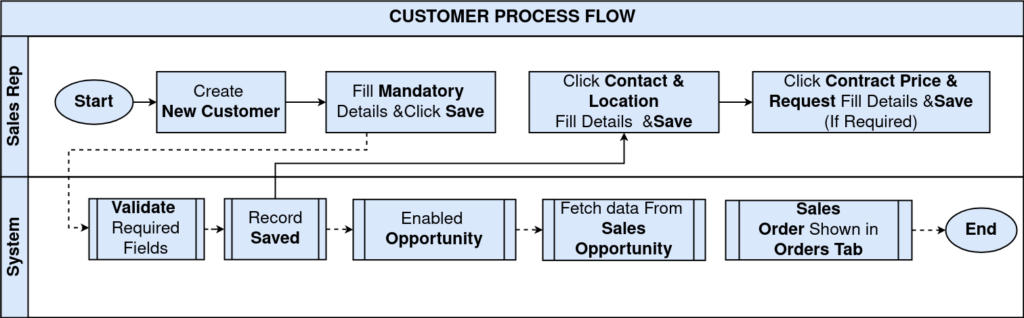
Business Rules
- Customer Name and Address should be maintained before using the customer in sales transactions.
- Customer mobile numbers should be maintained consistently to reduce duplicate customer creation during retail billing operations.
- Credit customers should be configured with appropriate Credit Limit and Payment Terms to support credit-based sales transactions.
- When Credit Limit and Credit Status are configured, iDempiere validates customer outstanding balances during sales order processing.
- GST customers should be maintained with valid Tax ID information for GST and IGST tax calculation.
- Customer contact and location details should be maintained properly for billing, delivery, and communication purposes.
- Business Partner Groups can be used to manage customer pricing and transaction behaviour through standard configuration.
Prerequisites
Before starting, ensure the following:
- Initial Tenant Setup completed successfully
- Organization structure configured
- Price Lists configured and activated
- Payment Terms configured
- GST Tax configuration completed
Step-by-Step Configuration
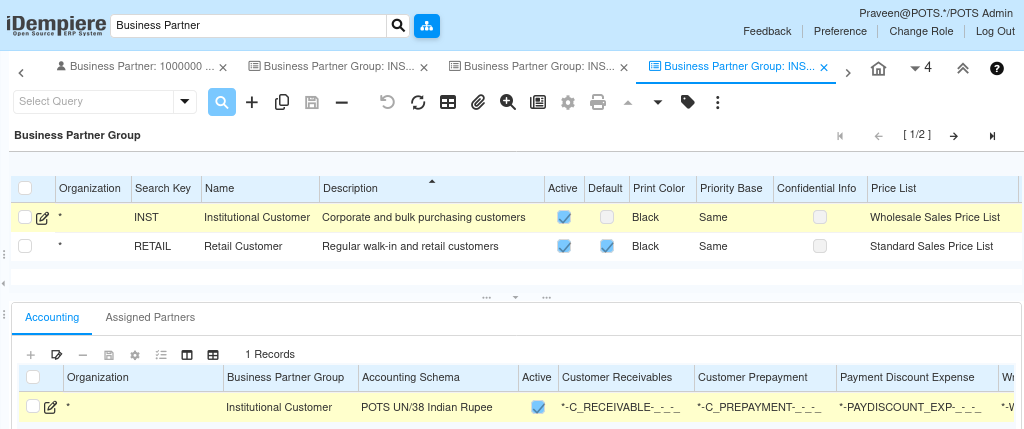
Step 1: Open Business Partner Group Window
The window lists all existing Business Partner Groups under the tenant.
Step 2: Create Retail Customer Group
Click New Record (+) and enter the following details:
| Field | Value |
| Organization | * |
| Search Key | RETAIL |
| Name | Retail Customer |
| Description | Regular GST and retail customers |
| Price List | Standard Sales Price List |
| Active | Yes |
| Default | Yes |
This group is used for regular GST and IGST retail customers. Setting it as Default automatically assigns retail sales pricing to new customers.
Step 3: Create Institutional Customer Group
Click New Record (+) and enter the following details:
| Field | Value |
| Organization | * |
| Search Key | INST |
| Name | Institutional Customer |
| Description | Corporate and institutional customers |
| Price List | Wholesale Sales Price List |
| Credit Watch % | 80 |
| Active | Yes |
Used for corporate and bulk purchase customers. Supports wholesale pricing and credit-based transactions.
Step 4: Open Business Partner Window
Navigate to Menu → Master Data Rules → Business Partner. Click New Record (+) to create individual customer records.
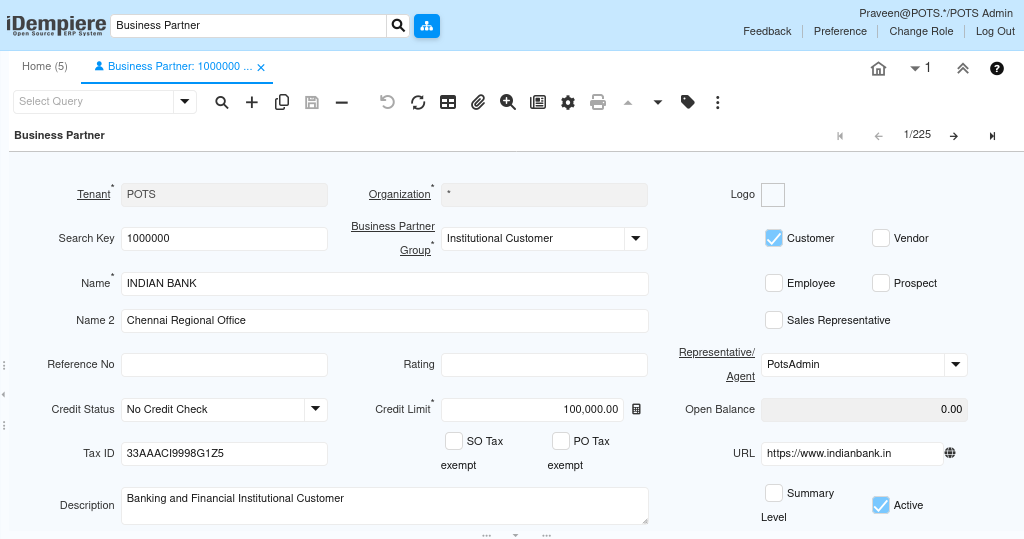
Step 5: Configure Institutional Customer
Header Information
| Field | Value |
| Search Key | 1000000 |
| Business Partner Group | Institutional Customer |
| Name | Indian Bank |
| Name 2 | Chennai Regional Office |
| Customer | Yes |
| Credit Status | No Credit Check |
| Credit Limit | 100000.00 |
| Tax ID | 33AAACI9998G1Z5 |
| Description | Banking and financial institutional customer |
| URL | https://www.indianbank.in |
| Active | Yes |
Credit Management
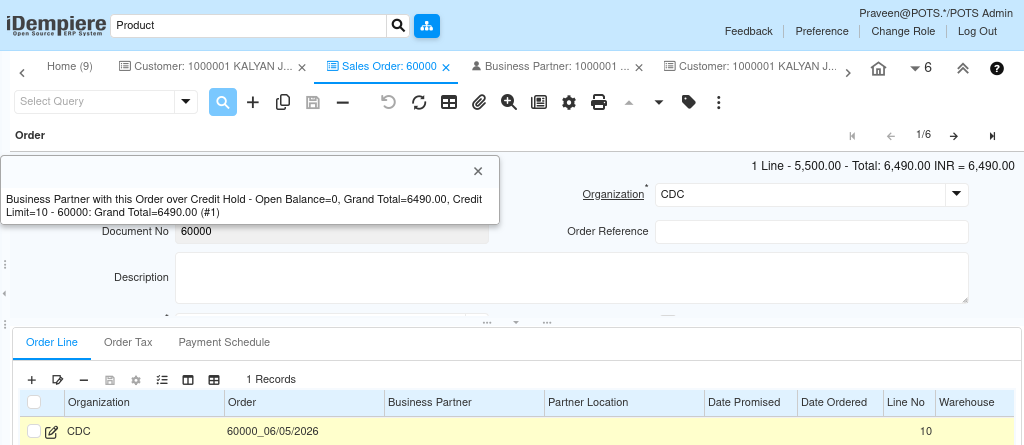
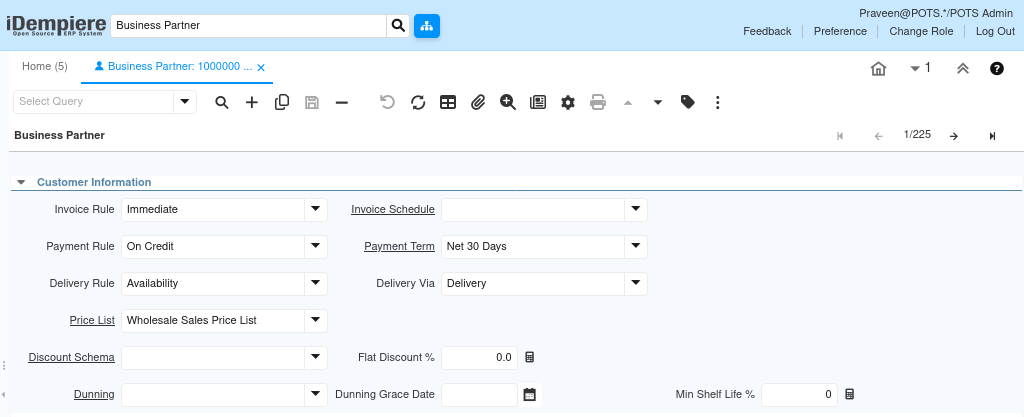
Credit-based customers can be controlled using Credit Status, Credit Limit, Payment Rule, and Payment Term fields.
This configuration helps retail businesses manage institutional and credit customers separately from regular walk-in customers.
When the configured credit limit is exceeded, iDempiere validates the outstanding balance during sales order processing and restricts additional credit transactions based on the customer credit setup.
Customer Information
| Field | Value |
| Invoice Rule | Immediate |
| Payment Rule | On Credit |
| Delivery Rule | Availability |
| Delivery Via | Delivery |
| Price List | Wholesale Sales Price List |
| Payment Term | Net 30 Days |
Institutional customers are used for bulk and credit-based sales transactions. Wholesale pricing is assigned by default through the Institutional Customer group.
Step 6: Configure GST Customer
Header Information
| Field | Value |
| Search Key | 1000001 |
| Business Partner Group | Retail Customer |
| Name | Kalyan Jewellers India Limited |
| Name 2 | Chennai Branch |
| Customer | Yes |
| Credit Status | No Credit Check |
| Credit Limit | 250000.00 |
| Tax ID | 33AAACK5678Q1Z2 |
| Description | Jewellery retail GST customer |
| Active | Yes |
Customer Information
| Field | Value |
| Invoice Rule | Immediate |
| Payment Rule | Cash |
| Delivery Rule | Availability |
| Delivery Via | Pickup |
| Price List | Standard Sales Price List |
| Payment Term | Immediate |
Used for same-state GST billing transactions. CGST and SGST are applied during sales based on the customer GSTIN state code.
Step 7: Configure IGST Customer
Header Information
| Field | Value |
| Search Key | 1000005 |
| Business Partner Group | Retail Customer |
| Name | Marvel Enterprises |
| Name 2 | Bengaluru Trading Division |
| Customer | Yes |
| Credit Status | No Credit Check |
| Credit Limit | 125000.00 |
| Tax ID | 29AAJFM4587L1Z2 |
| Description | Karnataka based wholesale and trading customer |
| Active | Yes |
Customer Information
| Field | Value |
| Invoice Rule | After Delivery |
| Payment Rule | On Credit |
| Delivery Rule | Availability |
| Delivery Via | Delivery |
| Price List | Wholesale Sales Price List |
| Payment Term | Net 30 Days |
Used for interstate customer transactions. IGST is applied based on the customer GSTIN state code (29 = Karnataka).
Step 8: Configure Contact and Location Details
After saving the customer header, use the sub-tabs to add contact and address records.
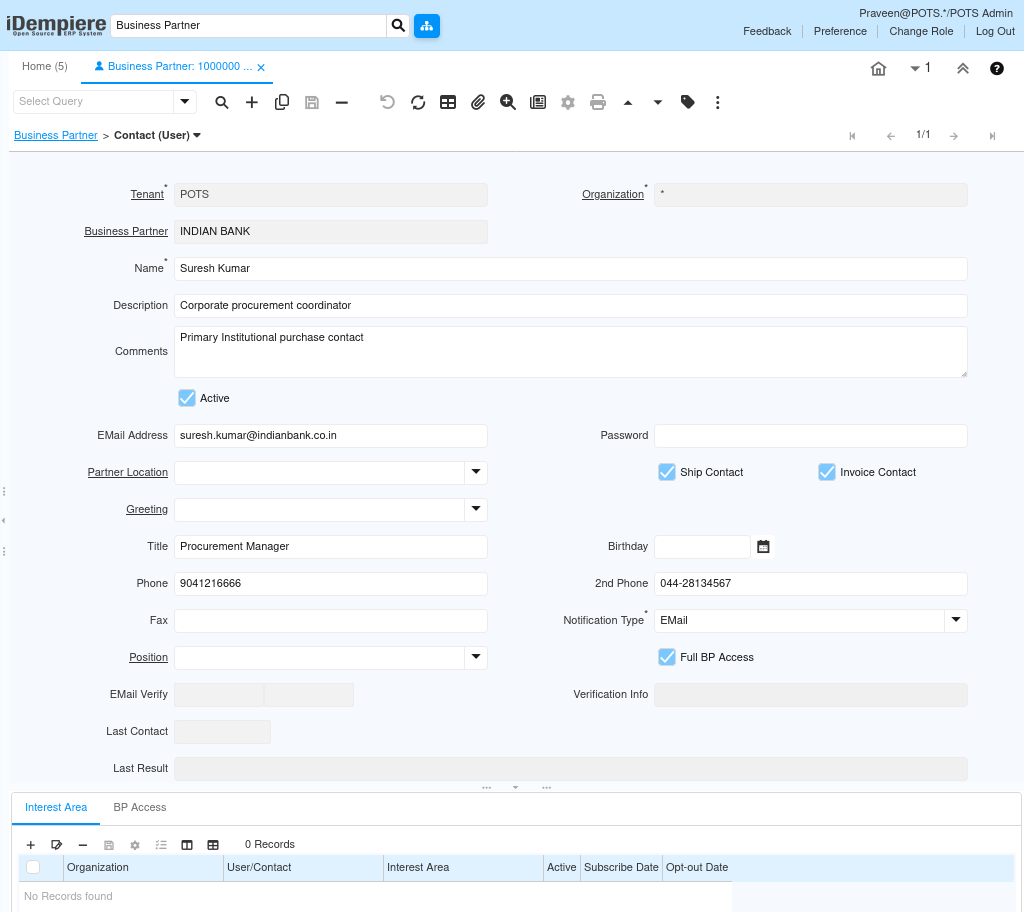
Contact (User) Tab
Business Partner → Contact (User) tab → New Record (+)
| Field | Value |
| Name | Vinay Kumar |
| Email Address | purchase@marvelenterprises.in |
| Phone | 9876501234 |
| Position | Purchase Executive |
| Active | Yes |
Stores customer contact details used for invoices, transaction references, and communication.
Location Tab
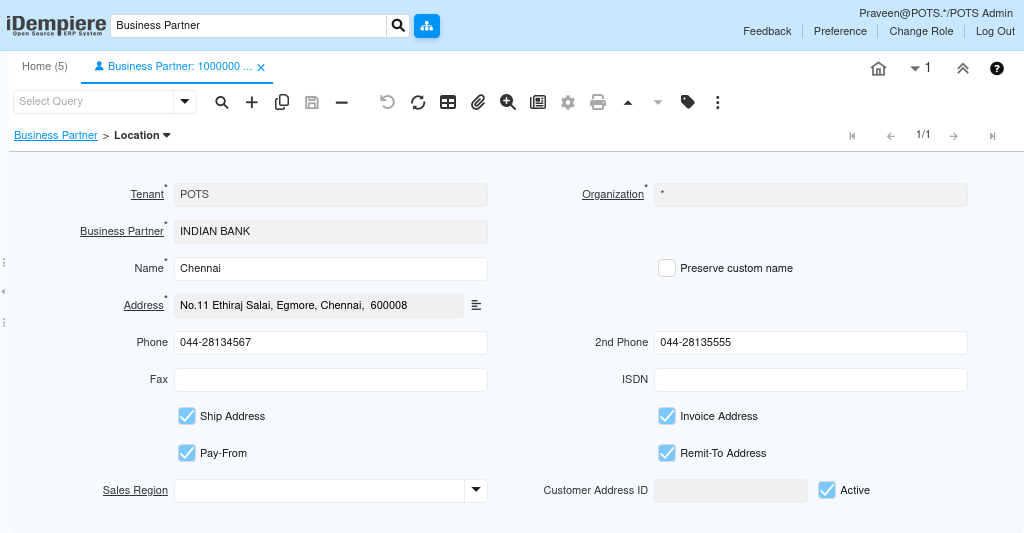
Business Partner → Location tab → New Record (+)
| Field | Value |
| Name | Bengaluru Office |
| Address | Commercial Street, Bengaluru, Karnataka – 560001 |
| Ship Address | Yes |
| Invoice Address | Yes |
| Pay-From | Yes |
| Remit-To Address | Yes |
| Active | Yes |
| Tax Applicability The customer state in the Location record determines GST applicability. Same-state customers (Tamil Nadu) use CGST + SGST. Customers in other states use IGST. |
Step 9: Save the Record
Click Save. The customer is now available for use across:
- Sales Orders
- POS Transactions
- Customer Invoices
- Shipment Transactions
- Payment Processing
Field Reference
Business Partner Group Fields
- Search Key – Unique short code for the group (e.g., RETAIL, INST)
- Name – Display name used in customer records
- Price List – Default price list assigned to all customers in this group
- Credit Watch % – Threshold percentage that triggers credit watch alerts
- Default – Sets this group as the default for new customer records
- Active – Makes the group available for use
Business Partner Fields
- Search Key – Unique customer code used in transactions
- Business Partner Group – Links the customer to a group for pricing and credit rules
- Customer – Must be enabled — makes the record available in sales windows
- Tax ID – Customer GSTIN — determines state code for tax calculation
- Credit Status – Controls credit check behaviour during order processing
- Credit Limit – Maximum outstanding balance allowed for the customer
- Invoice Rule – Controls when invoices are generated (Immediate / After Delivery)
- Payment Rule – Default payment method (Cash / On Credit)
- Price List – Overrides the group price list for this specific customer
- Payment Term – Default payment term applied to sales transactions
Configuration Summary
| Customer Type | Group | Tax | Payment |
| Institutional | INST | CGST + SGST | On Credit / Net 30 |
| GST Retail | RETAIL | CGST + SGST | Cash / Immediate |
| IGST Interstate | RETAIL | IGST | On Credit / Net 30 |
Common Issues
| Issue | Resolution |
| Price List not visible | Create and activate a Price List Version |
| Customer unavailable in sales | Enable the Customer checkbox on the Business Partner record |
| Address not appearing on invoice | Enable Invoice Address on the Location record |
| Delivery address unavailable | Enable Ship Address on the Location record |
| Credit transactions restricted | Verify Credit Limit and Credit Status values |
| Changes not reflected after save | Run Cache Reset and log in again |
Next Steps
After completing Customer setup, continue with:
- Sales Order Setup — raise orders against configured customers
- POS Transactions — link customers to point-of-sale sessions
- Customer Billing — generate invoices with correct GST / IGST
- Payment Processing — apply payment terms and record receipts