How to Configure Attribute Set in iDempiere
Learn how Attribute Sets in iDempiere help distribution businesses manage product characteristics such as size, color, lot numbers, serial numbers, and expiry dates for accurate inventory tracking and traceability.
Introduction
In distribution businesses, products often require different levels of inventory tracking based on their characteristics, regulatory requirements, and lifecycle management needs. The Attribute Set window in iDempiere allows organizations to define standardized groups of product attributes, such as size, color, lot number, serial number, and guarantee or expiry date, that can be assigned to products. By using Attribute Sets, distributors can maintain accurate inventory records, improve traceability, support warranty and compliance requirements, and efficiently manage product variations. Whether tracking apparel by size and color, agricultural products by lot and expiry date, or durable goods by serial number, Attribute Sets provide the flexibility needed for effective inventory control.
Prerequisites
Before starting, ensure the following:
- Initial Tenant Setup completed successfully
- Product Category master data is available
- Lot Control and Serial Number Control records are configured (if required)
- Attribute master records are defined under the Attribute window
- Logged in with a role that has sufficient access rights to Product configuration
Navigation
Access the Attribute Set window using the following menu path:

Menu → Material Management → Product Setup → Attribute Set
Step-by-Step Configuration
Step 1: Open Attribute Set Window
The window displays all existing Attribute Set records. Existing seed data includes T-Shirt, Fertilizer Lot, and Patio Chair configurations.
Step 2: Create New Record
Click: New Record (+)
Enter the required details in the Attribute Set header form.
Attribute Set Header Fields
- Name — Descriptive name for the attribute set (displayed on products and transactions)
- Description — Optional business context for the attribute set
- Tenant — Automatically populated from the logged-in session
- Organization — Defines availability scope; use * for all organizations
- Entity Type — Identifies ownership: D (Dictionary), C (Customer)
- Active — Enables the record for use in product assignments
- Is Lot — Enables lot-level tracking for inventory movements
- Is Lot Mandatory — Enforces lot entry on all transactions
- Lot Control — Links a Lot Control record defining lot number format
- Lot Char Start / End Overwrite — Overrides lot control delimiters
- Is Serial No — Enables serial number tracking
- Is Serial No Mandatory — Enforces serial number entry on all transactions
- Serial No Control — Links a Serial No Control record
- Ser No Char Start / End Overwrite — Overrides serial number delimiters
- Is Instance Attribute — Marks attribute as specific to each inventory instance
- Guarantee Days — Default shelf life in days for expiry tracking
- Guarantee Date Mandatory — Enforces guarantee date entry
- Use Guarantee Date for Material Policy — Uses expiry date for FEFO policy
- Mandatory Type — Controls attribute entry enforcement (Not Mandatory / When Shipping / Always)
- Is Auto Generate Lot — Automatically generates lot numbers on receipt
Step 3: Configure T-Shirt Attribute Set (Product Attributes, No Instance)
This configuration supports apparel products requiring size and color classification without lot or serial number tracking.
| Field | Value |
| Name | T-Shirt |
| Description | Product: Size, Color – No Instance |
| Tenant | System Tenant (11) |
| Organization | System Organization (11) |
| Entity Type | D (Dictionary) |
| Active | Yes |
| Is Lot | No |
| Is Lot Mandatory | No |
| Is Serial No | No |
| Is Serial No Mandatory | No |
| Is Instance Attribute | No |
| Guarantee Days | 0 |
| Guarantee Date Mandatory | No |
Purpose
The T-Shirt attribute set is used for fashion and apparel retail lines where inventory is distinguished by static product-level attributes (size, color) rather than tracked by lot or serial. No instance-level information is required at point of sale or dispatch.
Step 4: Configure Fertilizer Lot Attribute Set (Lot Tracking with Guarantee Date)
This configuration supports agrochemical and consumable products that require lot traceability and expiry date compliance.
| Field | Value |
| Name | Fertilizer Lot |
| Description | Lot Number and Guarantee Date |
| Tenant | System Tenant (11) |
| Organization | System Organization (11) |
| Entity Type | D (Dictionary) |
| Active | Yes |
| Is Lot | Yes |
| Is Lot Mandatory | Yes |
| Lot Control | Lot Control ID: 100 |
| Is Serial No | No |
| Is Serial No Mandatory | No |
| Is Instance Attribute | No |
| Guarantee Days | 180 |
| Guarantee Date Mandatory | No |
Purpose
The Fertilizer Lot attribute set ensures all fertilizer inventory movements carry a lot number and 180-day guarantee tracking. This is critical for agricultural retail compliance, stock rotation, and recall management.
Step 5: Configure Patio Chair Attribute Set (Instance Attributes with Serial No and Guarantee)
This configuration supports durable goods requiring individual unit tracking, warranty serial numbers, and guarantee date management.
| Field | Value |
| Name | Patio Chair |
| Description | Product: Size – Instance: Use Factor/Description, SerialNo, Guarantee Date |
| Tenant | System Tenant (11) |
| Organization | System Organization (11) |
| Entity Type | D (Dictionary) |
| Active | Yes |
| Is Lot | Yes |
| Is Lot Mandatory | Yes |
| Is Serial No | No |
| Is Serial No Mandatory | No |
| Is Instance Attribute | Yes |
| Guarantee Days | 60 |
| Guarantee Date Mandatory | No |
Purpose
The Patio Chair attribute set tracks individual furniture units with instance-level attributes including use factor, description, and guarantee date. This supports warranty registration, returns processing, and customer-specific unit identification in retail showrooms and delivery operations.
Step 6: Save the Attribute Set Record
Click: Save (Alt+S or Save toolbar button)
The Attribute Set record is created and is now available for assignment to Product records and Attribute Use tab configuration.
| Important: The record is saved successfully. The Attribute Set ID is auto-generated and the record becomes available in product master data. |
Additional Configuration: Attribute Use Tab
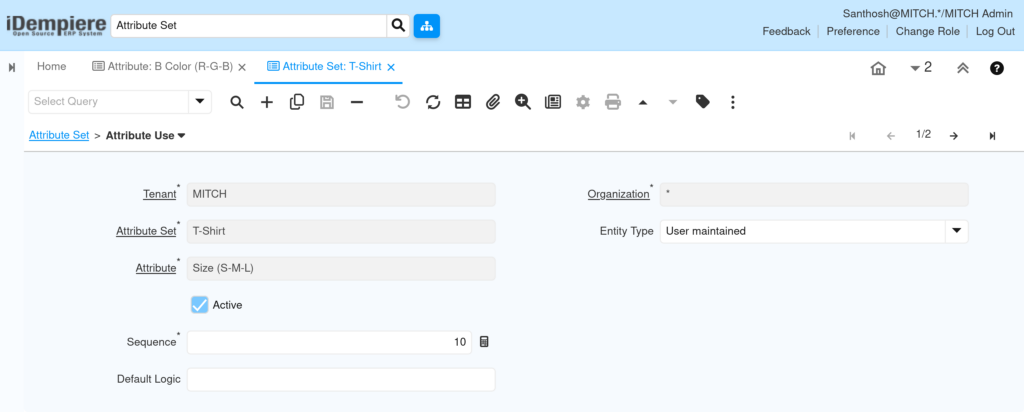
The Attribute Use tab defines which individual Attribute records are linked to each Attribute Set and the display sequence in which they appear on inventory forms and receipts.
Step 1: Open Attribute Use Tab
With the Attribute Set record open, navigate to the child tab:
Step 2: Create Attribute Use Records
Click New Record for each attribute to associate. Enter the following fields:
Attribute Use Fields
- Tenant — Auto-populated from session context
- Organization — Availability scope for this attribute link
- Attribute Set — Read-only reference to the parent Attribute Set
- Attribute — The specific Attribute record to link (e.g., Size, Color)
- Active — Enables this attribute link for use
- Sequence — Display order on inventory entry forms (lower numbers appear first)
- Default Logic — Optional logic expression for default value generation
Step 3: Configure Attribute Use for T-Shirt
| Attribute Set | Attribute | Sequence | Active |
| T-Shirt (ID: 100) | Color (Attribute ID: 101) | 10 | Yes |
| T-Shirt (ID: 100) | Size (Attribute ID: 100) | 20 | Yes |
Both Color and Size are product-level attributes for T-Shirt. Color appears first (sequence 10) followed by Size (sequence 20) on inventory entry dialogs.
Step 4: Configure Attribute Use for Fertilizer Lot
| Attribute Set | Attribute | Sequence | Active |
| Fertilizer Lot (ID: 101) | Guarantee Date Attribute (ID: 101) | 10 | Yes |
Step 5: Configure Attribute Use for Patio Chair
| Attribute Set | Attribute | Sequence | Active |
| Patio Chair (ID: 102) | Size (Attribute ID: 100) | 10 | Yes |
| Patio Chair (ID: 102) | Use Factor/Description (ID: 102) | 20 | Yes |
| Patio Chair (ID: 102) | Instance Detail Attribute (ID: 103) | 30 | Yes |
The Patio Chair has three attribute use records covering size (product level) and two instance-level attributes displayed in sequence on each inventory movement form.
Step 6: Save Attribute Use Records
| Save (after each Attribute Use record) |
| Important: Attribute Use records are saved. The attribute set is now fully configured and attributes will appear on inventory entry dialogs in the defined sequence. |
Configuration Examples
| Attribute Set Name | Description Summary | Lot | Serial No | Instance | Guarantee Days |
| T-Shirt | Size and Color classification; no tracking | No | No | No | 0 |
| Fertilizer Lot | Lot number with 180-day guarantee compliance | Yes | No | No | 180 |
| Patio Chair | Size + instance attributes, lot, 60-day guarantee | Yes | No | Yes | 60 |
Business Flow Overview
Attribute Sets are foundational to inventory traceability across the entire retail supply chain. They are assigned at the product level and enforce attribute capture at each inventory movement.
For lot-controlled products such as Fertilizer, the lot number is captured on Goods Receipt and propagated through all warehouse movements, shipments, and invoices. For instance-attributed products such as Patio Chair, individual unit details are recorded at each touch point.
Validation
After saving the Attribute Set and Attribute Use records, perform the following validation checks:
- Attribute Set record is Active and visible in product master Attribute Set lookup
- Attribute Use tab shows all linked attributes with correct sequence numbers
- When assigning the Attribute Set to a product and processing a receipt, the attribute entry dialog appears correctly
- Lot Number field is mandatory on Goods Receipt for Fertilizer Lot attribute set
- Guarantee Date is populated automatically based on Guarantee Days configuration
- Instance attributes (Use Factor, Description) appear on the Patio Chair inventory instance dialog
Common Issues
| Issue | Resolution |
| Attribute Set not visible in Product master lookup | Verify the Attribute Set record is Active and Organization is set to * or the correct org |
| Lot number field not appearing on Goods Receipt | Confirm Is Lot is set to Yes on the Attribute Set and the product has the attribute set assigned |
| Attributes not showing in correct order | Review Sequence numbers in Attribute Use tab; lower sequence numbers appear first |
| Guarantee Date not auto-calculated | Verify Guarantee Days is greater than 0 and the product has the correct Attribute Set |
| Instance attributes missing from inventory dialog | Confirm Is Instance Attribute is enabled on the Attribute Set |
| Changes to attribute set not reflected in open orders | Run Cache Reset (System Admin) and re-login; existing transaction lines may require manual update |
| Attribute Use record saves but attribute not active | Set Active = Yes on both the Attribute record and the Attribute Use record |
Best Practices
- Design Attribute Sets per product family, not per individual product, to reduce proliferation
- Use descriptive names that communicate both the product type and tracking level (e.g., Fertilizer Lot, Apparel No Track)
- Set Organization = * for all shared Attribute Sets to ensure availability across multi-org retail structures
- Configure Mandatory Type = Always only for regulatory compliance scenarios to avoid unnecessary data entry friction
- Use Guarantee Days consistently across similar product families to simplify expiry management
- Document Attribute Use sequence numbers in a separate configuration register for traceability during system audits
- Test each Attribute Set configuration with a real inventory transaction before assigning to production products
| Important: Do not modify the Attribute Set of a product that already has posted inventory transactions. This can cause attribute mismatch errors on downstream documents. Create a new Attribute Set and re-assign to new product records if a configuration change is needed. |
Next Steps
After completing Attribute Set configuration, continue with
- Product — Assign the configured Attribute Set to each product master record
- Lot Control — Configure lot number generation formats referenced by Attribute Sets
- Serial No Control — Configure serial number formats for serialized inventory
- Product Category — Verify product categories align with planned Attribute Set assignment