How to Configure the Tax Category in iDempiere for Retail
Learn how to configure Tax Category in iDempiere for retail. Set up GST and IGST categories for accurate tax mapping in products and transactions.
Introduction
The Tax Category window in iDempiere is used to classify products, services, and charges into tax groups. Tax Categories act as an intermediate layer between business transactions and tax rules, allowing similar items to share common tax behaviour without directly assigning taxes to each product.
| Business Value In retail, iDempiere Tax Categories help organize products and operational charges under appropriate GST and IGST classifications — simplifying tax assignment and ensuring consistent tax handling across all sales, purchase, and service transactions. |
Prerequisites
Before starting, ensure the following:
- Initial Tenant Setup completed successfully
- Organization structure configured
- GST and IGST tax rate requirements identified
- Logged in with a role that has sufficient access rights
Business Rules
- Tax Category names must include the tax rate percentage (e.g., GST 18%, IGST 5%) for easy identification and maintenance.
- Both GST and IGST Tax Categories must be created for each tax rate slab to support intra-state and interstate transactions.
- Taxes should not be assigned directly to products; products must be linked through Tax Categories.
- Tax rate changes must be managed at the Tax Category level, ensuring updates automatically apply to all associated products and transactions.
Navigation
Menu → Performance Analysis and Accounting → Accounting Rules → Tax Category
The window displays all existing Tax Category records. Use the search filter to locate a specific record.
Step-by-Step Configuration
Step 1: Open Tax Category Window
Navigate to the path above. The window lists all existing Tax Category records in iDempiere.
Disclaimer: All data in this document are illustrative samples and not intended for real-world use.
Step 2: Create New Record
Click New Record (+) to open a blank form. To modify an existing record, open it and update the values directly.
Field Reference
- Organization – Set to * to share Tax Categories across all organizations (CDC, Chennai, Pondicherry, Trivandrum)
- Name –Display name of the Tax Category — include the rate percentage for easy identification
- Description – Short description of the tax classification purpose
- Active – Must be enabled — makes the Tax Category available for product and tax configuration
- Default – Leave disabled unless this category should auto-populate during record creation
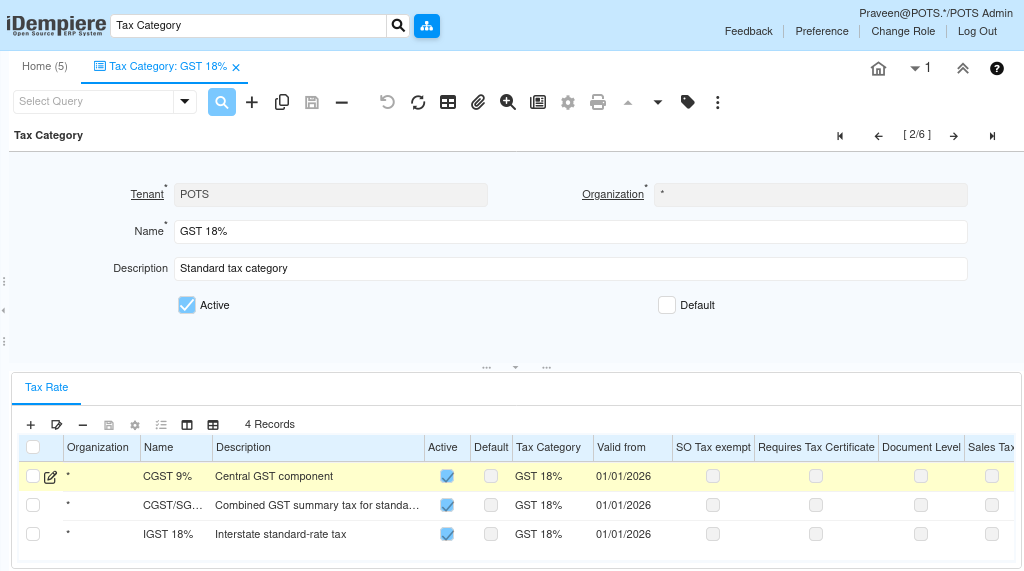
Step 3: Configure GST Tax Categories
Create the following GST Tax Categories for intra-state (local) and inter-state sales and purchase transactions.
| Name | Description | Organization | Active |
| GST 0% | Zero-rated tax category | * | Yes |
| GST 3% | Low-rate tax category | * | Yes |
| GST 5% | Reduced tax category | * | Yes |
| GST 18% | Standard tax category | * | Yes |
| GST 40% | High-rate tax category | * | Yes |

Step 4: Save the Record
Click Save. The Tax Category is immediately available for use in Tax configuration and Product Setup.
Configuration Summary
| Tax Category | Type | Applicable Transactions |
| GST 0% | GST | Zero-rated sales and purchases |
| GST 3% | GST | Low-rate transactions |
| GST 5% | GST | Reduced-rate transactions |
| GST 18% | GST | Standard transactions |
| GST 40% | GST | High-rate transactions |
Tax Category Usage Flow
Tax Categories in iDempiere act as an intermediate mapping layer between products and tax rules. Instead of assigning taxes directly to products, Tax Categories make future tax updates faster and reduce configuration errors.
Product / Charge / Service
↓
Tax Category (e.g. GST 18%)
↓
Tax Rule (CGST + SGST or IGST)
↓
Transaction (Sales Order / Purchase Order / Invoice)
Common Issues and Resolution
| Issue | Resolution |
| Tax Category unavailable during configuration | Verify the Active checkbox is enabled on the record |
| Duplicate Tax Categories created | Set Organization = * to share records across all organizations |
| Wrong tax applied on transaction | Verify Tax Category mapping in the Tax configuration window |
| Tax Category not visible in product setup | Check the Active status and Organization field value |
| Changes not reflected after save | Run Cache Reset and log in again |
Best Practices
- Include the tax rate in the Tax Category name (e.g., GST 18%, IGST 5%) for immediate identification
- Always set Organization = * so Tax Categories are available across all business units
- Create both GST and IGST variants for every rate to support intra-state and interstate transactions
- Do not enable Default unless a specific Tax Category must auto-populate during record creation
- Align Tax Category names with the official GST rate slabs defined by the tax authority
Next Steps
After completing Tax Category configuration in iDempiere, continue with:
- Tax — define CGST, SGST, and IGST tax rates linked to Tax Categories
- Product Category — assign Tax Categories to product groups
- Product Setup — configure individual products with the correct Tax Category