How to Configure the Organization in iDempiere for Retail
Learn how to configure Organization and Organization Info in iDempiere for retail. Step-by-step guide covering setup, address, contact, and cache reset.
Introduction
The Organization window in iDempiere is used to create and maintain business units within a company structure. Organizations help manage operational activities such as warehouses, inventory, purchasing, and sales transactions.
After completing the Initial Tenant Setup in iDempiere, a default organization may already exist. Additional organizations can be created for branch locations, stores, or operational units as needed.
Process Flow

Prerequisites
Before starting, ensure the following requirements are met:
- Initial Tenant Setup completed successfully in iDempiere
- Logged in with appropriate role access
- Organization address and contact details are available
Business Rules
- Each branch or operational unit must be created as a separate Organization record.
- Search Key should remain unique for every organization to avoid duplicate branch identification.
- Organization Address and Contact Information should be maintained correctly because they are used in system transactions and printed documents.
- Summary Level should only be enabled for parent organizations and not for transactional branch organizations.
- Cache Reset and re-login should be performed after major organization configuration changes to refresh the updated settings across the system.
Step-by-Step Configuration
Step 1: Open the Organization Window
Navigate to:
Menu → Organization Rules → Organization
The window displays all organization records available under the current tenant in iDempiere.

Step 2: Create a New Organization or Select an Existing One
To create a new organization, click: New Record (+)
To update an existing organization, select the required organization record from the list.
Example — Primary Organization:
| Field | Value | Description |
| Tenant | POTS | Active tenant in iDempiere |
| Search Key | CDC | Unique short code |
| Name | CDC | Display name in the system |
| Description | Centralized Distribution Center | Details about the organization |
Example — Branch Organizations:
| Search Key | Name | Description |
| CHN | Chennai Store | Chennai Retail Branch |
| PDY | Pondicherry Store | Pondicherry Retail Branch |
| TVM | Trivandrum Store | Trivandrum Retail Branch |
Field Descriptions:
- Search Key — Short unique code used to identify the organization
- Name — Organization name displayed throughout the iDempiere system
- Description — Additional information about the organization
Each branch, store, or operational unit should be maintained as a separate Organization record in iDempiere.

Step 3: Save the Organization Record
After entering all required details, click: Save
Once saved, continue to configure additional organization information in iDempiere.
Step 4: Open Organization Info
Navigate to:
Organization → Organization Info
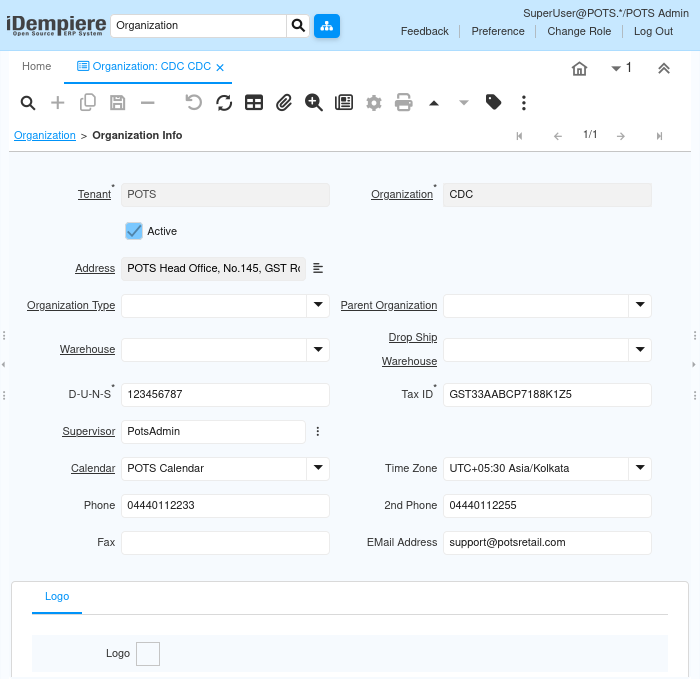
This tab in iDempiere stores organization-specific information such as address, contact details, and operational settings.
Step 5: Enter Address Information
Provide the branch or organization address details in the Address field. This information is used in system transactions and printed documents.
Example Address:
POTS Head Office, No.145, GST Road
Guindy Industrial Estate
Near Kathipara Junction
Chennai – 600032
Field Description:
- Address — Business location used in system records and printed documents
Step 6: Configure Organization Details
Enter the following configuration details:
| Field | Example Value | Purpose |
| Organization Type | Legal Entity | Defines organization classification |
| D-U-N-S | 123456789 | Unique business identifier |
| Supervisor | PotsAdmin | Responsible user for this organization |
| Calendar | POTS Calendar | Financial calendar for transactions |
| Time Zone | UTC+05:30 Asia/Kolkata | Operating time zone of the organization |
Leave the following fields blank until required:
- Warehouse
- Parent Organization
- Drop Ship Warehouse
Enable Summary Level only for parent-level organizations used for reporting or hierarchy purposes.
Configure Drop Ship Warehouse only when sales orders are fulfilled directly through supplier shipment processes.
Step 7: Enter Contact Information
Provide organization contact details in iDempiere:
| Field | Example Value |
| Phone | 04440112233 |
| 2nd Phone | 04440112255 |
| Fax | 04440112000 |
| Email Address | support@potsretail.com |
| Tax ID | GST33AABCP7188K1Z5 |
Step 8: Save Organization Information
After entering all details, click:
Save
The organization information in iDempiere is now updated successfully.
Step 9: Apply Changes via Cache Reset
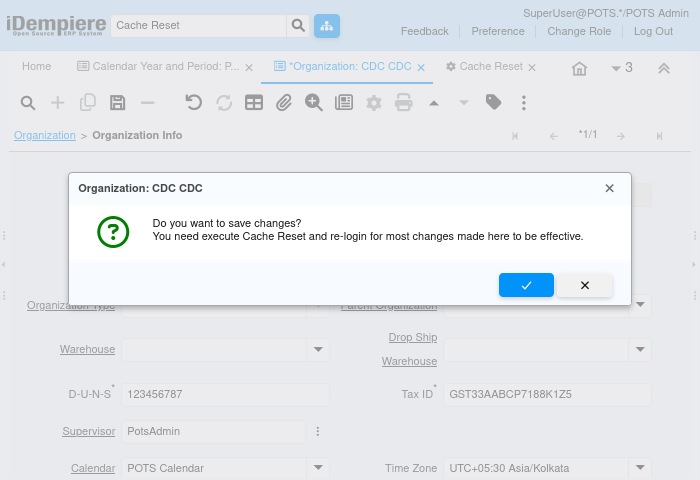
After saving, iDempiere may display the following message:
“You need to execute Cache Reset and re-login for most changes made here to be effective.”
Click OK to acknowledge.
If changes are not reflected after re-login, follow these steps:
- Navigate to: Menu → Cache Reset
- Execute the process
- Log out and log back in to iDempiere
This refreshes all organization changes throughout the iDempiere system.
Common Issues and Resolutions
| Issue | Resolution |
| Calendar not available for selection | Verify the calendar was created during Initial Tenant Setup in iDempiere |
| Mandatory field validation error while saving | Verify all required fields are populated before saving |
| Changes saved but not reflected in the system | Execute Cache Reset and log in again to iDempiere |
Next Steps
After completing Organization setup in iDempiere, continue with the following:
Warehouse Setup → Locator Setup → Product Setup