How to Configure the Tax in iDempiere for Retail
Learn how to configure GST, CGST, SGST, and IGST tax records in iDempiere for retail. Enable accurate tax calculation and accounting posting.
Introduction
The Tax window in iDempiere is used to define tax calculation rules applied during purchasing, sales, invoicing, and accounting transactions. Tax records determine how tax percentages are computed and how tax values are posted during each transaction.
| Business Value In retail, iDempiere Tax configuration supports GST (intra-state) and IGST (interstate) tax structures — enabling automatic tax splitting, correct invoice generation, and accurate financial postings across sales and purchase transactions. |
Prerequisites
Before starting, ensure the following:
- Initial Tenant Setup completed successfully
- Tax Categories configured
- Chart of Accounts and Accounting Schema configured
- Logged in with a role that has sufficient access rights
Business Rules
- Parent tax records must be configured as Summary records with a 0% rate, while tax calculations are performed by the associated child tax records.
- Each combined tax structure must contain the required child tax records, with each child linked to the correct parent tax and configured with the appropriate percentage.
- Standalone tax records must be configured as non-summary records and assigned the full applicable tax rate.
- Tax records must be active, assigned to Organization *, configured for both Sales and Purchase transactions, and have a valid effective date.
- Tax Categories must be correctly mapped to both products and tax records to ensure accurate tax calculation and accounting during transactions.
Navigation
Menu → Performance Analysis and Accounting → Accounting Rules → Tax
The window displays all existing Tax records. Use the search filter to locate a specific record.
Step-by-Step Configuration
Step 1: Open Tax Window
Navigate to the path above. The window lists all existing Tax records configured in iDempiere.
Step 2: Create New Record
Click New Record (+) to open a blank form. To modify an existing record, open it and update the values directly.
Common Field Reference
- Organization – Set to * — makes tax records available across all organizations
- Name – Display name of the tax record — include rate percentage for clarity
- Tax Category – Links the tax record to the applicable Tax Category (e.g., GST 18%, IGST 5%)
- Country – Set to India — restricts tax applicability to Indian transactions
- SO / PO Type – Set to Both — allows use in both sales and purchase transactions
- Valid From – Defines the effective start date for the tax record
- Rate – Tax percentage applied during calculation (0 for Summary tax parents)
- Summary Level – Enable for parent GST taxes — child taxes perform actual calculations
- Parent Tax – Links a child tax (CGST / SGST) to its parent summary tax record
- Posting Indicator – Set to Separate Tax Posting — creates individual accounting entries per tax
- Default – Set CGST/SGST 5% as default — auto-selected during record creation
- Active – Must be enabled — makes the tax available in transactions
Step 3: Configure GST Summary Tax Records
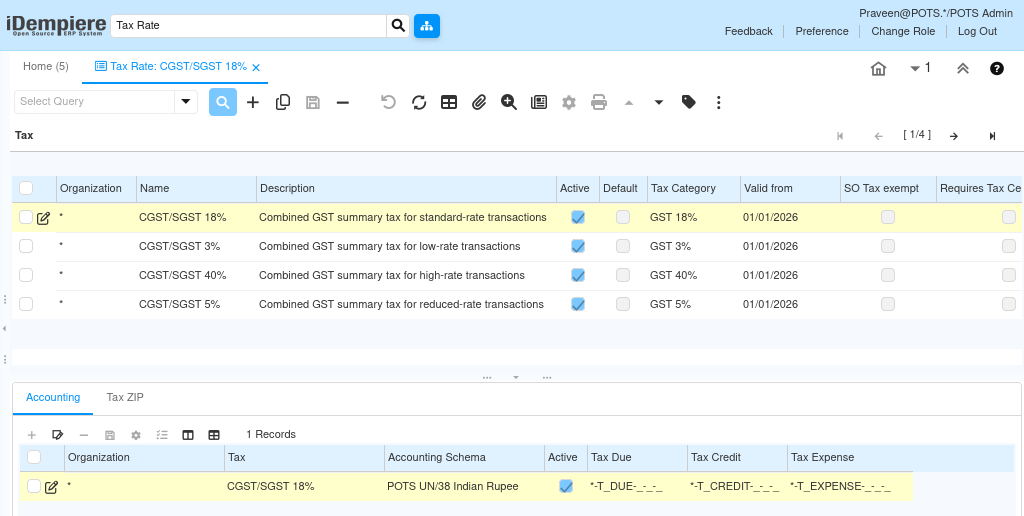
Create the following GST Summary Tax records. These are parent tax structures for intra-state transactions. Each summary tax holds child taxes (CGST + SGST) that perform the actual calculation.
| Name | Description | Rate | Summary Level | Active |
| GST 0% | Zero-rated tax — exempt transactions | 0 | Yes | Yes |
| CGST/SGST 3% | Combined GST summary — low-rate transactions | 0 | Yes | Yes |
| CGST/SGST 5% | Combined GST summary — reduced-rate transactions | 0 | Yes | Yes |
| CGST/SGST 18% | Combined GST summary — standard-rate transactions | 0 | Yes | Yes |
| CGST/SGST 40% | Combined GST summary — high-rate transactions | 0 | Yes | Yes |
| Notes — Summary Tax Rules Summary Tax Rate must always be set to 0. Enable Summary Level on all parent GST tax records. Child taxes (CGST and SGST) perform the actual tax calculation — the parent only groups them. |
GST Parent–Child Structure
CGST/SGST 3% → CGST 1.5% + SGST 1.5%
CGST/SGST 5% → CGST 2.5% + SGST 2.5%
CGST/SGST 18% → CGST 9% + SGST 9%
CGST/SGST 40% → CGST 20% + SGST 20%
Step 4: Configure Child GST Tax Records (CGST and SGST)
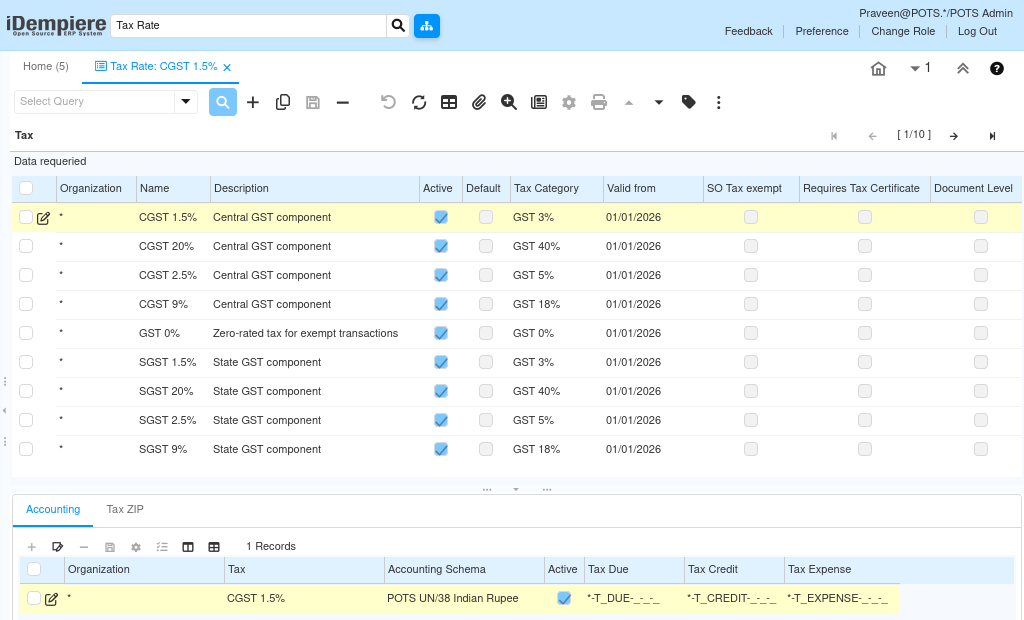
Create the following CGST and SGST child tax records. Each child tax is linked to its parent summary tax and performs the actual tax calculation during transactions.
| Name | Parent Tax | Rate (%) | Summary Level | Posting Indicator |
| CGST 1.5% | CGST/SGST 3% | 1.5 | No | Separate Tax Posting |
| SGST 1.5% | CGST/SGST 3% | 1.5 | No | Separate Tax Posting |
| CGST 2.5% | CGST/SGST 5% | 2.5 | No | Separate Tax Posting |
| SGST 2.5% | CGST/SGST 5% | 2.5 | No | Separate Tax Posting |
| CGST 9% | CGST/SGST 18% | 9 | No | Separate Tax Posting |
| SGST 9% | CGST/SGST 18% | 9 | No | Separate Tax Posting |
| CGST 20% | CGST/SGST 40% | 20 | No | Separate Tax Posting |
| SGST 20% | CGST/SGST 40% | 20 | No | Separate Tax Posting |
| Notes — Child Tax Rules Summary Level must be Disabled for all child tax records. Parent Tax must be correctly selected for each CGST and SGST child. Posting Indicator must be set to Separate Tax Posting on all child records. |
Step 5: Configure IGST Tax Records
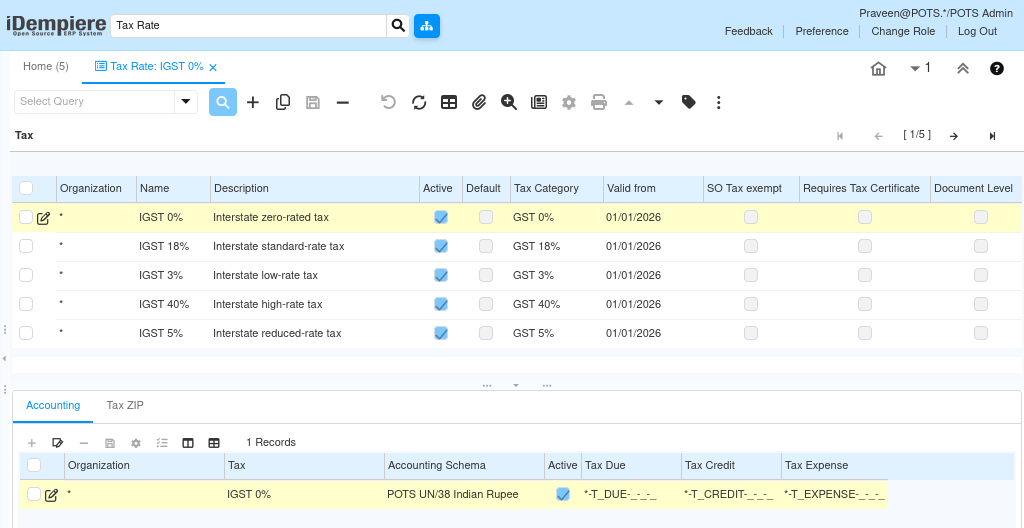
Create the following IGST Tax records for interstate transactions. Unlike GST, IGST does not use a parent–child structure — each IGST tax is a standalone record.
| Name | Description | Rate (%) | Summary Level | Active |
| IGST 0% | Interstate zero-rated tax | 0 | No | Yes |
| IGST 3% | Interstate low-rate tax | 3 | No | Yes |
| IGST 5% | Interstate reduced-rate tax | 5 | No | Yes |
| IGST 18% | Interstate standard-rate tax | 18 | No | Yes |
| IGST 40% | Interstate high-rate tax | 40 | No | Yes |
Step 6: Save the Record
Click Save. The Tax record is immediately available for use in product configuration and transactions.
Configuration Summary
| Tax Record | Type | Rate (%) | Structure |
| GST 0% | GST Summary | 0 | Parent only — no child taxes |
| CGST/SGST 3% | GST Summary | 0 | Parent → CGST 1.5% + SGST 1.5% |
| CGST/SGST 5% | GST Summary | 0 | Parent → CGST 2.5% + SGST 2.5% |
| CGST/SGST 18% | GST Summary | 0 | Parent → CGST 9% + SGST 9% |
| CGST/SGST 40% | GST Summary | 0 | Parent → CGST 20% + SGST 20% |
| IGST 0% | IGST | 0 | Standalone — no child taxes |
| IGST 3% | IGST | 3 | Standalone — no child taxes |
| IGST 5% | IGST | 5 | Standalone — no child taxes |
| IGST 18% | IGST | 18 | Standalone — no child taxes |
| IGST 40% | IGST | 40 | Standalone — no child taxes |
Tax Processing Flow
iDempiere Tax processing follows this sequence for every sales and purchase transaction:
Product / Charge / Service
↓
Tax Category (e.g. GST 18% / IGST 5%)
↓
Tax Record (e.g. CGST/SGST 18% or IGST 5%)
↓
Purchase Order / Sales Order
↓
Invoice (tax lines split: CGST + SGST or IGST)
↓
Accounting Posting (Separate Tax Posting)
| Why Use Tax Categories Tax Categories act as the intermediate layer between products and tax rules. Assigning taxes through categories — rather than directly to products — simplifies future tax rate changes across the entire product catalogue. |
Transaction Validation
Use the following sample to verify tax split calculation before going live.
Sample Calculation — CGST/SGST 5%
| Element | Value |
| Product Price | ₹1,000.00 |
| Selected Tax | CGST/SGST 5% |
| CGST 2.5% | ₹25.00 |
| SGST 2.5% | ₹25.00 |
| Total Tax | ₹50.00 |
| Grand Total | ₹1,050.00 |
Accounting Validation
Verify the accounting posting generated by the invoice matches the expected tax split entries.
Purchase Invoice Posting — CGST/SGST 5%
Inventory / Expense Account Dr 1,000.00
CGST Tax Credit Account Dr 25.00
SGST Tax Credit Account Dr 25.00
Accounts Payable Cr 1,050.00
| Accounting Verification Separate Tax Posting creates individual debit entries for CGST and SGST. If both taxes appear as a single combined line, verify that Posting Indicator is set to Separate Tax Posting on each child tax record. |
Common Issues
| Issue | Resolution |
| Tax calculated twice on invoice | Set Parent Summary Tax Rate to 0 |
| Wrong tax total generated | Verify Parent Tax mapping on each child record |
| CGST and SGST not split in invoice | Verify Summary Level is enabled on the parent tax |
| Incorrect accounting posting amount | Verify Posting Indicator is set to Separate Tax Posting |
| Tax unavailable in transactions | Verify the Active checkbox is enabled |
| Wrong tax applied on interstate order | Verify IGST record is linked to the correct Tax Category |
| Changes not reflected after save | Run Cache Reset and log in again |
Best Practices
- Always set Parent Summary Tax Rate to 0 — child taxes handle all calculations
- Enable Summary Level only on parent GST tax records, never on IGST or child records
- Set Posting Indicator to Separate Tax Posting on all child tax records for clean accounting entries
- Set SO/PO Type to Both to allow tax usage in both sales and purchase transactions
- Set Organization = * so tax records are available across all business units
- Validate transaction calculation and accounting posting before going live
- Set CGST/SGST 5% as the Default tax to reduce manual selection during record creation
Next Steps
After completing Tax configuration in iDempiere, continue with:
- Price List — configure sales and purchase price lists
- Unit of Measure — define measurement units for products
- Product Setup — assign Tax Categories and pricing to products