How to Configure Payment Term in iDempiere for Retail
Learn how to configure Payment Terms in iDempiere for retail. Set up immediate, credit, and settlement payment cycles for sales and purchases.
Introduction
The Payment Term window in iDempiere is used to define payment due periods and settlement rules for business transactions. Payment Terms control when payments must be completed for customer sales, supplier purchases, recurring vendor settlements, and long-term business agreements.
| Business Value – In retail, iDempiere Payment Term configuration manages immediate customer payments at the point of sale, supplier credit periods for inventory procurement, and recurring settlement cycles for services and annual contracts. |
Prerequisites
Before starting, ensure the following:
- Initial Tenant Setup completed successfully
- Organization structure configured
- Logged in with a role that has sufficient access rights
Business Rules
- Immediate payment terms should be used for walk-in retail and POS billing transactions.
- Credit payment terms must be configured with proper Net Days for supplier and institutional customer transactions.
- After Delivery should only be enabled when payment due calculation must start after product delivery completion.
- Payment Term Usage should remain as Both when the same payment term is used in Sales and Purchase transactions.
- Validate process must be executed after configuration to activate the payment term for business transactions.
- Immediate payment term can be maintained as the default payment term for faster retail billing operations.
Navigation
Menu → Partner Relations → Business Partner Rules → Payment Term
The window displays all existing Payment Term records. Use the search filter to locate a specific record.
Step-by-Step Configuration
Step 1: Open Payment Term Window
Navigate to the path above. The window lists all existing Payment Term records in iDempiere.
Step 2: Create New Record
Click New Record (+) to open a blank form. To modify an existing record, open it and update the values directly.
Field Reference
- Search Key — Unique short code for the Payment Term (e.g., IMD, NET30, MONTHLY)
- Name — Display name shown in transactions and documents
- Description — Business purpose of the Payment Term
- Net Days — Number of days before payment becomes due (0 = Immediate)
- Payment Term Usage — Set to Both — allows use in sales and purchase transactions
- Document Note — Additional note displayed on invoices and transaction documents
- Active — Must be enabled — makes the Payment Term available in transactions
- Default — Set on Immediate only — auto-selects this term during record creation
- Next Business Day — Moves the due date to the next working day if it falls on a non-working day
- After Delivery — Starts due date calculation from the delivery completion date, not the invoice date
- Fixed Due Date — Uses a fixed calendar date instead of Net Days calculation — leave disabled for retail
- Discount Days / % — Early payment discount configuration — leave at 0 if not required
- Grace Days — Additional buffer days before marking payment overdue — leave at 0 if not required
Step 3: Configure Immediate Payment
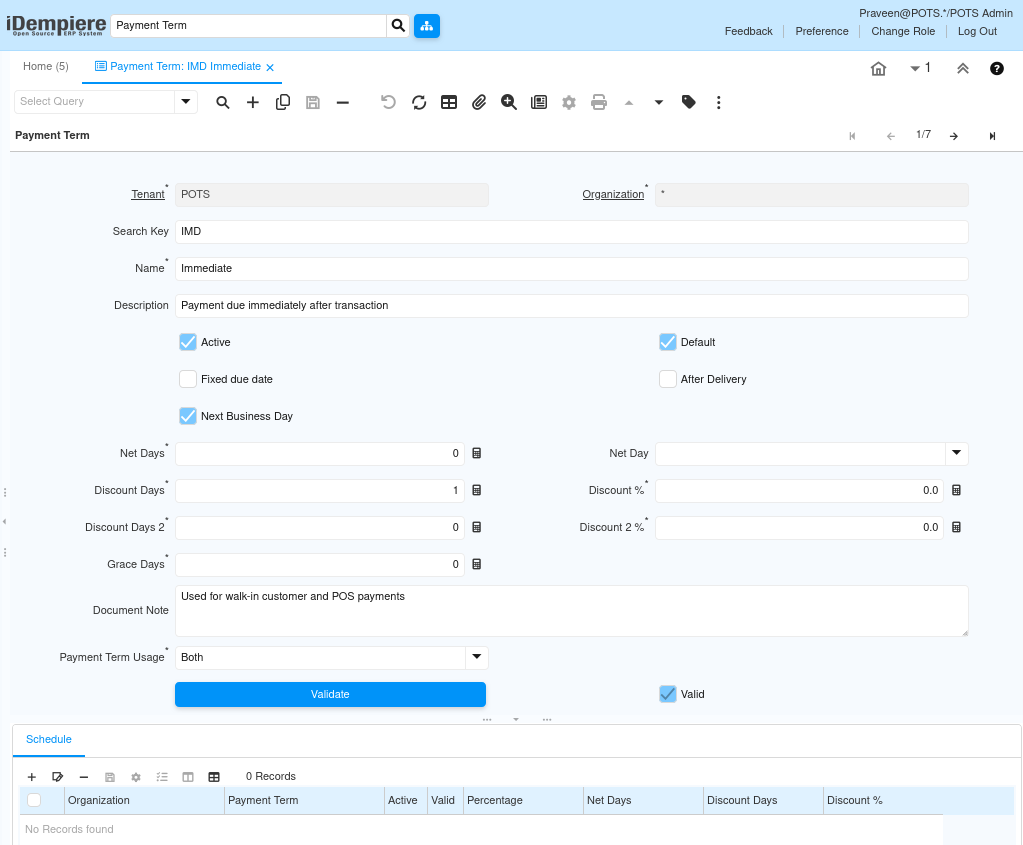
Create the Immediate payment term for walk-in customer and POS transactions where payment is collected at the time of sale.
| Field | Value |
| Search Key | IMD |
| Name | Immediate |
| Description | Payment due immediately after transaction |
| Net Days | 0 |
| Payment Term Usage | Both |
| Document Note | Used for walk-in customer and POS payments |
| Active | Yes |
| Default | Yes |
| Next Business Day | Yes |
| After Delivery | No |
| Fixed Due Date | No |
| Discount Days / % | 0 / 0 |
| Grace Days | 0 |
Step 4: Configure Supplier Credit Payment Terms
Create the following Net Days credit payment terms for supplier agreements where inventory or services are received first and payment is settled after an agreed credit period.
| Search Key | Name | Net Days | After Delivery | Business Usage |
| NET15 | Net 15 Days | 15 | Yes | Small suppliers and corporate customers |
| NET30 | Net 30 Days | 30 | Yes | Standard supplier agreements |
| NET45 | Net 45 Days | 45 | Yes | Large supplier agreements |
| Supplier Credit Term Settings – Enable After Delivery on all supplier credit terms. Due date calculation starts from delivery completion — not from the invoice date. Active and Next Business Day must be enabled on all records. |

Step 5: Configure Settlement Payment Terms
Create the following recurring settlement payment terms for transportation services, maintenance contracts, recurring vendors, and annual agreements.
| Search Key | Name | Net Days | After Delivery | Business Usage |
| WEEKLY | Weekly Settlement | 7 | No | Weekly vendor settlements |
| MONTHLY | Monthly Settlement | 30 | No | Monthly recurring services |
| YEARLY | Yearly Settlement | 365 | No | Annual contracts and subscriptions |
| Settlement Term Settings After Delivery is disabled for settlement terms — due dates are calculated from the invoice date, not delivery. Active and Next Business Day must be enabled on all records. |

Step 6: Validate the Payment Term
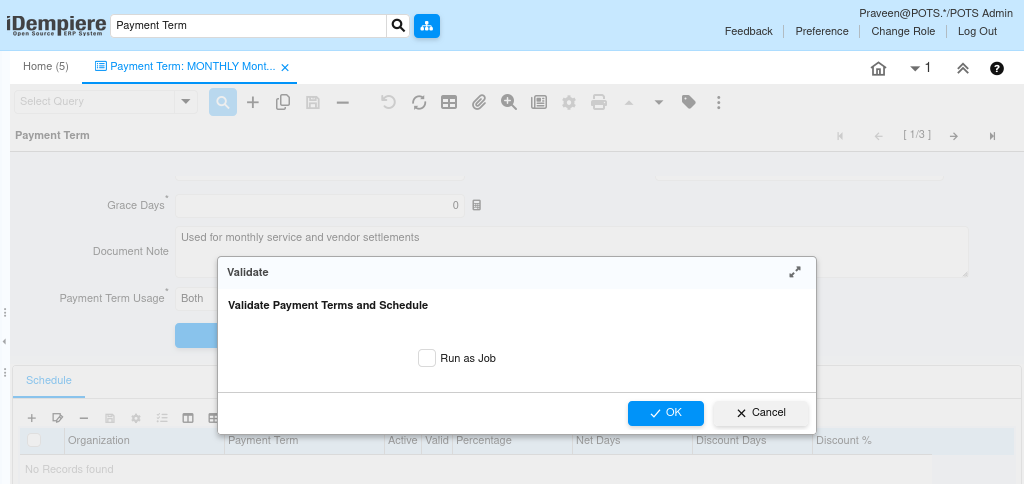
After saving, click Validate and execute Validate Payment Terms and Schedule to confirm the record is correctly configured.
Click → Validate
Execute → Validate Payment Terms and Schedule
| ✔ Validation After successful validation, the Valid checkbox is automatically selected. If validation fails, verify that all mandatory fields — Search Key, Name, Net Days — are correctly populated. Schedule configuration is not required as all payment terms use Net Days logic only. |
Step 7: Save the Record
Click Save. The Payment Term is immediately available for use in sales and purchase transactions.
Configuration Summary
| Search Key | Name | Net Days | Type | After Delivery | Default |
| IMD | Immediate | 0 | Immediate | No | Yes |
| NET15 | Net 15 Days | 15 | Credit | Yes | No |
| NET30 | Net 30 Days | 30 | Credit | Yes | No |
| NET45 | Net 45 Days | 45 | Credit | Yes | No |
| WEEKLY | Weekly Settlement | 7 | Settlement | No | No |
| MONTHLY | Monthly Settlement | 30 | Settlement | No | No |
| YEARLY | Yearly Settlement | 365 | Settlement | No | No |
Business Flow Overview
iDempiere Payment Terms are applied at the transaction level across sales and purchase workflows:
Business Partner (Customer / Vendor)
↓
Payment Term assigned (Immediate / NET30 / Monthly)
↓
Sales Order / Purchase Order
↓
Invoice (Due Date calculated from Net Days + After Delivery setting)
↓
Payment Processing (collected or disbursed on or before due date)
| Payment Term Usage Setting – Setting Payment Term Usage to Both ensures the same term can be used in both sales and purchase transactions — reducing the number of records needed and simplifying maintenance. |
Common Issues and Resolution
| Issue | Resolution |
| Validation process fails | Verify Search Key, Name, and Net Days fields are populated |
| Valid checkbox not selected after save | Execute Validate Payment Terms and Schedule after saving |
| Payment term unavailable in transactions | Verify the Active checkbox is enabled |
| Payment term not visible in sales or purchase | Set Payment Term Usage to Both |
| Due date calculating from invoice, not delivery | Enable After Delivery on supplier credit payment terms |
| Immediate term not auto-selected in transactions | Enable Default on the Immediate payment term record |
| Changes not reflected after save | Run Cache Reset and log in again |
Best Practices
- Use short, descriptive Search Keys (IMD, NET30, MONTHLY) that are immediately recognizable in transaction dropdowns
- Set Default to Yes only on the Immediate payment term — this prevents incorrect auto-selection for credit transactions
- Enable After Delivery on all supplier credit terms — due date must start from delivery, not invoice date
- Set Payment Term Usage to Both on all records to allow use across sales and purchase transactions
- Always run Validate Payment Terms and Schedule after saving to confirm the record is active and correctly configured
- Leave Discount Days, Discount %, and Grace Days at 0 unless early payment discounts or grace periods are part of the business agreement
- Enable Next Business Day on all terms so due dates are never set to non-working days
Next Steps
After completing Payment Term configuration in iDempiere, continue with:
- Product Category — group products with default tax and pricing rules
- Product Setup — configure individual products with pricing and payment terms