How to Configure Currency and Conversion Rate in iDempiere
Learn how the Currency window in iDempiere supports retail businesses by managing multiple currencies, exchange rates, precision settings, and currency conversions across purchasing, sales, and financial transactions.
Process Flow

Introduction
The Currency window in iDempiere defines and manages all monetary units recognised by the system. Each currency record stores its ISO code, symbol, precision settings, and rounding rules that govern how monetary values are displayed and calculated across all transactions.
Accurate Currency and Conversion Rate setup is essential for correct inventory valuation, tax reporting, and foreign exchange accounting in any iDempiere-powered retail operation.
Prerequisites
Before starting, ensure the following:
- Initial Tenant Setup completed successfully
- Accounting Schema configured with a Base Currency defined
Business Rules
Currency
- Every currency record must have a unique ISO currency code (e.g., INR, USD, EUR); duplicate codes are not permitted.
- A currency must be marked Active to be available for selection in transactions, price lists, and business partner records.
- The precision field controls how many decimal places are recorded and displayed in transaction amounts for that currency.
Currency Rate (Conversion Rate)
- A conversion rate must exist between the transaction currency and the accounting currency for any transaction posted on that date; a missing rate will block posting.
- Each rate record requires a valid From Currency, To Currency, and Rate Date range (valid-from and valid-to); overlapping date ranges for the same currency pair are not permitted.
- The rate type (Spot, Period End, Average, etc.) determines which rate is applied — the rate type must match what is configured on the document or price list.
- If no rate is found for the exact transaction date, iDempiere uses the most recent active rate whose valid-from date is on or before the transaction date.
Navigation
Access the Currency configuration from the iDempiere main menu:
| Currency: Menu → Performance Analysis and Accounting → Accounting Rules → Currency Conversion Rate: Menu → Performance Analysis and Accounting → Accounting Rules → Currency Rate |
Step-by-Step Configuration
Step 1: Open the Currency Window
Navigate to:
| Menu → Performance Analysis and Accounting → Accounting Rules → Currency |
The window displays all currency records currently defined in the system. iDempiere includes a default set of ISO currencies. Review the list before creating new records to avoid duplication.
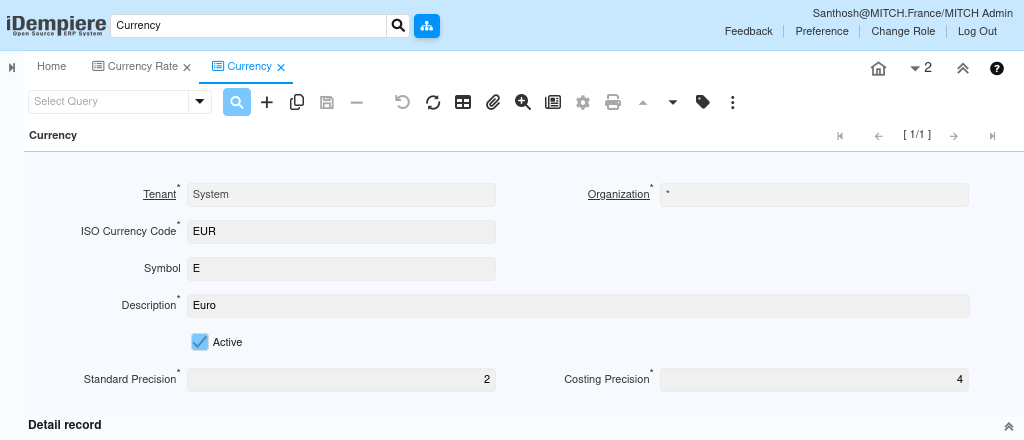
| Note: iDempiere ships with a pre-loaded set of common ISO 4217 currencies. Search before creating a new record to confirm the currency does not already exist in the system. |
Step 2: Create a New Currency Record
Click: New Record (+)
The form opens in edit mode. Complete the required fields as described below.
Field Definitions
- ISO Currency Code — Three-letter ISO 4217 code (e.g., USD, INR, EUR, AED). This is the primary identifier used across all transactions.
- Symbol — Currency symbol displayed on printed documents and screen forms (e.g., $, INR, EUR).
- Description — Full name of the currency for internal reference (e.g., US Dollar, Indian Rupee).
- Standard Precision — Number of decimal places used for standard monetary amounts (typically 2).
- Costing Precision — Number of decimal places used in cost calculations. Set higher than Standard Precision when unit costs have more decimal accuracy.
- Active — Enables the currency for use in transactions. Inactive currencies are excluded from lookup lists.
Step 3: Configure Indian Rupee (INR)
Enter the following values to create the Indian Rupee record:
| Field | Value |
| ISO Code | INR |
| Symbol | INR |
| Description | Indian Rupee |
| Standard Precision | 2 |
| Costing Precision | 4 |
| Active | Yes |
Purpose
INR is the base transaction currency for all domestic retail sales, local vendor payments, and statutory tax reporting in India. Defining INR with Costing Precision 4 ensures accurate unit cost capture when dealing with low-value items purchased in bulk.
Step 4: Configure US Dollar (USD)
Enter the following values to create the US Dollar record:
| Field | Value |
| ISO Code | USD |
| Symbol | $ |
| Description | US Dollar |
| Standard Precision | 2 |
| Costing Precision | 4 |
| Active | Yes |
Purpose
USD is used for international supplier invoices, import purchase orders, and foreign exchange settlements. Retail chains importing branded electronics, apparel, or FMCG goods from US-based distributors will reference USD on those purchase orders.
Step 5: Configure Euro (EUR)
Enter the following values to create the Euro record:
| Field | Value |
| ISO Code | EUR |
| Symbol | EUR |
| Description | Euro |
| Standard Precision | 2 |
| Costing Precision | 4 |
| Active | Yes |
Purpose
EUR supports procurement from European suppliers. Retail businesses sourcing luxury goods, fashion, or specialty food products from European brands will use EUR-denominated purchase orders and vendor invoices.
Step 6: Save the Currency Record
After entering all field values, click:
| Save (floppy-disk icon or Alt + S) |
The record is saved and assigned a system-generated Currency ID. The currency is now available for selection on accounting schemas, price lists, bank accounts, business partners, and conversion rates.
Step 7: Open the Conversion Rate Window
Navigate to:
| Menu → System Admin → General Rules → Conversion Rate |
The window lists all active conversion rate records. Each record defines the exchange rate between a source currency and a target currency for a specific date range and conversion type.

Step 8: Create a New Conversion Rate Record
Click:
| New Record (+) |
Field Definitions
- Currency — The source currency (From Currency) for this rate.
- Currency To — The target currency (To Currency) for this rate.
- Currency Type:
| Field | Value |
| Average | The exchange rate calculated as the average over a period of time (daily, monthly, yearly, etc.). Used mainly for accounting and reporting. Example: Average USD→INR rate for May = 83.12 |
| Company | A company-specific exchange rate maintained internally by an organization instead of using market rates. Some ERPs allow companies to define custom rates for transactions. |
| Period End | The exchange rate at the end of an accounting period (month-end, quarter-end, year-end). Used for financial closing and balance sheet valuation. |
| Spot | The current live market exchange rate for immediate currency exchange. Usually the real-time or near real-time rate used for trading and immediate transactions. |
- Valid From Date — The first date on which this rate applies to transactions.
- Valid To Date — The last date on which this rate applies. Leave blank for open-ended rates.
- Multiply Rate — The factor applied to convert From Currency to To Currency (e.g., 1 USD = 83.50 INR means Multiply Rate = 83.50).
- Divide Rate — Automatically calculated as 1 / Multiply Rate. Used for reverse conversion.
Step 9: Configure USD to INR Conversion Rate
Enter the following values:
| Field | Value |
| Currency (From) | USD |
| Currency To | INR |
| Conversion Rate Type | Spot |
| Valid From Date | 01/07/2025 |
| Valid To Date | 31/07/2025 |
| Multiply Rate | 83.50 |
| Divide Rate | 0.01198 (auto-calculated) |
Purpose
This rate enables iDempiere to automatically convert USD amounts on import purchase orders to INR in the accounting entries. When a purchase order is raised in USD, the system applies this rate to generate the INR-equivalent journal entries for the Accounts Payable and Inventory accounts.
Step 10: Configure EUR to INR Conversion Rate
Enter the following values:
| Field | Value |
| Currency (From) | EUR |
| Currency To | INR |
| Conversion Rate Type | Spot |
| Valid From Date | 01/07/2025 |
| Valid To Date | 31/07/2025 |
| Multiply Rate | 90.25 |
| Divide Rate | 0.01108 (auto-calculated) |
Purpose
This rate supports EUR-denominated vendor invoices from European suppliers. The system uses this rate to post the INR equivalent to the Accounts Payable and Goods Receipt accounts, maintaining accurate local-currency financials.
Step 11: Save the Conversion Rate Record
After entering all field values, click:
| Save (floppy-disk icon or Alt + S) |
The conversion rate is saved and immediately available for document processing. Repeat Steps 7 through 11 for each additional currency pair and each new rate period.
Business Flow Overview
Currency and Conversion Rate configuration underpins the complete multi-currency procurement and finance flow in a retail operation:
At each document stage, iDempiere looks up the applicable Conversion Rate record matching the document date and rate type. If no rate is found for the document date, the system raises a conversion rate not found error and prevents posting.
Configuration Examples
| ISO Code | Symbol | Description | Std Precision | Costing Precision |
| INR | INR | Indian Rupee | 2 | 4 |
| USD | $ | US Dollar | 2 | 4 |
| EUR | EUR | Euro | 2 | 4 |
| GBP | GBP | British Pound | 2 | 4 |
| AED | AED | UAE Dirham | 2 | 4 |
| SGD | SGD | Singapore Dollar | 2 | 4 |
| From | To | Type | Multiply Rate | Period |
| USD | INR | Spot | 83.50 | Jul 2026 |
| EUR | INR | Spot | 90.25 | Jul 2026 |
| GBP | INR | Spot | 105.80 | Jul 2026 |
| AED | INR | Spot | 22.72 | Jul 2026 |
| USD | INR | Company | 83.00 | Jul 2026 |
Common Issues and Resolution
| Issue | Resolution |
| Conversion rate not found for document date | Check that a rate record exists with a Valid From Date on or before the document date and a Valid To Date on or after it. Create the missing period rate. |
| Divide Rate shows 0 after saving | Enter the Multiply Rate first, then save. iDempiere auto-calculates the Divide Rate on save. Do not enter Divide Rate manually. |
Best Practices
- Define all required currencies before configuring any Accounting Schema, Price List, or Business Partner records, as these reference Currency records.
- Set Costing Precision to 4 or higher for currencies used on high-volume, low-value goods to avoid rounding accumulation in inventory valuation.
- Create monthly Conversion Rate records aligned with your finance team’s approved rate calendar. Never leave rate gaps between periods.
- Use the Company rate type for internal transfer pricing and treasury-approved rates, and keep Spot rates for real-time or bank-feed sourced rates.
| Important: Never delete Conversion Rate records that have been used in posted documents. Deletion breaks re-posting and period-close reconciliation. Set the record to Inactive instead. |
Naming Convention
ISO 4217 defines the standard three-letter currency codes. Always use these codes as the ISO Code field value. For Conversion Rate Description fields, use the following pattern:
Next Steps
After completing Currency and Conversion Rate setup, continue with the following configurations:
- Payment Term — Define payment terms (immediate, net-30, net-60) used on vendor and customer invoices.
- Business Partner — Configure supplier and customer records, specifying the invoice currency for each foreign partner.
- Price List — Create purchase and sales price lists in the appropriate currency for domestic and international transactions.
- Accounting Schema — Confirm the Realized Gain, Realized Loss, and Unrealized Gain/Loss accounts are mapped for multi-currency postings.
- Bank Account — Define bank accounts with their operating currency to support multi-currency payment processing.