How to Create a Purchase Order in iDempiere for Retail
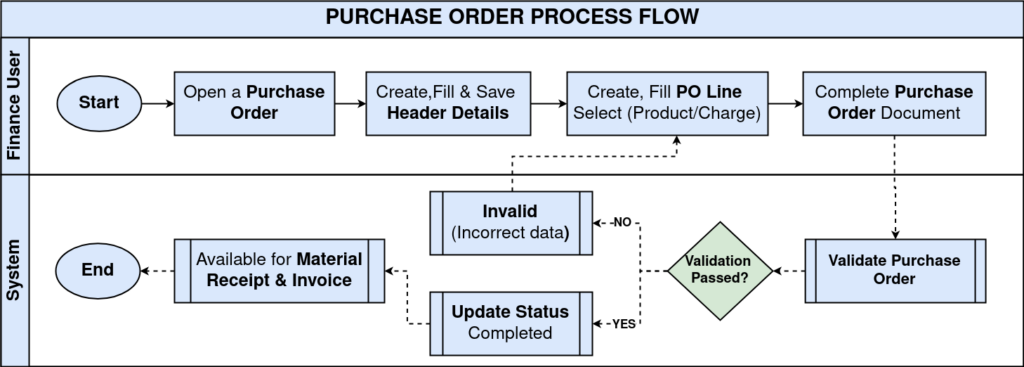
The Purchase Order window in iDempiere is the primary procurement document used to order products and services from vendors. In retail operations, it drives inventory replenishment by linking vendor selection, warehouse destination, and procurement pricing in a single transaction.
Once completed, the Purchase Order becomes the source document for Material Receipt and Vendor Invoice, directly impacting stock levels and vendor settlement.
Process Flow Diagram
Business Rules
- Vendor selection is mandatory before creating a Purchase Order.
- Promise Date cannot be earlier than Date Ordered.
- Only active, purchase-enabled products can be added to PO Lines.
- Inactive or deactivated products are unavailable for procurement transactions.
- Product pricing is automatically derived from the assigned Purchase Price List.
- Tax is calculated automatically based on Product Tax Category and vendor location.
- Warehouse selection determines the inventory destination during goods receipt.
- A Purchase Order must be completed before Material Receipt or Vendor Invoice can be generated.
- Completed Purchase Orders become read-only unless reactivated.
- UOM Conversion supports procurement in carton, case, or bulk units.
- Payment Rule and Payment Term control the vendor settlement schedule.
Prerequisites
Ensure the following configurations are completed before creating a Purchase Order in iDempiere:
- Business Partner configured with the Vendor flag enabled.
- Purchase-enabled Product Master records configured.
- Warehouse and Locator setup completed.
- Purchase Price List configured and assigned.
- Tax Category and Tax Rate configuration.
- Payment Term configured for vendor settlement.
- UOM and UOM Conversion configured, if alternate purchase units are used.
Step-by-Step Configuration
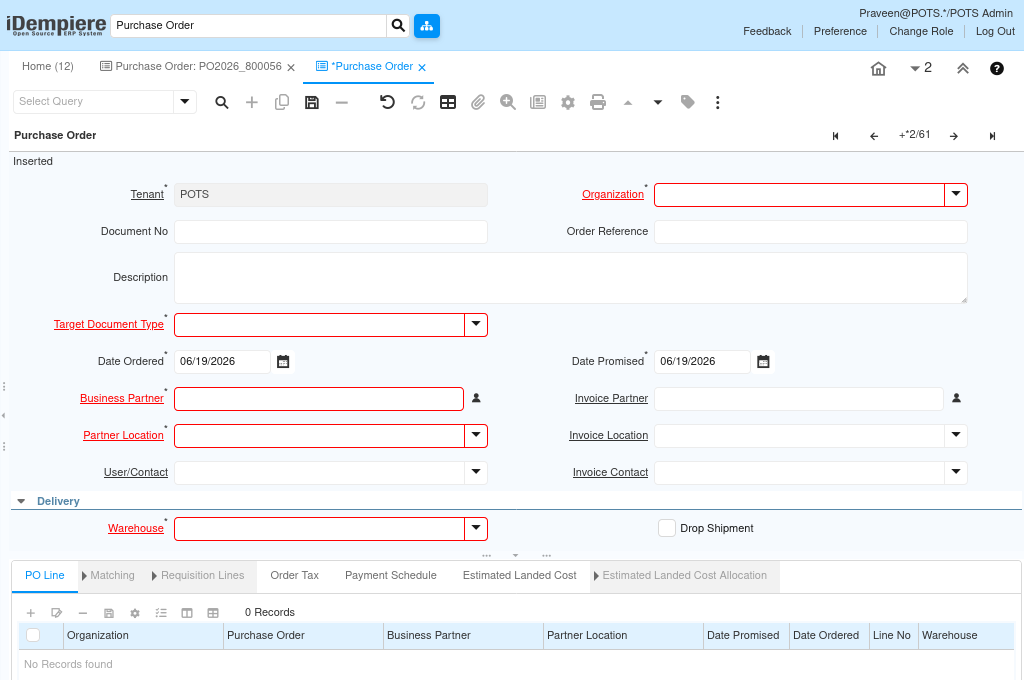
Step 1: Open the Purchase Order Window
Provides the entry point for creating a new procurement transaction.
- Navigate to the Purchase Order window from the Purchasing menu.
- Review existing records, then click the New Record button (+) to open a blank Purchase Order form.
Step 2: Create the Purchase Order Header
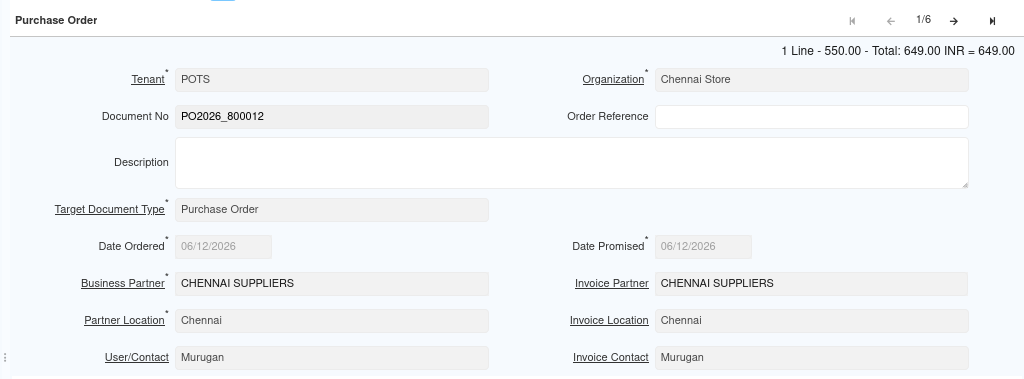
The header captures the organization, document type, and dates that define the scope of the transaction.
- Select the Organization and Target Document Type, then enter Date Ordered and Date Promised.
- Document No is generated automatically based on the configured Document Sequence.
| Field | Sample Value | Mandatory | Description |
| Organization | Chennai Store | Yes | Business unit responsible for the transaction |
| Target Document Type | Purchase Order | Yes | Controls the procurement document type |
| Document No | PO2026_800012 | Auto | Auto-generated from Document Sequence |
| Date Ordered | 12-Jun-2026 | Yes | Date the order is raised |
| Date Promised | 18-Jun-2026 | Yes | Delivery date committed by the vendor |
Step 3: Configure Vendor Information
Vendor selection determines pricing, location, and invoice defaults for the order.
- Select the Business Partner acting as vendor. iDempiere automatically populates Partner Location and contact defaults.
- Verify the location if the vendor supplies from multiple addresses.
| Field | Sample Value | Mandatory | Description |
| Business Partner | Chennai Suppliers | Yes | Identifies the supplier for the order |
| Partner Location | Chennai | Yes | Vendor address used for procurement and invoicing |
| User / Contact | Murugan | No | Vendor contact for procurement coordination |
Step 4: Configure Delivery Information
Delivery settings control where goods are received and how they are handled.
- Select the destination Warehouse and Delivery Via method.
- Set Priority if needed, and enable Drop Shipment only when the vendor ships directly to a customer.
| Field | Sample Value | Mandatory | Description |
| Warehouse | Chennai Selling Floor | Yes | Destination warehouse for received goods |
| Delivery Via | Pickup | No | Delivery method used for the order |
| Priority | Medium | No | Indicates procurement urgency |
| Drop Shipment | Unchecked | No | Enable only for direct-to-customer shipments |

Step 5: Configure Vendor Settlement Information
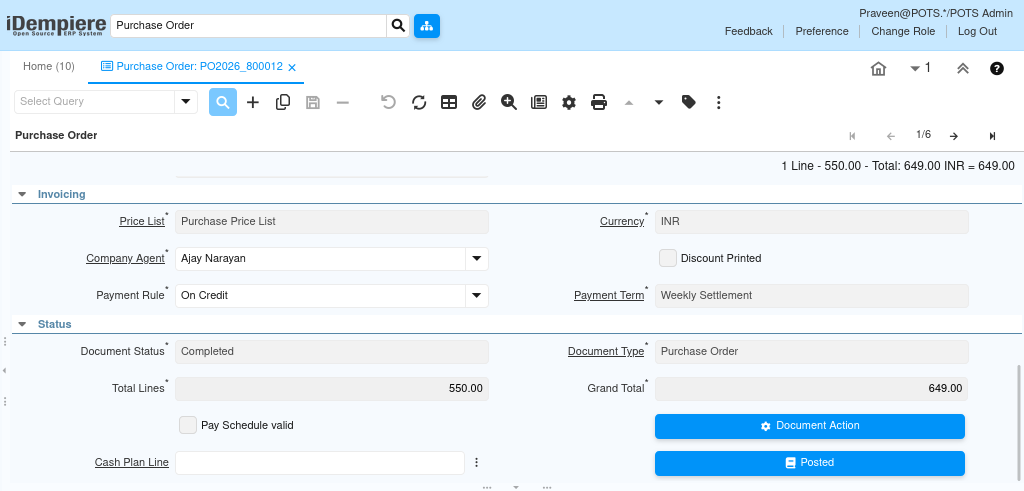
This section drives automatic price derivation and the vendor payment cycle.
- Assign the Purchase Price List for automatic pricing, then set Payment Rule, Payment Term, and Currency to define how the vendor will be settled.
| Field | Sample Value | Mandatory | Description |
| Purchase Price List | Purchase Price List | Yes | Procurement pricing structure for automatic price derivation. |
| Company Agent | Ajay Narayan (Buyer) | No | Procurement user or buyer responsible for the transaction. |
| Payment Rule | On Credit | Yes | Vendor settlement method (Cash, Credit Card, Direct Deposit, On Credit). |
| Payment Term | Weekly Settlement | Yes | Vendor settlement schedule and payment due calculation. |
| Currency | INR | Yes | Procurement transaction currency. |
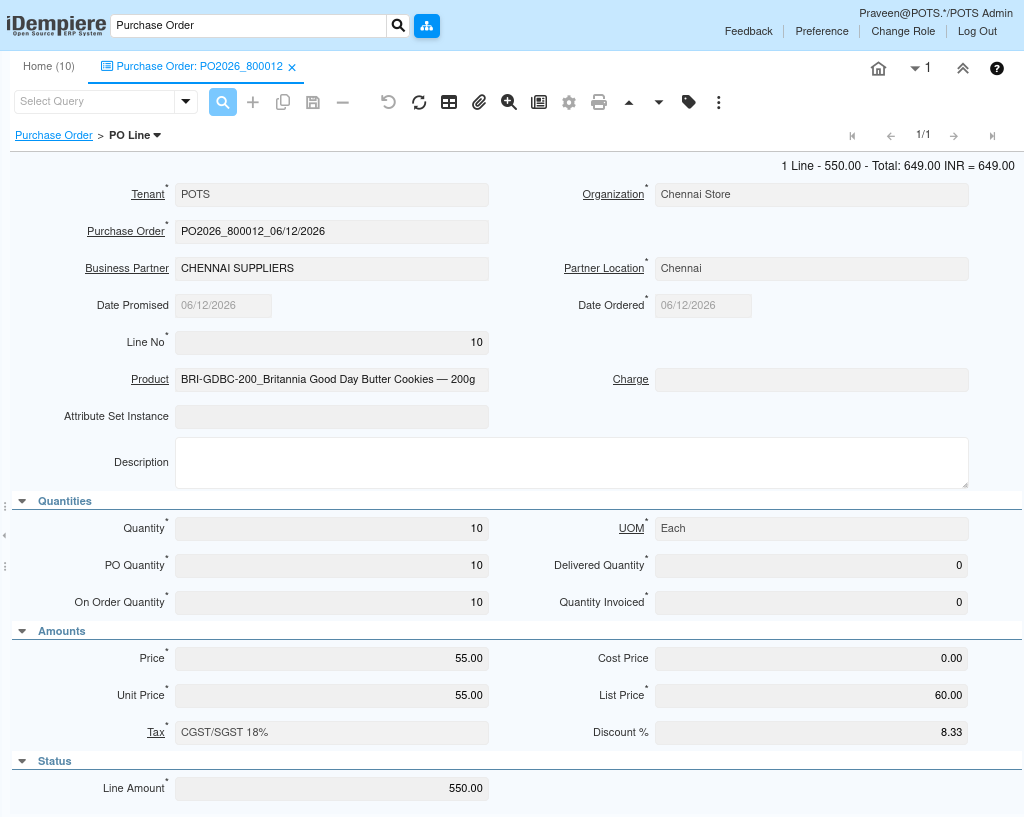
Step 6: Add Products in PO Line
Line items capture the actual procurement quantities, pricing, and amounts.
- Open the PO Line tab and click New Record (+).
- Select the Product; UOM, pricing, discount, and tax are derived automatically from Product Master and the Purchase Price List.
| Field | Sample Value | Mandatory | Description |
| Line No | 10 | Auto | Sequence number for the PO line. |
| Product | Britannia Good Day Butter Cookies — 200g | Yes | Procurement item being ordered from the vendor. |
| Quantity | 10 | Yes | Procurement quantity in selected UOM. |
| UOM | Each | Yes | Unit of measure for procurement (Each, Case, Box). |
| Price | 55.00 | Yes | Procurement price per unit, auto-derived from Price List. |
| Discount % | 8.33 | No | Discount percentage applied to procurement price. |
| Tax | 8.33 | Yes | Tax derived from Product Tax Category and vendor setup. |
| Line Amount | 550.00 | Auto | Calculated value based on quantity, price, and discount. |
Step 7: Configure UOM Conversion (If Applicable)
Allows purchasing in carton, case, or bulk units while inventory is maintained in a different base unit.
- Verify UOM Conversion in Product Master before selecting an alternate purchase unit. iDempiere recalculates quantity, price, and line amount automatically when the UOM changes.
UOM Conversion Example
| Purchase UOM | Inventory UOM | Conversion Factor | Example |
| Case | Each | 12 | 1 Case = 12 Each |
| Box | Each | 6 | 1 Box = 6 Each |
| Carton | Each | 24 | 1 Carton = 24 Each |
When the procurement UOM changes, iDempiere automatically recalculates procurement quantity, pricing, and line amount. Verify UOM Conversion configuration in Product Master before using alternate units.
Step 8: Review Pricing and Tax
Ensures GST compliance and pricing accuracy before completing the document.
- Check List Price, Price, Discount %, and Line Amount on each PO Line.
- Confirm CGST, SGST, or IGST is applied correctly based on vendor location.
Pricing Fields
| Field | Description |
| List Price | Standard price from the Purchase Price List. |
| Price | Actual procurement price (may differ from List Price). |
| Unit Price | Price per unit after UOM conversion. |
| Discount % | Automatically calculated when procurement price differs from list price. |
| Line Amount | Final value: (Quantity × Price) × (1 − Discount%). |
Tax Fields
| Tax Type | Applicability |
| CGST | Central GST — intra-state procurement. |
| SGST | State GST — intra-state procurement. |
| IGST | Integrated GST — inter-state procurement. |
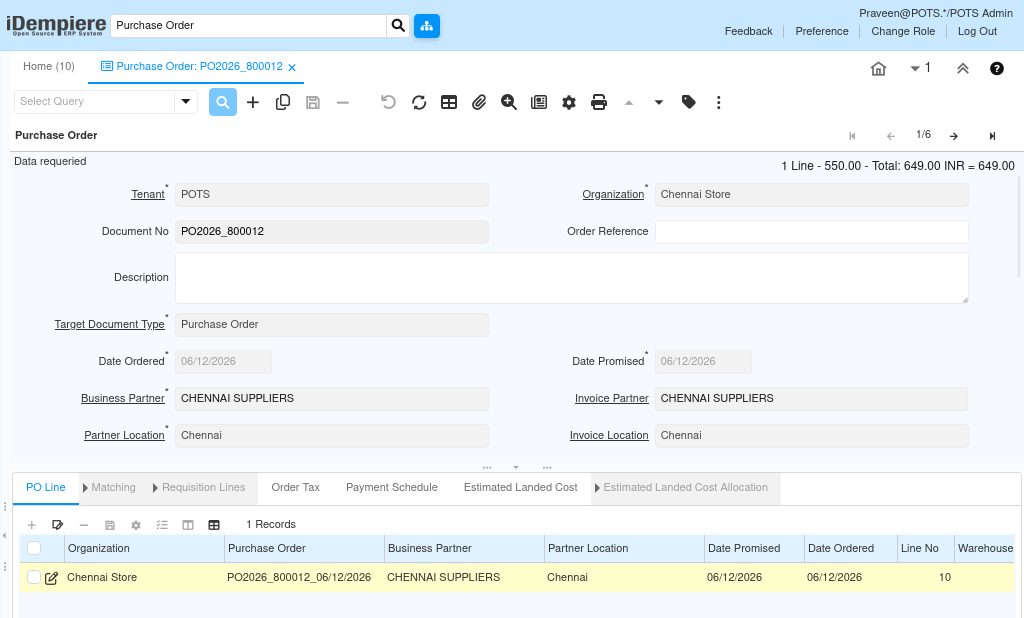
Step 9: Review Important Tabs
The Purchase Order window includes additional tabs for procurement validation, costing, and payment tracking. Review these tabs before completing the document.
| Tab | Purpose |
| Order Tax | Displays calculated procurement tax details: tax type, tax amount, tax base amount, and GST compliance summary. |
| Matching | Stores document matching references between Purchase Order, Material Receipt, and Vendor Invoice for audit traceability. |
| Payment Schedule | Tracks payment due dates, discount dates, and validation status generated from Payment Terms. |
| Estimated Landed Cost | Captures additional procurement expenses (freight, customs, loading). Optional for standard retail procurement. |
| Landed Cost Allocation | Allocates landed costs across PO lines by Quantity, Amount, Weight, or Volume. Used in advanced costing scenarios. |
Step 10: Complete the Purchase Order
After validating all procurement information, process the Purchase Order using Document Actions. Click the Document Action button and select Complete.
| Document Action | When to Use |
| Complete | Finalises the Purchase Order. Enables Material Receipt and Vendor Invoice generation. |
| Reactivate | Reopens a Completed Purchase Order for corrections. |
| Void | Cancels the Purchase Order permanently. Cannot be reversed. |
| Close | Closes the Purchase Order after receipt is partially or fully completed. |
Important: Once a Purchase Order is Completed, the document becomes read-only. Use Reactivate only when corrections are required. Voided documents cannot be recovered.
Downstream Integration
Material Receipt Integration
After Purchase Order completion, the Material Receipt (GRN) can be generated to record physical receipt of products into the warehouse. This process updates inventory stock, warehouse quantity, and procurement receipt tracking.
Vendor Invoice Integration
Vendor Invoice can be generated from the completed Purchase Order for supplier billing and payment processing. This supports vendor billing, procurement payment tracking, invoice validation, and financial processing.
Common Issues and Resolutions
| Issue | Cause | Resolution |
| Product not visible in PO Line | Product is inactive or not purchase-enabled | Activate the product and enable the Purchase flag in Product Master. |
| Pricing not derived automatically | Purchase Price List missing or not assigned | Verify Price List configuration and vendor assignment. |
| Tax not calculated | Product Tax Category or Tax Rate not configured | Set Tax Category in Product Master and verify Tax Rate setup. |
| Unable to complete Purchase Order | Mandatory fields missing or no PO Lines added | Check mandatory header fields and ensure at least one valid line exists. |
| Vendor not listed in Business Partner field | Vendor checkbox not enabled | Enable the Vendor flag in Business Partner master. |
| Incorrect UOM conversion result | Conversion factor misconfigured | Verify UOM Conversion setup in Product Master. |
| Material Receipt not generating | Purchase Order status is not Completed | Complete the Purchase Order before generating the Material Receipt. |
| Payment schedule missing | Payment Term not assigned | Assign Payment Term in the Purchase Order header. |
Next Steps
After completing the Purchase Order configuration in iDempiere, proceed with:
- Generate Material Receipt (GRN) for goods received.
- Generate Vendor Invoice for supplier billing.
- Process vendor payment against the invoice.
- Configure Estimated Landed Cost for freight-heavy procurement.
- Track procurement status using Purchasing Reports.