How to Use Quote Convert in iDempiere
Quote Convert is an iDempiere process that converts an approved Proposal or Quotation into another sales document type such as a Standard Order, POS Order, Credit Order, Prepay Order, or Warehouse Order.
It is used after customer approval to move a quotation into the order fulfillment cycle, allowing shipment, invoicing, and payment collection to begin.
The converted order retains a Quotation reference field linking it back to the original proposal, maintaining a complete audit trail from quotation to delivery.
Process Flow

Business Rules
- The source Proposal or Quotation must be In Process status before Quote Convert can be executed.
- Order (source document) selection is mandatory.
- Document Type for the target order is mandatory.
- Document Date is mandatory for the generated order.
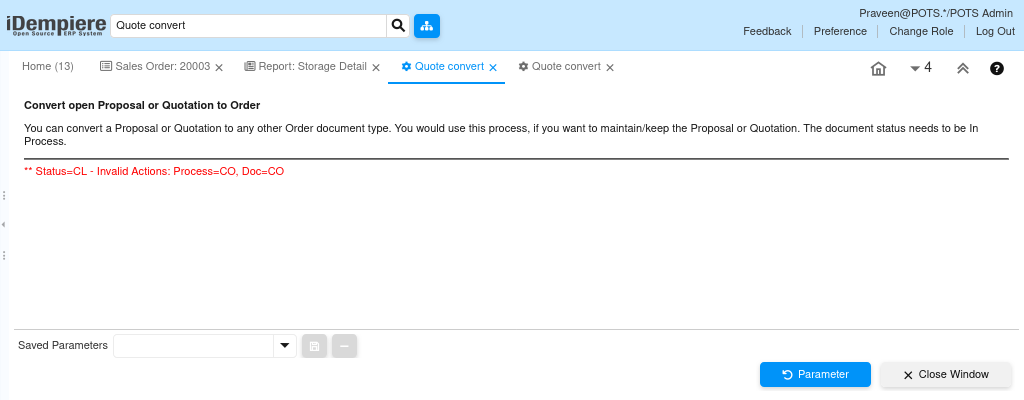
- A Proposal or Quotation with Closed status cannot be converted and will return an invalid action error.
- Close Document automatically closes the source document after successful conversion.
- The generated order carries a Quotation reference field linking it to the source document.
- Converted orders follow the standard sales order processing rules.
- Multiple conversions can be tracked through document references.
Prerequisites
- Business Partner configured as a Customer.
- Proposal or Quotation created and in In Process status.
- Products and pricing configured on the source document.
- Target Document Type available in the system.
Configuration Steps
Step 1: Verify the Source Proposal is In Process
Quote Convert only works on Proposals or Quotations that are currently In Process. A Closed document will return an error instead of generating an order.
- Open the source Proposal or Quotation and confirm Document Status is In Process.
- If the document is Closed or Completed, it cannot be used as a source for conversion.
| Document Status | Eligible for Quote Convert | Action Required |
| In Process | Yes | Proceed to Quote Convert |
| Drafted | No | Complete or progress the document to In Process first |
| Closed | No | Cannot be converted – returns Status=CL Invalid Actions error |
| Completed | No | Cannot be converted – use a document in In Process status |

Step 2: Open the Quote Convert Process
Navigating to Quote Convert opens the process window where all conversion parameters are entered.
Navigate to Sales Management → Sales Orders → Quote Convert. The process window opens with Order, Document Type, Document Date, Close Document, and Run as Job fields ready for input.
| Screen Element | Description |
| Header Text | Convert open Proposal or Quotation to Order |
| Description | You can convert a Proposal or Quotation to any other Order document type. The document status needs to be In Process. |
| Start Button | Executes the conversion process |
| Cancel Button | Cancels the process without creating an order |
Step 3: Select the Source Proposal or Quotation
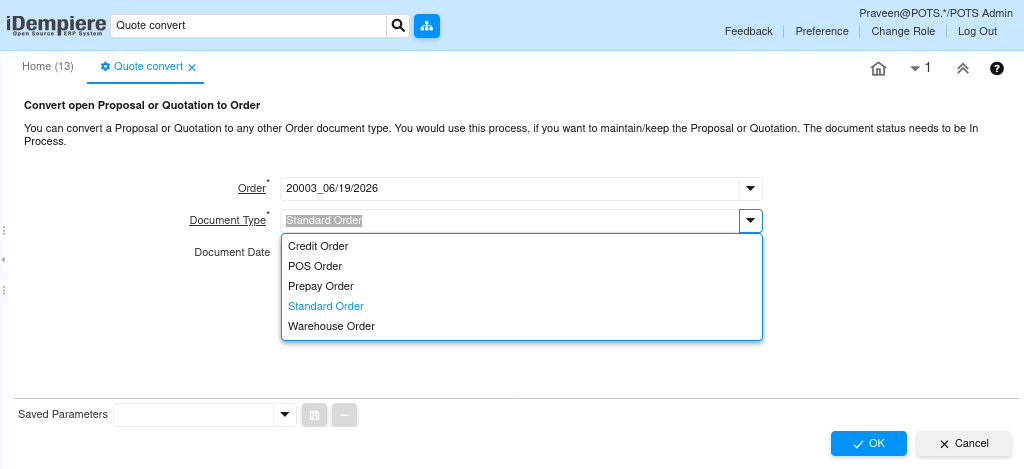
The Order field determines which Proposal or Quotation is converted into the new order.
- Click the Order dropdown and select the Proposal or Quotation to be converted.
- The dropdown shows the document number and date, for example 20003_06/19/2026.
| Field | Sample Value | Mandatory | Description |
| Order | 20003_06/19/2026 | Yes | Source Proposal or Quotation selected for conversion |
Step 4: Select the Target Document Type
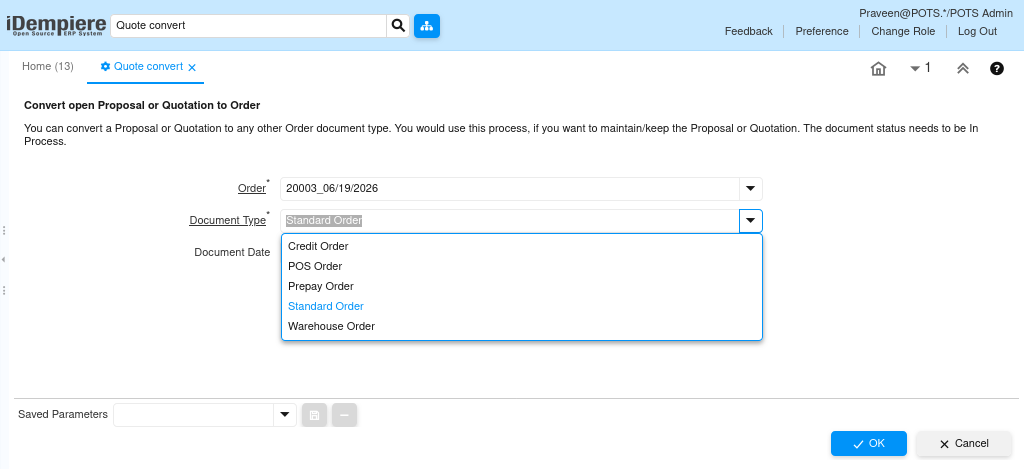
Document Type determines what type of sales order is created from the conversion.
- Select the required Document Type from the dropdown. Use Standard Order for regular retail sales.
- Other types are available for specific business scenarios.
| Document Type | Purpose |
| Standard Order | Regular customer sales order for fulfillment, shipment, and invoicing |
| POS Order | Point-of-sale transaction at the billing counter |
| Credit Order | Customer purchase on credit with deferred payment |
| Prepay Order | Customer pays before goods are delivered |
| Warehouse Order | Internal warehouse-related processing order |
Step 5: Enter Document Date and Optional Settings
Document Date sets the transaction date on the generated order. Close Document and Run as Job are optional settings.
- Enter the Document Date for the new order.
- Enable Close Document if the source Proposal should be closed after conversion.
- Enable Run as Job to execute the conversion as a background process.
| Field | Sample Value | Mandatory | Description |
| Document Date | 25/06/2026 | Yes | Transaction date applied to the generated order |
| Close Document | Checked | No | Automatically closes the source Proposal after conversion |
| Run as Job | Unchecked | No | Runs the conversion as a background job if enabled |
Step 6: Execute the Conversion
Clicking Start runs the process and generates the target sales document.
- Review all selected parameters, then click Start. The process runs and displays the result.
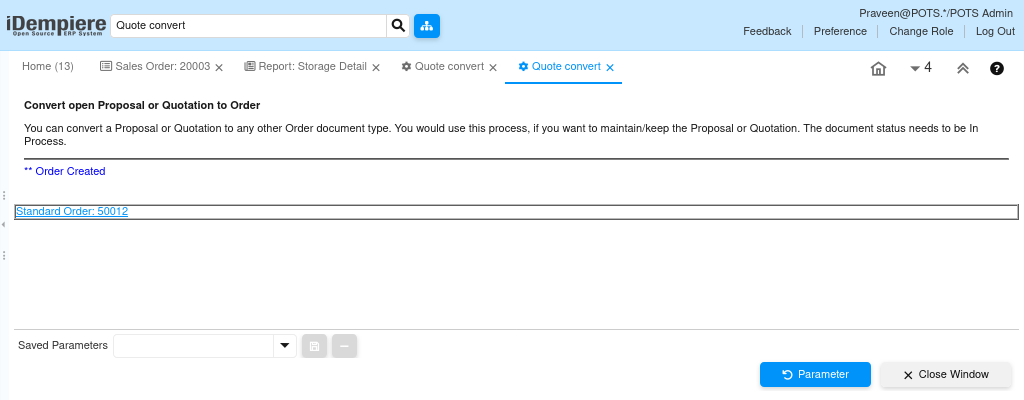
- A successful conversion shows Order Created and a clickable link to the generated order such as Standard Order: 50012.
| Result Message | Meaning |
| ** Order Created – Standard Order: 50012 | Conversion successful; click the link to open the new order |
| ** Status=CL – Invalid Actions: Process=CO, Doc=CO | Source document is Closed and cannot be converted |
Step 7: Verify the Generated Sales Order
Opening the generated order confirms all customer, product, pricing, and delivery details were carried forward from the original Proposal.
- Click the generated order link or open the Sales Order window and locate the new document.
- Verify Business Partner, Product, Quantity, Pricing, Invoice Rule, Payment Rule, Document Status, and the Quotation reference field.
| Field | Sample Value | Mandatory | Description |
| Document Type | Standard Order | Auto | Order type created by the conversion |
| Document Status | Drafted | Auto | Generated order starts in Drafted status |
| Business Partner | ALPHA RETAIL SOLUTIONS | Auto | Customer carried from the source proposal |
| Invoice Rule | After Delivery | Auto | Invoicing rule derived from the customer |
| Price List | Standard Sales Price List | Auto | Price list carried from the source proposal |
| Payment Rule | On Credit | Auto | Settlement method from the customer record |
| Payment Term | Immediate | Auto | Payment term from the customer record |
| Total Lines | 560.00 | Auto | Net line total before tax |
| Grand Total | 660.80 | Auto | Total amount including taxes |
| Quotation | 20003_06/19/2026 | Auto | Reference link to the source Proposal |
| Order Line | AASH-ATTA-5KG product line | Auto | Product line carried from the proposal |

Common Issues and Resolutions
| Issue | Cause | Resolution |
| Status=CL – Invalid Actions error | Source document has Closed status | Use a Proposal or Quotation that is In Process status. |
| Order dropdown shows no proposals | No eligible Proposals in In Process status | Check source document status and reopen if needed. |
| Document Type field shows red error highlight | Document Type not selected before clicking OK | Select a Document Type before executing the conversion. |
| Generated order missing product lines | Source Proposal had no completed lines | Verify the Proposal has at least one valid Order Line. |
| Quotation reference missing on generated order | Conversion ran against wrong source document | Verify the correct Proposal was selected in the Order field. |
| Generated order uses wrong pricing | Price List not assigned on source Proposal | Check and assign the correct Price List on the source document. |
| Conversion creates order in wrong document type | Incorrect Document Type selected | Rerun Quote Convert with the correct target Document Type. |
Next Steps
- Complete the generated Sales Order using Document Action.
- Create a Shipment or Material Delivery once the order is confirmed.
- Generate a Customer Invoice after delivery.
- Record Customer Payment against the invoice.
- Update the Sales Opportunity to Closed Won after the order is confirmed.