How to Configure Commission in iDempiere
The Commission window in iDempiere is used to define and manage sales commission structures for sales representatives. It allows store managers to set up commission rules tied to orders, invoices, or products, and generate commission reports on a scheduled basis.
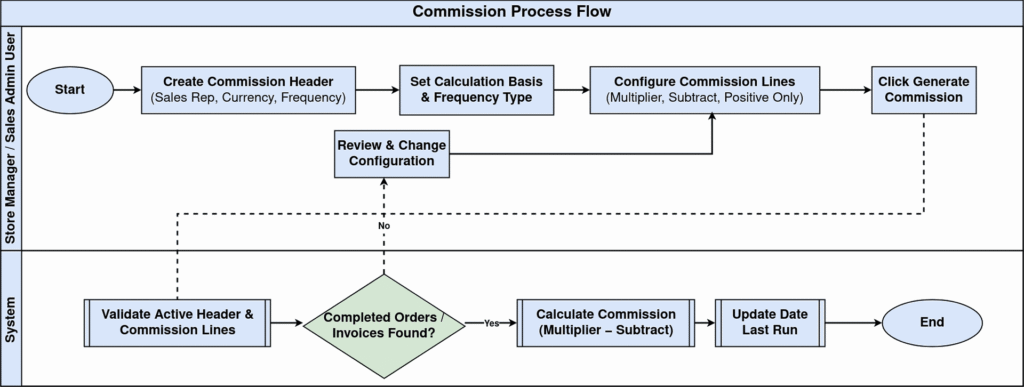
Process Flow
Business Rules
- Only Active commission records are available for the Generate Commission process.
- Each commission header must be linked to one Business Partner / Sales Representative.
- Calculation Basis (Order or Invoice) determines which document type drives commission amounts.
- Frequency Type (Monthly, Weekly, etc.) controls how often commissions are generated.
- If a Product is specified at the header level, commission applies only to that product’s transactions.
- Commission Lines use Multiplier Amount/Quantity to calculate the final commission value.
- Subtract Amount and Subtract Quantity allow threshold deductions before multiplier is applied.
- ‘Positive Only’ flag on the Commission Line ensures only positive commission values are processed.
- Date Last Run is automatically updated each time the Generate Commission process is executed.
- Multiple Commission Lines can exist under one Commission header to handle tiered or product-specific rates.
Prerequisites
Ensure the following configurations are completed before setting up the Commission window:
- Business Partner configured as a Sales Representative (Employee type).
- Organization set up and active (e.g., Chennai Store).
- Currency defined for the organization (e.g., INR).
- Products and Product Categories created and active.
- Sales Orders or Customer Invoices created and completed for the relevant period.
- Charge configured (if commission is to be posted as a charge).
- Business Partner Group configured (if commission applies to a customer group).
Configuration Step
Step 1: Create a New Commission Record
A new commission header must be created for each sales representative and commission period. This record controls the overall settings, including who the commission is for, what currency is used, and how frequently it runs.
- Click the New (+) button to create a new record.
- The Tenant and Organization fields are auto-populated based on your login context.
- Enter a meaningful Name such as ‘Monthly Sales Commission – June 2026’.
- Add a Description to clarify the commission’s purpose.
- Ensure the Active checkbox is checked to make the record usable.
| Field | Sample Value | Description |
| Tenant | POTS | Auto-populated from login. Cannot be changed. |
| Organization | Chennai Store | Auto-populated. Scopes the commission to this store. |
| Name | Monthly Sales Commission – June 2026 | Unique identifier for this commission setup. |
| Description | Monthly commission for sales rep based on invoices | Explains the purpose of this commission record. |
| Active | Checked | Only active records appear in the Generate Commission process. |
The Business Partner / Sales Rep field links the commission record to the specific sales rep who will earn the commission. This is mandatory and drives whose performance is tracked.

Step 2: Assign Business Partner / Sales Representative
- Click the lookup icon next to Business Partner / Sales Rep.
- Search for and select the sales representative (e.g., Sandeep Varghese).
- Select the Currency — set to INR for Chennai Store operations.
- Optionally, select a specific Product (e.g., CIN_Cinthol Soap) to restrict commission to that product.
- Leave Charge blank unless the commission amount needs to be posted as a specific charge in accounting.
| Field | Sample Value | Description |
| Business Partner / Sales Rep | Sandeep Varghese | Sales rep who earns the commission. |
| Currency | INR | Currency for commission calculation and reporting. |
| Product | CIN_Cinthol Soap | Optional. Limits commission to transactions with this product. |
| Charge | (blank) | Used to post commission as a charge. Leave blank if not required. |
These two fields determine when commission is triggered (Order or Invoice) and how often the Generate Commission process runs. Getting these right ensures commissions are calculated from the correct source documents.
Step 3: Set Calculation Basis and Frequency Type
- Set Calculation Basis to ‘Order’ if commission is based on sales orders, or ‘Invoice’ if based on customer invoices.
- Set Frequency Type to ‘Monthly’ for end-of-month commission runs (or ‘Weekly’/’Daily’ as needed).
- Check ‘List Details’ if you want the generated commission report to include line-level detail.
| Field | Sample Value | Description |
| Calculation Basis | Order | Source document for commission — Order or Invoice. |
| Frequency Type | Monthly | How often the Generate Commission process should run. |
| List Details | Unchecked | Enable to include line-level detail in the commission report. |
Step 4: Configure Commission Lines (Detail Record)
Commission Lines define the actual calculation rules — which transactions to include and what multiplier to apply. At least one active Commission Line is required before generating commission.
- Scroll to the Detail Record section and click the Commission Line tab.
- Click New (+) to add a Commission Line.
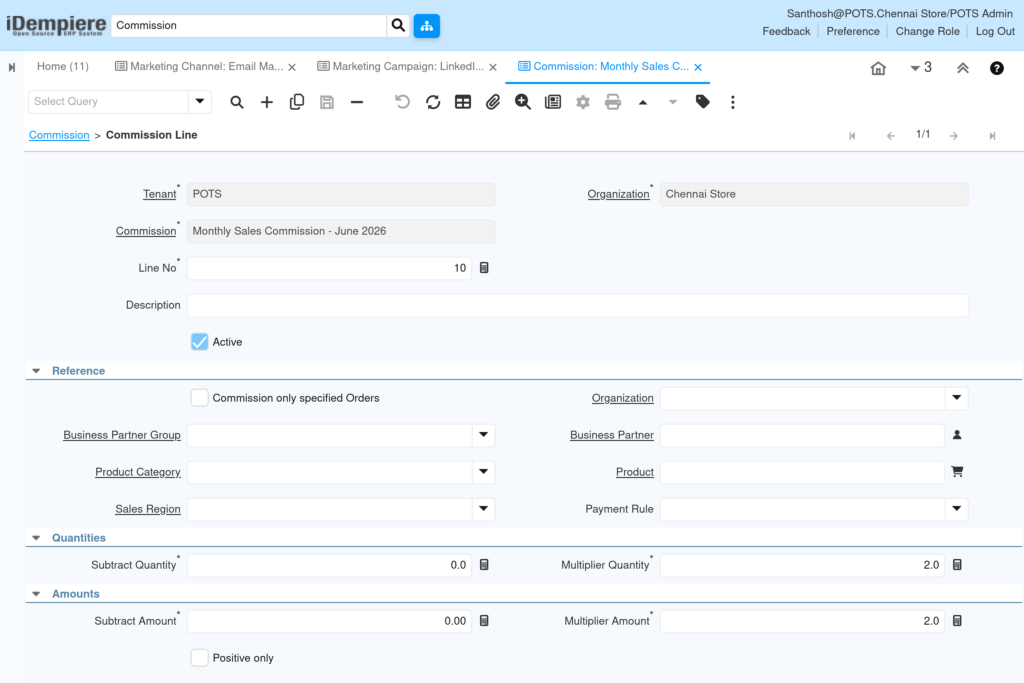
- Line No is auto-assigned (e.g., 10). Keep Active checked.
- Under Reference: optionally filter by Business Partner Group, Business Partner, Product Category, Product, Sales Region, or Payment Rule.
- Enable ‘Commission only specified Orders’ to restrict to manually tagged orders.
- Under Quantities: set Subtract Quantity (threshold) and Multiplier Quantity (rate multiplier).
- Under Amounts: set Subtract Amount (minimum threshold) and Multiplier Amount (commission rate).
- Check ‘Positive Only’ to ensure no negative commission values are processed.
| Field | Sample Value | Description |
| Line No | 10 | Auto-incremented line sequence for each commission rule. |
| Commission only specified Orders | Unchecked | When checked, limits commission to specific tagged orders only. |
| Business Partner Group | (blank) | Restrict commission to a specific customer group. |
| Business Partner | (blank) | Restrict to a specific customer’s transactions. |
| Product Category | (blank) | Filter commission by product category. |
| Product | (blank) | Filter commission by specific product. |
| Sales Region | (blank) | Filter commission by sales territory/region. |
| Payment Rule | (blank) | Filter by customer payment method. |
| Subtract Quantity | 0.0 | Quantity threshold deducted before multiplier is applied. |
| Multiplier Quantity | 2.0 | Multiplied against net quantity to calculate commission units. |
| Subtract Amount | 0.00 | Amount threshold deducted before commission rate is applied. |
| Multiplier Amount | 2.0 | Commission rate — multiplied against net invoice/order amount. |
| Positive Only | Unchecked | When checked, negative commission lines are excluded from totals. |
Step 5: Generate Commission
Once the Commission header and Commission Lines are configured, use the Generate Commission button to process and calculate the commission for the defined period. This updates the Date Last Run field automatically.
- On the Commission header, click the ‘Generate Commission’ button.
- A process dialog will appear — select the start date for the commission run.
- Click OK/Start to execute the process.
- The Date Last Run field updates automatically to reflect the last successful run (e.g., 06/01/2026).
- Review the generated commission amounts in the resulting commission report or commission run records.
| Field | Sample Value | Description |
| Generate Commission (Button) | — | Triggers the commission calculation process for this record. |
| Date Last Run | 06/01/2026 12:00:00 AM | System-updated field showing the last successful commission run. |
Common Issues and Resolutions
| Issue | Cause | Resolution |
| Generate Commission produces no results | No completed Orders or Invoices exist in the selected date range, or Active checkbox is unchecked. | Verify that the commission period matches completed Sales Orders/Invoices. Ensure the Active flag is checked on both the header and Commission Lines. |
| Wrong commission amount calculated | Multiplier Amount or Multiplier Quantity is set incorrectly on the Commission Line. | Review Commission Line Amounts section. Confirm Subtract Amount is 0.00 if no threshold applies. Recalculate expected value manually to verify. |
| Sales rep not appearing in lookup | Business Partner is not configured as a Sales Representative or is inactive. | Go to Business Partner window, check the Employee/Sales Rep flag and ensure the record is Active. |
| ‘Commission only specified Orders’ returns no results | Orders have not been manually tagged/linked to this commission record. | Ensure the relevant Sales Orders are associated with this commission setup before running the process. |
| Negative commission values appearing | Returns or credit memos are included in the calculation, producing negative amounts. | Enable the ‘Positive Only’ checkbox on the Commission Line to exclude negative commission entries. |
| Commission applies to all customers instead of specific one | Business Partner field in Commission Line Reference section is left blank. | Enter the specific Business Partner in the Commission Line to restrict commission to that customer’s transactions only. |
Next Steps
After completing the Commission configuration, proceed with the following related windows and processes:
- Sales Order — Verify that completed orders are available for the commission period.
- Invoice (Customer) — Review completed customer invoices if Calculation Basis is set to Invoice.
- Commission Run — View generated commission records and amounts per sales rep.
- Business Partner — Confirm the sales rep is correctly configured as an employee/sales rep.
- Product / Product Category — Set up products and categories referenced in commission lines.
- Sales Region — Configure territories if commission is filtered by region.