How to Configure Purchase Invoice in iDempiere for Retail
The Purchase Invoice and Credit/Debit Note window in iDempiere is the central point for recording all supplier billing transactions. It captures the supplier’s invoice details, links them to purchase orders and goods receipts, and drives the accounts payable process for your retail store.
In a retail environment, this window handles standard AP invoices, credit memos from suppliers, and debit notes for billing corrections. It is used by the purchasing and finance teams daily to record incoming supplier bills for goods, services, freight, and other procurement expenses.
Process Flow
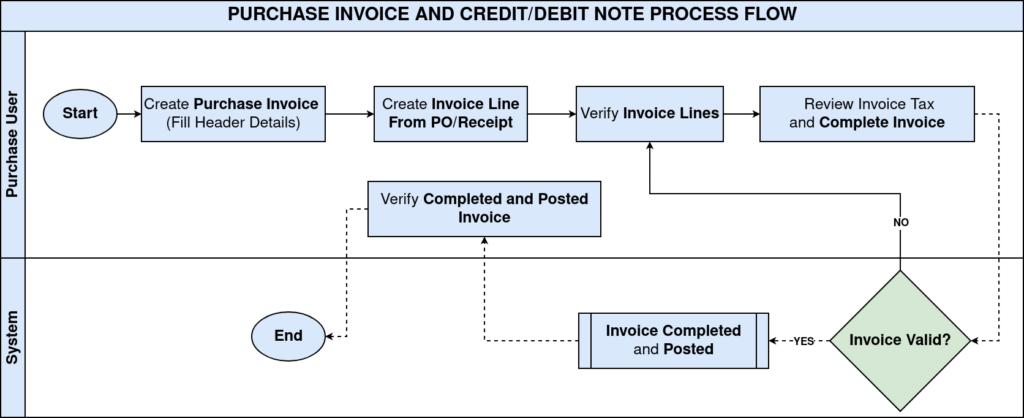
Business Rules
- Only invoices in Draft status can be edited. Once Completed, the invoice is locked.
- The Target Document Type determines whether the document is an AP Invoice or AP Credit Memo
- An invoice linked to a Purchase Order inherits the PO’s Business Partner, Organization, and price list.
- Tax is calculated at the Invoice Line level based on the Tax Category assigned to the product.
- GST is split into CGST and SGST components at the Invoice Tax sub-tab automatically based on the configured tax rate.
- The Grand Total on the invoice header is the sum of all line amounts plus all tax amounts (e.g., 11,000.00 + 1,980.00 = 12,980.00 INR).
- Price Includes Tax flag at the Invoice Tax tab determines whether the entered line price already includes GST.
- The Document Action button moves the invoice through the workflow: Draft → In Progress → Completed → Posted.
- The Posted button triggers accounting entries to the general ledger. Posting cannot be undone without reversing the invoice.
- Payment Rule and Payment Term on the invoice header drive the payment schedule for AP settlement.
Prerequisites
- Supplier (Business Partner) configured with AP bank account and partner location.
- Purchase Order approved and available in iDempiere.
- Goods Receipt (Material Receipt) completed for the PO line items.
- Product master records created with correct UOM and tax category.
- Tax rates configured — CGST 9%, SGST 9% (combined CGST/SGST 18%) set up in the tax master.
- Purchase Price List configured and assigned to the supplier.
- Document Types configured: AP Invoice, AP Credit Memo.
Navigation
Menu → Requisition-to-Invoice (Purchasing) → Purchase Invoice and Credit/Debit Note
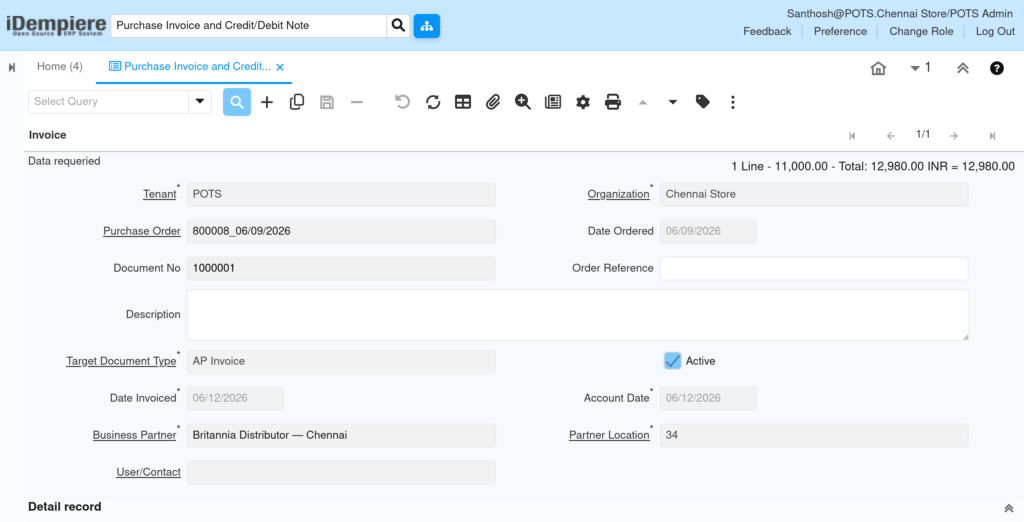
After opening the window, users see the Invoice header tab with fields for Tenant, Organization, Purchase Order reference, Document Number, Target Document Type, Business Partner, and dates. Sub-tabs include Invoice Line, Invoice Tax, and payment-related sections.
Configuration Steps
Step 1: Open the Purchase Invoice Window and Create a New Record
Start a new invoice record for the supplier billing document. The system assigns the next Document Number automatically.
Instructions
- Click the New (+) button on the toolbar.
- The system auto-fills Tenant (POTS) and Organization (Chennai Store) based on the logged-in context.
- Select the Target Document Type: AP Invoice for a standard supplier bill.
| Field | Sample Value | Description |
| Tenant | POTS | Client/company context — auto-filled. |
| Organization | Chennai Store | Store/branch for this invoice. |
| Target Document Type | AP Invoice | Defines the invoice type — AP Invoice, AP Credit Memo. |
| Document No | 1000001 | System-generated invoice number. |
| Active | Checked | Ensures the record is active for processing. |
Step 2: Link the Invoice to a Purchase Order
Linking the invoice to the originating Purchase Order is essential for three-way matching (PO → Receipt → Invoice) and to pull product and pricing details automatically.
Instructions
- In the Purchase Order field, search and select the relevant PO (e.g., 800008_06/09/2026).
- The Date Ordered field auto-populates from the PO.
- Set Date Invoiced to the date on the physical supplier invoice.
- Set Account Date to the accounting period date.
- Confirm the Business Partner is Britannia Distributor — Chennai and Partner Location is correct.
| Field | Sample Value | Description |
| Purchase Order | 800008_06/09/2026 | Reference PO linked to this invoice. |
| Date Ordered | 06/09/2026 | Auto-filled from PO. |
| Date Invoiced | 06/12/2026 | Date on supplier’s physical invoice. |
| Account Date | 06/12/2026 | Accounting period date for GL posting. |
| Business Partner | Britannia Distributor — Chennai | Supplier being invoiced. |
| Partner Location | 34 | Supplier’s billing address location. |
| Order Reference | (blank) | Supplier’s own reference number if needed. |
Step 3: Verify Payment and Price List Details
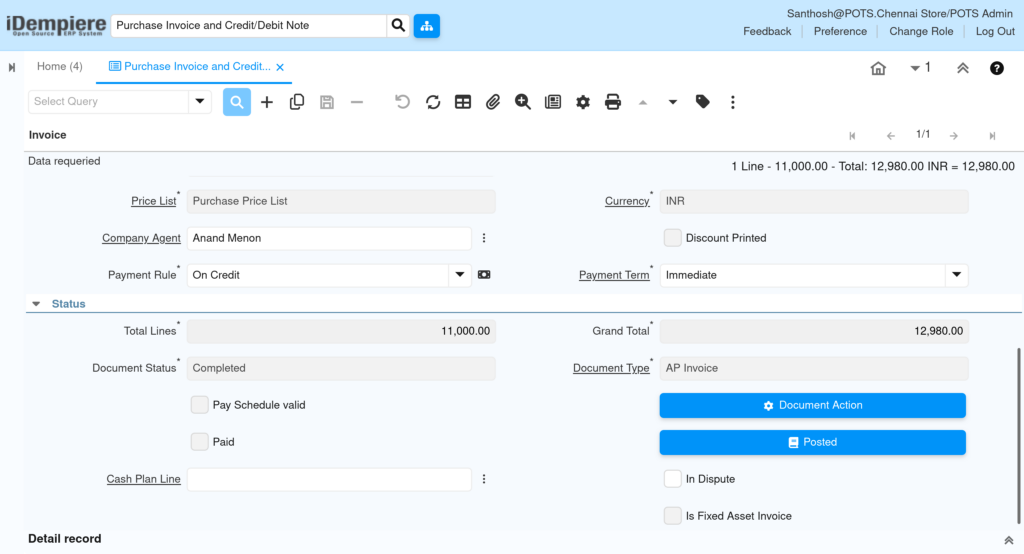
Confirm the pricing and payment settings on the second section of the invoice header. These fields control how the invoice will be settled.
Instructions
- Verify Price List is set to Purchase Price List.
- Confirm Currency is INR.
- Set Payment Rule (e.g., On Credit).
- Set Payment Term (e.g., Immediate or Net 30 per agreed terms).
- Assign Company Agent if required.
| Field | Sample Value | Description |
| Price List | Purchase Price List | Determines pricing for invoice lines. |
| Currency | INR | Transaction currency. |
| Payment Rule | On Credit | How the invoice will be paid. |
| Payment Term | Immediate | Due date terms for the invoice. |
| Company Agent | Anand Menon | Internal buyer or agent handling this PO. |
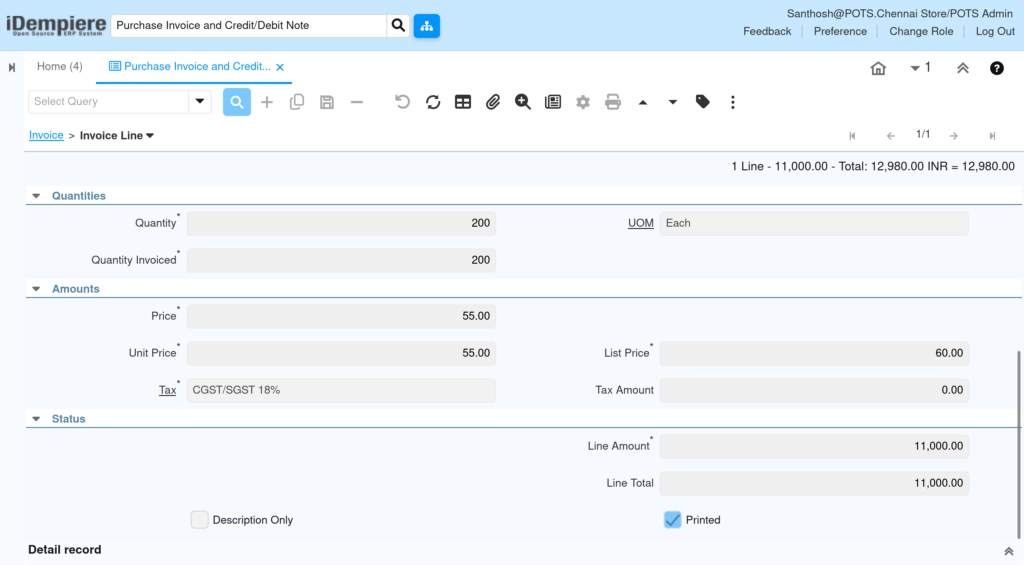
Step 4: Add Invoice Lines
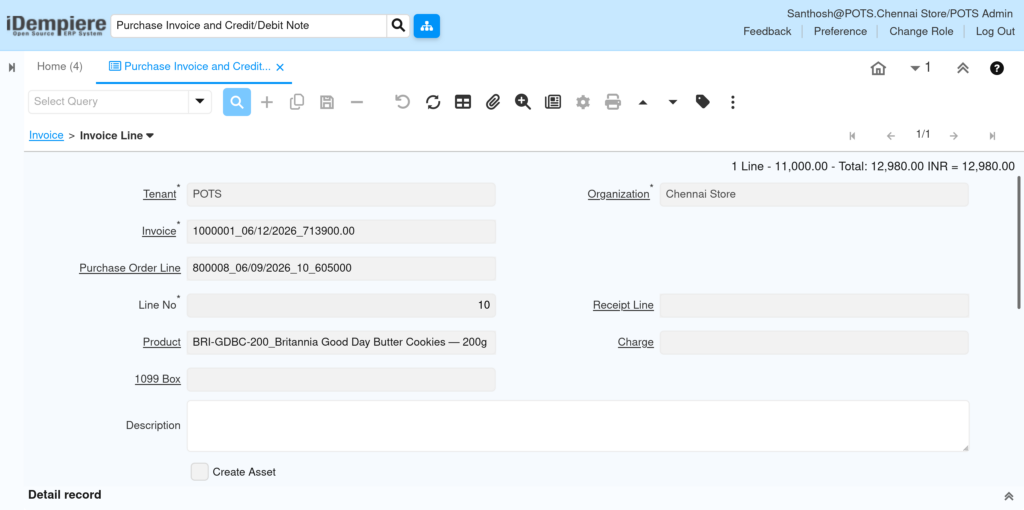
Invoice Lines capture each product or charge being billed by the supplier. Lines must match the purchase order lines and goods receipt quantities for accurate three-way matching.
Instructions
- Click the Invoice Line sub-tab.
- The system auto-populates lines from the linked PO — review for accuracy.
- Verify Product: BRI-GDBC-200_Britannia Good Day Butter Cookies — 200g.
- Verify Purchase Order Line reference (e.g., 800008_06/09/2026_10_605000).
- Confirm Line No, Quantity (200), UOM (Each), Unit Price (55.00), and Tax (CGST/SGST 18%).
- Check that Line Amount calculates to 11,000.00 (200 × 55.00).
| Field | Sample Value | Description |
| Invoice | 1000001_06/12/2026_713900.00 | Parent invoice reference. |
| Purchase Order Line | 800008_06/09/2026_10_605000 | Originating PO line. |
| Line No | 10 | Sequence number of the invoice line. |
| Product | BRI-GDBC-200_Britannia Good Day Butter Cookies — 200g | Item being invoiced. |
| Quantity | 200 | Billed quantity. |
| UOM | Each | Unit of measure. |
| Price / Unit Price | 55.00 | Agreed unit purchase price. |
| List Price | 60.00 | Supplier’s standard list price. |
| Tax | CGST/SGST 18% | Applicable GST tax rate. |
| Line Amount | 11,000.00 | Quantity × Unit Price (auto-calculated). |
| Line Total | 11,000.00 | Total line value before tax split. |
Step 5: Review Invoice Tax Details
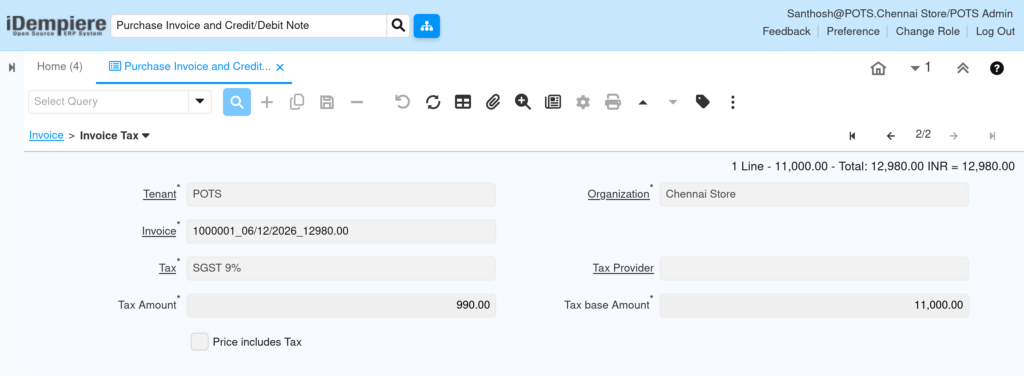
iDempiere automatically splits the GST amount into CGST and SGST components under the Invoice Tax sub-tab. Verify these values before completing the invoice.
Instructions
- Click the Invoice Tax sub-tab (Invoice > Invoice Tax).
- Verify Record 1/2: Tax = CGST 9%, Tax Base Amount = 11,000.00, Tax Amount = 990.00.
- Verify Record 2/2: Tax = SGST 9%, Tax Base Amount = 11,000.00, Tax Amount = 990.00.
- Confirm Price Includes Tax is unchecked (tax is added on top of the line price).
- Verify the Invoice header summary: 1 Line – 11,000.00 – Total: 12,980.00 INR.
| Field | Sample Value | Description |
| Invoice | 1000001_06/12/2026_12980.00 | Parent invoice reference. |
| Tax (Record 1) | CGST 9% | Central GST component at 9%. |
| Tax Amount (CGST) | 990.00 | Calculated CGST on 11,000.00 base. |
| Tax (Record 2) | SGST 9% | State GST component at 9%. |
| Tax Amount (SGST) | 990.00 | Calculated SGST on 11,000.00 base. |
| Tax Base Amount | 11,000.00 | Pre-tax invoice line total. |
| Price Includes Tax | Unchecked | Tax is added on top — not included in price. |

Step 6: Complete and Post the Invoice
After reviewing all header, line, and tax details, complete the invoice to lock it and post it to the general ledger.
Instructions
- Return to the Invoice header tab.
- Verify Total Lines: 11,000.00 and Grand Total: 12,980.00.
- Click Document Action and select Complete.
- Confirm the Document Status changes to Completed.
- Click the Posted button to post accounting entries to GL.
- Confirm Document Type is AP Invoice and the invoice is not marked as In Dispute or Is Fixed Asset Invoice unless applicable.
| Field | Sample Value | Description |
| Total Lines | 11,000.00 | Sum of all invoice line amounts before tax. |
| Grand Total | 12,980.00 | Total including all tax components. |
| Document Status | Completed | Invoice is locked and ready for payment. |
| Document Type | AP Invoice | Confirms this is an AP invoice. |
| Paid | Unchecked | Will be checked once payment is allocated. |
| In Dispute | Unchecked | Flag if invoice is under dispute with supplier. |
Common Issues and Resolutions
| Issue | Cause | Resolution |
| Invoice cannot be saved — Business Partner field is empty. | No supplier selected. | Search and select the correct Business Partner before saving. |
| Tax Amount shows 0.00 on the invoice line. | Tax category not assigned to the product or tax rate is inactive. | Check the product master’s Tax Category and verify the tax rate is active in Tax master. |
| CGST and SGST are not splitting in Invoice Tax tab. | Tax is configured as a single combined rate instead of two separate components. | Set up CGST 9% and SGST 9% as separate tax lines under the CGST/SGST 18% tax group. |
| Grand Total does not match supplier invoice. | Unit price or quantity on invoice line differs from supplier’s bill. | Edit the Draft invoice line to match the supplier’s invoice price/quantity, then re-complete. |
| Receipt Line field is blank on the invoice line. | Invoice was created manually without matching to a goods receipt. | Use the Create Invoice from Receipt process or manually link the receipt line for three-way matching. |
| Price Includes Tax is accidentally checked. | User enabled the checkbox, causing the tax amount to reduce the base price. | Uncheck Price Includes Tax in Invoice Tax tab before completing the invoice. |
Next Steps
- Allocate Payment: Use Payment Allocation window to match the completed invoice against a supplier payment.
- Credit Memo: If goods are returned, create an AP Credit Memo referencing this invoice.
- Aged Payables Report: Run the Aged Payables report to track outstanding supplier balances.
- Three-Way Match Verification: Review Invoice vs PO vs Receipt quantities using the Purchase Order Detail report.
- Landed Cost: For imported goods, process Landed Cost to allocate freight and customs charges to inventory.