How to configure Contact Window in iDempiere
The Contact window in iDempiere is used to create and manage individual contacts associated with business partners such as vendors, suppliers, or customers. Each contact record stores communication details, job title, and partner location — making it easy for retail teams to reach the right person quickly.
This window is used to maintain purchase executives, sales representatives, and vendor contacts across multiple store locations. Contacts can be linked to specific business partners and their office locations for targeted communication.
Contact records also serve as the foundation for activity tracking. Teams can log meetings, calls, and follow-ups against a contact, helping managers monitor engagement and sales opportunities without leaving the system.
Process Flow

Business Rules
- Only active contact records are available for selection during transaction entry.
- Each contact must be linked to a Business Partner to associate them with purchasing or sales workflows.
- A contact can be linked to a specific Partner Location to identify the office or store they belong to.
- Activity records are created under a contact to log meetings, calls, or follow-ups by type.
- An activity must have a Start Date, Activity Type, and Description before it can be saved.
- Marking an activity as Complete locks the record and indicates the engagement is finished.
- A single contact can have multiple activities recorded over time, all visible under the same contact.
- Sales Representative and Sales Opportunity fields on activity are optional but help track revenue-linked interactions.
- Contacts without an email or phone can still be saved but are not useful for outbound communication.
Prerequisites
Ensure the following configurations are in place before creating contact records:
- Business Partner (vendor, customer, or supplier) configured in iDempiere.
- Partner Location created and linked to the Business Partner.
- Organization (store or branch) configured and active.
- Tenant set up with appropriate access rights.
- Activity Types defined in the system (e.g., Meeting, Call, Follow-up).
- Sales Representative configured if tracking sales-linked activities.
Navigation
Menu → Quote-to-Invoice (Sales) → Sales Management → Contact
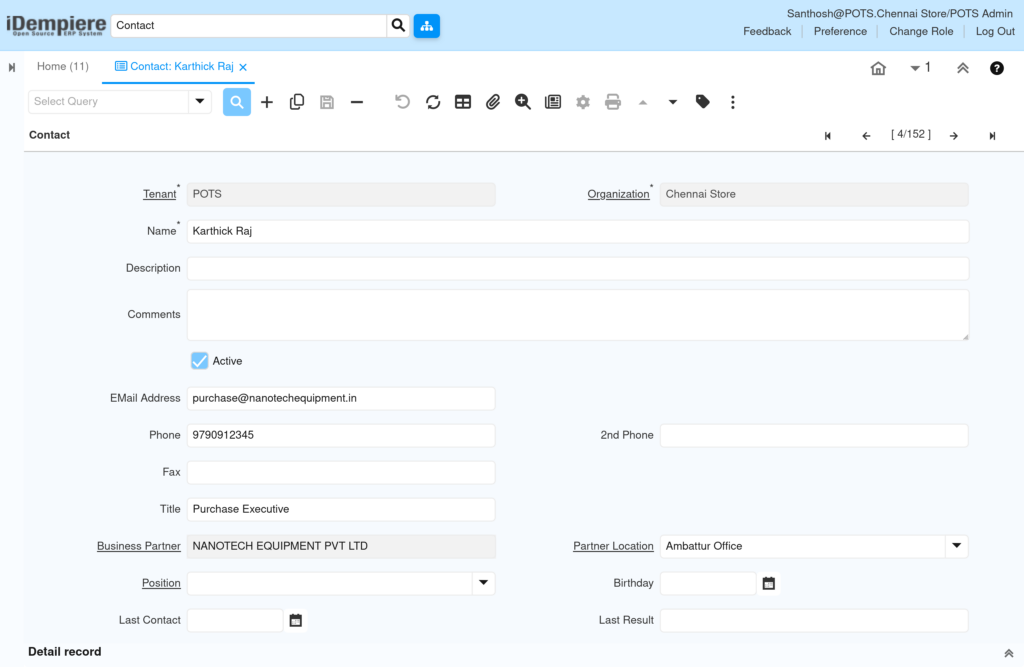
After opening the Contact window, users see a list of all existing contacts in the system. The record counter (e.g., 4/152) indicates the current record position. Each record shows the contact’s name, linked business partner, email, phone, and organization. Users can search, filter, or create new contact records from this view.
Configuration Steps
Step 1: Create a New Contact Record
A contact record must be created for each individual who represents a vendor, supplier, or customer. This enables the retail team to reach the correct person and associate them with business transactions.
Instructions
- Navigate to Contact Window
- Click the + (New Record) button on the toolbar.
- Select the Tenant and Organization (e.g., POTS / Chennai Store).
- Enter the contact Name (e.g., Karthick Raj).
- Ensure the Active checkbox is checked.
- Click Save.
Field Reference Table
| Field | Sample Value | Description |
|---|---|---|
| Tenant | POTS | The company or tenant the contact belongs to. |
| Organization | Chennai Store | The store or branch where this contact is active. |
| Name | Karthick Raj | Full name of the contact person. |
| Description | (Optional) | Short note about the contact’s role or context. |
| Comments | (Optional) | Additional notes or internal remarks for the contact. |
| Active | Checked | Enables the contact for use in transactions and lookups. |
Step 2: Enter Contact Communication Details
Adding communication details ensures store staff and procurement teams can quickly reach the right vendor or customer contact without searching outside the system.
Instructions
- Enter the EMail Address (e.g., purchase@nanotechequipment.in).
- Enter the Phone number (e.g., 9790912345).
- Enter a 2nd Phone if the contact has an alternate number.
- Enter the Fax number if required.
- Enter the Title (e.g., Purchase Executive).
- Save the record.
Field Reference Table
| Field | Sample Value | Description |
|---|---|---|
| EMail Address | purchase@nanotechequipment.in | Primary email for sending documents or communication. |
| Phone | 9790912345 | Main phone number for the contact. |
| 2nd Phone | (Optional) | Alternate phone number if available. |
| Fax | (Optional) | Fax number for the contact. |
| Title | Purchase Executive | Job title or designation of the contact. |
Step 3: Link the Contact to a Business Partner and Location
Linking to a Business Partner ensures the contact appears in vendor or customer lookups during purchase orders, invoices, or sales orders. The Partner Location further specifies which office the contact works from.
Instructions
- In the Business Partner field, search and select the partner (e.g., NANOTECH EQUIPMENT PVT LTD).
- Select the Partner Location (e.g., Ambattur Office).
- Optionally select the Position if organizational roles are configured.
- Enter the Birthday date if required for the contact profile.
- Update Last Contact date after an interaction if needed.
- Save the record.
Field Reference Table
| Field | Sample Value | Description |
|---|---|---|
| Business Partner | NANOTECH EQUIPMENT PVT LTD | The vendor or customer this contact belongs to. |
| Partner Location | Ambattur Office | The specific office or branch location of the business partner. |
| Position | (Optional) | Organizational role linked from position master. |
| Birthday | (Optional) | Date of birth for relationship management purposes. |
| Last Contact | (Optional) | Date of last interaction with this contact. |
| Last Result | (Optional) | Outcome of the last contact or activity. |
Step 4: Log an Activity Against the Contact
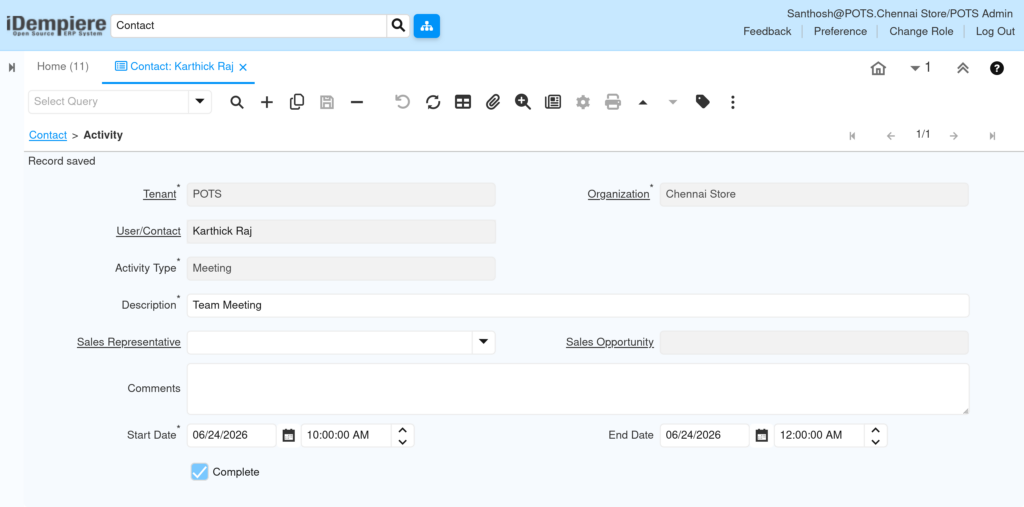
Activities allow retail teams to record meetings, calls, or follow-ups against a contact. This keeps all engagement history in one place and helps managers track vendor or customer interactions over time.
Instruction
- From the Contact record, click on the Activity tab (sub-tab).
- Click + to create a new activity.
- Confirm the Tenant and Organization are populated automatically.
- Select the Activity Type (e.g., Meeting).
- Enter a Description (e.g., Team Meeting).
- Set the Start Date and time, and the End Date and time.
- Optionally link a Sales Representative and Sales Opportunity.
- Add any Comments if needed.
- Check the Complete checkbox once the activity is done, then Save.
Field Reference Table
| Field | Sample Value | Description |
|---|---|---|
| User/Contact | Karthick Raj | Auto-populated from the parent contact record. |
| Activity Type | Meeting | Type of activity — Meeting, Call, Follow-up, etc. |
| Description | Team Meeting | Brief description of the activity purpose. |
| Start Date | 06/24/2026 10:00 AM | When the activity starts. |
| End Date | 06/24/2026 12:00 AM | When the activity ends. |
| Sales Representative | (Optional) | The sales rep managing this engagement. |
| Sales Opportunity | (Optional) | Links the activity to an active sales pipeline record. |
| Comments | (Optional) | Internal notes about the activity outcome or details. |
| Complete | Checked | Marks the activity as done and locks the record. |
Common Issues and Resolutions
| Issue | Cause | Resolution |
|---|---|---|
| Contact not appearing in vendor lookup during Purchase Order | Contact is inactive or not linked to the correct Business Partner | Open the Contact record, verify Active is checked, and confirm the Business Partner field is populated correctly. |
| Partner Location dropdown is empty when creating a contact | No locations have been configured for the selected Business Partner | Navigate to the Business Partner window and add at least one Partner Location before creating the contact. |
| Completed activity is still editable | The Complete checkbox was not checked before saving | Open the activity, check the Complete checkbox, and save. The record will lock after completion. |
| Business Partner field is grayed out and cannot be changed | The contact may already be linked to an active transaction | If the contact needs re-linking, create a new contact record with the correct Business Partner. |
| Email not auto-populating in outbound communication | EMail Address field in the Contact record is blank | Open the Contact, enter the correct email in the EMail Address field, and save. |
| Multiple contacts showing the same name with different Business Partners | Contacts were created without checking for duplicates | Use the search/filter on the Contact window to identify duplicates and deactivate or merge the incorrect records. |
| Sales Opportunity field is empty and cannot be searched | No active Sales Opportunities have been created in the system | Navigate to the Sales Opportunity window and create a record before linking it to a contact activity. |