How to Configure Country, Region and City in iDempiere
Introduction
The Country, Region and City window in iDempiere is the master data foundation for all geographic configurations. It defines the countries, states or provinces, and cities that are used across business partner records, warehouse locations, and delivery addresses.
In retail, accurate geographic data is critical for store setup, customer registration, and delivery management. Every branch store, customer address, and vendor location depends on correctly configured country and region records. This window also controls address print formats and postal code structures specific to each country.
Prerequisites
Ensure the following configurations are completed before configuring Country, Region and City:
- System tenant and Client are configured in iDempiere.
- Currency records are available (INR, USD, EUR, etc.) for assignment to countries.
- Organization records (* and specific branches) are set up.
- Language records are configured if multilingual address support is required.
- Tax region or zone definitions are planned so Region records align with tax rules.
Navigation
Menu → System Admin → General Rules → System Rules → Country, Region and City
The window opens displaying all existing country records. Use the search bar at the top to locate a specific country by name or ISO code.
Step-by-Step Configuration
Step 1: Open the Country, Region and City Window
When you navigate to the window, iDempiere displays the list of all pre-loaded country records. The tab panel at the bottom shows sub-tabs: Region, City, City (Without Regions), Translation, and Country Group.
Each country record contains the full address structure configuration for that country. Review existing records before creating new ones to avoid duplicates.

Step 2: Create or Review a Country Record
For most retail deployments, country records are pre-loaded. However, you may need to review or update address formats for your operating country.
To create a new country record, click the New Record (+) button in the toolbar. A blank form opens. To edit an existing record such as India, search for it and open the record directly.
Field Reference — Country
| Field | Sample Value | Description |
| Tenant | System | The client/tenant owning this record. System-level records are shared globally. |
| Organization | * | Set to * to share across all retail branches and stores. |
| ISO Country Code | IN | Two-letter ISO 3166-1 alpha-2 code. Must be unique. |
| ISO Alpha-3 Code | IND | Three-letter ISO 3166-1 alpha-3 code for international systems. |
| Name | India | Full name of the country as displayed in address fields. |
| Description | the Republic of India | Optional description for internal reference. |
| M49 Code | 356 | UN M49 numeric country code used for statistical classification. |
| Country has Region | Checked | Enable if the country uses states, provinces, or regions in addresses. |
| Allow Cities out of List | Checked | Allows free-text city entry during address capture in retail transactions. |
| Address Print Format | @C@, @P@ | Controls address line output on printed documents. Use iDempiere format tokens. |
| Capture Sequence | @A1@ @A2@ @A3@ @A4@ @C@, @P@ @CO@ | Order of address fields presented during data entry. |
| Local Address Format | (blank) | Alternative format for local-language address printing. |
| Postal Code Format | (blank) | Validation pattern for postal codes. Leave blank to accept any format. |
| Additional Postal Code | Unchecked | Enable if the country uses a secondary postal code (e.g., ZIP+4). |
| Phone Format | (blank) | Validation pattern for phone number entry. |
| Bank Routing No Format | (blank) | Format mask for bank routing numbers. |
| Bank Account No Format | (blank) | Format mask for bank account numbers. |
| Language | (blank) | Default language for address formatting in this country. |
| Currency | INR | Default currency auto-suggested for business partners in this country. |
| Media Size | (blank) | Paper size used for printing documents for this country. |
| Reverse Address Lines | Unchecked | Reverses the order of printed address lines. |
| Reverse Local Address Lines | Unchecked | Reverses local address line order for bilingual printing. |
| Active | Checked | Must be checked for the country to appear in transaction address fields. |

Step 3: Configure Address Format for Retail
Address Print Format and Capture Sequence are the two most impactful fields for retail operations. They control how customer and vendor addresses appear on invoices, delivery notes, and purchase orders.
Common Address Format Tokens
| Token | Meaning | Example Output |
| @A1@ | Address Line 1 | 42, MG Road |
| @A2@ | Address Line 2 | Koramangala |
| @A3@ | Address Line 3 | Sector 5 |
| @A4@ | Address Line 4 | Near Metro Station |
| @C@ | City | Bengaluru |
| @P@ | Postal Code | 560034 |
| @CO@ | Country | India |
| @R@ | Region / State | Karnataka |
For Indian retail, the recommended Address Print Format is:
@A1@, @A2@, @A3@, @C@, @R@ - @P@, @CO@Step 4: Configure Regions (States / Provinces)
The Region tab is available when Country has Region is enabled. Regions represent states, provinces, or administrative zones used in retail addresses and tax configurations.
Click the Region tab at the bottom of the Country window. Click the New Record (+) button within the tab to add a region.

Field Reference — Region
| Field | Sample Value | Description |
| Name | Karnataka | Full name of the state or province. |
| Description | South Indian State | Optional description for internal reference. |
| Region Code | KA | Short code used in address formatting and reports. |
| Active | Checked | Must be active for the region to appear in address fields. |
Sample Region Records for India
| Name | Region Code | Description |
| Karnataka | KA | Bengaluru and surrounding districts |
| Tamil Nadu | TN | Chennai and southern districts |
| Maharashtra | MH | Mumbai and Pune region |
| Delhi NCR | DL | National Capital Region |
| Telangana | TS | Hyderabad and surrounding areas |
| Gujarat | GJ | Ahmedabad, Surat, and western districts |
Step 5: Configure Cities
Cities can be configured in two ways depending on whether the country uses regions:
- City tab — for countries with regions enabled. Each city is linked to a specific region/state.
- City (Without Regions) tab — for countries where regions are not applicable.
For retail chains operating across multiple cities, pre-loading city records ensures consistent address data across all POS terminals and back-office configurations.
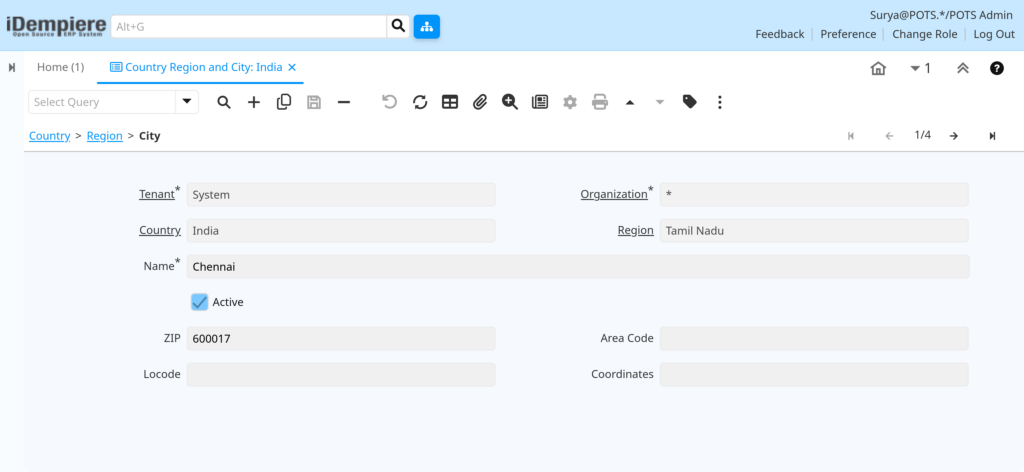
Field Reference — City
| Field | Sample Value | Description |
| Tenant | System | Inherited from the parent country record. |
| Organization | * | Set to * to share across all retail branches. |
| Country | India | Parent country. Auto-filled from the country record. |
| Region | Karnataka | State or province. Required if Country has Region is enabled. |
| Name | Bengaluru | City name as it should appear in address fields. |
| Active | Checked | Must be active for the city to be selectable in transactions. |
| ZIP | 560001 | Default postal code for the city. |
| Area Code | 080 | Phone area code for the city. |
| Locode | IN BLR | UN/LOCODE for the city, used in logistics and shipping integrations. |
| Coordinates | 12.9716,77.5946 | Latitude and longitude for map integrations. |
Sample City Records
| Name | Region | ZIP | Area Code | Active |
| Bengaluru | Karnataka | 560001 | 080 | Yes |
| Chennai | Tamil Nadu | 600001 | 044 | Yes |
| Mumbai | Maharashtra | 400001 | 022 | Yes |
| Delhi | Delhi NCR | 110001 | 011 | Yes |
| Hyderabad | Telangana | 500001 | 040 | Yes |
| Ahmedabad | Gujarat | 380001 | 079 | Yes |
| Coimbatore | Tamil Nadu | 641001 | 0422 | Yes |
| Pune | Maharashtra | 411001 | 020 | Yes |
Step 6: Configure Placeholder Labels
The Placeholders section at the bottom of the Country form defines the field labels shown to users during address data entry. These labels customise the address capture UI for each country’s address structure.
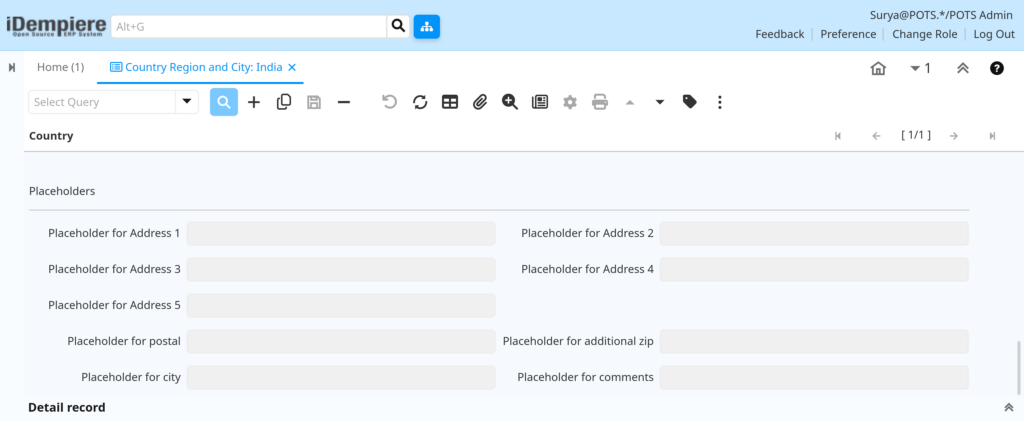
Field Reference — Placeholders
| Field | Sample Value | Purpose |
| Placeholder for Address 1 | House/Flat No., Building Name | Prompts user for property identifier |
| Placeholder for Address 2 | Street Name, Area | Prompts user for street-level address |
| Placeholder for Address 3 | Locality/Neighbourhood | Prompts user for locality detail |
| Placeholder for Address 4 | Landmark | Prompts user for nearby landmark |
| Placeholder for Address 5 | (blank) | Optional fifth address line |
| Placeholder for postal | PIN Code | Label for postal code field |
| Placeholder for additional zip | (blank) | Label for secondary ZIP if enabled |
| Placeholder for city | City / Town | Label for city selection field |
| Placeholder for Address 2 | Colony / Sector | Alternate label for Address 2 |
| Placeholder for Address 4 | Landmark / Near | Friendly label for Address 4 |
| Placeholder for comments | Delivery Instructions | Optional delivery notes field label |
Step 7: Save the Record
After completing all field entries and configuring Regions and Cities, save the record by clicking the Save button (disk icon) in the toolbar, or pressing F10.
The record becomes immediately available across all iDempiere address fields system-wide. New business partner records, warehouse locations, and store addresses will reflect the configured country, region, and city data.
Step 8: Activate or Deactivate Records
The Active checkbox controls the visibility of country, region, and city records across all iDempiere address fields.
- Active = Checked — the record appears in all address selection dropdowns and can be used in new transactions.
- Active = Unchecked — the record is hidden from dropdowns. Existing transactions with this record are preserved and unaffected.
- Deactivate rather than delete — deleting a country or region record that is referenced in existing business partner or transaction records will cause system errors.
Configuration Summary
| Configuration Item | Purpose |
| Country Record | Defines country-level address structure, currency, and format rules |
| ISO Country Code | Unique two-letter code used across iDempiere integrations |
| Address Print Format | Controls address layout on printed invoices and delivery notes |
| Capture Sequence | Defines field order during address data entry at POS and back office |
| Country has Region | Enables state/province-level address hierarchy |
| Allow Cities out of List | Permits free-text city entry for non-standard locations |
| Region Record | Defines states, provinces, or administrative zones for address and tax |
| City Record | Defines city-level data including ZIP, area code, and coordinates |
| Placeholder Labels | Customises address field labels to match local address conventions |
| Currency Link | Auto-suggests default currency for business partners in this country |
Business Flow Overview
Country Record Created
↓
Regions (States) Configured
↓
Cities Assigned to Regions
↓
Business Partner Address Entry
↓
Store / Warehouse Location Setup
↓
Sales Orders & Purchase Orders
↓
Invoice & Delivery Note Printing
↓
Tax Region & Compliance Reporting
Common Issues and Resolutions
| Issue | Cause | Resolution |
| Country not appearing in address dropdown | Country record is Inactive | Open the Country record, check Active, and save. |
| Region tab is empty or unavailable | Country has Region checkbox is not enabled | Edit the Country record, check Country has Region, save, then add regions. |
| City not visible during address entry | City record is Inactive or linked to wrong region | Verify the City record is Active and assigned to the correct Region. |
| Postal code not validating correctly | Postal Code Format field has incorrect mask | Clear the format mask or update it to match the country’s postal code pattern. |
| Address prints in wrong order on invoice | Address Print Format tokens are incorrectly sequenced | Edit Address Print Format in the Country record to reorder the @tokens@. |
| Currency not auto-populating for new business partner | Currency field is blank in the Country record | Assign the correct currency (e.g., INR) to the Country record. |
| Free-text city entry not allowed at POS | Allow Cities out of List is unchecked | Enable Allow Cities out of List in the Country record and save. |
| City records show under wrong country | City tab accessed from wrong country record | Navigate to the correct country before opening the City tab. |
| Duplicate country records appearing | ISO Country Code entered incorrectly or duplicated | Search for existing records before creating new ones. Delete or merge duplicates. |
| Region not appearing in tax configuration | Region record name does not match tax zone configuration | Align Region Name with the tax configuration naming convention used in the Tax Rate window. |
Next Steps
After completing Country, Region and City configuration in iDempiere, proceed with:
- Business Partner Configuration — Assign country, region, and city to customer and vendor records.
- Warehouse Location Setup — Configure store and warehouse addresses using the geographic hierarchy.
- Tax Rate and Tax Zone Configuration — Link regions to tax zones for GST, VAT, and other tax rules.
- Price List and Currency Setup — Assign country-level currencies to price lists for multi-currency retail.
- Shipping and Delivery Configuration — Use country and region data for delivery route planning and carrier integration.