How to Configure Sales Stage in iDempiere
Sales Stage is a master configuration in iDempiere used to define the progress of a sales opportunity through the buying journey, from initial contact to closure.
Sales Stages help sales teams track where a customer stands when considering a bulk purchase, and estimate the likelihood of converting the opportunity. The Probability assigned to each stage drives Weighted Amount calculations on the Opportunity, directly impacting pipeline reporting and sales forecasting.
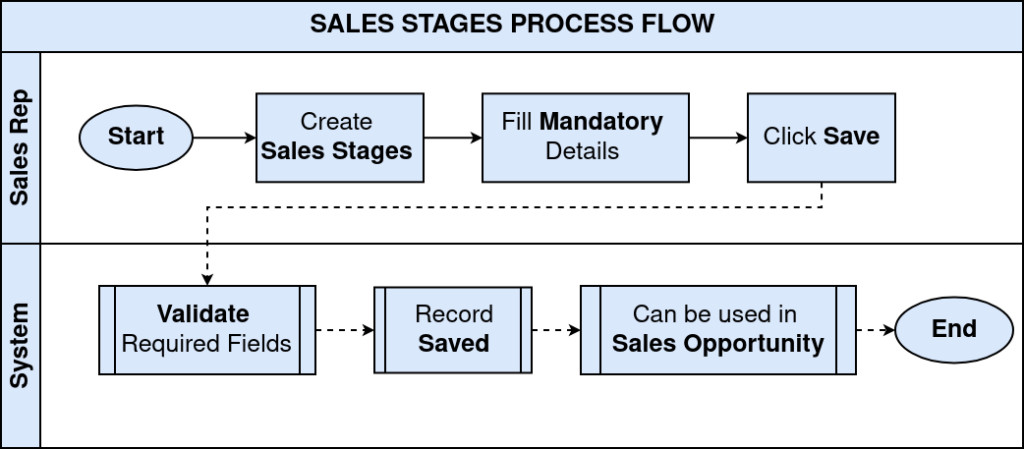
Process Flow
Business Rules
- Every Sales Opportunity must be assigned a Sales Stage.
- Search Key and Name are mandatory for each Sales Stage record.
- Only Active Sales Stage records are available for Opportunity selection.
- Probability is mandatory and must be entered as a percentage value.
- Probability drives Weighted Amount calculation on the Opportunity.
- Closed Status flag must be enabled for terminal stages such as Closed Won and Closed Lost.
- Won flag must be enabled on the Closed Won stage to mark successful conversions.
- Deactivating a Sales Stage prevents future selection without affecting existing opportunities.
Prerequisites
- Tenant configured.
- Organization available.
- User access to Sales Management setup windows.
Configuration Steps
Step 1: Create the Sales Stage Record
Each stage in the sales cycle requires a dedicated record with a probability value that reflects the expected likelihood of closure at that point.
- Open the Sales Stage window and click New Record.
- Enter Organization, Search Key, Name, Description, and Probability. Set Closed Status and Won only for terminal stages, then save.
| Field | Sample Value | Mandatory | Description |
| Organization | * | Yes | Tenant-level record shared across all organizations |
| Search Key | PROSP | Yes | Unique identifier for the Sales Stage |
| Name | Prospecting | Yes | Display name shown on the Opportunity |
| Description | Potential customer identified and initial engagement initiated. | No | Purpose and definition of the stage |
| Probability | 10.00 | Yes | Percentage likelihood of closing at this stage |
| Closed Status | Unchecked | No | Enable only for Closed Won and Closed Lost |
| Won | Unchecked | No | Enable only on the Closed Won stage |
| Active | Checked | Yes | Makes the stage available for Opportunity selection |

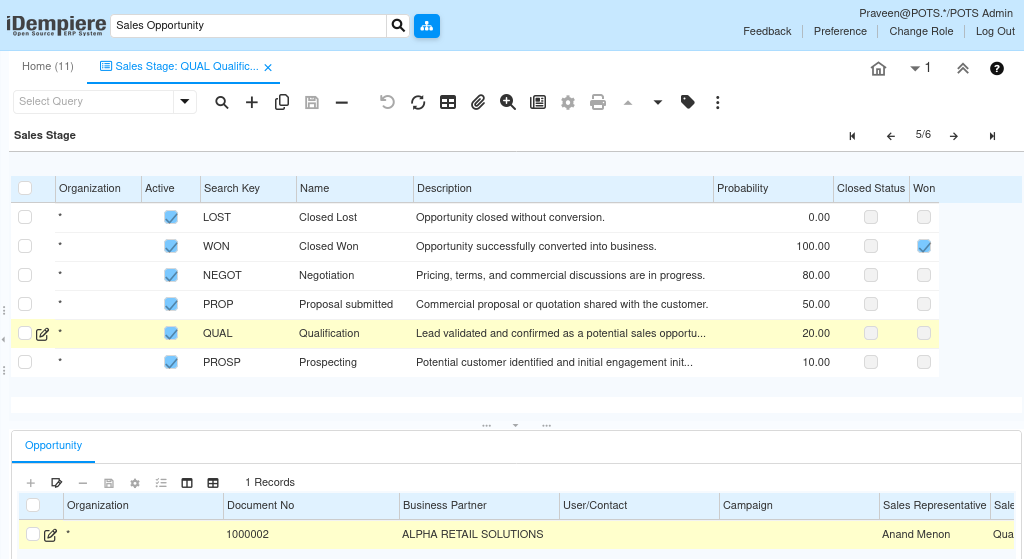
Step 2: Configure the Full Sales Stage Pipeline
All stages in the sales cycle must be created so opportunities can be tracked from initial contact through to final closure.
- Create one record per stage.
- Set Closed Status to checked for the two terminal stages. Enable Won only on the Closed Won stage.
| Search Key | Name | Probability | Closed Status | Won |
| PROSP | Prospecting | 10.00 | Unchecked | Unchecked |
| QUAL | Qualification | 20.00 | Unchecked | Unchecked |
| PROP | Proposal Submitted | 50.00 | Unchecked | Unchecked |
| NEGOT | Negotiation | 80.00 | Unchecked | Unchecked |
| WON | Closed Won | 100.00 | Checked | Checked |
| LOST | Closed Lost | 0.00 | Checked | Unchecked |
Step 3: Assign Sales Stage to an Opportunity
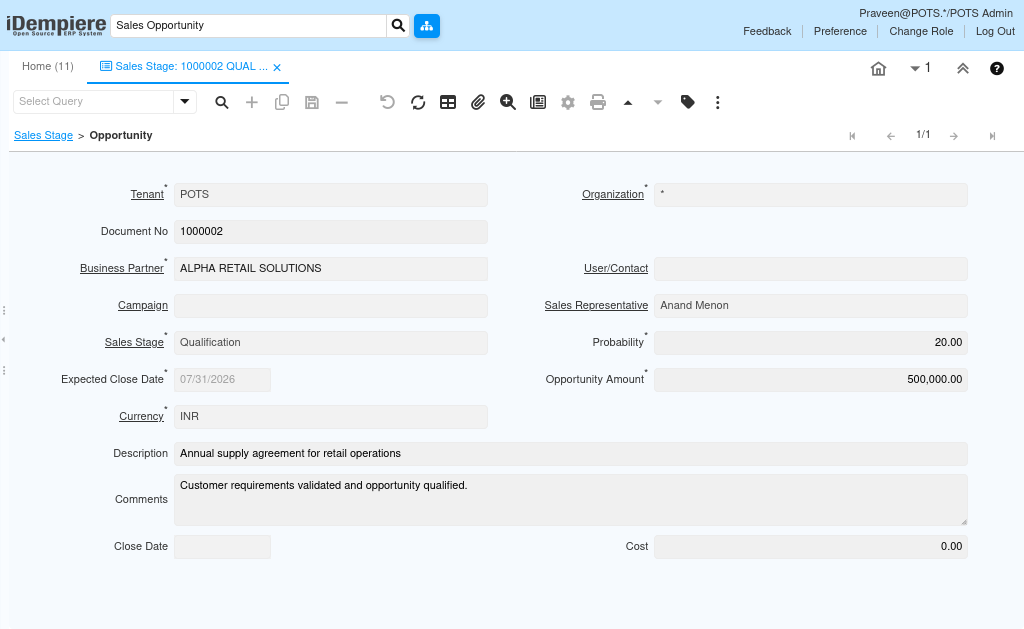
Assigning the correct Sales Stage on each Opportunity allows the sales team to track pipeline position and calculate forecast values.
- Open the Opportunity window and create or edit a record.
- Select the appropriate Sales Stage from the configured list. iDempiere derives the Probability and updates the Weighted Amount automatically.
| Field | Sample Value | Mandatory | Description |
| Sales Stage | Qualification | Yes | Current stage of the sales opportunity |
| Probability | 20.00 | Auto | Derived from the selected Sales Stage |
| Opportunity Amount | As entered | Yes | Expected deal value for the opportunity |
| Weighted Amount | Auto | Auto | Opportunity Amount multiplied by Probability |
| Expected Close Date | As entered | Yes | Target date for opportunity closure |
Step 4: Progress and Close the Opportunity
Sales Stages must be updated as the opportunity moves through the pipeline to keep forecasts accurate and pipeline reports current.
- Open the Opportunity record and update the Sales Stage field as the customer progresses.
- Move to Closed Won when the order is confirmed, or Closed Lost when the opportunity is not converted.
| Sales Stage | When to Use | Probability |
| Prospecting | Customer identified; initial contact made | 10% |
| Qualification | Requirements confirmed; budget and intent assessed | 20% |
| Proposal Submitted | Commercial quotation shared with the customer | 50% |
| Negotiation | Pricing and terms under active discussion | 80% |
| Closed Won | Customer accepted and confirmed the order | 100% |
| Closed Lost | Opportunity not converted into a sale | 0% |
Common Issues and Resolutions
| Issue | Cause | Resolution |
| Sales Stage not visible on Opportunity | Record is inactive | Enable the Active flag on the Sales Stage record. |
| Weighted Amount not calculated correctly | Incorrect Probability value | Verify the Probability field on the Sales Stage record. |
| Closed Won not marking opportunity as converted | Won flag not enabled | Enable the Won checkbox on the Closed Won stage record. |
| Pipeline report showing wrong stage | Opportunity stage not updated after customer interaction | Update the Sales Stage field on the Opportunity after each customer event. |
| Duplicate Search Key error | Search Key already exists in the tenant | Use a unique Search Key for each Sales Stage. |
| Closed Lost stage affecting weighted pipeline total | Probability not set to 0 for Closed Lost | Set Probability to 0.00 on the Closed Lost stage record. |
Next Steps
- Create a Lead and convert it to an Opportunity.
- Assign the appropriate Sales Stage at the time of Opportunity creation.
- Update the Sales Stage after each customer interaction.
- Use Opportunity reports to review pipeline status by stage.
- Close opportunities promptly to keep pipeline forecasts accurate.