How to Configure Proposal Order in iDempiere
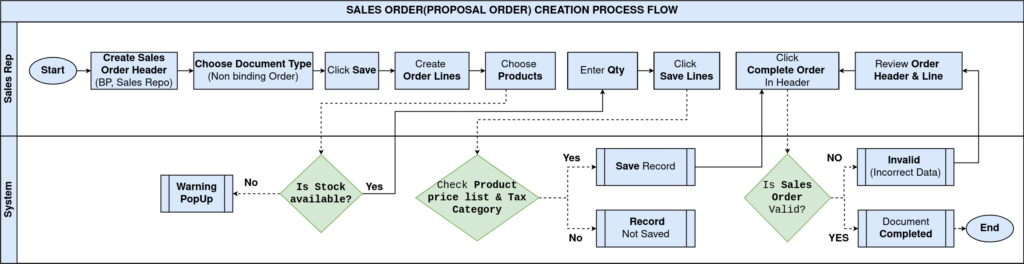
The Sales Order window in iDempiere supports a Proposal (Non-Binding Offer) document type that allows sales teams to create and send formal quotations to customers before committing to stock or generating invoices.
The proposals are used during the pre-sales phase when pricing, product selection, or quantities are still being confirmed with the customer. The proposal carries no financial or inventory impact until the customer approves it.
Once a customer approves a proposal, the Quote Convert process transforms it into a Standard Sales Order, which then drives shipment, invoicing, and payment collection. This ensures a clean and auditable order-to-cash cycle.
Process Flow
Business Rules
- A Proposal (Non-Binding Offer) does not reserve inventory or create accounting entries.
- Only proposals in ‘In Progress’ status can be converted to a Standard Order.
- The Quote Convert process copies all header fields, order lines, prices, and taxes to the new order.
- If ‘Close Document’ is selected during conversion, the original proposal is automatically closed.
- A closed proposal cannot be re-opened or reused for another conversion.
- Converted Standard Orders are created in Draft status and must be reviewed and completed manually.
- No shipment or invoice can be generated directly from a Proposal document type.
Prerequisites
- Business Partner (Customer) configured with billing and delivery address.
- Organization and Tenant configured in iDempiere.
- Warehouse configured for delivery.
- Price List (Standard Sales Price List) configured with product prices.
- Document Type ‘Non-Binding Offer’ (Proposal) configured.
- Document Type ‘Standard Order’ configured for conversion target.
- Products and UOM configured.
- Tax Category (CGST/SGST) configured for applicable products.
- Sales Representative configured as a Business Partner user.
Configuration Steps
Step 1: Create a New Sales Order as Proposal
The first step is to open the Sales Order window and create a new record. Selecting the correct Target Document Type as ‘Non-Binding Offer’ is critical — this controls that no stock reservation or financial postings occur.
- Click the New Record (+) icon to create a new order.
- Set the Target Document Type to Non-Binding Offer.
- Select the Business Partner .
- Set Partner Location and User/Contact.
- Select the Warehouse and Delivery Via.
- Select the Price List (e.g., Standard Sales Price List) and Payment Rule (e.g., On Credit).
- Save the header record.
| Field | Sample Value | Description |
|---|---|---|
| Tenant | POTS | Identifies the company or tenant instance in iDempiere. |
| Organization | CDC | The operating branch or store for this transaction. |
| Document No | 20001 | Auto-generated proposal number assigned by iDempiere. |
| Target Document Type | Non-Binding Offer | Defines this order as a Proposal with no financial impact. |
| Date Ordered | 06/19/2026 | The date the proposal is raised. |
| Business Partner | ALPHA RETAIL SOLUTIONS | The customer for whom the proposal is being created. |
| Partner Location | Chennai | Delivery and billing location of the customer. |
| User/Contact | Karthik | The contact person at the customer organization. |
| Warehouse | CDC Godown | The warehouse from which delivery will be made post-approval. |
| Delivery Via | Delivery | Mode of delivery to the customer. |
| Price List | Standard Sales Price List | Controls pricing applied to order lines. |
| Currency | INR | Transaction currency. |
| Sales Representative | Deepak Anand | The sales rep responsible for this proposal. |
| Payment Rule | On Credit | Default payment method applied after conversion to order. |
| Payment Term | Immediate | Payment due terms for invoicing after conversion. |


Step 2: Add Order Lines with Products and Pricing
Order lines capture the products, quantities, prices, and applicable taxes that will be included in the proposal sent to the customer.
- Click on the Order Line tab.
- Create a new line.
- Select the Product (e.g., AASH-ATTA-5KG – Aashirvaad Atta 5kg).
- Enter the Quantity (e.g., 5).
- Verify the Price auto-populated from the Price List (e.g., 280.00).
- Confirm the UOM (e.g., Each).
- Select the applicable Tax (e.g., CGST/SGST 18%).
- Verify Line Amount (e.g., 1,400.00) and Grand Total (e.g., 1,652.00 with tax).
- Save the line.
| Field | Sample Value | Description |
|---|---|---|
| Product | AASH-ATTA-5KG – Aashirvaad Atta 5kg | The product being proposed to the customer. |
| Quantity | 5 | Number of units requested in the proposal. |
| UOM | Each | Unit of measure for the product. |
| Price | 280.00 | Actual selling price after any discount. |
| Unit Price | 280.00 | Price per unit billed to the customer. |
| List Price | 285.00 | Standard catalogue price before discount. |
| Discount % | 1.75 | Percentage discount applied on the list price. |
| Tax | CGST/SGST 18% | Applicable tax category for this product line. |
| Line Amount | 1,400.00 | Total line value before tax (Qty x Price). |

Step 3: Prepare the Proposal
Once all order lines are added and reviewed, the proposal must be Prepared so it can be shared with the customer and later converted to a Standard Order.
- Review the Status section — verify Total Lines and Grand Total are correct.
- Confirm Document Status shows ‘Drafted’.
- Click the Document Action button.
- Select preppare from the action dropdown.
- Confirm the action. Document Status changes to ‘inProgress’.
| Field | Sample Value | Description |
|---|---|---|
| Total Lines | 1,400.00 | Sum of all order line amounts excluding tax. |
| Grand Total | 1,652.00 | Total value including CGST/SGST 18% tax. |
| Document Status | Completed | Status after completing the proposal document. |
| Document Type | Non-Binding Offer | Confirms this is a Proposal type with no financial impact. |
Step 4: Run Quote Convert Process to Create Standard Sales Order
After the customer approves the proposal, the Quote Convert process converts the proposal into a Standard Sales Order. This is the key step that moves the transaction from pre-sales to execution.
- In the Quote Convert window, select the Order (the current proposal, e.g., 20001_06/19/2026).
- Set the Document Type to Standard Order.
- Enter the Document Date (current date).
- Check ‘Close Document’ if you want the original proposal closed after conversion.
- Leave ‘Run as Job’ unchecked for immediate processing.
- Click OK / Start to execute the conversion.
| Field | Sample Value | Description |
|---|---|---|
| Order | 20001_06/19/2026 | The proposal being converted to a sales order. |
| Document Type | Standard Order | Target document type for the converted order. |
| Document Date | 06/25/2026 | Date assigned to the newly created Standard Order. |
| Close Document | Checked | Automatically closes the original proposal after conversion. |
| Run as Job | Unchecked | Processes immediately; check for background processing. |
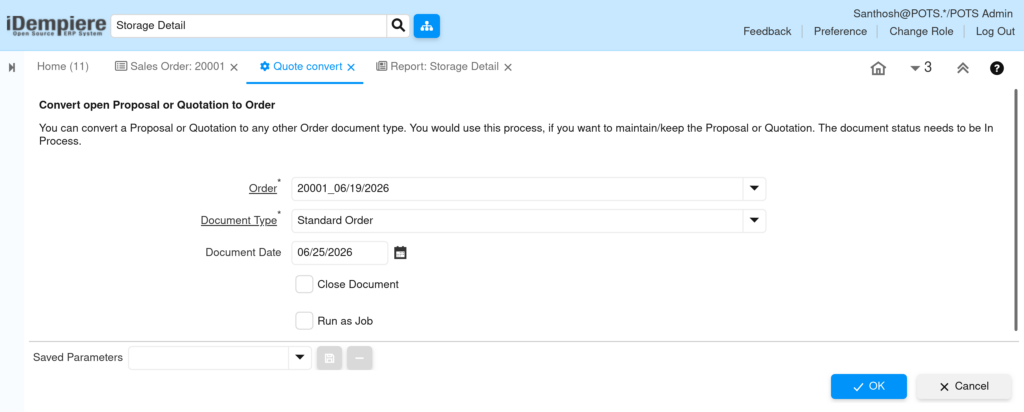
| Note: The document status of the proposal must be only ‘In Process’ before the Quote Convert process can be executed. Drafted proposals cannot be converted. |
Step 5: Complete the Standard Sales Order
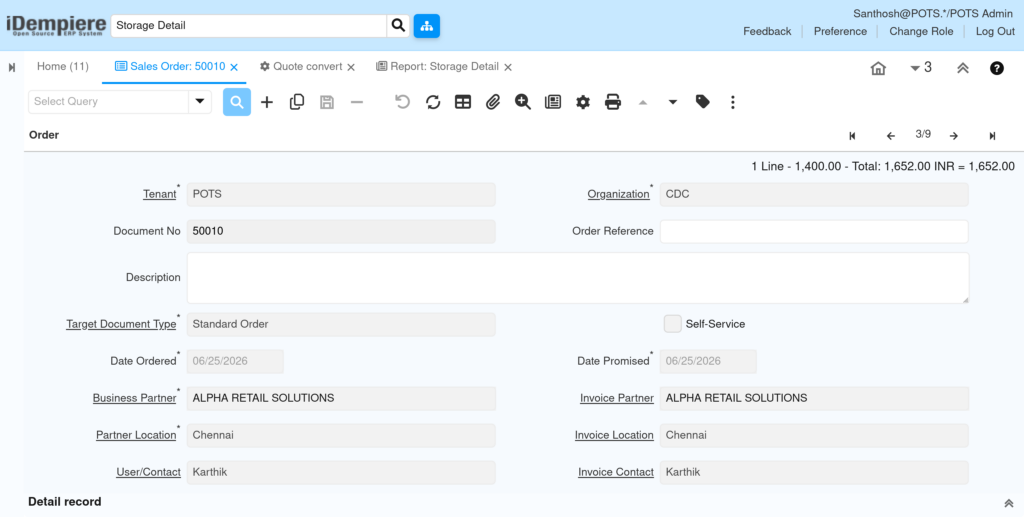
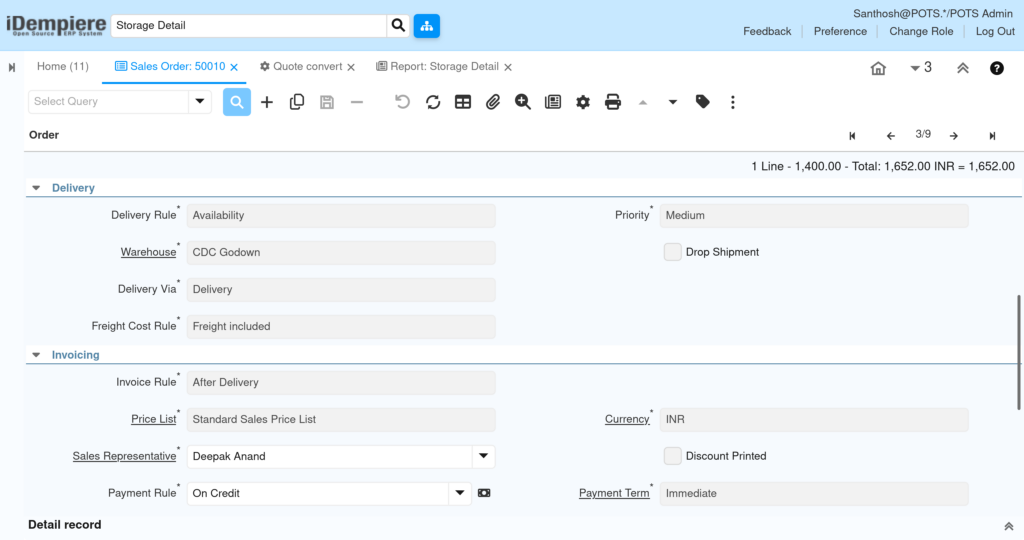
The newly created Standard Order starts in Draft status. Review all details before completing it to trigger inventory reservation and make the order available for shipment and invoicing.
- Open the newly created Standard Sales Order (a new Document No will be assigned).
- Verify all header information: Customer, Warehouse, Price List.
- Verify order lines: Products, Quantities, Prices, and Taxes.
- Click Document Action and select Complete.
- Confirm. Status changes to ‘Completed’ and inventory is reserved.

Common Issues and Resolutions
| Issue | Cause | Resolution |
|---|---|---|
| Original proposal not closing after conversion | ‘Close Document’ checkbox was unchecked | Re-open proposal manually and set Document Action to ‘Close’. |
| Tax not applied on order lines | Tax category not assigned to product | Assign the correct Tax Category (CGST/SGST) to the product in the Product window. |
| Price not populating on order line | Product not added to the selected Price List | Add the product and price to the Standard Sales Price List. |
Next Steps
- Complete the Standard Sales Order to reserve inventory.
- Generate Shipment from the completed Sales Order.
- Complete the Shipment to update stock levels.
- Generate Customer Invoice from the Shipment.
- Complete the Invoice to post Accounts Receivable entries.
- Receive Customer Payment and allocate it against the Invoice.
| Note: Once the proposal is converted and the original is closed, the full order-to-cash cycle continues from the Standard Sales Order through shipment, invoicing, and payment. |