How Does PO, Invoice & Material Receipt Matching works iDempiere Retail
In iDempiere, the matching of a Purchase Order (PO), Material Receipt, and Vendor Invoice is performed automatically by the system there is no manual matching step required. When documents are completed in the correct sequence, iDempiere creates matching records that link all three documents at the line level.
Two types of matching records are generated: a Matched Purchase Order (linking the Material Receipt line to the PO line) and a Matched Invoice (linking the Material Receipt line and Invoice line to the PO line). Both records are created automatically when documents are completed, provided the PO reference is populated on the receipt and invoice lines.
Process Flow
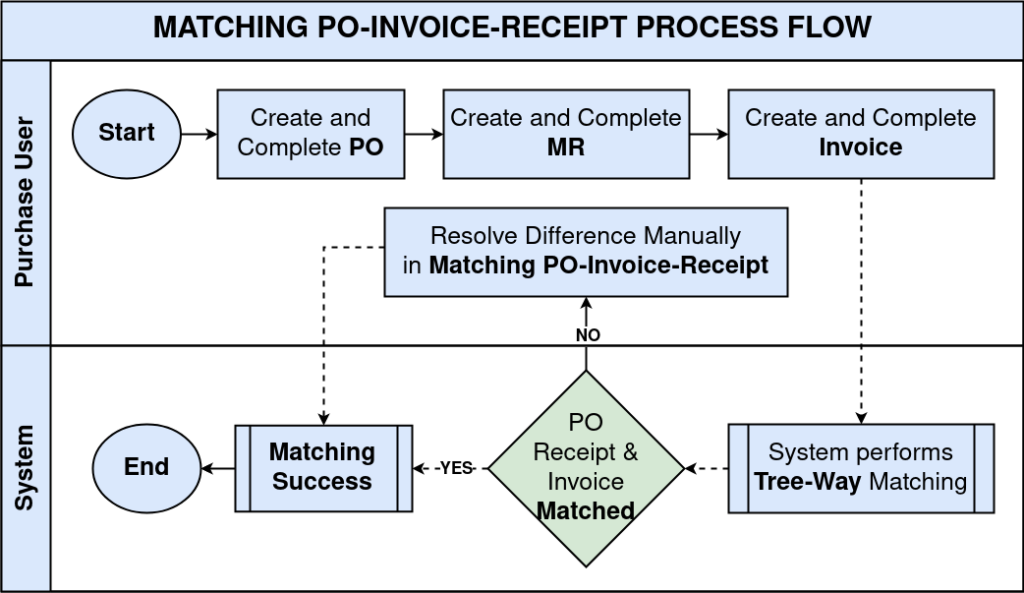
Business Rules
- iDempiere automatically creates a Matched Purchase Order record when a Material Receipt is completed — provided the Receipt Line references a PO Order Line.
- iDempiere automatically creates a Matched Invoice record when a Material Receipt or a Vendor Invoice is completed — provided the PO Order Line field is populated on the respective line.
- When automatic matching is not possible, the Matching PO-Receipt-Invoice window can be used to create matching records manually.
- Matched records are view-only — they cannot be edited after creation.
- Matched records are visible from the Purchase Order window (Matching tab), the Vendor Invoice window (Matched POs and Matched Receipts tabs), and the Material Receipt window (Matched POs and Matched Invoices tabs).
- A single PO line can have multiple matched receipts if goods are received in partial shipments.
- A single receipt line can be matched to multiple invoice lines if the vendor bills partially.
Prerequisites
Ensure the following are in place before expecting automatic matching to occur in iDempiere:
- Purchase Order is created, approved, and in Completed status.
- The PO Line contains the correct product, quantity, and unit price.
- Material Receipt is created with the Order Line field on each receipt line pointing to the originating PO line.
- Vendor Invoice is created with the Order Line field on each invoice line pointing to the originating PO line.
- Both Material Receipt and Vendor Invoice are in Completed status.
Navigation
Matched records can be accessed from three entry points in iDempiere:
| Entry Point | Menu Path | What It Shows |
| Matched PO Window | Menu → Requisition-to-Invoice (Purchasing) → Matched Purchase Orders | All matched PO, Invoice, Receipt pairs across the system |
| PO Window — Matching Tab | Menu → Requisition-to-Invoice (Purchasing) → Purchase Order → open a PO → Matching (Tab) | Receipt lines matched to this specific PO |
| Invoice — Matched POs Tab | Menu → Requisition-to-Invoice (Purchasing) → Purchase Invoice and Credit/Debit Note → open an Invoice → Matched POs (Tab) | PO lines matched to this specific invoice |
| Invoice — Matched Receipts Tab | Menu → Requisition-to-Invoice (Purchasing) → Purchase Invoice and Credit/Debit Note → open an Invoice → Matched Receipts (Tab) | Receipt lines matched to this specific invoice |
| Matching PO-Receipt-Invoice | Menu → Requisition-to-Invoice (Purchasing) → Matching PO-Receipt-Invoice | Manual matching form — used only when auto-match fails |
Step-by-Step: How iDempiere Creates Matching Records
Step 1: Create and Complete the Purchase Order
The Purchase Order is the source document for all matching. Every receipt and invoice line must reference the PO line for automatic matching to work.
- Click New Record (+) and select the Business Partner (vendor).
- Add PO lines with the correct product, quantity, and unit price.
- Set Document Action to Complete and click OK.
- The PO is now in Completed status and ready to receive receipts and invoices.
| Field | Sample Value | Description |
| Document No | PO2026 | System-assigned unique PO reference |
| Business Partner | CHENNAI SUPPLIERS | Vendor supplying the goods |
| Document Status | Completed | PO must be Completed before receipts can reference it |
| Line – Product | SGS25_Samsung Galaxy S25 | Product being procured |
| Line – Qty | 10,000 | Ordered quantity |
| Line – Unit Price | 85,000.00 | Agreed price — used for PPV and IPV calculations |
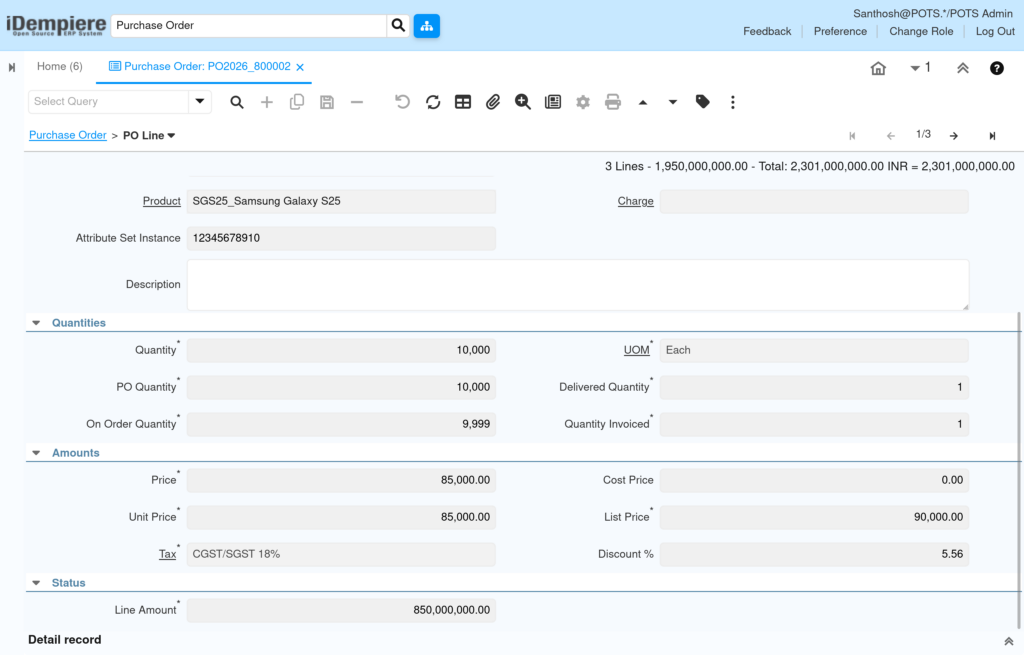
Step 2: Create and Complete the Material Receipt
When creating the Material Receipt, the Order Line field on each receipt line must reference the corresponding PO line. This is the key field that enables automatic matching.
- Click New Record (+) and select the same Business Partner as the PO.
- In the receipt lines, select the product and enter the received quantity.
- In the Order Line field on each receipt line, select the corresponding PO line.
- Set Document Action to Complete and click OK.
| Auto-Match Triggered: On completion, iDempiere automatically creates a Matched Purchase Order record linking this receipt line to the PO line. |
| Field | Sample Value | Description |
| Document No | 1000018 | System-assigned receipt reference |
| Business Partner | CHENNAI SUPPLIERS | Must match the PO vendor |
| Document Status | Completed | Must be Completed for matching to occur |
| Line – Product | SGS25_Samsung Galaxy S25 | Must match the PO line product |
| Line – Qty | 1 | Quantity physically received |
| Line – Order Line | PO2026_800002_06/15/2026_10_850000000 | CRITICAL — links this receipt line to the PO line; required for auto-match |
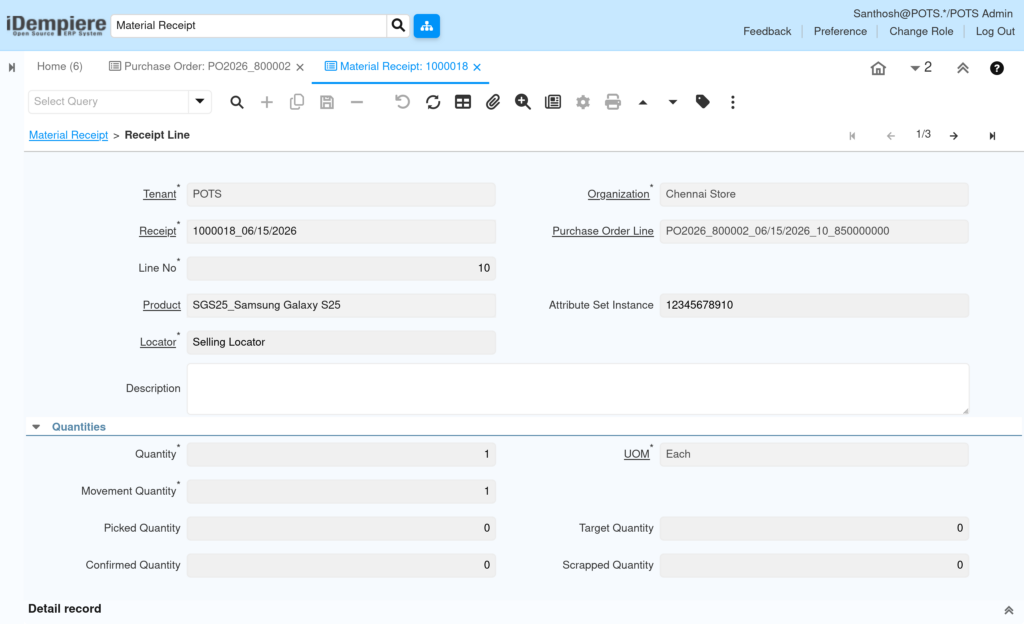
Step 3: Create and Complete the Vendor Invoice
Similar to the receipt, each Vendor Invoice line must reference the PO line in the Order Line field for iDempiere to generate a Matched Invoice record automatically.
- Click New Record (+) and select the Business Partner.
- Enter the Invoice Date and the vendor’s Invoice No.
- Add invoice lines — in the Order Line field on each line, select the corresponding PO line.
- Set Document Action to Complete and click OK.
| Auto-Match Triggered: On completion, iDempiere automatically creates a Matched Invoice record linking this invoice line to the receipt line and the PO line. |
| Field | Sample Value | Description |
| Document No | 1000003 | System-assigned invoice reference |
| Business Partner | CHENNAI SUPPLIERS | Must match the PO and receipt vendor |
| Invoice Date | 06/15/2026 | Date on the vendor’s paper invoice |
| Document Status | Completed | Must be Completed for matching to occur |
| Line – Product | SGS25_Samsung Galaxy S25 | Must match the PO product |
| Line – Qty | 1 | Quantity billed by the vendor |
| Line – Unit Price | 85,000.00 | Vendor’s billed price |
| Line – Order Line | PO2026_800002_06/15/2026_10_850000000 | CRITICAL — links this invoice line to the PO line; required for auto-match |
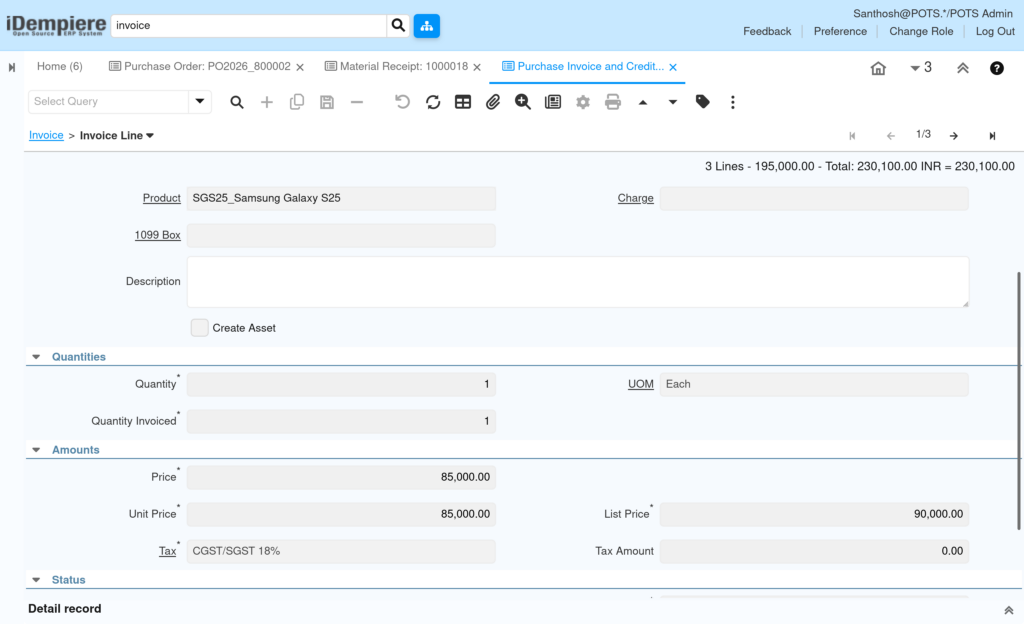
Step 4: View Matched Records on the Purchase Order
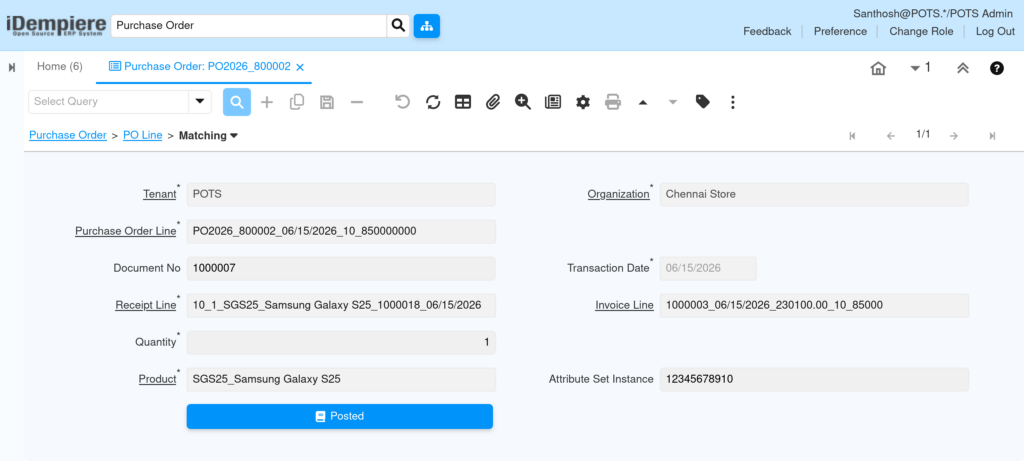
After the Material Receipt is completed, the Matching tab on the Purchase Order displays the matched receipt lines. This confirms that the PO quantity has been updated correctly.
- Search for the PO by document number.
- Click the Matching tab (sub-tab at the bottom of the PO window).
- The tab displays all Material Receipt lines that have been matched to this PO’s lines.
- Verify the Matched Qty matches the received quantity.
| Column | Description |
| PO Line | The Purchase Order line number being matched |
| Receipt Line | The specific receipt line matched to the PO line |
| Product | Product on the matched line |
| Qty | Quantity confirmed as received against this PO line |
| Posted | Indicates whether the matching accounting entry has been posted |
Step 5: View Matched POs and Matched Receipts on the Vendor Invoice
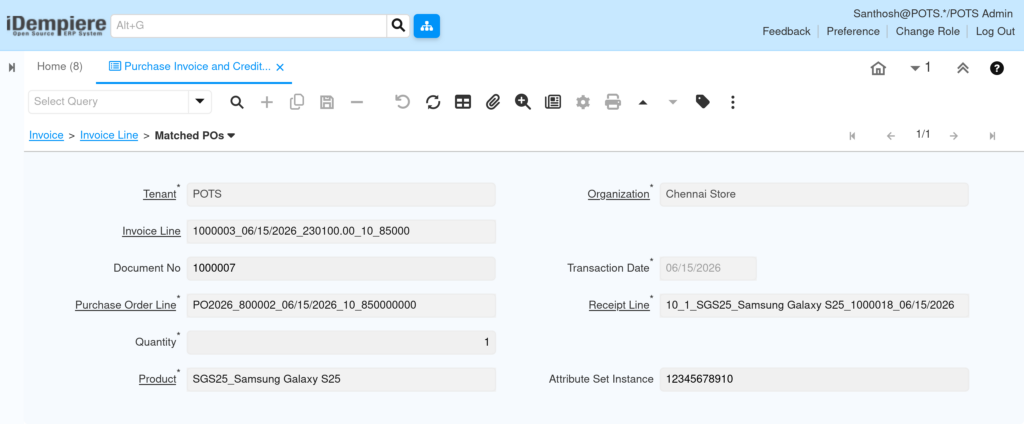
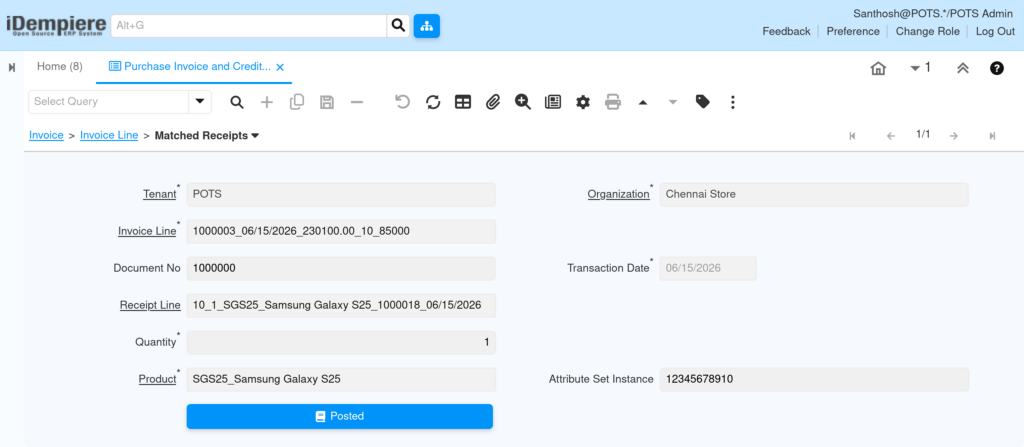
After the Vendor Invoice is completed, two tabs on the Invoice window display the matching results: Matched POs and Matched Receipts. These confirm the three-way link between PO, receipt, and invoice.
- Search for the invoice by document number.
- Click the Matched POs tab to see PO lines linked to this invoice.
- Click the Matched Receipts tab to see receipt lines linked to this invoice.
- Both tabs together confirm the complete three-way match.
Matched POs Tab — Key Fields:
| Column | Description |
| PO Line | Specific PO line matched |
| Product | Matched product |
| Receipt Line | Specific receipt line matched |
| Qty | Quantity confirmed between PO and Invoice |
Matched Receipts Tab — Key Fields:
| Column | Description |
| Receipt | Material Receipt document linked to this invoice line |
| Receipt Line | Specific receipt line matched |
| Product | Matched product |
| Matched Qty | Quantity confirmed between Receipt and Invoice |
| Matched Amount | Value confirmed — used for IPV and NIR posting |
Step 7: Manual Matching via Matching PO-Receipt-Invoice
The Matching PO-Receipt-Invoice window is used only when automatic matching fails — typically because the Order Line field was not populated on the receipt or invoice line at the time of completion.
- Navigate to Menu → Requisition-to-Invoice (Purchasing) → Matching PO-Receipt-Invoice.
- Select the document type to match: Purchase Order, Material Receipt, or Invoice.
- Select the specific document and line to match.
- The system displays eligible lines from the other documents for selection.
- Select the matching lines and click Process to create the matching record.

Common Issues and Resolutions
| Issue | Cause | Resolution |
| Matching tab on PO shows no records | Receipt was not linked to this PO at receipt entry | Check the Material Receipt line — if Order Line is blank, use manual matching window |
| Matched POs tab on Invoice is empty | Invoice was created without that PO reference on the line | Reverse the invoice, re-enter with Order Line populated, then complete |
| Matched Receipts tab on Invoice is empty | Receipt was not matched to this invoice | Verify receipt Order Line field references the same PO; use manual matching if needed |
| Partial match — PO line still shows as open | Vendor has not billed the full PO quantity | Expected behavior for partial invoicing; PO remains open until fully invoiced |
Best Practices
- Create Material Receipts directly from the Purchase Order using the Generate Receipts function to auto-populate the Order Line field.
- Create Vendor Invoices from the Purchase Order or Material Receipt to auto-populate the Order Line and avoid manual entry errors.
- Use the Matched Purchase Orders window weekly to identify any PO lines with missing or incomplete matching records.
- Use the Matching PO-Receipt-Invoice window as an exception tool only not as part of the standard procurement workflow.
Next Steps
After understanding PO–Invoice–Material Receipt matching in iDempiere, proceed with:
- Configure the Payment Selection window to generate vendor payment batches.