How to process Physical Inventory in iDempiere for Retail
Introduction
Physical Inventory in iDempiere is a systematic record of actual stock held in your warehouses and retail locations. It enables you to conduct accurate stock counts, identify discrepancies between system records and physical merchandise, and reconcile inventory to reflect reality.
In retail operations, Physical Inventory is essential for periodic audits, cycle counting, loss detection, and inventory adjustments. Use it to verify that system inventory matches actual stock levels across multiple store locations and warehouses, maintaining accurate financial records and preventing shrinkage.
Business Rules
- Only active Products can be included in a Physical Inventory count. Inactive products are automatically excluded from the inventory count list creation.
- A Physical Inventory record is scoped to a single Warehouse Location. Multi-location counts require separate Physical Inventory records per warehouse.
- Inventory Count Lines reflect the Product, Qty Book (system quantity), Qty Counted (physical count), and automatically calculated Difference (Qty Counted – Qty Book).
- Completed Physical Inventory records automatically generate Inventory Adjustment transactions to reconcile counted quantities with system records and update GL accounts.
- Once a Physical Inventory is Completed, the original record cannot be edited. New counts must be initiated to correct discrepancies or recount products.
- Inventory quantity filtering (zero, positive, negative, or all) controls which products are populated when creating the count list automatically.
- The system automatically compares counted quantity against book quantity to highlight variances requiring investigation and adjustment.
Prerequisites
Ensure the following configurations are completed before creating Physical Inventory records:
- Organization must be created and configured with a Chart of Accounts for GL posting.
- Warehouse Locations (Warehouses and Locators) must be defined and assigned to your Organization.
- Products must be created with active status and assigned to the Organization for inclusion in counts.
- Units of Measure (UOM) must be defined for all products to be counted.
- Accounting Schema must be configured with Inventory posting accounts for GL entries when adjustments are posted.
- Initial product stock quantities must be recorded via receipt or initial inventory transactions for accurate comparisons.
Navigation
Menu → Material Management and Pricing → Product Attributes → Physical InventoryThe Physical Inventory window displays all existing inventory count records, sorted by date. Use the search bar to locate specific counts by date range, warehouse location, or status. Filter by Organization to view counts relevant to your location.

Step-by-Step Configuration
Step 1: Open the Physical Inventory Window
Purpose:
Access the Physical Inventory module to view existing count records and create new ones.
The Physical Inventory window displays a list of all existing count records in your Organization. Each record shows the Movement Date, Warehouse Location, Document Status, and the number of line items. Records available for editing are in Draft or initial status.

Step 2: Create a New Physical Inventory Record
Purpose:
Create a new Physical Inventory header record with warehouse location and counting date information.
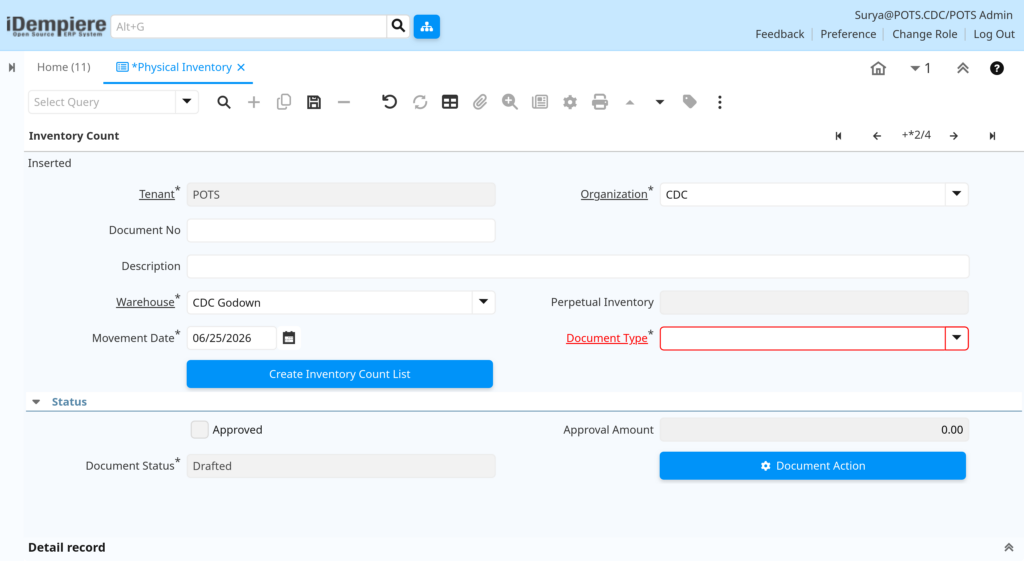
- Click the New Record (+) button at the top of the window.
- The Inventory Count tab opens with a blank form for header entry.
- Fill in the mandatory fields: Organization, Warehouse, and Movement Date.
- Add an optional Description to document the purpose of the count (e.g., ‘Monthly Cycle Count – Store A’).
- Document No. is auto-populated when saved based on Document Sequence configuration.
Field Reference — Inventory Count Header Tab
| Field | Sample Value | Description |
| Organization | Main Store | The business unit conducting the count. Required field. Defaults to logged-in user’s organization. |
| Warehouse | Main Store Warehouse | The warehouse/retail location being counted. Required. Each Physical Inventory counts only one warehouse location. |
| Movement Date | 06/24/2026 | Date when the physical count was performed. Required. Used for audit trail and GL posting date in adjustments. |
| Description | Monthly cycle count – shelf inventory | Optional notes explaining the purpose of the count or special counting instructions. |
| Document No. | PI-2026-001 | System-generated unique identifier. Auto-assigned upon save based on Document Sequence. |
Step 3: Generate Inventory Count Lines Using Create Inventory Count List
Purpose:
Automatically populate the Inventory Count Line tab with products from the selected warehouse, filtered by your criteria.
- Save the Physical Inventory header record first (Alt+S or click disk ioon in the tool bar).
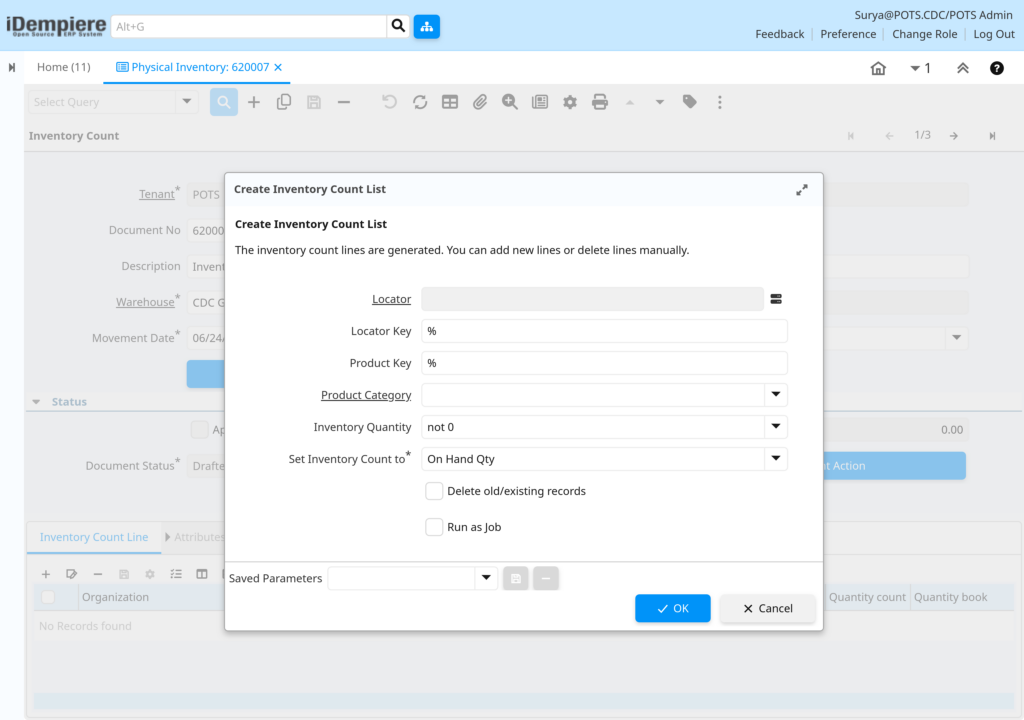
- Click the ‘Create Inventory Count List’ button in the toolbar.
- A dialog window opens with filtering options to control which products are included.
Create Inventory Count List Dialog Parameters
| Field | Sample Value | Description |
| Locator | Shelf B2 (Beverages) | Optional. Specific warehouse storage location (shelf, bin, aisle). Leave blank to include all locators. |
| Locator Key | LOC-BEVI-001 | Optional. Locator reference code for filtering by specific storage areas. |
| Product Key | SKU-2451 | Optional. Specific product code or SKU to count. Leave blank to count all active products. |
| Product Category | Beverages | Optional. Filter products by category (e.g., Beverages, Dairy, Snacks, Personal Care). Leave blank for all categories. |
| Inventory Quantity | not 0 | Dropdown: ‘not 0’ (exclude zero stock), ‘> 0’ (positive only), ‘< 0’ (negative/overstock), ‘= 0’ (zero stock), or blank (all products). |
| Set Inventory Count to | On Hand Qty | Dropdown: ‘On Hand Qty’ (use current system stock) or ‘Zero’ (pre-populate all lines with zero for full recount). |
| Delete old/existing records | Checked | Checkbox. If checked, removes any previously created lines in this Physical Inventory before adding new ones. |
| Run as Job | Unchecked | Checkbox. If checked, processes the line creation as a background job (useful for large product lists). |
Example: Creating a Beverages Category Count for Grocery Store
- Set Product Category to ‘Beverages’.
- Set Inventory Quantity to ‘not 0’ to exclude products with zero stock.
- Set ‘Set Inventory Count to’ to ‘On Hand Qty’ (pre-populate system quantities).
- Leave Product Key blank to include all beverage products in that section.
- Click OK. iDempiere creates inventory lines for all active Beverage products with current shelf stock.
Step 4: Enter Counted Quantities in Inventory Count Line Tab
Purpose:
Record the actual physical quantities counted for each product and compare against system records.
- Navigate to the Inventory Count Line tab below the header.
- For each product line, the Qty Book (system quantity) is displayed in read-only format.
- In the Qty Counted field, enter the actual physical quantity observed in the warehouse for that product.
- System automatically calculates Difference (Qty Counted – Qty Book) as you enter values.
- Positive Difference = Overstock (found more than expected). Negative Difference = Shortage (found less than expected).
- Repeat for each product line. Leave Qty Counted blank for products not counted or not found.
Field Reference — Inventory Count Line Tab
| Field | Sample Value | Description |
| Product | SKU-1001-COKE-1.5L | Product being counted. Only active products appear in lines created by ‘Create Inventory Count List’. Includes product SKU and size. |
| Qty Book | 120 | Read-only. Current system inventory balance for this product. This is your ‘expected’ quantity based on POS sales and receipts. |
| Qty Counted | 115 | Enter the actual quantity physically counted on the shelf and backroom. This is your ‘actual’ quantity. |
| Difference | -5 | Auto-calculated (Qty Counted – Qty Book). Shows variance. Negative = shortage (expiries, damage, misplacement), positive = overstock (receiving error, data entry). |
Sample Inventory Count Lines — FMCG Grocery Store Beverage Audit
| Product Code | Qty Book | Qty Counted | Difference |
| SKU-1001-COKE-1.5L | 120 | 115 | -5 |
| SKU-1002-FANTA-ORANGE | 80 | 80 | 0 |
| SKU-1003-SPRITE-500ML | 100 | 108 | +8 |
| SKU-1004-WATER-PURIFIED | 60 | 65 | -5 |
In this example, the Grocery Store beverage section audit reveals four products with variances. SKU-1001 (Coca-Cola 1.5L) shows a shortage of 5 units (-5), possibly due to expiry dating and removal from shelf, or customer theft. SKU-1002 (Fanta Orange) matches perfectly (0 difference), indicating accurate inventory. SKU-1003 (Sprite 500ML) shows overstock of 8 units (+8), suggesting a receiving transaction was entered incorrectly or cases were miscounted during stocking. SKU-1004 (Purified Water) shows shortage of 5 units (-5), likely due to high-velocity sales not yet synced from POS or damaged cases removed. These variances are flagged for investigation: check expiry dates, verify recent POS receipts, and investigate receiving accuracy.

Step 5: Save the Physical Inventory Record
Purpose:
Persist all count data and line information to the database for processing and audit trail.
- Click Save (disk icon) or press Alt+S to save the Physical Inventory record.
- iDempiere validates that mandatory header fields are complete and at least one inventory line exists.
- If validation passes, the record status remains in Draft mode. If validation fails, error messages indicate required corrections.
- Document Number is auto-assigned during save based on Document Sequence configuration (e.g., PI-2026-001).
Step 6: Review and Complete the Physical Inventory
Purpose:
Finalize the count and trigger automatic generation of Inventory Adjustments to reconcile systemstock with counted quantities.
- Review the Inventory Count Line tab to verify all Qty Counted entries are accurate.
- Check the Difference column to identify products with variances for investigation (shrinkage, theft, or data entry errors).
- Make any corrections to Qty Counted values if recounting is needed, then Save again.
- When all counts are verified, click Complete (or Process) button to finalize the Physical Inventory.
- System automatically creates Inventory Adjustment transactions for each line with a non-zero Difference.
- Inventory balances in the warehouse are immediately updated, and GL entries are posted to Inventory and Loss/Gain accounts per Accounting Schema.
- Physical Inventory status changes to Completed. The original record becomes read-only for audit trail purposes.
Additional: Attributes Tab (Auto-Populated)
The Attributes tab is automatically populated after the Physical Inventory is Completed. This tab stores product instance attribute information for items with attribute sets (variants like size, color, batch number). This is typically used for audit purposes and reconciliation of detailed inventory by attributes.
Configuration Summary
| Configuration Item | Type | Purpose |
| Physical Inventory Header | Header Record | Record warehouse location, counting date, and document reference |
| Inventory Count List | Auto-Population | Filter and create inventory lines based on warehouse location, category, and quantity criteria |
| Inventory Count Lines | Detail Lines | Record each product’s system quantity and physical count for comparison |
| Qty Difference | Auto-Calculated | Identify variances (shortage or overstock) requiring investigation |
| Inventory Adjustment | System Generated | Auto-create adjustment transactions when Physical Inventory is Completed |
| GL Posting | Automatic | Post inventory adjustments to GL accounts per Accounting Schema configuration |
Business Flow Overview
Physical Inventory Header Created
↓
Inventory Count Lines Generated/Created
↓
Physical Count Recorded (Qty Counted Entered)
↓
System Compares Qty Counted vs Qty Book
↓
Physical Inventory Completed
↓
Inventory Adjustments Auto-Generated
↓
Warehouse Stock Updated & GL Entries Posted
Business Flow Steps:
- Warehouse manager initiates a Physical Inventory record, specifying warehouse location and counting date.
- Manager clicks ‘Create Inventory Count List’ to populate active products from the warehouse with current system quantities.
- Warehouse staff physically count merchandise using barcode scanners, counting sheets, or manual methods.
- Counted quantities (Qty Counted) are entered into inventory lines for each product.
- System automatically calculates Difference (Qty Counted – Qty Book) for each product.
- Discrepancies are reviewed; supervisor approves or requests recounts for items with large variances.
- Physical Inventory is marked Complete. System auto-generates Inventory Adjustments for all products with non-zero differences.
- Adjustments update warehouse inventory balances and post GL entries to Inventory accounts per Accounting Schema.
- Financial reports and inventory valuations are updated to reflect accurate stock levels.
Common Issues and Resolutions
| Issue | Cause | Resolution |
| No products appear in Create Inventory Count List | Products are inactive or warehouse has no stock | Verify Products are Active. Confirm initial stock exists in warehouse. |
| Cannot Complete Physical Inventory | Mandatory fields missing or zero inventory lines | Ensure Organization, Warehouse, Movement Date are filled. Verify at least one inventory line exists with Qty Counted. |
| Inventory Adjustments not created after Complete | All products have zero Difference (Qty Counted = Qty Book) or GL accounts not configured | This is normal if counts match perfectly. If differences exist, verify Accounting Schema GL account configuration. |
| Create Inventory Count List runs very slowly | Large number of products or warehouse has many items in stock | Use Product Category filter to count in batches. Check ‘Run as Job’ option to process in background. |
| Document Number not auto-assigned during save | Document Sequence not configured for Physical Inventory | Configure Document Sequence in ‘Maintain Sequence’ window with name pattern for Physical Inventory. |